Drivers.com

follow us:

facebook twitter
  • Home
  • Download Drivers
  • Drivers Help
  • PC/Mac Resources
  • Software Drivers
  • Mac Fixes and Tips
  • PC Fix Tips
  • Security/ Backup
  • Tablets & Smartphones
  • Tech News
  • Software Drivers
  • Mac Fixes and Tips
  • PC Fix Tips
  • Security/ Backup
  • Tablets & Smartphones
  • Tech News

How to organise photos using Photo Stream

By DriversExpert on September 22, 2015

Photo Stream: Important things to remember

Currently iCloud only allows to sort photos as per upload date. It does not support using a folder system, so you need to use picture tags and titles to organize photos while storing them on devices. Photo Stream only syncs photos across devices, not folders on your devices.

Different ways to organize photos on iPad

Importing and arranging photos in an Album

The photos that are imported through Photo Stream are sorted in different folders on your iPad. Within the library the photos are divided into Places, People, Events, and Faces. Events hold every collection you have imported or made. Photos displays a thumbnail view of every photo in the collection while Places and Faces collect images that are geotagged and run under iPad’s facial recognition feature.

Flagging

Flagging photos ensure that the photos you want to edit do not get lost in your collection.

It is quite easy to flag a photo. Open the photo in your iPhoto app and tap on the flag that appears on the photo. The photos which are flagged are listed under Recent.

Using the keyword

Tagging your photos with a keyword is a great idea. It is similar to labeling a photo or a group of photos. However, photos that are synchronized by photo stream automatically get tagged “Photo Stream:“. The photos synced through Photo Stream also have other attributes such as ratings. You can use this information to find photos in the photo library on your iPad.

Create Albums

You can create Albums to save photos related to an event or group photos as per keyword or tags.

  1. Tap on Photo App icon
  2. Tap on Albums at the top of the interface
  3. Enter the name you want to use for the album (choose wisely as this can greatly help when searching for photos) and tap Save button
  4. Tap Photo Stream at the top of the interface to view your photos collection
  5. Tap on all photos that you want to add to the Album. A blue circle with check mark appears on the photos that are selected.
  6. The photos are now added to the newly created Album. You can see the Album and the photos in the Album view of iPhoto app.

A good system of photo organization is essential in order to manage multiple photos on multiple devices. Tagging, flagging and sorting photos as you create/ edit or import them can save a lot of time at a later date.


Filed Under: Tablets & Smartphones Tagged With: photos, photostream, tablet-smartphones

Technology Cartoons

By DriversExpert on July 25, 2015

Technology Cartoons

If you would like to link to or use any of the cartoons below, please feel free to do so. We just ask that you link to the URL provided and reference Drivers.com in the text.


Cartoon subject: Windows Shopping!

Page link: www.drivers.com/update/tech-news/windows-10-stopping-forced-updates/

windows shopping


Cartoon subject: How to catch a computer virus

Page link: www.drivers.com/update/security-backup/top-5-computer-virus-risks/

computer virus cartoon


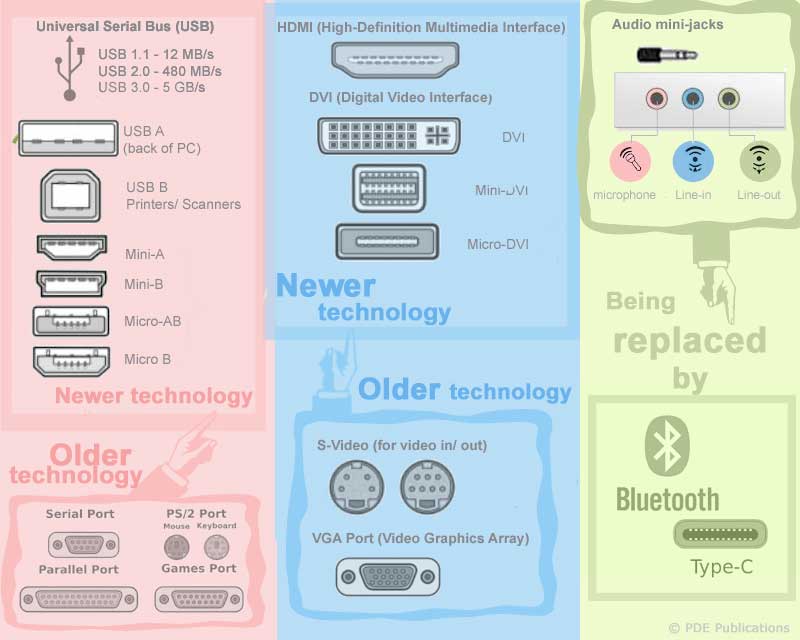
Cartoon subject: PC ports infographic

Page link: www.drivers.com/update/pc-fix-tips/what-are-pc-ports/

pc ports infographic


Cartoon subject: Problems with a slow PC?

Page link: www.drivers.com/update/pc-fix-tips/10-tips-to-a-faster-pc/

speed up slow PC


Cartoon subject: Spring clean your PC

Page link: www.drivers.com/update/pc-fix-tips/slow-computer-steps-clean-pc/


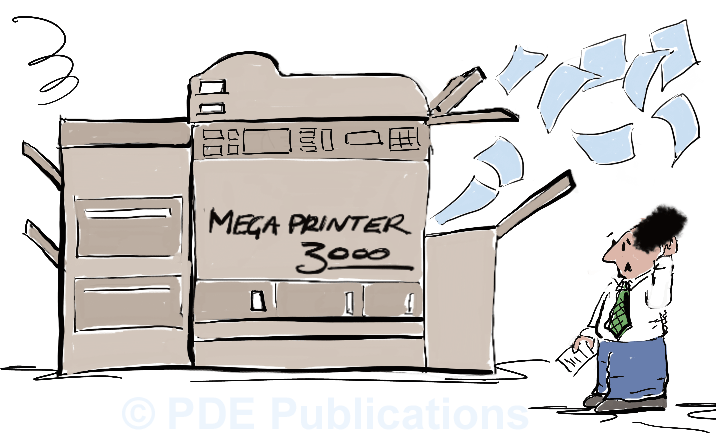
Cartoon subject: Choosing a new printer

Page link: www.drivers.com/update/pc-fix-tips/choose-new-printer-4-steps/


printer help


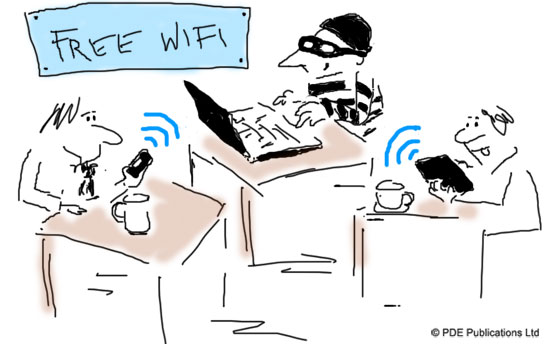
Cartoon subject: Public WiFi security

Page link: www.drivers.com/update/security-backup/public-wifi-security/

free wifi not secure


Cartoon subject: Email phishing scams

Page link: www.drivers.com/update/security-backup/tips-avoid-email-phishing-scams/

avoid phishing email


Cartoon subject: Cloud storage

Page link: www.drivers.com/update/security-backup/what-cloud-storage-should-i-use-it/

security cloud computing


Cartoon subject: Slow mac

Page link: www.drivers.com/update/mac-fix-tips/speed-protect-mac/

fix slow mac


Cartoon subject: BSOD

Page link: www.drivers.com/update/drivers-news/fix-ialmdev5-dll-blue-screen/blue screen of death

Filed Under: Tech News Tagged With: cartoons, illustrations

HP Laserjet 1020 Driver

By DriversExpert on May 18, 2015

If you are experiencing problems with your HP Laserjet 1020 Printer, then the problem may be with your printer Drivers. It is important to rule out any obvious problems first:

Ensure that your HP Printer is set up correctly

These hardware checks may seem obvious but they are important and a surprising number of problems are simply down to loose power cables or incorrectly loaded paper trays. Check all your HP Laserjet hardware before proceeding, if you are having problems with the Printer not turning on, make sure the problem is not with your power outlet or power cable.

HP Laserjet 1020 Driver errors

If the problem you are experiencing is with your printer communicating with the computer, then the issue is likely to be a Laserjet Drivers issue. Common symptoms of Printer Drivers errors are:

  • errors mentioning spoolsv.exe
  • my HP Laserjet 1020 won’t print
  • pages are printing erratically or very slowly
  • computer crashes when I try to print to my HP Laserjet 1020 printer

The above are some of the most common errors we come across with Laserjet 1020 printers, they are often, but not always caused by missing, corrupt or out-of-date Printer Drivers.

What causes Laserjet 1020 Driver errors?

Driver errors are often caused when upgrading to a new Operating System as the Drivers for HP Laserjet 1020 on Windows XP, are going to be different to those required for Windows 7.

Drivers can also become corrupted or outdated so it is always good to check for Driver updates.

It is also possible that other software programs can cause problems with your Printer Drivers. If you recently downloaded or installed a software program, and the printer was working fine beforehand, then this is likely to be the problem.

Similarly, if you have not updated your Laserjet Printer Drivers in a while, they may need to be updated as Driver updates are regularly release, some being more essential than others.

How can I fix HP Laserjet 1020 Driver errors?

You can do this by either going to the manufacturers website and searching for the required Drivers, or you can use a driver update tool to automate this process for you.

For more general HP Printer Problems 

HP Printer Driver fixes

Filed Under: Software Drivers Tagged With: hp, laserjet

  • « Previous Page
  • 1
  • 2
  • 3
  • 4
  • …
  • 22
  • Next Page »


  • Recent Posts
  • Popular Posts
        

Read More Posts


Read More Posts

Drivers.com Sites

  • Software Drivers
  • Drivers Ed

About Us

  • Advertise
  • About Drivers
  • Drivers Support
  • Drivers.com Privacy Policy
  • Disclaimer
  • Software Drivers
  • Mac Fixes and Tips
  • PC Fix Tips
  • Security/ Backup
  • Tablets & Smartphones
  • Tech News

© Copyright 2026 PDE Publications Ltd. End User License Agreement (EULA)