Drivers.com

follow us:

facebook twitter
  • Home
  • Download Drivers
  • Drivers Help
  • PC/Mac Resources
  • Software Drivers
  • Mac Fixes and Tips
  • PC Fix Tips
  • Security/ Backup
  • Tablets & Smartphones
  • Tech News
  • Software Drivers
  • Mac Fixes and Tips
  • PC Fix Tips
  • Security/ Backup
  • Tablets & Smartphones
  • Tech News

How to get Epson printer online?

By Sushant Mehta on May 8, 2017

How to get Epson printer online?

Last updated: May 15, 2024

How do I get my Epson Printer back online?

One of the more common problems faced by Epson printer users is the computer showing the Printer Offline when it is actually on and ready to print. When your Printer shows ‘Offline’, it generally indicates it cannot communicate with the computer. If you are facing a similar problem with your Epson printer, here are some quick solutions to resolve the issue.

Step 1 – Check the connections to your Epson printer

While it may be tempting to start with troubleshooting steps right away, it is not always the right thing to do. It is so obvious that people often overlook this as the first step in troubleshooting any printer issue.

If your printer is showing as offline there is a problem with communication with the computer. The main cause of this problem is a problem with the physical connection such as the cables in the case of a wired connection. One of the most common causes of a Printer Offline error is a loose connection.

For this reason, you should check the USB cable is seated at both ends firmly. If you have an additional USB cable, try replacing it and see if the error is resolved, this will rule out issues with the cable itself. If you can determine there is no problem with the connection, follow the troubleshooting steps set out below.

Step 2 – Set the Epson printer to “Online” manually

Troubleshooting Printer Offline for Windows 7:

  1. Click the Start icon on the bottom left of the screen
  2. Select Control Panel and then Devices and Printers

Troubleshooting Epson Printer Offline for Windows 8.1 and Windows 10:

why is my epson printer not printing
  1. Go to Start > Settings > Devices > Printers and Scanners
  2. Right-click on the Epson printer in the list and select See what’s printing
  3. When a window pops up, select Printer from the bar at the top
  4. From the drop-down menu, select Use Printer online

Step 3- Cancel all pending printing jobs

  1. Right-click on the Epson printer in the list and select See what’s printing
  2. Right-click and select Cancel to remove any print jobs present
  3. Select Use Printer online again
  4. If the error is not resolved, restart the Epson printer and computer again

Step 4- Reinstall Epson Printer

  1. Go to Start > Settings > Devices > Printers and Scanners
  2. Select Epson Printer from list and then select Remove Device
  3. Go to the Epson website and download the latest printer drivers for your Epson printer model
  4. Reinstall the Printer

You can read more information on how to use a Driver Update Tool to automate the Epson Driver Updates.

Automatic driver update tools offer many benefits, the most important ones being:

  • You can update device drivers automatically
  • The software scans and updates all outdated or missing drivers at one go
  • The tool picks the right drivers for your device and operating system, so you won’t have to worry about installing an incorrect driver by mistake
  • Automatic driver updates are 100% safe

Driver Updater is one of the best driver update tools out there. Outbyte Driver Updater will give you access to a database of over 1 million drivers. It will regularly scan your PC, suggesting new driver versions to install. Driver Updater contains drivers for a variety of Windows devices. With just one click, you can update drivers in your system.

Step 1
Click here to Install and launch the app

Step 2
Scan all devices

Step 3
Install or update drivers automatically


Start Download


Click here to go to the Epson Website.

If reinstalling the Printer does not help, you need to remove all Printer Driver and packages following the steps outlined below (ensure you take a full backup before removing or updating any Drivers):

Step 5- Remove all printer drivers and packages

  1. Log into user account with Admin privileges
  2. Go to Start  > All Programs > Accessories > Command Prompt
  3. In the command prompt window, type printui /s /t2. Don’t forget the spaces in the command. This will open the Print Properties window
  4. Remove the Driver and Package for your printer in the list
  5. Reinstall the Printer using the Add a Printer option
Troubleshooting EPSON printer problems in Windows 10
How to get Epson printer online?

Filed Under: Software Drivers Tagged With: epson, printer

Xbox blinking red – What does it mean?

By Sushant Mehta on May 3, 2017

Xbox blinking red – What does it mean?

Sometimes the flashing lights on your Xbox indicate a specific problem with the device and in order to fix the problem you need to understand what the cause is. When the Xbox lights are blinking red- what does this mean?

How to connect an Xbox One Wireless Controller to a Windows PC

One flashing Red light on Xbox – What does this mean?

There are 4 Red lights on your Xbox console.  If any one of these red lights is flashing, it means there is a problem with your Xbox.  Generally, the red flashing light is also accompanied by some error such as E74 error, another code error or no picture displayed.

Xbox E74 error

If you are seeing an E74 error, it means there is some major problem with your Xbox and you need to take it to an authorized service center.

Steps to resolve other code errors

If you are experiencing another code error such as errors E66, E67, E68, E69, or E70, it could indicate a problem with your power supply cord. Here are troubleshooting steps to follow:

  1. Turn off your Xbox console
  2. Disconnect the power cord from the back of the console. Unplug the power cord from the power supply unit and also from the wall outlet
  3. Reconnect all three connections securely
  4. Switch on the Xbox console again
  5. If the problem is resolved, you will see a green light blinking

If you are not seeing a picture on the screen, follow the further troubleshooting steps below.

Three Flashing Red lights – What to do?

If you see three flashing red lights, it indicates the console or the power supply has a hardware problem.  You need to find out whether the problem is with the Xbox console or power supply of the console.

If you see a green light on your power supply after switching on the console, the problem is due to hardware issue with the Xbox console

Four Flashing Red lights – What to do?

If you see four flashing red lights, you need to ensure the A/V cable is connected to the A/V port of the console.

Light in center of Xbox 360 console power button blinking red

If you see a blinking red light at the center of the Xbox console, it generally means the console is heating up and there is no proper ventilation. In this case, the red light will continue to blink until the console cools down.  To resolve the issue, switch off the console and move it to an area where there is proper ventilation. You may also need to clear any dust or blockages from the vents.

Solution to Xbox One Controller Driver update failed issue

Filed Under: PC Fix Tips Tagged With: error, gaming, xbox

3 Android phones with largest screens

By Sushant Mehta on April 28, 2017

3 Android phones with largest screens

When it comes to smartphones, many feel the bigger the screen, the better it is.  A phone with a larger screen might be a good replacement for laptop as it allows more text to be displayed. A big screen is also a great advantage for watching movies.  Let’s take a look at top 3 Android phones with large screens.

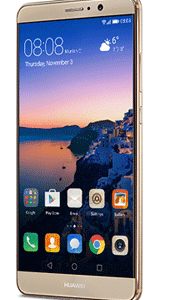
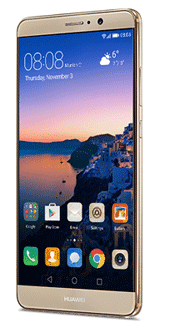
  1. Huawei Mate 9huawei screen size

The Huawei Mate 9 features 5.9 inches of screen but has body dimensions equivalent to the Nexus 6P, having a 5.7 inch screen.  The company has done a great job to fit a 5.9 inches screen without increasing the body size. Besides a large screen, the Mate 9 has several other impressive features.

The screen comes with the protection of Corning Gorilla Glass 3. The resolution of the screen is 1080 x 1920 pixels and the pixel density of the screen is around 373 ppi.  The Mate 9 is powered by an Octa-core processor, Mali-G71 GPU, and 4GB RAM.  The primary camera has a 20MP resolution while the front camera is an 8MP selfie shooter.

The phone offers 64 GB of internal storage space and also supports micro-SD card up to 256GB.  .  The rear cameras in Mate 9 have 20MP and 12MP respectively while the front camera has 8MP resolution. The Mate 9 features Android latest Nougat OS.

  1. LG V20

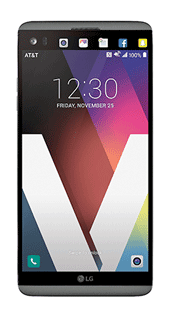
    LG V20 screen size

The screen size of the LG V20 is around 5.7 inches, protected by Corning Gorilla Glass 4.

Despite having a smaller screen than the Mate 9, it offers a higher screen resolution at 1440 x 2560 pixels and has 513 ppi pixel density.

The V20 features a Snapdragon chipset 820 fitted with a quad-core processor, Adreno 530 GPU and 4GB RAM.

It has two variants offering 32GB and 64GB internal storage space.

It also supports micro-SD card up to 256GB.

The phone runs Android 7.0 Nougat OS.  The LG V20 has a dual 16MP camera with LED flash and laser auto focus.

The front camera has a 5MP resolution.

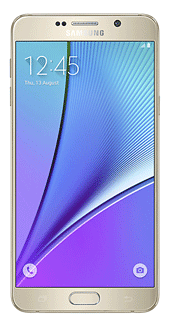
  1. Samsung Galaxy Note 5samsung note 5 screen size

The Note 5 features a Super AMOLED screen measuring 5.7 inches.  The resolution of the screen is 1440 x 2560 pixels equivalent to LG’s V20, but the pixel density is slightly higher at 518 ppi.

The phone features Exynos 7420 Octa chipset fitted with Octa-core processor, Mali Mali-T760MP, and 4GB RAM.  It has three variants having 32/64/128 GB internal storage space.

The phone does not have a micro-SD card slot.   The primary camera has 16MP resolution while the front camera has a 5MP resolution.

The phone runs Android 5.1 Lollipop OS which can be upgraded to Android 6.1 Marshmallow.

Filed Under: Tablets & Smartphones Tagged With: android phones with big screen

  • « Previous Page
  • 1
  • …
  • 13
  • 14
  • 15
  • 16
  • 17
  • …
  • 88
  • Next Page »


  • Recent Posts
  • Popular Posts
        

Read More Posts


Read More Posts

Drivers.com Sites

  • Software Drivers
  • Drivers Ed

About Us

  • Advertise
  • About Drivers
  • Drivers Support
  • Drivers.com Privacy Policy
  • Disclaimer
  • Software Drivers
  • Mac Fixes and Tips
  • PC Fix Tips
  • Security/ Backup
  • Tablets & Smartphones
  • Tech News

© Copyright 2026 PDE Publications Ltd. End User License Agreement (EULA)