Drivers.com

follow us:

facebook twitter
  • Home
  • Download Drivers
  • Drivers Help
  • PC/Mac Resources
  • Software Drivers
  • Mac Fixes and Tips
  • PC Fix Tips
  • Security/ Backup
  • Tablets & Smartphones
  • Tech News
  • Software Drivers
  • Mac Fixes and Tips
  • PC Fix Tips
  • Security/ Backup
  • Tablets & Smartphones
  • Tech News

The most important announcements at Google I/O 2017

By Sushant Mehta on June 11, 2017

Google I/O is a major event for Android fans, developers, and indeed all techies. So we have put together some of the more important announcements that made Google I/O 2017 very interesting…

Android O Preview released

The wait for Android O is almost over for Pixel and Nexus devices at least. Google released the Android O Preview, and Pixels and Nexus Devices owners can download it from this link.

Android O brings in a few changes like Fluid Experiences that is well worth looking at. It is designed to make the user more productive by presenting multi-tasking tools for everyday use. Android O is expected to bring the much awaited AI to the phone platform in the form of Tensor Form Lite which is Google’s machine learning tool.

The new framework allows developers to keep AI components on the device and provide hardware to accelerate neural network features. Other important features in Android O are:

  • Picture-in-Picture
  • Smart Text Selection
  • Notification Dots
  • Autofills and
  • Vitals

Google Lens Unveiled                                                                      

Google announced a new technology that makes good use of your Phone’s inbuilt camera. Known as Google Lens, it is a set of vision based computing capabilities that helps you understand what you are seeing. For example, if you point your phone to restaurants while using location data, Google Lens will fetch you important information about restaurants such as reviews and ratings. If your phone camera is pointing towards a flower, Google lens will provide you with details on that specific type of flower.

Google Assistant now available for Phone

You must have heard about Siri in iPhones, a virtual assistant that simplifies your tasks while using the iPhone. Based along similar lines, Google Assistant is finally available for Phone users. Launched in 2016, Google assistant was only available for Nougat and Google home devices. Google has released Google Assistant SDK for manufacturers and Developers and they can now build Google assistant for any device

Standalone Daydream VR Headsets

One of the biggest announcements made by Google at I/O 2017 is about its teaming up with Qualcomm to build standalone VR headsets with components built specifically for VR. The new VR headset will function as an independent device and you don’t need to dock it to your phone.

The head mounted display will also include a processor and Google VPS (visual positioning service) that will help you find specific objects in the real world using key visual feature points.

Google made several important announcements about Google Home, Android Go, Photos and other Google products. The Google I/O 2017 gave new hope and inspiration to the developers to work in a new direction.

Filed Under: Tech News Tagged With: android, android O, google, nougat

Cost of Upgrading From Windows 10 S to Windows 10 Pro

By Sushant Mehta on June 9, 2017

Cost of Upgrading From Windows 10 S to Windows 10 Pro

There has been much confusion among Windows users about Windows 10 S and upgrading to Windows 10 Pro. Before we look into this in details, let’s get a clear idea about Windows 10 S.

What is Windows 10 S?

Windows 10 S is a lightweight operating system that is specially designed for students and the teaching community. Other Windows versions such as Windows 10 Pro and Windows 10 Ultimate are targeted at the IT and programmer community, where there is greater need for a performance-oriented Windows system.

Windows 10 S was designed for two hardware systems, a sub-$300 clamshell notebook specially designed for students and the Surface laptop priced at $999. The Surface laptop is directly in competition with MacBook Air which is used by many people working in higher education institutions.

The Windows 10 S is termed as lightweight as it is less processor-intensive and fewer programs run in the background. If you are in a school or college, the Windows 10 S might be a perfect system for you providing all necessary features for work at school. If you are not in the field of education, you might want to upgrade to a powerful Windows 10 version, the Professional edition. But upgrading from Windows 10 S to Windows 10 Pro might not be free.

One of the reasons for Windows 10 S users wanting to upgrade is the limiting nature of this Operating System. Windows 10 S users are able to download apps only from the Windows store. The Windows 10 S devices have additional security in place which prevents the users from downloading apps from the Web using Chrome or any browser.

When you try to download an app from the Internet, the operating system pops up a warning that the app you are downloading is forbidden and gives you alternatives available in the Windows app store. You get an option below which asks whether you want to run apps available outside the Windows Store. If you click Yes, you are then presented an option to upgrade to Windows 10 Pro.

Upgrading from Windows 10 S to Windows 10 Pro

You can upgrade from Windows 10 S to Windows 10 Pro via the Windows Store. As mentioned earlier, when you try downloading the app from the Web, you are presented with a link to upgrade. You can also find the upgrade link in the Windows Store.

If you are unable to find the upgrade link in the Windows Store, just type “upgrade” in the Windows 10 Search Box and you will get the link. Upgrading from Windows 10 S to Windows 10 Pro is hassle-free and all your files and apps remain as they are. However, to be on safe side, it is always good to backup important documents before proceeding with any upgrade.

You’ll lose freebies when you upgrade from Windows 10 S to Windows 10 Pro

The Windows software licensing issues are not overly problematic for users. For example, if you have a licensed copy of MS-Office it will continue to work even with a newer version of Windows. However, things got messy with the Windows 10 upgrade.

Windows 10 S can be either purchased through educational institutions or directly from a Microsoft retailer. If you have joined your Windows 10 S device with an educational domain you are entitled to additional freebies like Microsoft Office 365 for Education with Microsoft Teams and a one-year subscription to Minecraft: Education Edition. These freebies will no longer be available if you upgrade to Windows 10 Pro or you might have to shell out additional money to keep these freebies if you wish to do so.

What will you have to pay?

If you have purchased the Windows 10 S device from a Microsoft retailer and have not joined any educational domain, the upgrade to Windows 10 Pro will cost you $49 or less. There is also a temporary offer for the consumer whose devices are priced at $799 or more. Such Windows 10 S device owners can upgrade for free and they will also get a free Office 365 personal subscription.

Currently, the Surface device from Microsoft meets the requirements for a free Windows 10 Pro upgrade. However, there is one condition to this offer. The free Windows 10 S to Windows 10 Pro upgrade offer is only available until Dec 31, 2017.

If you own a Windows 10 S device that was linked to some educational domain, you can upgrade to Windows 10 Pro for free but you will lose the Office 365 for Education subscription. Microsoft has not made it clear whether other Windows 10 S device owners will get the Office 365 for Education that is provided to Surface device owners.

Remember, Windows 10 S is designed for low-cost hardware. The Windows 10 S device is perfect for students who are more worried about manageability and less about performance. It is doubtful whether the Windows 10 S device will provide enough power and performance to students who want their Windows machines to serve as gaming machines.

If you are a student and want to use the Windows 10 S device for educational purposes only, you can pre-order the device and then upgrade to Windows 10 Pro for free. However, do bear in mind that you need to do the upgrade before 31st Dec 2017.

Filed Under: Tech News Tagged With: educational, upgrade, Windows 10

What to do when Canon printer is not responding?

By Sushant Mehta on June 6, 2017

What to do when Canon printer is not responding?

There are several reasons for your Canon printer not responding. These reasons can vary from something as simple as a loose connection, to the printer not being switched on (it happens!) or the printer not being connected to the network.

These are just a selection of the more common reasons for your Canon printer not responding, there are of course many other possibilities, which are discussed in the article below.  If you are using a wireless Canon printer, connection problems can also happen if the printer is not able to detect the correct network before printing.

If your Canon printer is not responding, here are some troubleshooting methods to follow:

Wireless Canon printer not printing

In most cases (with wireless printers), the communication issue is the reason behind the Canon printer not responding.  Below are troubleshooting steps you should follow in these circumstances:

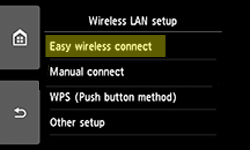
canon wireless lan easy setup
  1. Press the Setup button on the printer
  2. Go to Wireless LAN setup and then Press OK
  3. Select Easy Setup and Press OK
  4. Select Access Point
  5. Type WiFi password
  6. Press OK
  7. Insert the Setup disk in computer
  8. Run the setup program to install the printer again
  9. Click Easy Install > Install
  10. On the new page, click Printer on Network
  11. Click Next to begin installation
  12. After the installation is completed, try printing

If the above solution does not work, use the print troubleshooter option.

Method 1- Using the Print troubleshooter

  1. Click Start button
  2. Click Control Panel
  3. In the search box, type troubleshooter
  4. Select Troubleshooting from the list
  5. Under the Hardware and Sound option, click Printer
  6. Click Next
  7. Select the Canon printer from the list
  8. Click Next

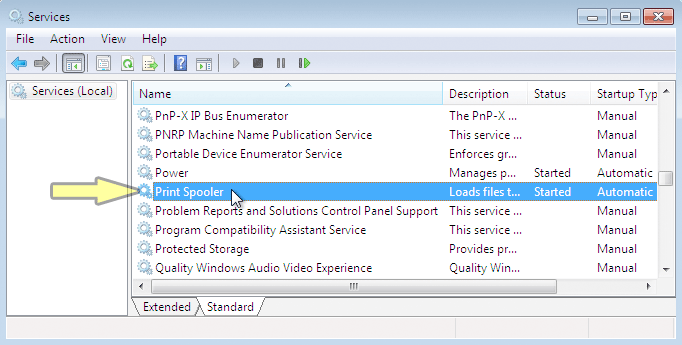
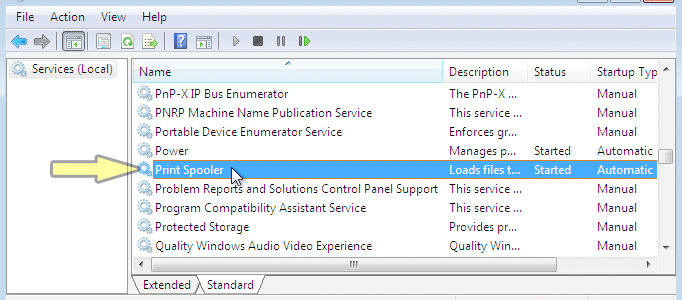
Method 2- Check Print spooler serviceprint spooler canon

The Print spooler service needs to be started to print. Here are the steps to check the print spooler service.

  1. Click Start
  2. In the search box, type Services
  3. In the services window, look for Print Spooler service and right-click on it
  4. Select Properties
  5. In the General tab, under the Startup type, make sure Automatic is selected
  6. If the services is not running, under the Service status, click Start
  7. Click OK

Method 3 – Turn on Network Discovery

Network Discovery is an important network setting that affects whether your computer can see other computers and devices on the network and vice versa.  By default, Windows Firewall blocks Network Discovery but you can enable it by following steps set out below:

  1. Click the Start button
  2. Click Control Panel
  3. Click Network and Internet
  4. Click Network and Sharing Center
  5. Click Advanced Sharing settings
  6. If the Network Discovery is Off, click the radio button Turn on network discovery
Update Canon Printer Drivers

Filed Under: PC Fix Tips Tagged With: canon, printer

  • « Previous Page
  • 1
  • …
  • 11
  • 12
  • 13
  • 14
  • 15
  • …
  • 88
  • Next Page »


  • Recent Posts
  • Popular Posts
        

Read More Posts


Read More Posts

Drivers.com Sites

  • Software Drivers
  • Drivers Ed

About Us

  • Advertise
  • About Drivers
  • Drivers Support
  • Drivers.com Privacy Policy
  • Disclaimer
  • Software Drivers
  • Mac Fixes and Tips
  • PC Fix Tips
  • Security/ Backup
  • Tablets & Smartphones
  • Tech News

© Copyright 2026 PDE Publications Ltd. End User License Agreement (EULA)