There has been much confusion among Windows users about Windows 10 S and upgrading to Windows 10 Pro. Before we look into this in details, let’s get a clear idea about Windows 10 S.
What is Windows 10 S?
Windows 10 S is a lightweight operating system that is specially designed for students and the teaching community. Other Windows versions such as Windows 10 Pro and Windows 10 Ultimate are targeted at the IT and programmer community, where there is greater need for a performance-oriented Windows system.
Windows 10 S was designed for two hardware systems, a sub-$300 clamshell notebook specially designed for students and the Surface laptop priced at $999. The Surface laptop is directly in competition with MacBook Air which is used by many people working in higher education institutions.
The Windows 10 S is termed as lightweight as it is less processor-intensive and fewer programs run in the background. If you are in a school or college, the Windows 10 S might be a perfect system for you providing all necessary features for work at school. If you are not in the field of education, you might want to upgrade to a powerful Windows 10 version, the Professional edition. But upgrading from Windows 10 S to Windows 10 Pro might not be free.
One of the reasons for Windows 10 S users wanting to upgrade is the limiting nature of this Operating System. Windows 10 S users are able to download apps only from the Windows store. The Windows 10 S devices have additional security in place which prevents the users from downloading apps from the Web using Chrome or any browser.
When you try to download an app from the Internet, the operating system pops up a warning that the app you are downloading is forbidden and gives you alternatives available in the Windows app store. You get an option below which asks whether you want to run apps available outside the Windows Store. If you click Yes, you are then presented an option to upgrade to Windows 10 Pro.
Upgrading from Windows 10 S to Windows 10 Pro
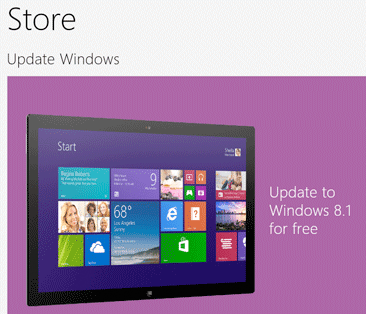
You can upgrade from Windows 10 S to Windows 10 Pro via the Windows Store. As mentioned earlier, when you try downloading the app from the Web, you are presented with a link to upgrade. You can also find the upgrade link in the Windows Store.
If you are unable to find the upgrade link in the Windows Store, just type “upgrade” in the Windows 10 Search Box and you will get the link. Upgrading from Windows 10 S to Windows 10 Pro is hassle-free and all your files and apps remain as they are. However, to be on safe side, it is always good to backup important documents before proceeding with any upgrade.
You’ll lose freebies when you upgrade from Windows 10 S to Windows 10 Pro
The Windows software licensing issues are not overly problematic for users. For example, if you have a licensed copy of MS-Office it will continue to work even with a newer version of Windows. However, things got messy with the Windows 10 upgrade.
Windows 10 S can be either purchased through educational institutions or directly from a Microsoft retailer. If you have joined your Windows 10 S device with an educational domain you are entitled to additional freebies like Microsoft Office 365 for Education with Microsoft Teams and a one-year subscription to Minecraft: Education Edition. These freebies will no longer be available if you upgrade to Windows 10 Pro or you might have to shell out additional money to keep these freebies if you wish to do so.
What will you have to pay?
If you have purchased the Windows 10 S device from a Microsoft retailer and have not joined any educational domain, the upgrade to Windows 10 Pro will cost you $49 or less. There is also a temporary offer for the consumer whose devices are priced at $799 or more. Such Windows 10 S device owners can upgrade for free and they will also get a free Office 365 personal subscription.
Currently, the Surface device from Microsoft meets the requirements for a free Windows 10 Pro upgrade. However, there is one condition to this offer. The free Windows 10 S to Windows 10 Pro upgrade offer is only available until Dec 31, 2017.
If you own a Windows 10 S device that was linked to some educational domain, you can upgrade to Windows 10 Pro for free but you will lose the Office 365 for Education subscription. Microsoft has not made it clear whether other Windows 10 S device owners will get the Office 365 for Education that is provided to Surface device owners.
Remember, Windows 10 S is designed for low-cost hardware. The Windows 10 S device is perfect for students who are more worried about manageability and less about performance. It is doubtful whether the Windows 10 S device will provide enough power and performance to students who want their Windows machines to serve as gaming machines.
If you are a student and want to use the Windows 10 S device for educational purposes only, you can pre-order the device and then upgrade to Windows 10 Pro for free. However, do bear in mind that you need to do the upgrade before 31st Dec 2017.