Drivers.com

follow us:

facebook twitter
  • Home
  • Download Drivers
  • Drivers Help
  • PC/Mac Resources
  • Software Drivers
  • Mac Fixes and Tips
  • PC Fix Tips
  • Security/ Backup
  • Tablets & Smartphones
  • Tech News
  • Software Drivers
  • Mac Fixes and Tips
  • PC Fix Tips
  • Security/ Backup
  • Tablets & Smartphones
  • Tech News

Why printer goes offline when connected to iOS devices?

By Sushant Mehta on April 24, 2017

Why printer goes offline when connected to iOS devices?

One of the more common printer issues experienced by Apple users is the printer going offline after establishing a connection with iOS devices. The error messages displayed are ‘Printer Not Responding’ or ‘Printer Offline’. If you have an HP printer and are seeing the above error messages, follow the troubleshooting steps set out below:

USB printer connection

The error message ‘Printer Offline’ indicates, the Mac/iOS device is not able to communicate with the printer. There can be several reasons for this error such as the Printer is powered down or the USB cable is not properly seated in the USB slot.  Below are the troubleshooting steps you need to follow in order to fix this USB printer issue with iOS devices:

  1. Power down the printer and remove the USB cable from the rear of the printer
  2. Wait for a few minutes
  3. Press the Power button to switch the Printer back on
  4. Wait for a few seconds
  5. Reconnect the USB cable to the rear of the printer
  6. Ensure the USB cable is secured in the connection slot
  7. If the printer starts printing, let it print

If the above troubleshooting steps don’t resolve the issue, you need to reset the Printer by following steps below:

Reset the USB Printer

  1. With the Printer turned on, remove the power cable from the rear of the printer
  2. Unplug the power cord from the wall socket
  3. Wait for 1-2 minutes
  4. Plug the power cord back in to the wall socket
  5. Reconnect the power cord to the rear of the printer
  6. If the printer does not turn on, press the Power button to switch it on
  7. Try printing some document from the iOS device. If the printer prints, the problems are resolved. Otherwise, follow the further troubleshooting steps below

Remove additional printers from the printer list  

There is a possibility that your iOS device has several printers associated with it. You need to remove all printers in the printer list except the one in idle status. Here are steps you need to follow:

  1. Search the iOS device/Mac for Print
  2. Click Print & Scan, Printers & Scanners, or Print & Fax, in the list of results
  3. Find the printer name in the list that matches with your printer
  4. If you see multiple queues for the same printer, remove all extra printers one at a time
  5. To remove a printer, select the printer and then click the minus (-) button to remove the printer from the list
  6. Leave the printer that shows an idle status

In most cases, the printer problem will be resolved. If the problem still persists, remove the remaining printer from the list by following steps 5-6. Then you will need to add a printer as there will be no printers associated with your device.

Add a Printer to an iOS device

  1. Search the iOS device/Mac for Print
  2. Click Print & Scan, Printers & Scanners, or Print & Fax, in the list of results
  3. Click Add button
  4. Select your Printer model from the Printer list
  5. Select ‘AirPrint’ in Use field with the printer name selected
  6. Click Add to add your printer

Filed Under: Mac Fixes and Tips Tagged With: apple, ios, printer, usb

How to connect iPad to TV

By Sushant Mehta on April 12, 2017

How to connect iPad to TV

Do you need to find out how to mirror your iPad to a larger screen to watch movies or view other content on a big screen?  There are two methods to connect your iPad to your TV – the wired method and the wireless method.

Connect your iPad to your TV with HDMI cable 

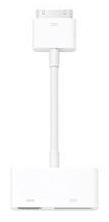
apple to tv adapter

You can connect your iPad to TV through the HDMI port of your TV. To establish the connection, you will need Apple’s Digital AV adapter (see image), a lightning cable that connects your iPad to your TV’s HDMI port. You will also need a standard HDMI cable. Once you have the required accessories, follow the steps set out below.

  1. Connect the Lightning Digital AV adapter to the iPad
  2. Connect the adapter to the TV using the HDMI Cable
  3. Switch your TV to the port where the cable is connected (you will scroll through various input settings such as AV, HDMI etc.)

Now your TV screen will become a duplicate of your iPad screen and you can watch video clips or movies and basically view anything on your TV screen that you can view on your iPad.

Connect your iPad to your TV using Apple TV

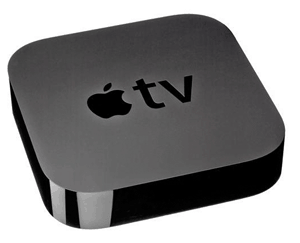
While it is more expensive, using Apple TV is the only wireless solution available to connect your iPad to your TV.  It is also the best solution for playing games on the bigger screen because wires can be obtrusive or limiting.

apple tv ipad

In this mode, the iPad also works as a remote. You will need all the Apple TV apparatus to establish the connection. You will also need a WiFi router in your home or at the place where you want to establish the wireless connection between the iPad and the TV. Here are the steps to follow:

  1. Connect your iPad to the same network as your Apple TV
  2. Ensure the iPad has the Apple TV app installed. If it doesn’t, download the Apple TV app from the App Store
  3. On your iPad screen, open the Control Center by swiping up from the bottom of the screen
  4. Tap the AirPlay button and select Apple TV
  5. Now when you start any video/ movie on your iPad, it will transfer over to the TV screen

Some apps such as Netflix support the video functionality which allows you to view the content on the larger screen. However, not all apps support this functionality. In these cases you can use Display Mirroring which mirrors the iPad display to your big screen. You need to establish the connection between iPad and the TV using the Lightning Digital AV adapter and HDMI cable. You may need a third party app to mirror your iPad screen.

Filed Under: Mac Fixes and Tips Tagged With: appleTV, iPad

Why Windows 10 update is taking so long?

By Sushant Mehta on March 20, 2017

Why Windows 10 update is taking so long?

Are you tired of slow windows 10 updates?

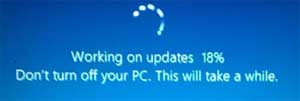
windows 10 updates slow

Many factors, including a slow internet connection, can contribute to the problems with the Windows 10 update process. We have set out some of the most common causal factors for slow Windows 10 updates along with solutions or workarounds for these problems.

The Windows update process seems stuck

Some Windows updates take only a few minutes while some others might even take a few hours. So in such a scenario how can you tell if the update is stuck/ hanging or is just a very big update taking a longer than usual time to complete?

Well, if nothing happens or changes on the screen for 3 hours or more, you can be confident that the Windows update is stuck.  Don’t forget to check the hard disk activity light to confirm things. Here are few tips to fix a stuck update installation:

  1. Press Ctrl+Alt+Del. In some cases, the update process will present you with a restart option if the update is stuck
  2. Read the instructions that appear on the screen after pressing Ctrl+Alt+Delete and follow it
  3. If nothing happens, Restart the computer and hopefully the update process will continue. Again, if nothing happens, try installing updates in Safe Mode. It may be that some programs or non-system processes are interfering with the update and causing the ‘hanging’ issue
  4. Start Windows in Safe Mode and initiate the update process

Windows update process seems to run for an unusually long time

Some users get frustrated when the update process runs for a long time (of course ‘long time’ varies depending on your level of patience or the urgency of the work you are waiting to do).

However, it is important to understand that certain updates are very large and will take a significant length of time to complete.  For example, the KB3213986 cumulative patch released on January 10th had a size of 1GB. Of course, downloading and installing such a big update will take a long time and there’s not a lot you can do to speed the update process.

However, if you have some urgent work and don’t want to install such big updates right now, you can always change the update settings to suit you.  Here’s what you need to do.

  1. Right tap the lower corner on the left of your desktop screen to access the Quick Access Menu and select Run
  2. Type gpedit.msc in the Run dialog box and click Enter to open the Local Policy editor
  3. In the Left Pane, navigate to the location below
  4. Computer Configuration/Administrative Templates/Windows Components/Windows Update
  5. In the Right Pane of Windows in Local Group Policy Editor, click Configure Update Policy
  6. Select Enabled option in Configure Automatic Updates
  7. In Options, select 2. Notify to download and Notify to install
  8. When finished, close the Local Group Policy Editor

Now Windows will notify you every time an update is available and you can choose when to install it.

Filed Under: PC Fix Tips Tagged With: update, Windows 10

  • « Previous Page
  • 1
  • …
  • 14
  • 15
  • 16
  • 17
  • 18
  • …
  • 88
  • Next Page »


  • Recent Posts
  • Popular Posts
        

Read More Posts


Read More Posts

Drivers.com Sites

  • Software Drivers
  • Drivers Ed

About Us

  • Advertise
  • About Drivers
  • Drivers Support
  • Drivers.com Privacy Policy
  • Disclaimer
  • Software Drivers
  • Mac Fixes and Tips
  • PC Fix Tips
  • Security/ Backup
  • Tablets & Smartphones
  • Tech News

© Copyright 2026 PDE Publications Ltd. End User License Agreement (EULA)