
Drivers.com

follow us:

facebook twitter
  • Home
  • Download Drivers
  • Drivers Help
  • PC/Mac Resources
  • Software Drivers
  • Mac Fixes and Tips
  • PC Fix Tips
  • Security/ Backup
  • Tablets & Smartphones
  • Tech News
  • Software Drivers
  • Mac Fixes and Tips
  • PC Fix Tips
  • Security/ Backup
  • Tablets & Smartphones
  • Tech News

Beware! the top 5 computer virus risks

By Lisa Keegan on January 31, 2017

Computers are exposed to numerous threats on a daily basis, from worms and trojans to spyware and adware, and then of course there is the ever-present computer virus. Protecting your computer against such threats is far easier if you understand what the threats are and how exactly they work.  Much like a biological virus, if you understand how a virus is spread, you can take more effective steps to avoid infection.
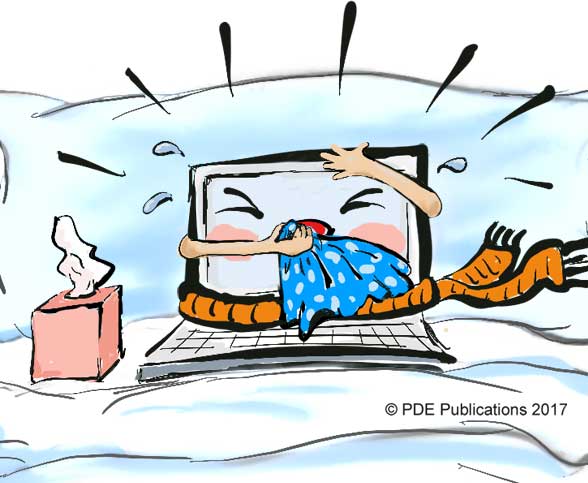
computer virus cartoon

Norton provide a useful definition of a computer virus:

“A computer virus, much like a flu virus, is designed to spread from host to host and has the ability to replicate itself. Similarly, in the same way that viruses cannot reproduce without a host cell, computer viruses cannot reproduce and spread without programming such as a file or document.” [Norton.com]

While you can never guarantee full protection (as computer viruses, like organic viruses, constantly evolve), you can take some very effective steps to protect your computer and more importantly, the personal and other data that your computer contains. The easiest way to go about protecting your computer is to understand the ways in which you are most vulnerable to threat.

In this article we will look at the top 5 computer virus risks you may be taking.

Top 5 ways to get a computer virus:

1. Trusting emails

Opening an attachment from unknown (and sometimes known) senders

Email is probably still the most common way to spread computer viruses. A computer virus needs code to attach on to and this code can be packaged in a file. More often than not this file is an .exe email attachment. If you see an email (it will often prompt you to open the attachments to check an order or review details) and you do not know the sender, then just delete it. Do not click on the link as this can launch the program and thus the virus.

https://www.drivers.com/update/security-backup/how-check-pc-viruses/

Clicking on a link in an email

Embedding links in emails is a common ‘phishing’ tactic for getting users to visit malicious websites. The site you end up on may be designed to send malicious files/ code to your computer so clicking these links is not worth the risk. If you hover over any of these links in the email (without clicking) you will often see that the actual web address it is pointing to is very different from that written in the email. If you are unsure and the email purports to come form amazon or apple or some other website, then don’t click the link but type the web address directly in your browser as opposed to clicking on any embedded links.

https://www.drivers.com/update/security-backup/tips-avoid-email-phishing-scams/

2. Trusting unknown websites

Always proceed with caution when clicking any links on an unknown or untrusted website. Some malicious links can be well-disguised in pop-up windows that may look like your standard Windows popups prompting you to click on the ‘OK’ button. Always read the information on screen before clicking and if unsure, just close the window and the leave the website.

3. Download infected software

Antivirus tools will often flag or quarantine malware or software containing viruses. However, this is by no means foolproof and antivirus tools can miss some malware and even mislabel some good software as malicious. Rather than just relying on the antivirus tools it is important to use both restraint and common sense!

Restraint in that you should be selective in the software you download. Not only can it present a risk to your PC, but it also takes up valuable space on your PC. Common sense will help prevent you from downloading more than you had bargained for. Read each screen carefully, particularly where you are presented with the option of a custom or automatic install. The idea of customizing an install puts people off as it sounds like a lot of unnecessary work, but really all it does is allow you to uncheck any boxes which would give your permission for additional software to be downloaded.

4. Not running an antivirus program or failing to install updates

Viruses are constantly evolving to evade the security measures put in place to protect users. If you do not have an antivirus tool installed, then you have no first line of defense against these viruses. If you don’t keep your antivirus tool or database up-to-date then you are vulnerable to all new developments in the world of viruses and malware. Windows Updates are equally, if not more important. These updates, which are free, often address critical security vulnerabilities and are therefore of vital importance.

Click here if you are having problems with Windows Update as failing to install Windows Updates can leave your PC very vulnerable to attack.

5. Trusting files from other users

In the past this often took the form of files on an external drive or a disk but this is less common now with cloud storage. The real risk from other users files are those streamed and shared from music and movie-sharing websites. These sites are notorious for spreading viruses and malware so proceed with caution!

Now that you know the top 5 ways to get a computer virus, you can take the steps necessary to avoid doing so!

Filed Under: Security/ Backup Tagged With: adware, malware, virus

How to screenshot on mac

By Lisa Keegan on January 26, 2017

If you are used to taking screenshots on a PC, then you are probably familiar with the print screen key. As with everything potentially superfluous, Apple have ridded the newer devices of this key, opting instead for the key combinations below:

mac keyboard screenshot

Take a screengrab of the full screen (will include all that is visible)

cmd + shift + 3

Take a screengrab of just the active screen

cmd + shift + 4 – the crosshairs will appear and you will need to drag to select the area you wish to screengrab

or

cmd + shift + 4 – then press the spacebar – you will see a little icon of a camera, then just click on the screen you wish to screengrab.

By default, screengrabs using the above methods will save to your desktop. If you want to email or skype the screengrab or just wish to save to the clipboard for another reason, then just add the ‘ctrl’ button to any of the above and the screengrab will save to the clipboard rather than the desktop.

Filed Under: Mac Fixes and Tips Tagged With: mac

What are PC ports?

By Lisa Keegan on January 23, 2017

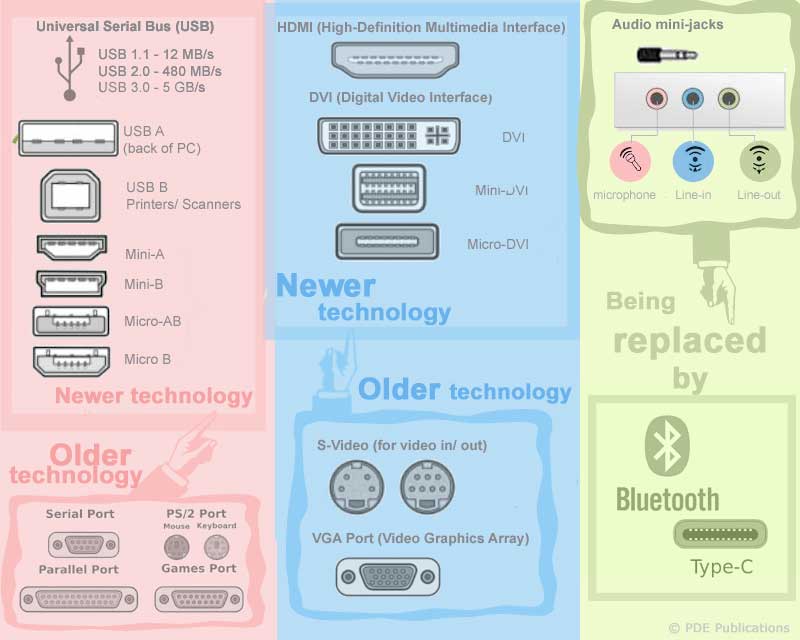
pc ports infographic

A computer or PC port is basically the slot on the motherboard into which external devices can be plugged. These external devices consist of printers, keyboards, cameras, speakers etc.

pc power connectors

With so many different devices there are numerous different ports depending on your PC and the age of your PC. Ports can be categorized by their main function. The main categories of ports are:

Power Connector ports

The power connectors on a PC are usually one of three shapes, the cloverleaf, figure of 8 or IEC cord

Serial Port:

serial ports were traditionally used for connecting external modems or printer. Because of their slow speeds (they transfer data one bit at a time), they have been replaced by USB which allows for a much faster connection. Most new PCs will not have a serial port.

Parallel Port:

Unlike the serial port, the parallel port can send and receive several bits of data at a time but similar to the serial port, it too has been superseded by USB ports.

PS/2 Port:

This port is informally referred to as the mouse or keyboard port reflecting its main function. Older computers usually had two of these ports, one for the mouse and one for the keyboard. The PS/2 port has largely been replaced by the USB port. Most Keyboard or Mouse peripherals you buy now will have a USB connector and not the older PS/2

Universal Serial Bus (or USB) Port

As you can see from the above, USB ports have largely taken over for connecting external devices such as printers, keyboards, external hard drives etc. USB ports are not only faster for the transfer of data but they also allow compatible devices to be charged via the USB port (phone etc.) Most computers or laptops will provide at least 2 USB ports.

Video ports

While many older computers used the VGA analog port, this has largely been replaced by digital HDMI and DVI ports. An even newer port is the DisplayPort and to make things even more confusing there are mini and micro variations of the HDMI, DVI and DisplayPort to facilitate smaller handheld devices.

VGA Port

A VGA or Video Graphics Array port connects the computer monitor to the video card and is used mostly on older computers or TVs. The VGA port uses analog signal and has largely been replaced by digital DVI and HDMI ports which are explained below.

DVI port

The DVI or Digital Video Interface port connects an LCD monitor to the computer’s video graphics card. Unlike the VGA port, the DVI port uses a digital signal. However, the DVI port doesn’t have audio support.

HDMI port

Because the HDMI port supports audio, it has become the standard for newer computers.

DisplayPort

This is a newer type of port which may not be as widely used as the HDMI port. In such cases you may need to use an adapter for compatibility.

Network portsmodem or ethernet port

Modem Port

The modem port connects your PC to the telephone network.

Ethernet Port

The ethernet port connects your PC to a network/ internet.

Audio portsaudio jack port

The audio ports on your computer allow for audio in (via a microphone for example) or audio out via speakers or headphones. The audio ports allow you to connect these devices to the sound card of your computer. The different ports tend to be color-coded as you can see in the image.

Filed Under: PC Fix Tips Tagged With: ports

  • « Previous Page
  • 1
  • 2
  • 3
  • 4
  • 5
  • 6
  • …
  • 9
  • Next Page »


  • Recent Posts
  • Popular Posts
        

Read More Posts


Read More Posts

Drivers.com Sites

  • Software Drivers
  • Drivers Ed

About Us

  • Advertise
  • About Drivers
  • Drivers Support
  • Drivers.com Privacy Policy
  • Disclaimer
  • Software Drivers
  • Mac Fixes and Tips
  • PC Fix Tips
  • Security/ Backup
  • Tablets & Smartphones
  • Tech News

© Copyright 2026 PDE Publications Ltd. End User License Agreement (EULA)