


Television scheduling has a ‘Watershed’ to ensure age-appropriate programming. Cinema has rating certificates to prevent younger audiences from being inadvertently exposed to unsuitable language or content. In more recent years video games and even music tracks have age-ratings and content advisories for parents to review.
In light of all this awareness of the impact of age-inappropriate content, it is quite startling that possibly the most frequently and easily accessed of all media, the internet, will often be served up, uncensored, to the unassuming 3 year old or the curious 14 year old, via the iPad and other tablets.
Restrictions applied to under 18’s in other areas of media should be equally and indeed more rigorously applied in the case of web-enabled devices.
In this post we deal with the iPad and iPhone because of both market proliferation and the lack of any automatic restrictions for younger users.
Protecting kids from the iPad (and vice versa)
There are different iOS restrictions you can set to protect your content from your kids and your kids from content. What we need is a list of things to do to your iPad to make sure, in as far as is possible, that children will not access inappropriate content or delete the things that you don’t want deleted!
Many households will have more than one iPad which can be access by kids in the house and parents often make the mistake of setting up parental controls on one and not the other. With some of the features listed below, child-proofing your iPad can be done in a few simple clicks.
The best feature to restrict access and use of an iPad is the ‘Guided Access’ feature. This is by far the most straightforward and useful parental control feature on the iPad but there may be times when you want to allow access to more than one app or only restrict certain features. When handing over your valuable hardware to kids – the first thing to do is make sure the device is protected from them!
1. Protect your iPad
You will want to physically protect the device to start off with, we have listed two highly recommended cases below, both are available through amazon and are not just good protection for the device but are also ergonomically beneficial and make the device easier to handle, particularly for small hands!
More expensive but extremely robust, the G-form Xtreme comes highly recommended.
2. Restrict iPad to single app use
This is particularly useful with young children who may only need access to a particular game or music app. This feature allows you to restrict access to a single app and also to set a time limit if required. It is very easy to set up this feature and it is not fixed to a single app. Once the ‘Guided Access’ feature is enabled and a passcode setup, then you can select what app is to be allowed for that particular time (you can also specify a time limit if required).
To setup Guided Access do the following:
- Go to Settings > General > Accessibility > Guided Access
- Toggle the ‘Guided Access’ button to ‘on’
- Select ‘Passcode Settings’ and setup an passcode or select ‘Touch ID’
- Setup the alarm if you are planning to use the ‘Time Limits’ feature
Once Guided Access is setup you can leave it as is until you wish to restrict access. When required, open the app in question (we will use the example of the Music app here).
- Open up the Music App and triple click the home button
- You will see a ‘Guided Access Started’ message
- If you try to use the home button or browse away from the current app – you will see a ‘Guided Access is enabled’ message
- To exit Guided Access and remove restrictions, either use Touch ID (if applicable) or enter the passcode
- This returns you to the Guided Access Screen (as in image shown) – you can now browse using the home button as normal (a ‘Guided Access Ended’ message will appear)
Restricting the iPad to single app use is not going to work for everyone and every situation, for example there may be times when you want to allow full use to another adult but maybe want to hide your emails. For all other situations read the suggestions below and feel free to post your own suggestions in the comments at the end of the article.
3. Protect your email
Here we assume you are using a shared iPad and that you have email enabled on it. This is particularly important if you have work email on your iPad as anything going out from the address will have your name on it! It is best to disable unauthorised email access altogether so others cannot view, send or delete emails.
To block unauthorised users from accessing the Mail App you will need to enable the ‘Restrictions’ in the iOS itself (this is a good idea anyway in case your iPad is ever lost or stolen as it will help prevent against identity theft). The ‘Restrictions’ can be a bit cumbersome as they require a few more steps for the authorised user to gain access, but for something as important and private as email, it is definitely necessary. First of all you need to hide your email accounts. After that you will enable restrictions so that only you can ‘un-hide’ them.
To hide an email account:
Go to Settings > Mail
Select the email account or accounts to hide under ‘Accounts’
Under ‘Mail’ toggle to ‘off’
Leave Settings and go to your Mail icon to ensure that all mail is now hidden
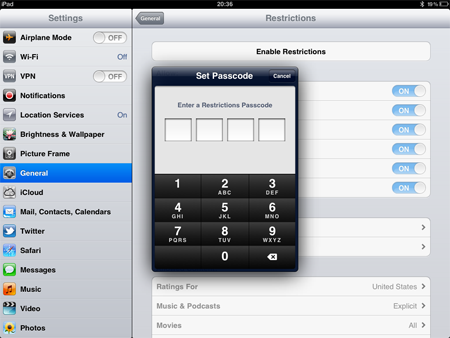
To enable ‘Restrictions’:
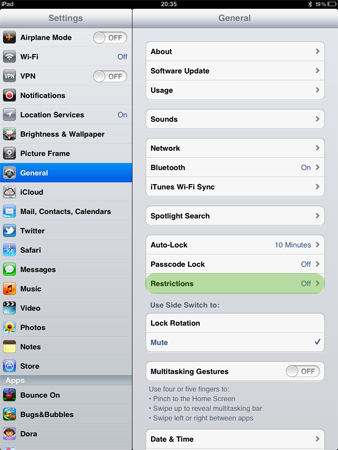
Go to Settings > General > Restrictions
Select ‘Enable Restrictions’
Set a passcode which will allow authorised users to bypass restrictions (make it easy to remember!)
You will be asked to re-enter this passcode
Under ‘Allow Changes’ section, select the email icon ‘Accounts’ > select ‘Don’t Allow Changes’
This method does make it quite awkward to access your email – it means going into settings and toggling mail back to ‘on’ each time you wish to access your email. This is far from ideal.
3. Restrict access to inappropriate web content
The restrictions feature built into the iOS allows you to turn off browsing altogether – this can be a good idea if the iPad is used solely by younger children. Older children will want to browse the internet though and you will want to make sure they are doing so in a restricted environment.
The restrictions feature will also allow you to restrict in-app purchases.
Mobicip is a relatively expensive app at $9.99 for a yearly subscription (for full features – the basic version is free), but for the use it will get and peace of mind it gives, I think it is well worth the money. It is a safe browser which filters content based on age ranges. This app not only allows you to customise filters and profiles for different access levels, it also lets you view browsing history and act as ‘Big Brother’ to your little charges!
4. Media-based iPad restrictions
This is an often-overlooked aspect of access restriction that is probably the most important as one of the most common uses for the iPad with kids, is watching movies. Whether it is the latest horror movie in your iTunes account or some thriller you have been watching on Netflix, most people will have some media content on their iPad that they do not want their kids to access.
Without setting up any restrictions, your 8-year old can pick up your iPad, click on the Netflix app, and start viewing the latest episode of that thriller where you left off. This is far from an unlikely scenario on a shared device where the last viewed item gets top billing and will therefore be the first thing they click on. So if you want to avoid being called in to your kids’ school to explain their newly-found encyclopedic knowledge of obscenities, then set up those restrictions!
By using the in-built restrictions in iOS, you can set age restrictions on movies, music and even Podcasts.
5. Restrict access to chat and social media apps
If your children are old enough to type then you need to restrict, or at least monitor to some extent, their social media access. It is remarkably easy to take a video and have it uploaded to a social media account within seconds. It is a good idea to extend this length of time at the very least, to ensure some level of thought is required before publishing content for the world to see! You can choose to disable chat and social media apps, as well as YouTube and then enable them under supervision.
iPads can be wonderful fun and educational tools for children, but they can also open up a whole world which they would and should not otherwise have access to. It can only take a couple of clicks for a child to see something that could be with them forever, once they see something they can’t ‘un-see’ it, so it is up to you to make sure they are protected from the content that devices like iPads can provide a gateway to.