
Drivers.com

follow us:

facebook twitter
  • Home
  • Download Drivers
  • Drivers Help
  • PC/Mac Resources
  • Software Drivers
  • Mac Fixes and Tips
  • PC Fix Tips
  • Security/ Backup
  • Tablets & Smartphones
  • Tech News
  • Software Drivers
  • Mac Fixes and Tips
  • PC Fix Tips
  • Security/ Backup
  • Tablets & Smartphones
  • Tech News

Why is My Blu-ray Player Not Reading My Disc

By Susan C on July 26, 2024

Why is My Blu-ray Player Not Reading My Disc

If you’re on Windows and your Blu-ray is not reading discs, this post is just for you. You can fix the problem using the instructions shared in the post.

Step 1 – Check the Blue-Ray Player

In the event disc is damaged, reading it might be an issue. Damaged hardware can also cause the issue to appear.

Step 2 – Check Whether the Problem is Hardware-Related

The next step involves checking not only the Blu-ray tray but also the cables. Sometimes, minor tweaking can fix the issue.

Common hardware-related issued include:

  • Blu-ray disc tray is damaged – Eject the Blu-ray disc and check it for any misalignment or wobbling. Try resetting the Blue-ray disc if you notice either of the issues.
  • Blu-ray cables are loose – In the event of a loose connection, the disc may not be able to read an inserted disc. If you see noticeable signs of wear and tear, replace the cables and check if that fixes the issue.

Step 3 – Is the Problem Related to a Disc?

One common problem with Blu-Ray discs is that they get easily scratched or bent. Check your disc for these issues. Some things to keep in mind include:

  • Clean the disc – Use a soft cloth and a specialized disc-cleaning solution (you can easily get one from a local electronic store) to clean your disc. After you’ve thoroughly cleaned the disc, insert it and check if it’s working.
  • Use a different disc – Cleaning could help remove dust particles on your disc, but if the disc is wrapped or has scratch marks, it would be best to use another disc.
  • Ensure the disc is compatible – If the Blu-ray player is unable to read a disc, make sure that it supports that media type. You can find information about readable media types on the front of your disc player.

Step 4 – Check if the problem is related to Lens

Disc readers use blue lasers or red lasers for reading and writing data. If the lens is dirty, Blu-ray player may fail to read discs. Cleaning the lens may help fix the issue.

Use a lens cleaning CD to the clean the lens. It uses tiny bristles for removing dirt that may have collected over the lens. Insert this disc like you would insert any other disc and then let it do its job. Cleaning the lens may help it recognize playable discs, besides fixing issues such as freezing and skipping.

Step 5 – Check if the Issue is Software-Related?

You might be surprised to hear that multiple software programs are needed to get a Blu-Ray driver reading discs successfully. Bad drivers, bad firmware, and incompatible systems all can stop a Blu-Ray player from reading discs.

  • Update Firmware

Visit the manufacturer’s website and download the latest Firmware updates and install them. You can find Firmware updates on the Download or Support page.

  • Use a 3rd Party Media Player

Microsoft doesn’t support Blu-ray any longer. The built-in Windows Media player may simply not have what it takes to read Blu-ray discs. However, you still have options. You can use a 3rd party media player to play your movies.

In the event that your Windows computer came pre-installed with a Blu-ray player, try the solutions given next.

Step 6 – Check the Motherboard and Blu-Ray Drivers

Another reason why the Blu-ray driver is not reading the disc could be an outdated or corrupt Blu-ray driver. To fix the issue, update the Blue-ray driver. You will need to update Motherboard ATA and IDE drivers as well.

You can update drivers manually or automatically. Although we recommend using the automatic method, you can use the manual one if you are comfortable performing the required steps.

Updating Blu-Ray Drivers Manually

Here’s how you can update motherboard and Blu-ray drivers:

  • Type Device Manager in the Start Search bar and select Device Manager in the search results

  • In the Device Manager window, expand DVD/CD-ROM Drives

  • Right-click the Blu-Ray player and choose Properties

  • Click the Driver tab and click Update Driver

  • Select the first option in the next window (Search automatically for update driver software). Windows will search the computer and Internet for the latest driver and will download and install it

  • Follow the on-screen prompts

Once you have updated the Blu-Ray driver, go back and perform the same steps for IDE ATA/ATAPI drivers.

Reinstall the Blu-ray drivers

If the problem persists after you have updated the drivers, it might be a good idea to try reinstalling them. It’s possible a fresh driver install might repair corrupted drivers. Follow these steps: 

  • Launch Device Manager
  • Expand DVD/CD-ROM entry, right-click the Blu-ray device and choose Uninstall
  • Follow the on-screen prompts

If your Blu-ray drivers were working fine before an update but stopped working immediately after you installed the update, rolling back the drivers might fix the issue. Follow these steps to roll back the driver: 

To roll-back the Blue-ray drivers, perform the steps listed below:

  • Type Device Manager in the Start Search bar and select Device Manager in the search results
  • Expand the DVD/CD-ROM entry, right-click the Blu-ray device, and click Properties
  • Click the Driver tab and then click the Roll Back Driver button
  • Follow on-screen prompts
  • Now again launch the Device Manager window, expand the IDE ATA/ATAPI controllers entry, select your motherboard device and click Properties
  • Click the Driver tab, click the Roll Back Driver button, and follow on-screen prompts

Update Your Drivers Automatically

To update the Blu-ray (and other device drivers) drivers automatically, use an advanced driver update software such as DriverUpdater.

Automatic driver update tools offer many benefits, the most important ones being:

  • You can update device drivers automatically
  • The software scans and updates all outdated or missing drivers at one go
  • The tool picks the right drivers for your device and operating system, so you won’t have to worry about installing an incorrect driver by mistake
  • Automatic driver updates are 100% safe

Driver Updater is one of the best driver update tools out there. Outbyte Driver Updater will give you access to a database of over 1 million drivers. It will regularly scan your PC, suggesting new driver versions to install. Driver Updater contains drivers for a variety of Windows devices. With just one click, you can update drivers in your system.

Step 1
Click here to Install and launch the app

Step 2
Scan all devices

Step 3
Install or update drivers automatically


Start Download


Filed Under: PC Fix Tips Tagged With: Blu-ray driver

Fix DVD or CD Drive Not Working in Windows 10

By Susan C on July 25, 2024

Fix DVD or CD Drive Not Working in Windows 10

Is your Windows DVD (or CD) drive not working?

If so, don’t worry. Often this issue can be resolved in just a few minutes.

In this post, we’ll look at the most common reasons why this problem occurs and, most importantly, how to fix it.

Let’s get started…

What Causes “DVD Drive Not Working” Issue?

This problem can occur due to a number of reasons, including:

  • Bad disc – At times the problem is not with the drive but rather with the disc. Try using a different disc and check if that resolves the problem.
  • Wrong type of disc – Inserting a DVD disc in a CD-only drive isn’t a great idea. This is because your DVD disc won’t work. The same thing will happen if you try to play a Blu-ray disc in a standard DVD drive.
  • The right playback software is missing – Windows 10 has no pre-installed DVD player program. If you insert a DVD movie in your laptop’s DVD disc without first installing the necessary app, the DVD won’t work. To watch the movie, you’ll need to first download a DVD playback app and install it. Online Microsoft Store has many good DVD playback apps, so getting your hands on one isn’t complicated.
  • Faulty Windows update – It’s important to install Windows Updates (especially Recommended ones) for many reasons. That said, sometimes you may face issues after installing a Windows update. If your DVD drive stopped working immediately post-installation of a new Windows update, uninstall that update and check if this fixes the issue. (Type Settings in the Windows Search bar, select Settings in search results, choose Update & Security | Windows Update | View Update History | Uninstall Updates.)
  • Another app might be causing the issue – Sometimes, new software can cause conflicts with existing software and hardware. If you started encountering “CD/DVD not working” issue immediately after installing a new software, it might be a good idea to temporarily uninstall it to check if that fixes the issue. (Open Settings, choose Apps | Apps & Features, and then choose the recently-installed app, and click Uninstall)

Is this is a driver-related issue?

Have you tried all the recommendations stated above but couldn’t fix the problem? If so, there’s a strong possibility that something is wrong with the drive’s device driver.

Think of a device driver as a software program which allows a hardware to communicate with the operating system and other software. In the event a device driver becomes corrupt or outdated, you’re likely to encounter problems with that device. The same thing will happen if a required driver is accidentally deleted.

Windows include a diagnostic tool called Device Manager that can help you fix certain types of driver-related issues.

Step 1 – Launch Device Manager

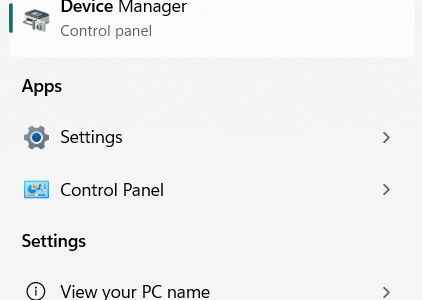
Type Device Manager in the Windows search bar and select Device Manager in the search results

Step 2 – Check if there’s Resource Conflict

Expand DVD/CD-ROM drives and check for resource conflicts, which will be identified by a yellow triangle with a black exclamation point inside it (This indicates the device is in a “problem state”, though it could still be functioning. This problem is accompanied by an error code that sheds light on the nature of the problem.), a red “X” (This indicates the device in question is disabled currently. Usually it means that even though the device is present on your device but its corresponding driver is not present. That said, it could also imply the driver is present but not properly functioning), or a blue “i” on a white field (This implies the device in question has a manual configuration and not an automatic configuration, which is not something necessarily bad. That’s because the device only needs a different configuration, but there’s nothing wrong with the device or its driver.)

Step 3 – Display Device Properties

In the event of a device conflict, click the CD/DVD drive and choose Properties

Find the Conflict

Click the General tab and check the message in the Properties dialog box. In the event of an issue, you should be able to see an error message which would include the steps recommended by Windows to resolve the problem. The error message may also include an error code, which could come in handy if you are unable to resolve the issue on your own and need to call in a computer technician. Common error codes include Code 41, Code 39, Code 32, Code 19, and Code 31. Each of these errors will have a different accompanying message.

Step 4 – Update the CD or DVD driver

A number of driver related issues occur due to a missing, corrupt, or outdated driver. These errors can be easily fixed by updating the driver in question.

You can update a driver manually or you can update it automatically using a reliable driver update software. For most people, the automatic method is a good choice because it requires no technical knowledge and takes no more than a few minutes.

However, we have listed both the manual driver update method and automatic method. You can choose the method that you like the best.

Update CD/DVD Driver Manually

You can update driver manually by directly downloading the latest driver from the device manufacturer’s website. Alternately, you can use the Device Manager utility to update the driver.

Download Driver Manually From Manufacturer’s Website

Go to the official website of your device’s manufacturer. Next, check for “drivers”, “technical support”, or “downloads”. Search for the latest driver for your device by model number. If you find a relevant driver, download and install it (But make sure the driver is compatible with your version of Windows. For instance if you use 32-bit Windows 10, download a drive this is designed for 32-bit Win 10 computers, not 64-bit).

To install a downloaded driver, open the driver folder and double-click the executable file (it will have an .exe extension). Follow the on-screen prompts, and restart Windows once the installation is complete.

Download Drivers Manually Using the Driver Manager Utility

Here are the steps to follow:

  • Launch Driver Manager
  • Expand the DVD/CD-ROM drives entry
  • Right-click your device and then select Update driver

  • In the next window, select the first option (Search automatically for update driver software). Windows will search the computer and Internet for the latest driver and will download and install it.

  • Follow the on-screen prompts
  • Download Drivers Automatically
  • If the manual update method is not your cup of tea, try the automatic method. We recommend using DriverUpdater – a driver update software par excellence. With just a few clicks, it will download and install new drivers.

Automatic driver update tools offer many benefits, the most important ones being:

  • You can update device drivers automatically
  • The software scans and updates all outdated or missing drivers at one go
  • The tool picks the right drivers for your device and operating system, so you won’t have to worry about installing an incorrect driver by mistake
  • Automatic driver updates are 100% safe

Driver Updater is one of the best driver update tools out there. Outbyte Driver Updater will give you access to a database of over 1 million drivers. It will regularly scan your PC, suggesting new driver versions to install. Driver Updater contains drivers for a variety of Windows devices. With just one click, you can update drivers in your system.

Step 1
Click here to Install and launch the app

Step 2
Scan all devices

Step 3
Install or update drivers automatically


Start Download


Filed Under: PC Fix Tips Tagged With: CD/DVD Drive Issue

Acer Chromebook 516 GE: Features & Driver Updates

By Susan C on July 11, 2024

Sleek design, competitively-priced, and great performance make the Acer Chromebook 516 GE a top-class do-it-all laptop which is also ideal for cloud gaming. If you are into cloud gaming, Chrome 516 GE might be perfect for you. It is also a suitable option for office productivity and casual use. However, to get the best performance from Chromebook 516 GE, you must use the right tools. That’s where DriverUpdater comes in. By keeping drivers up-to-date automatically, it ensures you will never have to worry about performance-related issues with your new laptop.

Let’s explore why Chromebook 516 GE and DriverUpdater make a perfect couple.

Chromebook 516 GE Specifications

Bright, impressive display

The laptop comes with a 16-inch display that boasts an impressive resolution of 2560×1600 and a refresh rate of up to 120Hz. The display features a matte coat and is bright. An impressive pixel density and in-pane switching technology make the display comfortable to use on a day-to-day basis. Small text is rendered impressively and glare is hardly an issue.

Design and build quality

While Chromebook 516 GE is not the slimmest cloud gaming laptop in its price range, it is light for its size. In spite of its old-school vibe, the 516 GE is a handsome laptop with great build quality and a nice metallic luster to it.

Top-notch performance

With an Intel Core i5-1240P processor, a 256 solid state drive, and 8GB of RAM, the laptop delivers great performance for its price. It comfortably outruns other gaming Chromebooks such as HP Elite Dragonfly Chromebook and Lenovo IdeaPad Gaming Chromebook.

Seamless connectivity

You’ll have no complaints as far as connectivity is concerned. The laptop has two USB-C 3.2 Gen 2 ports. These ports support DisplayPort (to connect an external monitor) and USB Power Delivery (to charge quickly). These ports are nicely complemented by an HDMI port, 1 USB-A port, a 3.5mm combo audio jack, and an Ethernet port. In other words, you can connect a wired mouse, keyboard, headset, monitor, and Ethernet together without depending on a laptop adapter.

Solid battery life

The Chromebook 516 GE boasts a long battery life. It can last up to 9 hours with continuous use, which is pretty good indeed.

Device Maintenance

If you want your Chromebook 516 GE to function at its peak performance all the time, it’s important you regularly carry out maintenance tasks such as Windows updates, malware scans, and software updates. When it comes to updating software, don’t forget to update various device drivers. This is because outdated device drivers can cause various performance-related issues, spoiling your cloud gaming experience.

If you’re wondering what is the easiest way to update device drivers, we recommend using a reliable and advanced driver update tool, such as DriverUpdater. It will update your device drivers in just a few clicks, ensuring peak performance from your Chromebook.

Automatic driver update tools offer many benefits, the most important ones being:

  • You can update device drivers automatically
  • The software scans and updates all outdated or missing drivers at one go
  • The tool picks the right drivers for your device and operating system, so you won’t have to worry about installing an incorrect driver by mistake
  • Automatic driver updates are 100% safe

Driver Updater is one of the best driver update tools out there. Outbyte Driver Updater will give you access to a database of over 1 million drivers. It will regularly scan your PC, suggesting new driver versions to install. Driver Updater contains drivers for a variety of Windows devices. With just one click, you can update drivers in your system.

Step 1
Click here to Install and launch the app

Step 2
Scan all devices

Step 3
Install or update drivers automatically


Start Download


Filed Under: PC Fix Tips Tagged With: Acer Chromebook

  • « Previous Page
  • 1
  • …
  • 37
  • 38
  • 39
  • 40
  • 41
  • …
  • 189
  • Next Page »


  • Recent Posts
  • Popular Posts
        

Read More Posts


Read More Posts

Drivers.com Sites

  • Software Drivers
  • Drivers Ed

About Us

  • Advertise
  • About Drivers
  • Drivers Support
  • Drivers.com Privacy Policy
  • Disclaimer
  • Software Drivers
  • Mac Fixes and Tips
  • PC Fix Tips
  • Security/ Backup
  • Tablets & Smartphones
  • Tech News

© Copyright 2026 PDE Publications Ltd. End User License Agreement (EULA)