Drivers.com

follow us:

facebook twitter
  • Home
  • Download Drivers
  • Drivers Help
  • PC/Mac Resources
  • Software Drivers
  • Mac Fixes and Tips
  • PC Fix Tips
  • Security/ Backup
  • Tablets & Smartphones
  • Tech News
  • Software Drivers
  • Mac Fixes and Tips
  • PC Fix Tips
  • Security/ Backup
  • Tablets & Smartphones
  • Tech News

How to Fix Common Issues with ViewSonic VP3881 Monitor?

By Susan C on August 2, 2024

How to Fix Common Issues with ViewSonic VP3881 Monitor?

The ViewSonic VP3881 is an excellent productivity workhorse, featuring a large and wide curve screen, beautiful color in both video and photos, and brightness uniformity. However, like any other high-tech device, it may encounter issues from time to time, which can disrupt your productivity. In this post, we’ll look at some common problems faced by users and their DIY solutions.

Whether you’re encountering color inaccuracies, resolution problems, or connectivity issues, it is important to understand the underlying cause. With a little technical knowledge and the right approach, it is possible to easily manage these issues most of the times. Factors such as drive updates, Windows updates, software settings, and OS compatibility considerably affect the performance of your monitor.

In this guide, we’ll discuss some common issues that users encounter with ViewSonic VP3881 and their solutions, as well as why it is important to keep your drivers up to date.

Common Issues and Solution Tips

The following section covers issues related to color accuracy, resolution, and connectivity.

Connectivity Problems

It seems connectivity issues are the most common issue with ViewSonic VP3881. Symptoms typically include intermittent signal loss and the device being unable to recognize the monitor.

Symptom: Computer is unable to detect the monitor

Quick fix: Thoroughly check all cables connections. If any cable is damaged, replace it. Ensure all cables are plugged in nicely. Apart from damaged cable, loose connections can cause this issue to arise.

Symptom: The monitor gets disconnected frequently

Quick fix: Check the cables and update the monitor firmware and graphics driver.

You can update the graphics card driver manually or automatically. The automatic method is easier, faster, and foolproof. We recommend using DriverUpdater (the link to the software is shared at the end of the post).

If you want to update graphics card driver manually, here’s what you must do:

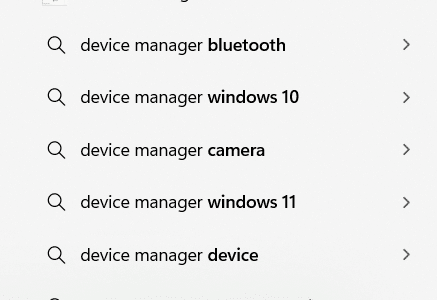
  • Type Device Manager in the Start Search bar and select the top result

  • In the Device Manager window, expand Display adapters and then select Update Driver

  • Select the first option in the next window: Search automatically for updated driver software

  • Windows will search the computer and the Internet for the latest drive and automatically install it if it is able to find one
  • Simply follow on-screen instructions, and if prompted, restart Windows

Color Accuracy Issues

If you are a creative professional, color deviation could be a big issue.

Symptom: Colors are overly vibrant or appear washed out

Quick Fix: Using in-built utilities calibrate the monitor’s color settings. Alternately, you can calibrate the color settings using 3rd party calibration tools

Symptom: Issues with color consistency

Fix: Calibrate the monitor’s settings. If that doesn’t fix the problem, it’s possible the screen is defective. It would be best to consult a local computer technician.

Resolution Problems

Problems with the resolution can cause incorrect aspect ratios or poor image quality. Both of them can impact productivity and viewing experience.

Symptom: Display resolution is set incorrectly.

Quick Fix: Make sure the resolution settings in the operating system match your monitor’s recommended resolution.

Symptom: Images and text appear blurry or pixelated

Quick Fix: Make sure you have the latest graphics card driver and the screen scaling options are configured correctly.

If you experience any of the above-mentioned issues and are unable to fix the problem by performing the listed steps, you should consult your local technician.

Lastly, keep in mind that many issues can be avoided by keeping your ViewSonic VP3881 driver and graphics card driver up to date. Earlier, we discussed the steps for manually updating the graphics card driver. Shared ahead are the steps for manually updating ViewSonic VP3881 monitor driver. You should try the manual steps if you know your way around Device Manager. Otherwise, using a driver update software tool is the best option.

Manually updating ViewSonic VP3881 monitor driver

You need the latest driver to keep your ViewSonic VP3881 monitor in top shape. Apart from maintaining optimal performance, the latest driver improves functionality, ensures compatibility, and can help fix common performance-related issues.

Before you start updating ViewSonic VP3881 monitor driver, determine the version of driver you are currently using.

  • Type Device Manager in the Start Search bar and select the top result
  • Expand Monitors section
  • Right-click ViewSonic VP3881 and choose Properties
  • Click the Driver tab and note down the version of the driver installed on your system

Now, go to the official ViewSonic support page, search for the latest driver, and download it. Once you have downloaded the driver, double-click the folder, and launch the executable file. Follow on-screen instructions and restart Windows after installation is complete.

Update Device Drivers Automatically

The easiest and fastest way of updating device drivers is by using an advanced driver update software tool. We recommend you give DriverUpdater a try.

Automatic driver update tools offer many benefits, the most important ones being:

  • You can update device drivers automatically
  • The software scans and updates all outdated or missing drivers at one go
  • The tool picks the right drivers for your device and operating system, so you won’t have to worry about installing an incorrect driver by mistake
  • Automatic driver updates are 100% safe

Driver Updater is one of the best driver update tools out there. Outbyte Driver Updater will give you access to a database of over 1 million drivers. It will regularly scan your PC, suggesting new driver versions to install. Driver Updater contains drivers for a variety of Windows devices. With just one click, you can update drivers in your system.

Step 1
Click here to Install and launch the app

Step 2
Scan all devices

Step 3
Install or update drivers automatically


Start Download


Filed Under: PC Fix Tips Tagged With: ViewSonic VP3881 Monitor

DVDs Not Playing in Windows – How to Fix it

By Susan C on July 28, 2024

DVDs Not Playing in Windows – How to Fix it

If you’re unable to play DVDs on Windows, the first thing you should check is whether your disc is readable or not. Doing so is rather easy: Open Windows Explorer, choose the Disc Drive, and check whether the files stored on the disc are listed or not. If they aren’t listed, there’s a good chance the drive is broken, or you are missing an important driver. Outdated drivers or corrupt drivers could also cause this issue.

Because repairing a broken drive can be expensive, it’s best to start with the driver. In many cases, the cause is driver-related, and that may well be the real reason in your case as well.

If getting new drivers doesn’t fix the issue, you may consider asking your local computer technician to have a look. For desktops, disc replacements are quite affordable. In the case of a laptop, using an external USB drive is likely to be more cost-effective than getting the broken fixed.

Coming back to updating CD/DVD drive drivers, the process is rather easy if you opt for the automatic method. With a reliable driver software tool, you just have to click the mouse a few times, and the software will do the rest.

Of course, if you want to do things the ‘old’ way, you can always update drivers manually through the Device Manager. But keep in mind that the process can be rather time consuming and requires certain level of technical knowledge.

Let’s first see the manual method of updating drivers and then we’ll look at the automatic method.

Update disk drive drivers manually

  • Type Driver Manager in the Windows Search bar and select the top result

  • In the Device Manager window, expand Disk drives (or CD/DVD drive) entry
  • Right-click the drive and select Update driver

  • Select the first option (Search automatically for drivers). Windows will now search both your computer and the Internet for the latest driver and install it

  • Follow on-screen prompts

Update Disk Drivers Automatically

To update disk drivers automatically, we recommend you use an advanced driver update software, such as DriverUpdater.

Automatic driver update tools offer many benefits, the most important ones being:

  • You can update device drivers automatically
  • The software scans and updates all outdated or missing drivers at one go
  • The tool picks the right drivers for your device and operating system, so you won’t have to worry about installing an incorrect driver by mistake
  • Automatic driver updates are 100% safe

Driver Updater is one of the best driver update tools out there. Outbyte Driver Updater will give you access to a database of over 1 million drivers. It will regularly scan your PC, suggesting new driver versions to install. Driver Updater contains drivers for a variety of Windows devices. With just one click, you can update drivers in your system.

Step 1
Click here to Install and launch the app

Step 2
Scan all devices

Step 3
Install or update drivers automatically


Start Download


Filed Under: PC Fix Tips Tagged With: DVDs not playing

Blu-Ray Player Not Working in Windows: How Can I Reset it?

By Susan C on July 26, 2024

Blu-Ray Player Not Working in Windows: How Can I Reset it?

Blu-ray drives require technology that is proprietary to Sony. This is what makes them different from other optical drives and this is why software needed for playing Blu-ray discs on Windows isn’t always free. Even though free software is available, their features may be limited since the developers aren’t linked to Sony.

Blu-Ray Discs have become the predominant high-capacity data transmission medium for commercial products such as video games and films. To play the disc on your Windows computer, first download the required software from Microsoft Store.

How to Install Blu-Ray Compatible Software?

Blu-Ray Pro is a free software program available on Microsoft Store. You can use this software to play Blu-Ray movies.

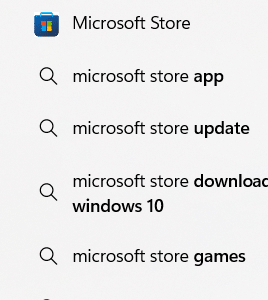
  • Type Microsoft Store in the Windows Search bar and select the top result

  • Wait until the application loads

  • Click the search icon

  • Type Blu-Ray Pro in the search box and press the Enter key
  • Select the first application in the search results

Important: Blu-Ray Pro is not the only free application available on Microsoft Store that can play Blu-Ray discs. If you’re encountering issues with this application, it might be a good idea to try another application. Features may vary by application, so it’s possible other applications may provide better experience.

  • Click the Get button at the bottom

  • Track progress while Windows download the software
  • Click the Launch button when you see it on your screen

  • Wait for the software to load
  • You can add files in the Blu-Ray interface. If the disc is there in the drive, it will automatically appear in the playlist

Important: Blu-Ray Pro can play ISO files. So if instead of a disc you have an ISO file, simply mount the file and the software will start playing it.

How to Mount Blu-Ray ISO File?

Window 10 comes with CyberLink Power2Go (free version) which has a virtual drive.

  • Type Virtual Drive in the Start Search bar and click the top result

Important: If your PC doesn’t have CyberLink Power2Go, you can use any other virtual drive system for mounting the ISO file.

  • Enable the drive
  • Click the ellipses to browse to the ISO file
  • Once you’ve located the file, click it
  • Click the Open button
  • ISO files can be mounted in the same manner as physical discs, and the computer will interpret the contents of the ISO package in a similar fashion to any other CD or DVD inserted into the disc drive.
  • In the Image Location field, you will see the folder that has been selected. In case you prefer another Drive Letter (Like F instead of E), you can choose it by clicking the Drive Letter: drop down menu
  • Click the OK button
  • A prompt will appear whether the mounting process was successful or no

Important: In case you encounter problems at this very step, chances are the ISO file is corrupt.

  • Now Restart Blu-Ray Pro and you will be able to enjoy the loaded movie (or game)

How to Troubleshoot Drive Issues?

Are are encountering issues with the drive and wondering, How can I reset the Blu-Ray player?

The first thing you need to do is check the CD/DVD drivers.

  • Type Device Manager in the Start Search bar and select the top result

  • Expand CD/DVD drives entry and right-click the drive
  • Select Properties

  • Click the Driver tab. You can find all the information about your CD/DVD driver here. You can also roll back driver or update driver if you need to

Why Windows is Not Playing Blu-Ray? Update Driver to Fix the Issue

Unless you are tech-savvy, we don’t recommend manually troubleshooting Blue-Ray driver-related issues. Instead, use DriverUpdater to automatically update your CD/DVD device drivers, which in turn will fix most driver-related problems.

Automatic driver update tools offer many benefits, the most important ones being:

  • You can update device drivers automatically
  • The software scans and updates all outdated or missing drivers at one go
  • The tool picks the right drivers for your device and operating system, so you won’t have to worry about installing an incorrect driver by mistake
  • Automatic driver updates are 100% safe

Driver Updater is one of the best driver update tools out there. Outbyte Driver Updater will give you access to a database of over 1 million drivers. It will regularly scan your PC, suggesting new driver versions to install. Driver Updater contains drivers for a variety of Windows devices. With just one click, you can update drivers in your system.

Step 1
Click here to Install and launch the app

Step 2
Scan all devices

Step 3
Install or update drivers automatically


Start Download


Filed Under: PC Fix Tips Tagged With: Blu-Ray Issue

  • « Previous Page
  • 1
  • …
  • 36
  • 37
  • 38
  • 39
  • 40
  • …
  • 189
  • Next Page »


  • Recent Posts
  • Popular Posts
        

Read More Posts


Read More Posts

Drivers.com Sites

  • Software Drivers
  • Drivers Ed

About Us

  • Advertise
  • About Drivers
  • Drivers Support
  • Drivers.com Privacy Policy
  • Disclaimer
  • Software Drivers
  • Mac Fixes and Tips
  • PC Fix Tips
  • Security/ Backup
  • Tablets & Smartphones
  • Tech News

© Copyright 2026 PDE Publications Ltd. End User License Agreement (EULA)