Drivers.com

follow us:

facebook twitter
  • Home
  • Download Drivers
  • Drivers Help
  • PC/Mac Resources
  • Software Drivers
  • Mac Fixes and Tips
  • PC Fix Tips
  • Security/ Backup
  • Tablets & Smartphones
  • Tech News
  • Software Drivers
  • Mac Fixes and Tips
  • PC Fix Tips
  • Security/ Backup
  • Tablets & Smartphones
  • Tech News

A Beginner’s Guide to Factory Reset Windows 10 & 11 PC

By Susan C on July 10, 2024

A Beginner’s Guide to Factory Reset Windows 10 & 11 PC

You might want to factory reset your Windows 10 or 11 PC if you are grappling with software issues or if you are planning to pass it on to someone else. In this post, we will show you how to reset a Windows 10 or 11 PC with or without password.

Common reasons for factory resetting your Win 10 or 11 computer

Computer users often factor reset their windows computer when:

  • They are experiencing persistent software issues
  • They are battling with malware infection
  • They want to sell their Windows PC or laptop or pass it on to someone

A factory reset may help fix recurring crashes or glitches. It may also boost your computer’s performance and help wipe out unwanted software and malware. However, be aware that it will also remove your applications, preferences and settings, accounts, and personal files.

A factory reset restores your device to the same condition as when it was purchased. This makes it a good option if you want to give it to someone or sell it. But if you don’t plan to do either, it’s a smart idea to back up all your data. This is because once you factory reset the computer, all your data, apps, and personal settings will be erased.

Here’s how to backup everything before restoring your Win 10 or 11 PC to its factory setting:

  • Type “windows backup” in the Start Search bar
  • Click Windows Backup in the search results
  • Now you can back up your desktop, pictures, documents, music and video folders. Simply toggle the switch for each of these folders On or Off

Keep in mind that a factory reset is not the same thing as wiping a hard drive, since a reset usually keeps the operating system intact. That said, a factory reset should be your last option if you are system is acting up.

Step-by-step instructions to factory reset Windows 10

Follow these steps to factory reset a Win 10 PC

  • Type “settings” in the Start Search bar and then click the Settings App
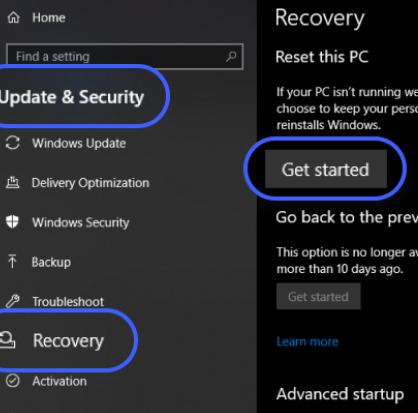
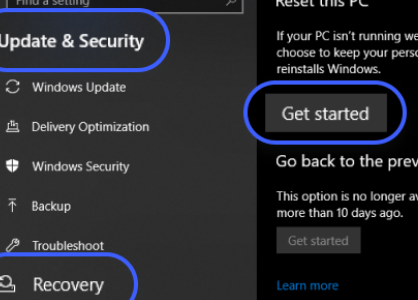
  • Click Recovery in the Update & Security section in the left pane
  • Click Get Started in the right pane

  • Click Reset this PC
  • In the next window, you’ll be presented with two options: (1) Keep my files and (2) Remove everything
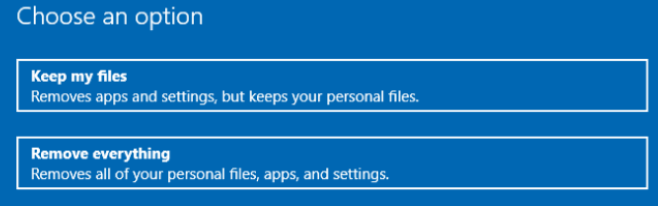
  • If you plan to use your computer, select the Keep my files option. On the other hand, if you plan to give away the PC, select the Remove everything option. This option will remove all your files, data, and settings, restoring the PC to its factory state without any personal file or data
  • Now decide how you wish to reinstall the Windows 10 operating system. You have two options: Cloud download and Local reinstall. If you opt for Cloud download, the latest Windows version will be downloaded directly Microsoft servers. An internet connection is needed for this option. If you choose Local reinstall, Windows installation files that are already present on your computer will be reused. An internet connection is not needed. We recommend you go with the Cloud download option
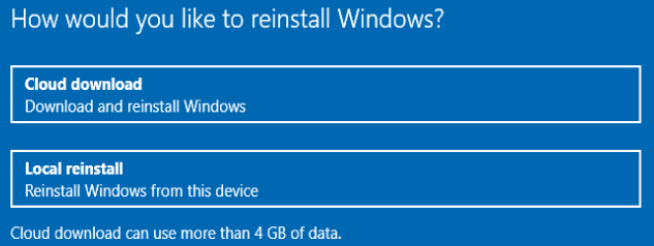
  • In case you choose Cloud download, an Additional Settings window will open. Here you can either click the Next button or the Change Settings option
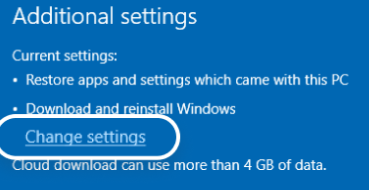
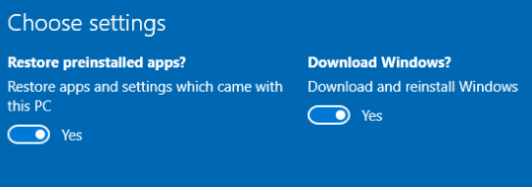
  • In case you choose Change Settings, you have the option to accept to restore settings and app that came with your PC or decline it. You can also decide whether you want to download and reinstall Windows or not. Simply toggle the relevant switches on or off. Once you have made the selection, click the Confirm button
  • In case you choose Local reinstall, an Additional Settings window will appear. You can either click Next or Change settings
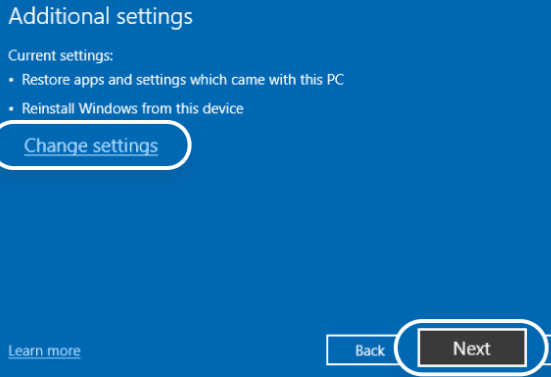
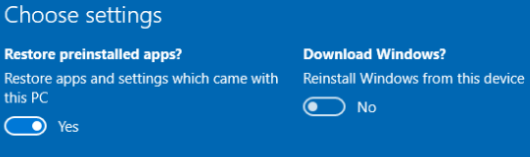
  • In case you clicked Change Settings, you have the option to accept to restore settings and app that came with your PC or decline it. You can also decide whether you want to download and reinstall Windows or not. Simply toggle the relevant switches on or off. Once you have made the selection, click the Confirm button
  • After you have reset the computer, it will automatically restart. Upon restart, you’ll notice that everything you wanted to be erased has been removed from your device.
  • In case you backed up your personal data, recovering them is easy. After you’ve restored the files, it’s time to download all important apps.

Step-by-step instructions to factory reset Win 10 without a password

Even though most people prefer to reset Win 10 using the settings app, it’s possible to reset it if you don’t remember your PC password and can’t log in to your device. However, remember to make a backup of all important files before resetting the computer.

Follow these steps to factory reset a Windows computer without a password.

  • Press the Shift key and continue holding it as you press Restart on the login screen. When “please wait” message appears on the screen, release the Shift key
  • Click Troubleshoot in the Choose an option window
  • Select Reset this PC
  • The next screen will give you two options: Keep my files (this will retain your personal files but remove settings and apps) and Remove everything (this will delete all files, settings, and apps). Select the option that works best for you
  • In the next screen, you will be asked to select how you want to reinstall Windows. You have two options: Download Windows installation files from the cloud or use the current Windows files to reinstall Windows
  • The next screen is “Reset this pc” window. Here you can either select Fully clean the drive option (in case you want to give away the PC to someone) or Just remove my files (in case you plan to continue using the PC)
  • Click Reset

Step-by-step instructions to factory reset Windows 11

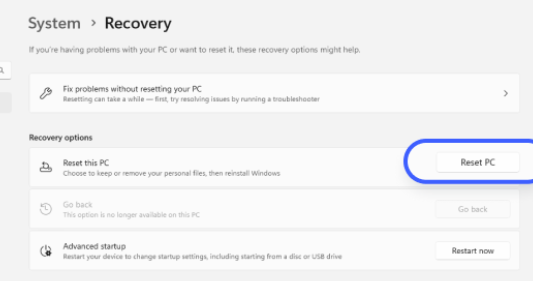
If you want to factory reset Win 11, click Start | Settings | System | Recovery and then choose Reset PC and follow the prompts on your screen. After you’ve factory reset your Win 11 PC, you’ll need to reinstall Windows.

A factory reset should be done only if other troubleshooting options didn’t fix the underlying issue. For instance, if your computer is running slowly, you should first try troubleshooting steps such as defragmenting your hard disk drive, upgrading storage with an SSD, identifying programs that are slowing down your PC, adding more memory, etc.

In case you decide that a factory reset is needed, follow these steps to reset Win 11 to its original state:

  • Type settings in the Start Search bar and click Settings app in the search results
  • Locate and click Recovery in the System window

  • Click Reset PC in the “Reset this PC” section
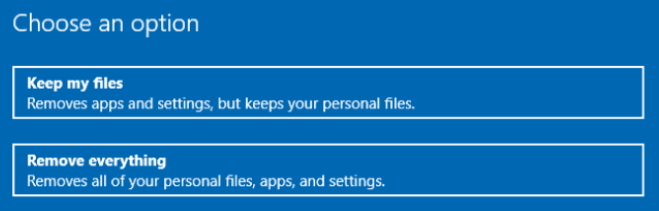
  • The next screen will present you with two options: Keep my files and Remove everything. Select the option that works best for you
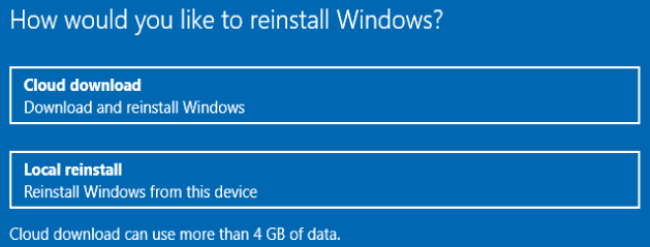
  • Decide how you would like to reinstall Windows. You can either do a Cloud download or a local install. If you opt for Cloud download, the latest Windows version will be downloaded directly Microsoft servers. An internet connection is needed for this option. If you choose Local reinstall, Windows installation files that are already present on your computer will be reused. An internet connection is not needed. We recommend you go with the Cloud download option
  • Follow on-screen prompts (Windows 11 have the same reset instructions as Windows 10)
  • Once the reset process is finished, the PC will restart

If you plan to use the computer yourself, we recommend you use DriverUpdater to keep your device drivers up to date. Outdated device drivers can cause performance-related issues and glitches. So keeping them up to date can help improve your PC experience immensely.

Automatic driver update tools offer many benefits, the most important ones being:

  • You can update device drivers automatically
  • The software scans and updates all outdated or missing drivers at one go
  • The tool picks the right drivers for your device and operating system, so you won’t have to worry about installing an incorrect driver by mistake
  • Automatic driver updates are 100% safe

Driver Updater is one of the best driver update tools out there. Outbyte Driver Updater will give you access to a database of over 1 million drivers. It will regularly scan your PC, suggesting new driver versions to install. Driver Updater contains drivers for a variety of Windows devices. With just one click, you can update drivers in your system.

Step 1
Click here to Install and launch the app

Step 2
Scan all devices

Step 3
Install or update drivers automatically
 

Start Download


Filed Under: PC Fix Tips Tagged With: Reset Windows 10

Computer Turns On But No Display (7 DIY Fixes)

By Susan C on July 2, 2024

It’s frustrating when you power on your computer only to find yourself staring at a black screen?

The problem can occur due to a number of reasons, the most ones being:

  • Power or connection problems
  • Faulty computer hardware
  • Loose components (like RAM)
  • Incorrect BIOS configuration
  • Corrupted or outdated graphics drivers

This post gives you easy, DIY fixes (with step-by-step instructions) to fix the “computer turns on but no display” issue. Let’s dive right in.

Solution#1 – Make sure cables are properly connected and working

Ensure all the cables, such as HDMI and VGA cables, are connected and working. Don’t forget to inspect the power cord of your monitor.

Solution#2 – Disconnect peripheral devices

At times, the issue can be caused by peripheral devices such as external storage drives and webcams. In case you are using any peripheral devices, disconnect them and reboot Windows.

If this does the trick, then reconnect the peripheral devices one by one and reboot Windows each time to identify the culprit.

Solution #3 – Perform a hard reset

At times, static or residual electricity could get stored on the system’s board capacitors, which in turn could cause issues when you power on your PC. This is where a hard reset can come in. It drains the residual power, thereby helping fix the black-screen-on-starting-PC issue.

  • Performing a hard reset is not difficult at all. Just follow the steps shared below.
  • Turn the computer off
  • Disconnect your power cable (If you’re a laptop user, you’ll need to replace the battery as well)
  • Disconnect the external devices, such as webcams, media cards, and USB drivers
  • Press down the power button and hold it for 20-25 seconds to ensure the residual power gets drained
  • Reconnect your power cable (Laptop users need to replace the battery as well)
  • Restart Windows

Solution #5 – Reset BIOS settings

If the above-mentioned solutions don’t work, check whether the problem persists with another monitor. If it doesn’t, it’s possible the display issue is being caused by your computer’s BIOS, which activates everything that your Windows PC needs to start.

Resetting the BIOS settings restores them to the last saved configuration and may help fix the issue of blank screen.

Important: Resetting the BIOS settings is not going to erase hard drive data, but it could affect how the hardware is configured if you changed the settings before. You should perform the steps listed below only if you are confident about your ability to understand BIOS settings. Otherwise, skip this solution because incorrect changes to BIOS settings could cause various serious issues to crop up.

How to reset the BIOS settings

The simplest way to reset the BIOS is from its interface. Even in your screen is black, you may be able to access BIOS interface if your monitor is able to receive power.

  • Turn your computer on
  • Press and hold F2 key till you see “Entering Setup”
  • Reset BIOS to its default settings. How you can do this depends on your computer model and version, but three most common ways are: (1) Click Load defaults, (2) Press F9 key to load factory settings, and (3) Press Alt+F keys to load factory settings
  • Now press Esc key and then select “Exit” or “Save and Exit”
  • Press Enter key to save the changes and exit the BIOS screen
  • Windows should restart automatically

Solution #6 – Reseat memory modules

Loose RAM sticks may cause startup errors. Reseating them (which basically means removing components and putting them back into their original slot) can help resolve those connections.

Here are the steps to follow:

  • Turn the computer off
  • Now remove your power cable
  • Open the computer cover or case
  • Remove the RAM and now reseat it in its original place

In case of more than one memory modules, you might consider reseating every component. You may even consider switching their slots. In case the RAM is rusty, it might be a good idea to clean it with an eraser.

Solution #7 – Update graphics driver

You can update the graphics driver manually or automatically. We have discussed both the methods here. You can pick the one that you like better. Most computer users prefer the automatic method since it requires no technical knowledge and is many times faster than the manual method.

Updating graphics driver manually

To manually update the graphics driver, follow these steps:

  • Go to Windows Start bar, type device manager, click the Device Manager application
  • In the Device Manager window, expand the Display adapters entry
  • Now you will see the display adapter on your computer
  • To update the driver, right-click the graphics card, and select Update driver
  • In the Update driver dialog window, click Search automatically for drivers
  • Windows will search the Internet for the latest driver and automatically install it
  • Restart Windows after the new driver has been installed

Update graphics driver automatically

If you would rather not jump through hoops to install the latest driver, we recommend using a reliable driver update software tool such as DriverUpdater. It will update your graphics card driver (and other device drivers) with just a few mouse clicks.

Automatic driver update tools offer many benefits, the most important ones being:

  • You can update device drivers automatically
  • The software scans and updates all outdated or missing drivers at one go
  • The tool picks the right drivers for your device and operating system, so you won’t have to worry about installing an incorrect driver by mistake
  • Automatic driver updates are 100% safe

Driver Updater is one of the best driver update tools out there. Outbyte Driver Updater will give you access to a database of over 1 million drivers. It will regularly scan your PC, suggesting new driver versions to install. Driver Updater contains drivers for a variety of Windows devices. With just one click, you can update drivers in your system.

Step 1
Click here to Install and launch the app

Step 2
Scan all devices

Step 3
Install or update drivers automatically


Start Download


Filed Under: PC Fix Tips Tagged With: Black Screen problem

Ethernet Speed Capped At 100Mbps (DIY Fixes)

By Susan C on July 1, 2024

Ethernet Speed Capped At 100Mbps (DIY Fixes)

Gone are the days when you needed a specialist technician to set up a home network or a small office network. Thanks to vast improvements in Windows operating system over the years, configuring a 1 GB network usually only requires you to connect the LAN to a compatible router.

However, sometimes the speed of the Ethernet connection gets stuck at 100Mbps? If you are encountering this issue, don’t worry. In this post, we will show you how to resolve the problem.

What to do if Ethernet Connection Speed is Stuck at 100Mbps?

Several factors could limit the Ethernet connection speed. If your Ethernet connect is stuck at 100Mbps when you have a 1GB connection, here are a few solutions you should try these solutions before sending an SOS to your local technician.

Check the network cable

If previously your network speed worked at 1GB transfer rates and it suddenly dropped to 100MB, the network cable could be the culprit.

You might be wondering: How can I check if my network cable is faulty?

The answer is simple. Test the connection with a different network cable. If you are getting 1GB transfer rates with it, your present cable is faulty and you should get it replaced.

Check your network cable for any signs of damage. A damaged or bent cable can significantly reduce the transfer rates. Replacing a damaged cable will restore the network speed immediately.

If you have just set up the network connection but are getting lower than expected transfer rates, make sure the cable you are using is capable of transferring data at 1GB speed. The maximum network speed varies between network cables. For instance, a Cat-5 network cable only supports up to 100MB speed whereas a Cat-5e or Cat-6 network cable can provide up to 10GB transfers. For 1GB transfer rates, you should use a Cat-5e or a higher-rated network cable.

Troubleshoot the Network Configuration & Properties

In case there’s nothing wrong with the network cable, check the following:

  • Network configuration
  • Adapter properties
  • Router settings

Any change to these settings could lead to a significant drop in transfer speed.

Using Windows Troubleshooter to Fix the Problem

Here are the steps to follow:

  • Type control panel in the start search box and select the first result
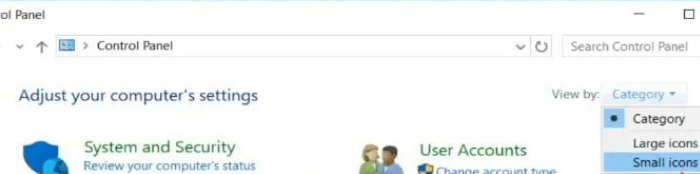
  • Change the control panel display to Small icons by clicking the Category drop down menu in the View by section

  • Choose Network and Sharing Center from the listed applications

  • The Network and Sharing Center shows the active network, troubleshoot problems, set up a new network connection, or change your adapter settings. Before you make changes to the device properties, it would be a good idea to run the Windows troubleshooter see whether it can resolve the problem
  • Click Troubleshoot Problems in the Change Your Network Settings section
  • Select Network Adapter

  • Click Run the troubleshooter so that Windows can check the adapter’s configurations for any problems
  • Select your Ethernet Adapter
  • Click the Next button

Important: If the PC has only 1 network adapter, Windows troubleshooter is going to automatically run a check on it.

  • Wait until Windows troubleshooter completes the its diagnosis check

  • In case it identifies any issue, it will automatically recommend a solution. If no issue was detected, a message stating the same will appear on the screen
  • In case the error is occurring due to a faulty or broken cable, the troubleshooter will give a message similar to the one listed below

Check Adapter Settings

In case Windows Troubleshooter fails to detect any issue, then first check the adapter’s speed settings.

  • Open Network and Sharing Center
  • Click Change adapter settings
  • A list of adapters will appear; right-click the adapter you’re using
  • Select Properties
  • Click the Configure button
  • Now Device Controller Properties window will open. Here you can check various things such as the status, find relevant information regarding the driver, and make changes to driver settings
  • Click the Advanced tab to open device settings

Important: Don’t forget to check the Device Status to ensure it has no issues and is working properly

  • In the Property section, select Speed & Duplex
  • The Auto-Negotiation option in the Value section may trigger network performance issues with some Ethernet adapters. This setting lets your network adapter to adjust speed settings as per the LAN configuration to which you connect the PC. In case you regularly connect to different LAN networks with different transfer rates, it’s possible that the setting doesn’t changes to 1GB from 100MB while switching. Changing the Value manually to match the speed of LAN to which your PC is connected may fix the issue
  • Click the OK button to save the changes. Now test the network performance. In case you don’t see the 1GB setting option even when you the rating should go up to 1GB, chances are you are using the wrong LAN adapter driver. Updating the driver will fix the issue

Update LAN Adapter Driver

Here are the steps to follow:

  • Click the Driver tab in the Ethernet Properties window
  • Click Driver details to view the relevant details about your device driver
  • Click Update Driver
  • Select the first option that appears on the next screen: “Search automatically for updated driver software”
  • Windows will automatically look for the latest device drivers online. In case it finds a new driver, it will download and install it. In case your driver is up to date, it will state that no new drivers updates are available

Rather than updating the device drivers manually, consider using a reliable driver update tool such as DriverUpdater. It updates all outdated device drivers including LAN drivers with just a few clicks, ensuring you will not have to worry about performance issues with your LAN adapter.


Automatic driver update tools offer many benefits, the most important ones being:

  • You can update device drivers automatically
  • The software scans and updates all outdated or missing drivers at one go
  • The tool picks the right drivers for your device and operating system, so you won’t have to worry about installing an incorrect driver by mistake
  • Automatic driver updates are 100% safe

Driver Updater is one of the best driver update tools out there. Outbyte Driver Updater will give you access to a database of over 1 million drivers. It will regularly scan your PC, suggesting new driver versions to install. Driver Updater contains drivers for a variety of Windows devices. With just one click, you can update drivers in your system.

Step 1
Click here to Install and launch the app

Step 2
Scan all devices

Step 3
Install or update drivers automatically


Start Download


Filed Under: PC Fix Tips Tagged With: Ethernet Speed

  • « Previous Page
  • 1
  • …
  • 38
  • 39
  • 40
  • 41
  • 42
  • …
  • 189
  • Next Page »


  • Recent Posts
  • Popular Posts
        

Read More Posts


Read More Posts

Drivers.com Sites

  • Software Drivers
  • Drivers Ed

About Us

  • Advertise
  • About Drivers
  • Drivers Support
  • Drivers.com Privacy Policy
  • Disclaimer
  • Software Drivers
  • Mac Fixes and Tips
  • PC Fix Tips
  • Security/ Backup
  • Tablets & Smartphones
  • Tech News

© Copyright 2026 PDE Publications Ltd. End User License Agreement (EULA)