Drivers.com

follow us:

facebook twitter
  • Home
  • Download Drivers
  • Drivers Help
  • PC/Mac Resources
  • Software Drivers
  • Mac Fixes and Tips
  • PC Fix Tips
  • Security/ Backup
  • Tablets & Smartphones
  • Tech News
  • Software Drivers
  • Mac Fixes and Tips
  • PC Fix Tips
  • Security/ Backup
  • Tablets & Smartphones
  • Tech News

Downloading Logitech Headset Drivers Made Easy

By Susan C on June 20, 2024

In the world of headsets, Logitech is a respected name, offering good value and good price-to-performance ratios. That said, in order to enjoy all the features and capabilities of Logitech headsets, it’s necessary that you use the latest Logitech headset device drivers.

Logitech offers many headset models, aimed at different audience. Gamers can expect to have a great gaming experience using wireless Logitech headsets such as the Logitech H390 and Logitech Zone Vibe 125. Other popular gaming headsets from Logitech include Logitech G430 and Logitech G Pro X Gaming Headset. Those who need headsets for online classes or video conferencing are likely to find the regular Logitech headsets sufficient to their needs.

No matter the type of Logitech headset you have, without the latest drivers, you may experience performance-related issues.

This brings us to the all-important question: How can you download Logitech headset drivers?

There are two ways in which you can download Logitech headset drivers: manually and automatically. Needless to say, the second method is not only easier but also faster. All the same, we have listed both these methods, so you can objectively decide which is a better fit for you.

Method 1 – Manually Download Logitech Drivers and Install them

The first thing you need to do is identify the model name and number of your Logitech headset. You’ll likely find this information on the packaging itself. Note down this information.

Next, go to Logitech official website and search for the latest driver for your Logitech headset. To do so, click Support on Logitech website and enter the Logitech headset model name. You’ll automatically be directed to the most relevant driver download page.

Make sure the listed driver is for your headset model and compatible with your Windows system. If so, click the Download button and save the downloaded folder in a suitable location.

Once the download process is complete, double-click the downloaded folder, locate the installation file (it will have the .exe file extension), and double-click. This will launch the installation process. Follow the on-screen instructions and wait for the process to complete.

Once the driver has been installed, restart Windows.

What if I encounter issues while downloading the Logitech headset driver or installing it?

Rarely, users have complained of experiencing problems while downloading the Logitech headset driver or installing it. If you face any such issues, try these solutions:

  • Make sure your Windows computer meets the system requirement for the driver you are trying to download
  • Temporarily disable your antivirus tool. Once you have installed the driver, enable the protective software again
  • Restart Windows and try downloading and installing the Logitech headset driver

Method 2 – Automatically Download the Logitech Headset Driver

If the manual method seems like a lot of work, you can automate the driver update process by using a reliable driver update tool. We recommend you give DriverUpdater a try, since it is an advanced driver update tool that can update your Logitech headset driver (and other device drivers) in just a couple of minutes.

Automatic driver update tools offer many benefits, the most important ones being:

  • You can update device drivers automatically
  • The software scans and updates all outdated or missing drivers at one go
  • The tool picks the right drivers for your device and operating system, so you won’t have to worry about installing an incorrect driver by mistake
  • Automatic driver updates are 100% safe

Driver Updater is one of the best driver update tools out there. Outbyte Driver Updater will give you access to a database of over 1 million drivers. It will regularly scan your PC, suggesting new driver versions to install. Driver Updater contains drivers for a variety of Windows devices. With just one click, you can update drivers in your system.

Step 1
Click here to Install and launch the app

Step 2
Scan all devices

Step 3
Install or update drivers automatically
 

Start Download


Filed Under: PC Fix Tips Tagged With: Logitech Headset Driver

5 DIY Solutions USB Tethering Connection Issues

By Susan C on June 12, 2024

Tethering is something that all newer iPhones devices support, allowing users to turn their iPhones into instant hotspots. But sometimes iPhone tethering stops working suddenly, causing both frustration and inconvenience.

In this post, we’ll show you how to fix the issue on both Mac computers and Windows.

Step 1: Ensure iPhone is up to date

Every model of the iPhone from iPhone 3GS onwards support tethering. If you have an older model, tethering won’t work.

If your iPhone supports tethering but this feature is not working or has suddenly stopped working, first give these simple steps a try before moving on to the other solutions in the post.

  • Restart your iPhone
  • Ensure the latest iOS update is installed
  • Reset the iPhone Network

If the issue still persists, move on to the next step

Step 2: Ensure the Hotspot is switched on

If the hotspot feature is turned off, tethering won’t work. Follow these steps to ensure this feature is turned on.

Here are the steps to follow:

  • Go to your iPhone’s Settings
  • Choose Settings or Cellular (depending on the version of iPhone you use)
  • Choose Personal Hotspot
  • Now, slide Personal Hotspot slider to turn it on

Step 3: Check the Computer Settings (This is for Mac Users)

It is possible computer settings might be configured improperly to accept new connections. The following steps should fix majority of iPhone USB-related connection issues.

  • Ensure iTunes is up to date
  • Connect your iPhone to Mac using a USB cable (Select trust the device in case you receive a prompt)
  • Open iTunes. Ensure the device is visible (use another cable in case it is not visible)
  • Choose System Preferences
  • Choose Network
  • Choose iPhone USB (in case it isn’t present, add it by selecting the + sign)
  • Click Settings and then Make Service Active
  • Finally, click Apply

Step 4 – Check the Computer Settings (This is for Windows Users)

It is possible computer settings might be configured improperly to accept new connections. By following these steps, you should be able to fix majority of iPhone USB-related connection issues.

  • Ensure iTunes is up to date
  • Connect your iPhone to the Windows computer using a USB cable
  • Open iTunes and ensure the device is visible (use another cable in case it is not visible)
  • In the Start Search box, type settings. Click Settings in the search results
  • Choose Network & Internet
  • You will see a Remote NDIS based Internet Sharing Device. Enable it
  • Now your devices are tethered

In case you still can’t tether the iPhone, then follow these advanced troubleshooting steps:

Launch the Network Troubleshooter

Windows has a built-in troubleshooter that can successfully diagnose most of the common network issues. You can launch this troubleshooter by following these steps:

  • In the Windows Start Search box, type settings and then click Settings in the search results
  • Go to Network and Internet
  • Choose Status
  • Choose Network Troubleshooter
  • Follow on-screen prompts

Deactivate the Firewall temporarily

Occasionally, firewalls can cause tethering problems when they block incoming connections. We recommend you check the firewall’s documentation to turn off the firewall temporarily and then try tethering the iPhone again.

Ensure that you re-enable your firewall with an exemption for the iPhone in case the tethering issue is fixed. Permanently turning off the firewall could pose a security risk, exposing your system to malware attacks.

Step 5 – Update the USB drivers

Sometimes, Window’s Network Troubleshooter fails to identify a network issue. Old USB drivers could at times lead to iPhone tethering issues.

If none of the above solutions have worked for you, we recommend you update your USB drivers. The easiest way to do so is by using a reliable driver update software such as DriverUpdater. With just a few clicks, it can update the USB drivers and other outdated device drivers.

Automatic driver update tools offer many benefits, the most important ones being:

  • You can update device drivers automatically
  • The software scans and updates all outdated or missing drivers at one go
  • The tool picks the right drivers for your device and operating system, so you won’t have to worry about installing an incorrect driver by mistake
  • Automatic driver updates are 100% safe

Driver Updater is one of the best driver update tools out there. Outbyte Driver Updater will give you access to a database of over 1 million drivers. It will regularly scan your PC, suggesting new driver versions to install. Driver Updater contains drivers for a variety of Windows devices. With just one click, you can update drivers in your system.

Step 1
Click here to Install and launch the app

Step 2
Scan all devices

Step 3
Install or update drivers automatically


Start Download


Filed Under: Mac Fixes and Tips Tagged With: iPhone tethering issues

How to Resolve Counter-Strike Global Offensive Crashes?

By Susan C on June 12, 2024

How to Resolve Counter-Strike Global Offensive Crashes?

Is Counter-Strike Global Offence (CSGO) crashing on your Windows 10?

Don’t worry. You’re not alone. CSGO crashing frequently is not an uncommon issue, particularly on Windows 10.

More importantly, it can be fixed fairly easily, as this post shows.

How to fix CSGO crashes?

Try the solutions listed below in the order they are listed.

Fix #1 – Turn off the Compatibility Mode

While CSGO crashes can occur due to many reasons, the primary cause in most instances is the compatibility mode. Turning it off can prevent the issue from surfacing again.

Here are the steps to follow:

  • Go the game’s installation directory
  • Locate csgo.exe
  • Right-click it and select properties
  • Now find the compatibility tab
  • Next, disable the ‘Run as Administrator’ feature and then disable compatibility mode
  • Click Apply to save the changes
  • Restart CSGO to see if the problem was fixed

Fix #2 – Check integrity of CSGO game files

If the fix 1 didn’t work for you, try this option.

  • Launch Steam and then click LIBRARY
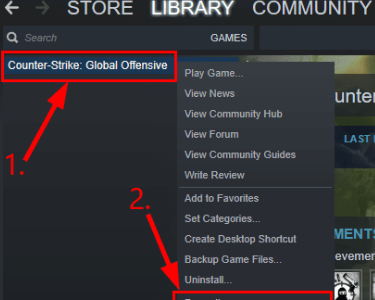
  • You’ll see a list of your games. Locate CSGO and right-click it and then select Properties

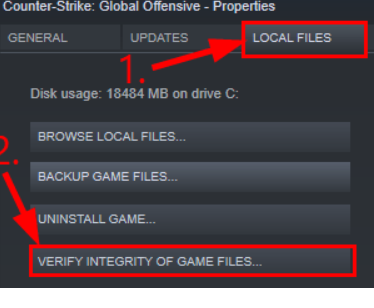
  • Click LOCAL FILES and then click VERIFY INTEGRITY OF GAME FILES

  • The CSGO game cache verification may take a few seconds. Wait until it is over
  • Close the windows in Steam
  • Exit Steam
  • Open Steam, run CSGO and check if the issue has been resolved

If you’re still facing the CSGO crashing issue, move on to the next solution.

Fix #3 – Launch the game in -safe or -autoconfig mode

It’s possible the problem would disappear when you run the game in a different mode. We recommend you give the -safe mode and -autoconfig mode a try.

Important: You can try only one of these modes at a time. After the crashing issue has been fixed, remove these modes.

Launch CSGO in -safe mode

  • Launch Steam and then go to LIBRARY
  • You’ll see your list of games. Locate CSGO, right-click it, and select Properties
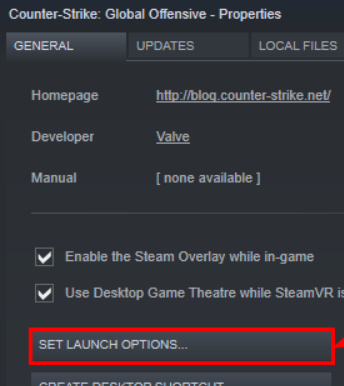
  • Click SET LAUNCH OPTIONS

  • If any launch options are listed, remove them
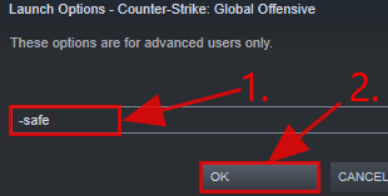
  • Now, type -safe and click the OK button

  • Exit Steam
  • Launch CSGO again and see if the crashing issue has been fixed
  • If not, try launching the game in -autoconfig mode

Launch CSGO in -autoconfig mode

  • Launch Steam and navigate to LIBRARY
  • You’ll see all your games listed here. Locate and right-click CSGO and then click Properties
  • Now click SET LAUNCH OPTIONS
  • If any launch options are currently listed, remove them
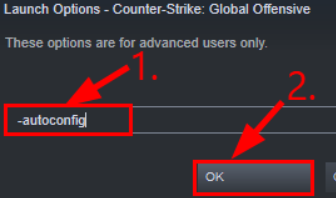
  • Now, type -autocofig and then click the OK button

  • Exit Steam
  • Relaunch CSGO and see if the crashing issue has been fixed

Fix #4 – Reacquire all CSGO game files

If nothing has worked so far, try reacquiring all CSGO game files.

Here are the steps to follow:

  • Exit Steam
  • Press Win + E on your keyboard
  • In the address bar, paste this address: C:\Program Files (x86)\Steam and then press Enter
  • Locate the steamapps folder, right-click it, and rename it to old_steamapps
  • Relaunch Steam and re-run CSGO
  • After the installation process has completed, test whether CSGO crashing issue has been fixed

If the issue has been resolved, copy new files to the old_steamapps folder and then rename it to steamapps for restoring other games without having to download them again.

If the issue still persists, rename the folder so that you wouldn’t have to reinstall other games and then try the next solution in this list.

Fix #5 – Rename fastprox.dll to fastprox.dllold

Here are the steps to follow:

  • Press Win + E on the keyboard
  • Click View | Options | Change folder and search options
  • In the Folder Options window, click View, uncheck the Hide extensions for known file types option
  • Click Apply and then click OK
  • Press Win + E and then paste this address in the address bar: C:\Windows\SysWOW64\wbem
  • Press Enter
  • Locate fastprox.dll, right-click it, and rename it to fastprox.dllold

Launch the game again and see if the issue has been fixed. If not, try the last solution in the post.

Fix #6 – Update the graphics card driver

The ‘CSGO is frequently crashing’ issue can occur due to an outdated graphics card driver. To resolve the problem, update the graphics driver.

You can update the graphics card driver either manually or automatically. We have shared the steps for both. All the same, we recommend the automatic method, since it doesn’t require any technical knowledge and can update device drivers in just a couple of minutes.

How to update graphics card Manually

  • Follow these steps:
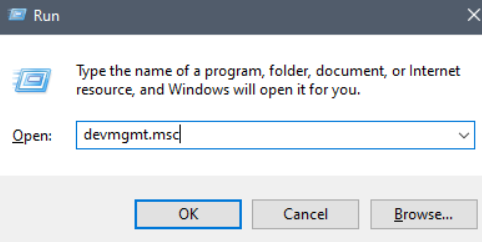
  • Press Win + R keys
  • In the Run dialog box, type devmgmt.msc and press the OK button to open the Device Manager window

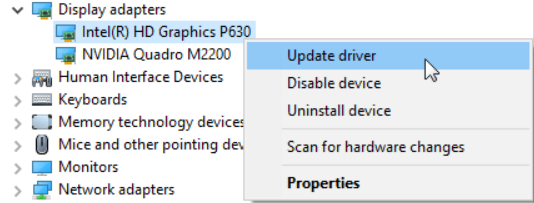
  • Expand Display Adapters entry, right-click your graphics card, and click Update Driver

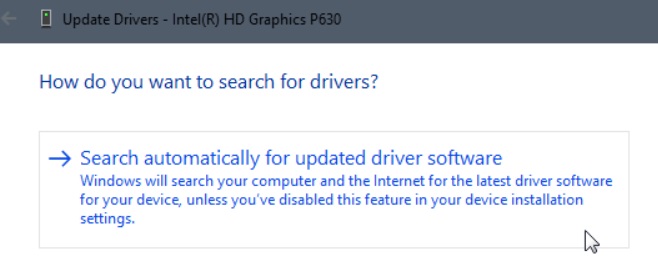
  • Click Search automatically for updated driver software

  • Windows will look for the latest driver and download and install it automatically
  • Once the latest graphics driver has been installed, restart Windows

If Windows fail to locate the latest driver, you can do so manually by visiting the driver manufacturer’s website and downloading the latest driver for your graphics card. To do this, you will have first have to know your graphics card details. You can find them by following these steps:

  • Click Windows Start button, type System Information in the Search box, and press Enter
  • In the left pane of the System Information dialog box, expand Components and then click Display . In the right panel, you’ll find the details regarding the graphics display adapter in the Adapter Type or Adapter Description entries
  • Not down the graphics card model number, go to the manufacturer’s website, download the latest driver for your Windows operating system and save the file in the desired location
  • Once the download process is complete, double-click the downloaded folder, and launch the set up file (the one with the .exe file extension)
  • Follow the on-screen prompts and wait for installation to complete
  • Restart Windows

How to install graphics card automatically

If the steps listed above sounds like hard work, simply use an advanced driver update software to update your graphics card driver. We recommend you give DriverUpdater a try.

Automatic driver update tools offer many benefits, the most important ones being:

  • You can update device drivers automatically
  • The software scans and updates all outdated or missing drivers at one go
  • The tool picks the right drivers for your device and operating system, so you won’t have to worry about installing an incorrect driver by mistake
  • Automatic driver updates are 100% safe

Driver Updater is one of the best driver update tools out there. Outbyte Driver Updater will give you access to a database of over 1 million drivers. It will regularly scan your PC, suggesting new driver versions to install. Driver Updater contains drivers for a variety of Windows devices. With just one click, you can update drivers in your system.

Step 1
Click here to Install and launch the app

Step 2
Scan all devices

Step 3
Install or update drivers automatically
 

Start Download


Filed Under: PC Fix Tips Tagged With: COSG crashes

  • « Previous Page
  • 1
  • …
  • 39
  • 40
  • 41
  • 42
  • 43
  • …
  • 189
  • Next Page »


  • Recent Posts
  • Popular Posts
        

Read More Posts


Read More Posts

Drivers.com Sites

  • Software Drivers
  • Drivers Ed

About Us

  • Advertise
  • About Drivers
  • Drivers Support
  • Drivers.com Privacy Policy
  • Disclaimer
  • Software Drivers
  • Mac Fixes and Tips
  • PC Fix Tips
  • Security/ Backup
  • Tablets & Smartphones
  • Tech News

© Copyright 2026 PDE Publications Ltd. End User License Agreement (EULA)