
Drivers.com

follow us:

facebook twitter
  • Home
  • Download Drivers
  • Drivers Help
  • PC/Mac Resources
  • Software Drivers
  • Mac Fixes and Tips
  • PC Fix Tips
  • Security/ Backup
  • Tablets & Smartphones
  • Tech News
  • Software Drivers
  • Mac Fixes and Tips
  • PC Fix Tips
  • Security/ Backup
  • Tablets & Smartphones
  • Tech News

Samsung Odyssey G9 Monitor: How to Fix Common Issues & Boost Performance

By Susan C on August 21, 2024

The Samsung Odyssey G9 is a great option for media consumption. It’s high resolution and large screen promises an immersive viewing experience. It also boasts best-in-class speed and image quality and a 1000R curve, all of which delivers a truly unique and amazing gaming experience. However, just like any other peripheral device, the Odyssey G9 Monitor is not completely immune to issues.

The following are the most common issues reported by users:

  • Flickering
  • Color distortion
  • Connectivity problems

Even though none of these issues are very serious in nature, they can affect monitor’s performance and lead to a less-than-perfect user experience.

This blog post addresses common issues faced by Samsung Odyssey G9 monitor users, so that they can enjoy top-notch, glitch-free experience.

Fixing Common Samsung Odyssey G9 Issues

Flickering Screen

This is perhaps the most common issue faced by Samsung Odyssey G9 users. Flickering screen can occur due to several reasons. The following are the most common ones:

Outdated Graphics Drivers: If your drivers are outdated, they may not support the refresh rate and high resolution of Samsung Odyssey G9 monitor. Thus it is important you regularly update your graphics card drivers.

Cable Connection: A loose connection causes flickering issues far more frequently than many think. Make sure all connections are secure.

V-Sync Settings: If V-Sync settings in the gaming software are misconfigured, screen flickering can occur.

Connectivity Issues

There are different kinds of connectivity issues, but the two most common ones are “your PC not recognizing the monitor” and “poor signal quality”. Typically, connectivity issues can be resolved by:

Checking Cable Connection: Make sure the cable is properly connected to your monitor and the power source and doesn’t have signs of wear and tear. Additionally, ensure you are using a HDMI cable or a high-quality display port that is compatible with your monitor.

Checking the Ports: It’s possible the port you are using is faulty, because of which the monitor is not being recognized by your PC. Try different ports to check whether this is the case or not.

Color Distortion

Viewing experience can seriously be hampered by color distortion. Common ways to handle color distortion issues include:

Calibration Tools: Professional color calibration tools can help you accurately and seamlessly adjust the color settings for best user experience.

Monitor Settings: Using the monitor’s inbuilt settings, adjust the color profile to match your preferences.

Software Updates: For optimal performance and to maintain compatibility, ensure the monitor’s associated software and firmware are up-to-date.

By fixing these issues before they snowball into a big problem, you can improve your viewing experience. Also, keep in mind that performing maintenance checks on a regular basis can help prevent these issues from resurfacing again.

How to Update the Samsung Odyssey G9 Drivers

You need updated drivers to get optimal performance from your monitor. In this section, we’ll look at how you can update the monitor drivers.

Check the Existing Driver Version

Before you get new drivers, it’s necessary to check which version of drivers you presently have.

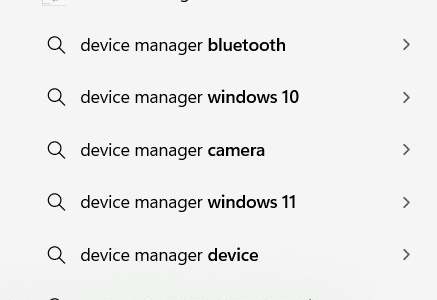
Type Device Manager in the Search box in the taskbar and select the top result

In the Device Manager window, expand the ‘Monitors’ entry

Right-click Samsung Odyssey G9 and then select Properties

Click the Driver tab

You’ll be able to see critical information about the monitor driver here, including its version number

Go to the Samsung Support page and search for the latest driver for your monitor. Compare the search result with the version number you have. If you have an old driver, download the new driver and install it.

Where You Can Find The Latest Driver and How to Install It

Visit the official support page for Samsung Odyssey 9

Find the latest driver. You can use the search function on the supports page to search for the latest driver for your monitor.

Download the latest driver. Make sure that the driver you are downloading is compatible with your system. For example, if you use Windows 32-bit system, you should download a driver that’s built for 32-bit systems, not 64-bit PCs.

Double-click the downloaded file to launch the installation process.

Follow on-screen instructions. Simply follow the instructions issued by the installation wizard to complete the installation process. Restart Windows after the installation is complete, if asked.

Updating monitor drivers helps fix compatibility issues or bugs, but that’s not all. New drivers often enhance the monitor’s overall performance and sometimes even unlock new features.

Checking for driver updates on a regular basis is essential for maintaining the health of your monitor. If the idea of manually updating drivers doesn’t sound appealing, you should opt for a driver update software. It will automatically update new drivers when they are released. We recommend you give DriverUpdater a try. The download link is shared at the end of the post.

How to Maximize the Performance of Samsung Odyssey G9?

Whether you are using the monitor for professional use or gaming, optimizing its settings can help improve its performance drastically. The following tips can help you get the best performance from your Odyssey G9 monitor.

Adjusting Refresh Rate and Screen Resolution

This monitor supports a refresh rate of 240 Hz and a resolution of up to 5120×1440. By adjusting the monitor settings, you can enjoy a more immersive and seamless experience.

Resolution: The native resolution provides the best image for everyday tasks. But if you are playing high-performance games, it may be a good idea to occasionally opt for a lower resolution to boost frame rates.

Refresh Rate: By hiking up the refresh rate to 240Hz, one can reduce ghosting and motion blur, which is perfect for games that are fast-paced. You can do so by opening Display Settings on your Windows computer, clicking ‘Advanced Display Settings’, and then choosing the maximum refresh rate.

Color Settings: Use the monitor menu for adjusting the color settings. For vivid and lifelike colors, increase both brightness and contrast. You may also adjust black levels for better color rendition in darker scenes.

G-Sync/Free Sync: Enabling AMD FreeSync or NVIDIA G-Sync for synchronizing frame rate between the monitor and GPU can help reduce screen tearing.

Using Color Calibration Tools

If you want to achieve accurate color representation, proper color calibration is a must. Whether you are doing graphic designing and video editing or playing high-performance games, proper color calibration is the key to achieve true-to-life color representation.

Inbuilt Tools: Like other high-end monitors, the Odyssey G9 features a ton of pre-set modes optimized for multiple scenarios, such as cinema, gaming, and more. You can access these pre-set modes via your monitor’s menu.

Hardware Calibrators: Using a hardware calibrator such as the SpyderX is recommended for professionals. Such devices can help them achieve best color accuracy.

Software Solutions: Consider using software such as DisplayCAL along with hardware calibrators for fine-tuning the settings and ensuring consistent and optimal color accuracy across different applications.

Why You Need Up-to-Date Drivers?

Having latest monitor and GPU drivers help you get the best performance out of your Odyssey 9 monitor. Latest drivers also help fix bugs and compatibility issues, besides enhancing security.

The easiest way to get the latest drivers is by using a reliable driver update tool. We recommend you give DriverUpdater a try.

Automatic driver update tools offer many benefits, the most important ones being:

  • You can update device drivers automatically
  • The software scans and updates all outdated or missing drivers at one go
  • The tool picks the right drivers for your device and operating system, so you won’t have to worry about installing an incorrect driver by mistake
  • Automatic driver updates are 100% safe

Driver Updater is one of the best driver update tools out there. Outbyte Driver Updater will give you access to a database of over 1 million drivers. It will regularly scan your PC, suggesting new driver versions to install. Driver Updater contains drivers for a variety of Windows devices. With just one click, you can update drivers in your system.

Step 1
Click here to Install and launch the app

Step 2
Scan all devices

Step 3
Install or update drivers automatically
 

Start Download


Filed Under: PC Fix Tips Tagged With: Odyssey G9 Monitor

DIY Fixes For Common BenQ PD3200U Monitor Issues

By Susan C on August 2, 2024

DIY Fixes For Common BenQ PD3200U Monitor Issues

Excellent performance, sturdy yet unassuming, and crisp display make the BenQ PD3200U monitor the quintessential pro-grade monitor. But just like any other peripheral device, the BenQ monitor may throw a random issue at you occasionally.

What are the most common issues users have reported? Most importantly, how can you troubleshoot them? Exactly why it is important to keep your graphics card driver and BENQ monitor drivers up to date? And how one can do so?

These are just a few questions this post addresses. If you have a BenQ PD3200U Monitor or thinking of getting one, this is one blog post you can’t afford to miss.

Common BenQ PD3200 Monitor Issues

When it comes to buying a top-class monitor with exemplary display capabilities, BenQ PD3200 is the monitor of choice for many professionals, gamers, and everyday users. While the monitor is known for its stellar performance, it is not immune to technical issues.

Common issues users have reported include:

Flickering Screen

This is perhaps the most common issue with the BenQ PD3200 monitor. This issue could occur due to several reasons, including:

Faulty connections or cables: Make sure your cable is in good condition, without any signs of wear and tear. Also ensure it is properly connected and the power outlet is working fine.

Incompatible refresh rates: You can encounter the flickering issue if the video output settings doesn’t match your monitor’s specifications.

Connectivity Issues

Another common problem is connectivity disruptions. This issue typically occur due to:

Loose connections: Make sure cables connected to the monitor do not show signs of wear and tear.

Incorrect input source: Make sure the monitor’s input mode matches that of your connection.

Color Inaccuracies

Graphic designers and other professionals who need perfect color precision may find any color inaccuracy a big disruption. Generally, color issues occur because of:

Improper calibration: Calibration tools can help resolve color inaccuracies.

Factory settings: A factor rest can sometimes help fix the issue by restoring default settings.

In case you encounter these issues, it is necessary for you to perform a series of checks to correctly diagnose the problem and fix it. Each solution requires understanding of the root cause and underlying technologies and settings used with this monitor. Users can often fix issues with their BenQ PD3200U monitor without requiring professional services if they systematically address each potential source of the problem.

Diving Deep into BenQ PD3200U Monitor Technical Issues

Successfully resolving and managing these issues often involves more than quick fixes. Let’s discuss potential solutions for each of the aforementioned issues separately.

Flickering Screen: First check the refresh rate in the display settings. This monitor is optimized for 60Hz refresh rate at its native resolution. If the refresh is set to a different setting, reset it to 60Hz. Next, check the video cables — HDMI, DisplayPort — to ensure they are not loosely connected or damaged. Often, replacing the video cables does the trick.

Connectivity Problems: Make sure the input source is correct. You can check this setting through your monitor’s on screen menu. If the problem persists, we recommend you try different ports.

Color Discrepancies: The key here is calibration. Use the BenQ Palette Master Element software for calibration. With regular calibration using professional-grade software, you monitor will always display colors correctly.

With help of these steps, you can resolve most of the common issues with the BenQ monitor and improve its performance.

How to Troubleshoot BenQ PD3200U Issues?

When dealing with issues related to the BenQ PD3200U, troubleshooting efficiently can often help in restoring the monitor to its best performance without requiring professional assistance. In this section, we’ll discuss common steps for diagnosing and resolving issues like connectivity problems, incorrect settings, and screen flickering.

Initial Diagnosis

First, thoroughly assess the symptoms. Are you facing connectivity issues? Or is there problem with the display? Or is your monitor’s screen flickering?

Once you correctly identify the underlying the problem, troubleshooting it becomes a whole lot easier.

Troubleshooting Guide

To address common issues with this BenQ monitor, use the troubleshooting solutions listed below.

Adjust the Display Settings: Open the Windows graphics control panel and make sure the resolution is set to 3840 x 2160. The refresh rate should be 60Hz.

Check the Cable Connections: Check all the cables that are connected to your monitor. Make sure there are no loose connections or signs of wear and tear. Replace the cables if they appear damaged.

Update the latest graphics card driver. Your monitor’s performance could take a hit if the graphics driver are out of date. Therefore, it is a smart strategy to regularly update your graphics card driver.

You can do so manually or automatically. We recommend the automatic method, since it’s easier and quicker. Give DriverUpdater a try (download link is below). It will update your graphics card (and other device drivers) in just a few minutes.

But if you want to take the manual route, here’s what you need to do:

  • Type Device Manager in the Start Search box, and select the top result

  • In the Device Manager window, expand display adapters
  • Select Update driver

  • Select Search automatically for drivers

  • Follow on-screen instructions

Perform a Monitor Reset: Resetting the BenQ monitor to its factor settings is worth a try if the problem persists.

Advanced Troubleshooting Steps

If you are still facing performance-related issues with your BenQ monitor, perform the following troubleshooting steps:

Factory Calibration: You can calibrate the monitor using the BenQ Palette Master Element software

Test the monitor with another laptop or device: It is possible the problem is with your computer—not monitor. Use it with another device to check whether that is the case or not.

Frequently Asked Questions Related to BenQ PD3200U

My PC is not recognizing the BenQ PD3200U monitor? What should I do?

If your Windows computer is not recognizing the monitor, try these steps:

  • Update the graphics card driver
  • Adjust display settings
  • Check cable connections

How can I calibrate my monitor for accurate colors?

To calibrate your monitor, perform these steps:

  • Use a calibration device
  • Adjust brightness & contrast
  • Set the monitor to sRGB monitor

How can I maintain the longevity of my BenQ monitor?

These tips ensure your monitor will have a long life:

  • Keep the monitor clear
  • Avoid excessive brightness
  • Turn off the monitor when not in use
  • Use a surge protector

Why should I regularly update BenQ monitor drivers and graphics card driver?

Updating device drivers on a regular basis ensures enhanced performance, help fix known software bugs, and allows you to access new features.

How to Update BenQ PD3200U Monitor Driver?

To update the BenQ PD3200U monitor driver manually, perform these steps:

  • Visit the BenQ official website
  • Go to the support page and search for the latest drivers for your monitor
  • Download the latest driver
  • Double-click the executable driver file to launch the installation process and follow on-screen instructions
  • Restart Windows after installation is complete

As you can see, updating drivers manually is tiresome. Therefore, we recommend you automate the process by using DriverUpdater.

Automatic driver update tools offer many benefits, the most important ones being:

  • You can update device drivers automatically
  • The software scans and updates all outdated or missing drivers at one go
  • The tool picks the right drivers for your device and operating system, so you won’t have to worry about installing an incorrect driver by mistake
  • Automatic driver updates are 100% safe

Driver Updater is one of the best driver update tools out there. Outbyte Driver Updater will give you access to a database of over 1 million drivers. It will regularly scan your PC, suggesting new driver versions to install. Driver Updater contains drivers for a variety of Windows devices. With just one click, you can update drivers in your system.

Step 1
Click here to Install and launch the app

Step 2
Scan all devices

Step 3
Install or update drivers automatically


Start Download


Filed Under: PC Fix Tips Tagged With: BenQ PD3200U Monitor

Solving Display Issues in AOC U2790VQ Monitor

By Susan C on August 2, 2024

With a solid build quality and a modern and sleek look, the AOC U2790VQ monitor is anything but not eye catching. It also come packed with great features, such as a built-in stereo speaker. However, like any other peripheral device, it is not immune to issues. Common problems reported by users include connectivity interruptions, below-par color representation, and display inconsistencies. This post addresses some of these issues, providing users with reliable DIY solutions.

Common Issues with AOC U2790VQ monitor

Display Issues

One of the most frequently reported issues with this monitor is display problems.

Flickering Screen: Many users have complained about intermittent flickering. This issue typically occurs due to the following three reasons:

  • Incompatible graphics driver
  • Settings that are not in sync with the monitor’s refresh rate
  • Settings that are not in sync with the monitor’s resolution

If the problem is due to incompatible graphics card driver, updating it will do the trick. Updating device drivers is easy and simple when you use an automatic driver update tool. We recommend you give DriverUpdater a try (the download link is shared at the end of the post).

Of course, you can update graphics card driver manually, but this step can be time-consuming and also require a bit of technical knowledge. Windows come with a built-in utility, called Device Manager, that allows you to update device drivers. To update the graphics driver manually, launch Device Manager | expand display adapters | Right-click your graphics card and select Update driver | Select the Search automatically option (the first option in the window) and follow on-screen instructions.

Black Screen: If your screen remains blank after startup, probably it’s a power connection issue.

Dead Pixels: Dead pixels, small dots on the screen which don’t change color, generally occur because of manufacturing defects.

Connectivity Issues

Your monitor’s functionality can get seriously hampered due to connectivity issues

Signal Detection Issue: At times, the monitor might not detect a signal from DisplayPort or the HDMI. This is generally due to port or cable malfunction.

Intermittent Connection: In case the connection drops intermittently, check the compatibility and integrity of the cables.

Incorrect Color Settings

Color inaccuracy can hamper tasks requiring precise and accurate visual details. Common issues include washed out colors and color banding.

Washed out colors: Incorrect color settings may cause colors to appear washed out or faded.

Color banding: Color bands appear on the screen in place of smooth gradients. This issue typically occurs due to poor or unstable cable connection and limited color depth settings.

How to Troubleshoot Common Issues

Here are general guidelines for fixing common issues with the AOC U2790VQ monitor.

  • Check the monitor’s cables. If you signs of wear and tear, replace them

  • Update the graphics card driver regularly. This ensures optimized performance and compatibility

  • Using the onboard menu, adjust the settings of your monitor. If this doesn’t fix the problem, consider reverting to factory settings

Specific Troubleshooting Tips for Specific Problems

With the proper expertise, most monitor issues can be resolved without requiring professional assistance, even for the highest quality models. Here are some troubleshooting tips to help with the typical issues that AOC U2790VQ users might face.

Screen Flickering

While distracting, the screen flickering issue can be easily solved.

Check your cables: Damaged or loose cables can lead to flickering. Make sure each and every connection is secure. If you see any worn out cables, consider replacing them.

Adjust refresh rate: It’s possible that refresh rate settings do not align with what this monitor supports. Open Display Settings | click Advanced Display Settings | Select the recommended setting (generally 60Hz) for the refresh rate.

Update graphic drivers: Corrupt or outdated graphic card driver can cause flickering. Updating the drivers should fix the problem.

Poor Color Display

If the color settings are incorrect, that could affect the accuracy and utility of your display, particularly if you are a graphic designer.

Calibrate display colors: Type “Calibrate display color” in the Start Search box to access the in-built color calibration utility.

Revert to factory settings: If the first solution didn’t work, consider reverting to your monitor’s factory settings.

Connectivity Problems

Your monitor may fail to display images because of connectivity issues.

Inspect ports: Thoroughly check your computer’s ports and monitor’s ports to ensure they are not damaged.

Try different ports: In case your monitor and PC support more than one type of connection (DisplayPort, HDMI, etc.), try different ports to check if the problem persists.

Try another device: Connect the monitor to another device to confirm the problem is not with your PC.

Screen Goes Black

Having a black screen staring at you is frustrating to say the least. This issue can occur due to several reasons.

Check the power supply: Make sure the monitor’s power cable is properly connected. Also check the power outlet; ensure it is working properly.

Monitor sleep settings: Open the monitor’s settings and see whether it is configured to go into the Sleep Mode after very short interval.

Graphics card seating: If you are using a desktop, make sure your graphics card is inserted properly in the slot. Display failures are often a symptom of loose connection.

Keep in mind that these simple, DIY steps can help you fix some common issues with this monitor, but if the problem is severe or is related to hardware malfunction, you should consult a computer technician.

FAQs

What display settings should I use for optimal visual performance?

Here are some general guidelines to follow:

Color settings: Typically, default RGB settings is good enough for most users as it provides a balanced, stable color profile. However, if you are into photo editing or graphic designing, adjust the settings according to your requirements.

Resolution: For clear, crisp images, use 3840×2160 resolution. It ensures you get the optimal sharpness and detail from your AOC U2790VQ monitor.

Refresh rate: Use a graphic adapter which supports a refresh rate of 60Hz, since this refresh rate is supported by the AOC monitor.

Contrast and Brightness: Adjust the settings according to the lighting of your room. For most settings, a 50-60% contrast ratio and 60-70% brightness setting works fine.

What should I do if the monitor is improperly connected with my PC?

Check all cable connections: Make sure cables are connected properly. If a cable is faulty or shows signs of wear & tear, try a new cable.

Correct input source: Make sure you’ve set the monitor to correct input source. For example, your monitor’s mode should be HDMI if you use HDMI.

Update graphics driver: Corrupt, missing, or outdated graphics drivers can cause various issues, including connectivity problems. Ensure the graphics card driver is up to date.

Monitors settings reset: At times, reverting to factory settings can help fix connectivity problems.

How can I enhance my experience with the AOC U2790VQ monitor?

Here are two tips to help you improve your viewing experience:

Stand adjustment: For best viewing angle, adjust your monitor stand. Like other monitors in this price range, the AOC monitor offers pivoting and tilting functions, both of which can go a long way in improving comfort and reducing glare.

Software utilization: For achieving even better consistency and accuracy across multiple monitors, we recommend you use software solutions for color calibration purposes.

Step-by-step Guide for Updating AOC U2790VQ Monitor Drivers

If you want your monitor to continue performing at its peak performance, you must keep the AOC U2790VQ monitor up to date.

You can updated the monitor drivers manually or automatically. We recommend the latter. But for those of you who want to opt for the manual method, the necessary steps are shared below:

First, note down the current driver version.

Type Device Manager in the Search box in the taskbar and select the top result

Expand Monitors section, right click the AOC monitor, and choose Properties

Click the Driver tab. You’ll find information about your monitor driver in this window. Note down the current AOC monitor driver version

Next, go to the AOC support page, search for the latest driver, and download it. Make sure the selected driver is compatible with your version of Windows. For example, if you are using a 64-bit Windows 10 PC, the driver should be for 64-bit computers, not 32-bit.

After you’ve downloaded the driver files, launch the executable file by double-clicking it and follow on-screen instructions. Restart Windows after installation is complete.

Download Drivers Automatically

Downloading drivers using a reliable driver software tool is easy, quick, and hassle-free. Give DriverUpdater a try since it is one of the best driver update software on the market.

Automatic driver update tools offer many benefits, the most important ones being:

  • You can update device drivers automatically
  • The software scans and updates all outdated or missing drivers at one go
  • The tool picks the right drivers for your device and operating system, so you won’t have to worry about installing an incorrect driver by mistake
  • Automatic driver updates are 100% safe

Driver Updater is one of the best driver update tools out there. Outbyte Driver Updater will give you access to a database of over 1 million drivers. It will regularly scan your PC, suggesting new driver versions to install. Driver Updater contains drivers for a variety of Windows devices. With just one click, you can update drivers in your system.

Step 1
Click here to Install and launch the app

Step 2
Scan all devices

Step 3
Install or update drivers automatically


Start Download


Filed Under: PC Fix Tips Tagged With: AOC U2790VQ Monitor

  • « Previous Page
  • 1
  • …
  • 35
  • 36
  • 37
  • 38
  • 39
  • …
  • 189
  • Next Page »


  • Recent Posts
  • Popular Posts
        

Read More Posts


Read More Posts

Drivers.com Sites

  • Software Drivers
  • Drivers Ed

About Us

  • Advertise
  • About Drivers
  • Drivers Support
  • Drivers.com Privacy Policy
  • Disclaimer
  • Software Drivers
  • Mac Fixes and Tips
  • PC Fix Tips
  • Security/ Backup
  • Tablets & Smartphones
  • Tech News

© Copyright 2026 PDE Publications Ltd. End User License Agreement (EULA)