


If you’re on Windows and your Blu-ray is not reading discs, this post is just for you. You can fix the problem using the instructions shared in the post.
Step 1 – Check the Blue-Ray Player
In the event disc is damaged, reading it might be an issue. Damaged hardware can also cause the issue to appear.
Step 2 – Check Whether the Problem is Hardware-Related
The next step involves checking not only the Blu-ray tray but also the cables. Sometimes, minor tweaking can fix the issue.
Common hardware-related issued include:
- Blu-ray disc tray is damaged – Eject the Blu-ray disc and check it for any misalignment or wobbling. Try resetting the Blue-ray disc if you notice either of the issues.
- Blu-ray cables are loose – In the event of a loose connection, the disc may not be able to read an inserted disc. If you see noticeable signs of wear and tear, replace the cables and check if that fixes the issue.
Step 3 – Is the Problem Related to a Disc?
One common problem with Blu-Ray discs is that they get easily scratched or bent. Check your disc for these issues. Some things to keep in mind include:
- Clean the disc – Use a soft cloth and a specialized disc-cleaning solution (you can easily get one from a local electronic store) to clean your disc. After you’ve thoroughly cleaned the disc, insert it and check if it’s working.
- Use a different disc – Cleaning could help remove dust particles on your disc, but if the disc is wrapped or has scratch marks, it would be best to use another disc.
- Ensure the disc is compatible – If the Blu-ray player is unable to read a disc, make sure that it supports that media type. You can find information about readable media types on the front of your disc player.
Step 4 – Check if the problem is related to Lens
Disc readers use blue lasers or red lasers for reading and writing data. If the lens is dirty, Blu-ray player may fail to read discs. Cleaning the lens may help fix the issue.
Use a lens cleaning CD to the clean the lens. It uses tiny bristles for removing dirt that may have collected over the lens. Insert this disc like you would insert any other disc and then let it do its job. Cleaning the lens may help it recognize playable discs, besides fixing issues such as freezing and skipping.
Step 5 – Check if the Issue is Software-Related?
You might be surprised to hear that multiple software programs are needed to get a Blu-Ray driver reading discs successfully. Bad drivers, bad firmware, and incompatible systems all can stop a Blu-Ray player from reading discs.
- Update Firmware
Visit the manufacturer’s website and download the latest Firmware updates and install them. You can find Firmware updates on the Download or Support page.
- Use a 3rd Party Media Player
Microsoft doesn’t support Blu-ray any longer. The built-in Windows Media player may simply not have what it takes to read Blu-ray discs. However, you still have options. You can use a 3rd party media player to play your movies.
In the event that your Windows computer came pre-installed with a Blu-ray player, try the solutions given next.
Step 6 – Check the Motherboard and Blu-Ray Drivers
Another reason why the Blu-ray driver is not reading the disc could be an outdated or corrupt Blu-ray driver. To fix the issue, update the Blue-ray driver. You will need to update Motherboard ATA and IDE drivers as well.
You can update drivers manually or automatically. Although we recommend using the automatic method, you can use the manual one if you are comfortable performing the required steps.
Updating Blu-Ray Drivers Manually
Here’s how you can update motherboard and Blu-ray drivers:
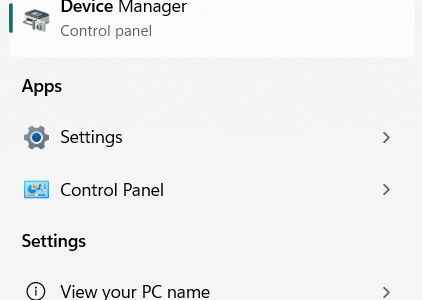
- Type Device Manager in the Start Search bar and select Device Manager in the search results

- In the Device Manager window, expand DVD/CD-ROM Drives

- Right-click the Blu-Ray player and choose Properties

- Click the Driver tab and click Update Driver

- Select the first option in the next window (Search automatically for update driver software). Windows will search the computer and Internet for the latest driver and will download and install it

- Follow the on-screen prompts
Once you have updated the Blu-Ray driver, go back and perform the same steps for IDE ATA/ATAPI drivers.
Reinstall the Blu-ray drivers
If the problem persists after you have updated the drivers, it might be a good idea to try reinstalling them. It’s possible a fresh driver install might repair corrupted drivers. Follow these steps:
- Launch Device Manager
- Expand DVD/CD-ROM entry, right-click the Blu-ray device and choose Uninstall
- Follow the on-screen prompts
If your Blu-ray drivers were working fine before an update but stopped working immediately after you installed the update, rolling back the drivers might fix the issue. Follow these steps to roll back the driver:
To roll-back the Blue-ray drivers, perform the steps listed below:
- Type Device Manager in the Start Search bar and select Device Manager in the search results
- Expand the DVD/CD-ROM entry, right-click the Blu-ray device, and click Properties
- Click the Driver tab and then click the Roll Back Driver button
- Follow on-screen prompts
- Now again launch the Device Manager window, expand the IDE ATA/ATAPI controllers entry, select your motherboard device and click Properties
- Click the Driver tab, click the Roll Back Driver button, and follow on-screen prompts
Update Your Drivers Automatically
To update the Blu-ray (and other device drivers) drivers automatically, use an advanced driver update software such as DriverUpdater.
Automatic driver update tools offer many benefits, the most important ones being:
- You can update device drivers automatically
- The software scans and updates all outdated or missing drivers at one go
- The tool picks the right drivers for your device and operating system, so you won’t have to worry about installing an incorrect driver by mistake
- Automatic driver updates are 100% safe
Driver Updater is one of the best driver update tools out there. Outbyte Driver Updater will give you access to a database of over 1 million drivers. It will regularly scan your PC, suggesting new driver versions to install. Driver Updater contains drivers for a variety of Windows devices. With just one click, you can update drivers in your system.
Step 1
Click here to Install and launch the app
Step 2
Scan all devices
Step 3
Install or update drivers automatically