
Drivers.com

follow us:

facebook twitter
  • Home
  • Download Drivers
  • Drivers Help
  • PC/Mac Resources
  • Software Drivers
  • Mac Fixes and Tips
  • PC Fix Tips
  • Security/ Backup
  • Tablets & Smartphones
  • Tech News
  • Software Drivers
  • Mac Fixes and Tips
  • PC Fix Tips
  • Security/ Backup
  • Tablets & Smartphones
  • Tech News

iTunes not installing in Windows 7

By Sushant Mehta on February 1, 2013

When you try to install x86 version of iTunes on Windows 7 (64-bit), the installation stops at the point when it reaches the publishing product information screen and you receive the following error message:

An error occurred during the installation assembly”Microsoft.VC80.CRT.type=”win32″.version=”8.050727.6195″.publickeyToken=”1fc8b3b9a1e18e3b”.processorArchitecture=”x86″.Please refer to Help and Support for more information.HRESULT: 0x800736FDBottom of Form

It can also happen that you successfully install iTunes but get the following error when you try to launch it:

apple application was not found.apple application support is required to run iTunes. please uninstall iTunes<then install iTunes again.

Error 1 (Windows error 2)

iTunes Could Not Connect to iPhone iPad Because an Invalid Response (Fixed)

Resolution:

The above issue may occur when you try to install x86 version of iTunes on a 32-bit PC. If this is true in your case as well, instead of x86, install x84 version of iTunes.

If you use 64-bit windows and still get the error, try clean boot Windows and then install Windows.

To clean boot Windows, perform the following steps:

  1. Click the Start button, type msconfig, and then press Enter
  2. Click the Startup tab and then deselect all items
  3. Click Apply
  4. Click the Services tab, and then deselect the box next to Hide all Microsoft services
  5. Deselect all the listed Services and then select Apply
  6. Start Windows in the normal mode

After you restart Windows in the normal mode, you would be able to install iTunes. Such errors can also occur due to cluttered registry. Windows users must always maintain a clean and compact registry. The surest way of doing this is by running regular registry scans using a top-rated registry software.
Steps to Transfer iTunes Library From One System to Another

Filed Under: PC Fix Tips Tagged With: error, iTunes, iTunes not installing, windows 7

How to Secure Your Dropbox Account

By Sushant Mehta on January 30, 2013

An immensely popular and useful cloud storage service, Dropbox, has had its’ share of security problems. This, however, should not discourage you from using Dropbox as there are several ways you can secure your Dropbox account from unapproved access and keep your files protected in case someone stealthily gains access to the account.

Shared below is an easy, yet effective, way to secure your Dropbox account:

Setup 2-step verification

You can enable the two-step authorization embedded in Dropbox. Once enabled, you would need to enter your account password as well as a security code from your phone to sign into this service and to add a new device to it. This way, even if someone gets hold of your Dropbox account’s password, he/she would not be able to log on to it.

To enable this 2-step verification, perform the following steps:

  1. Log on to the Dropbox account
  2. Click the Security tab on the settings page
  3. Click the Change option listed beside Two-step verification

You will receive codes through a smartphone application or in form of a text message. In addition, you will be provided with an emergency backup code of 16 digits. You can use it to log on to your Dropbox account in case you lose the original authentication code.

While the above steps secure your files on Dropbox, you must use a fully-featured antivirus software program to keep all your data secure and safe.

Filed Under: Security/ Backup Tagged With: cloud, Dropbox, security, storage

Getting your default Google Chrome Homepage Back

By Sushant Mehta on January 29, 2013

Getting your default Google Chrome Homepage Back

Users often complain their Chrome’s homepage changes after they download a YouTube downloader or some other software. While irritating, the problem can be easily fixed.

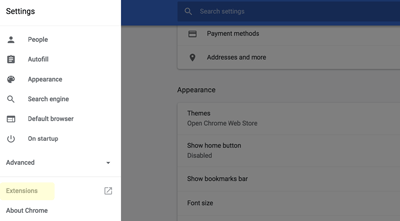
To fix the problem you would need to perform the following steps:

chrome settings home
  1. Open Google Chrome
  2. Click Customize and control Google Chrome button located at the far top-right corner (right after the URL box)
  3. Click Settings
  4. Click Extensions on the left-hand side
  5. Clear the check box of the installed downloader
  6. Close Google Chrome and re-launch it

The next time you restart Google Chrome you will see your old homepage again.

Most downloader programs and other freeware programs are harmless from a security point of view. Nevertheless, it is recommended that you use a robust antivirus software program and scan any downloaded program before installing it.

Slow Chrome Fixes (6 DIY Solutions)

Filed Under: PC Fix Tips Tagged With: anti-virus software, downloader programs, Google Chrome, YouTube downloader

  • « Previous Page
  • 1
  • …
  • 82
  • 83
  • 84
  • 85
  • 86
  • …
  • 88
  • Next Page »


  • Recent Posts
  • Popular Posts
        

Read More Posts


Read More Posts

Drivers.com Sites

  • Software Drivers
  • Drivers Ed

About Us

  • Advertise
  • About Drivers
  • Drivers Support
  • Drivers.com Privacy Policy
  • Disclaimer
  • Software Drivers
  • Mac Fixes and Tips
  • PC Fix Tips
  • Security/ Backup
  • Tablets & Smartphones
  • Tech News

© Copyright 2026 PDE Publications Ltd. End User License Agreement (EULA)