
Drivers.com

follow us:

facebook twitter
  • Home
  • Download Drivers
  • Drivers Help
  • PC/Mac Resources
  • Software Drivers
  • Mac Fixes and Tips
  • PC Fix Tips
  • Security/ Backup
  • Tablets & Smartphones
  • Tech News
  • Software Drivers
  • Mac Fixes and Tips
  • PC Fix Tips
  • Security/ Backup
  • Tablets & Smartphones
  • Tech News

Resources by Tag

anti-virus software

Getting your default Google Chrome Homepage Back

Getting your default Google Chrome Homepage Back

Users often complain their Chrome’s homepage changes after they download a YouTube downloader or some other software. While irritating, the problem can be easily fixed.

To fix the problem you would need to perform the following steps:

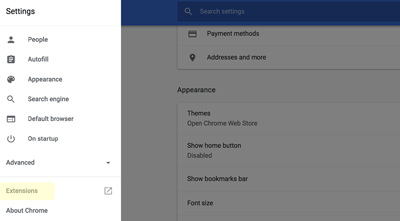
chrome settings home
  1. Open Google Chrome
  2. Click Customize and control Google Chrome button located at the far top-right corner (right after the URL box)
  3. Click Settings
  4. Click Extensions on the left-hand side
  5. Clear the check box of the installed downloader
  6. Close Google Chrome and re-launch it

The next time you restart Google Chrome you will see your old homepage again.

Most downloader programs and other freeware programs are harmless from a security point of view. Nevertheless, it is recommended that you use a robust antivirus software program and scan any downloaded program before installing it.

Slow Chrome Fixes (6 DIY Solutions)

Filed Under: PC Fix Tips Tagged With: anti-virus software, downloader programs, Google Chrome, YouTube downloader

Things you must do when you download Drivers for your PC

Downloading drivers can be relatively straightforward, assuming the manufacturer still supplies the Driver you are looking for. However, you must follow certain steps in order to ensure that you download and install drivers correctly. When you download a driver, you must ensure the following:

  • The driver you select is compatible with your device and the operating system
  • The driver file is not malware
  • The proper installation protocol is followed

Before we discuss in detail what you must do when you download device drivers, let us first take a look at the different situations in which you may need to download a driver. You need to download PC drivers if:

  • You reformat Windows but don’t have the original drivers
  • You upgrade your hardware but didn’t install the latest drivers
  • You upgrade your Windows version but didn’t install the latest drivers
  • Your drivers are missing, outdated, or corrupt

Step-by-step instructions for downloading and installing the latest drivers

Step 1 – Note down the model number of your hardware device

Different versions of a hardware device require different drivers. Therefore, before you begin downloading, it is important that you are aware of the model number of your hardware device. This information is printed on your hardware device. If this is not the case, or for internal hardware devices, you can get this information from the Device Manager window.

Open the Device Manager utility via Control Panel, double-click on your hardware device, and then click the Details tab. You will find this information under this tab.

Step 2 – Go to the manufacturer’s website

Next, go to the manufacturer’s website, locate the relevant driver, and click the Download button. Save the downloaded driver file in a suitable location.

If you are downloading drivers manually and they are not listed on the manufacturer’s website, you will need to find the Drivers elsewhere. A driver update tool can do this for you, you can also run a free scan to identify the exact Drivers you need.

Step 3 – Scan the downloaded driver file for malware

This step is absolutely necessary if you download a driver from a website other than the manufacturer’s website. If you have downloaded the driver from the manufacturer’s website or are using a Driver Update Tool, you can skip this step.

Step 4 – Create a restore point before installing the driver

Sometimes, you may encounter an issue after completing a software installation. To prevent any unforeseen problems, we recommend you create a restore point before installing a driver or, for that matter, any other software. If you do not know how to create a restore point, you can look up this information in the built-in Windows Help Guide. If you are using a Driver Update Tool, a restore point will be created automatically.

Step 5 – Install the driver

After you complete the aforementioned steps, click the downloaded driver file and follow on-screen instructions to install the required driver. Upon completion of the new installation, you may be prompted to reboot Windows.

Why you should consider using a Driver Update Tool

Installing one or two new drivers from the manufacturer’s website may not demand a lot of time or effort. However, what if you need to download ten or more drivers or the drivers you need are not there on the manufacturer’s website? Then it can be very frustrating and time-consuming. We recommend downloading a driver update tool, to update all your corrupt, outdated, and missing drivers in minutes. You can use the free scan to find the Drivers you need and either search for them yourself or register the software to let it do the updates for you.

Updating Drivers Automatically

Automatic driver update tools offer many benefits, the most important ones being:

  • You can update device drivers automatically
  • The software scans and updates all outdated or missing drivers at one go
  • The tool picks the right drivers for your device and operating system, so you won’t have to worry about installing an incorrect driver by mistake
  • Automatic driver updates are 100% safe

Driver Updater is one of the best driver update tools out there. Outbyte Driver Updater will give you access to a database of over 1 million drivers. It will regularly scan your PC, suggesting new driver versions to install. Driver Updater contains drivers for a variety of Windows devices. With just one click, you can update drivers in your system.

Step 1
Click here to Install and launch the app

Step 2
Scan all devices

Step 3
Install or update drivers automatically


Start Download


Filed Under: Software Drivers Tagged With: anti-spyware, anti-virus software, download drivers, driver update tool, driver updates, fix drivers, speed up pc, Update Drivers

How to check your PC for viruses

virusIf you have never had a problem with a virus on your computer then you are one of the lucky few. Almost anyone who owns a PC will have experienced some form of virus-related problem. It is not always obvious that the problems are caused by a virus so we have come up with a checklist for you to run through to check if you have any virus or viruses on your PC.

1. Your computer is running slowly

If your computer is running very slowly you should firstly read our post on actions to speed up your PC. If things do not improve significantly then you may have a virus on your computer

2. Unexpected errors or popup messages

Are some of your programs quitting unexpectedly or throwing up unexplained error messages? Maybe your computer itself is shutting down for no apparent reason?

3. Is your hard drive being overworked?

The familiar whirring sound of your hard drive is perfectly normal when your computer is running more labor-intensive tasks or programs. If however, this whirring sound is evident more than usual, then you may have a problem. Many email viruses cause your PC to work intensively as they send out multiple emails, putting pressure on your computer’s hard drive.

If you are experiencing any of the above, or indeed you suspect a virus for any other reason, you should take the following steps:

1. Run the Free Microsoft Malicious Software (often called ‘Malware’) Removal Tool. This is not a catchall but it is a good starting point for identifying and removing viruses and other threats.

2. Install a good antivirus tool. There are many anti-virus tools to choose from but it is essential that you choose one with updates against the latest threats (this should be listed in the product features).

Remember – if in doubt – scan!

Filed Under: Security/ Backup Tagged With: anti-virus software, computer errors, computer virus, pc security, pc virus, scan for pc virus, speed up pc


  • Recent Posts
  • Popular Posts
        

Read More Posts


Read More Posts

Drivers.com Sites

  • Software Drivers
  • Drivers Ed

About Us

  • Advertise
  • About Drivers
  • Drivers Support
  • Drivers.com Privacy Policy
  • Disclaimer
  • Software Drivers
  • Mac Fixes and Tips
  • PC Fix Tips
  • Security/ Backup
  • Tablets & Smartphones
  • Tech News

© Copyright 2026 PDE Publications Ltd. End User License Agreement (EULA)