Drivers.com

follow us:

facebook twitter
  • Home
  • Download Drivers
  • Drivers Help
  • PC/Mac Resources
  • Software Drivers
  • Mac Fixes and Tips
  • PC Fix Tips
  • Security/ Backup
  • Tablets & Smartphones
  • Tech News
  • Software Drivers
  • Mac Fixes and Tips
  • PC Fix Tips
  • Security/ Backup
  • Tablets & Smartphones
  • Tech News

Resources by Tag

speed up pc

How to run Disk Cleanup in Windows 7

The Disk Cleanup is a free built-in utility in Windows which allows you to free up space on the hard disk by removing files that can be safely deleted. You can use Disk Cleanup for the following:

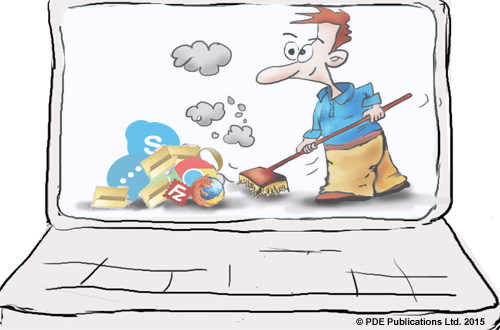
  • Removing temporary Internet filesclean up PC
  • Removing downloaded program files
  • Emptying the Recycle Bin
  • Removing optional Windows components which you no longer use
  • Removing programs which you no longer use
  • Removing Windows temporary files

To start Disk Cleanup in Windows 7, perform the following steps:

  1. Click the Windows icon in the taskbar
  2. Type Disk Cleanup in the Start Search box, and then press Enter
  3. In the Files to delete box, select the checkbox before each type of file that you want to remove (the amount of space you will free up by deleting each type will be displayed next to it).
  4. Click the OK button
  5. Click the Delete Files button when asked, “Are you sure you want to permanently delete these files?”

Disk Cleanup is not the only pc maintenance task that you should regularly perform; remove unwanted startup programs and defrag your hard disk regularly as well. If you fail to run maintenance tasks your PC will become bloated and will not perform at its best. Apart from slowing down your normal PC operations, this may lead to errors, crashes and unpredictable behaviour in programs.

Drivers.com have several articles relating to cleaning up your PC. There are also articles on cleaning up the Windows Registry and advice on how to speed up your PC.

Filed Under: PC Fix Tips Tagged With: pc performance tool, run disk cleanup, Slow PC, speed pc, speed up pc, speed windows, windows 7

Things you must do when you download Drivers for your PC

Downloading drivers can be relatively straightforward, assuming the manufacturer still supplies the Driver you are looking for. However, you must follow certain steps in order to ensure that you download and install drivers correctly. When you download a driver, you must ensure the following:

  • The driver you select is compatible with your device and the operating system
  • The driver file is not malware
  • The proper installation protocol is followed

Before we discuss in detail what you must do when you download device drivers, let us first take a look at the different situations in which you may need to download a driver. You need to download PC drivers if:

  • You reformat Windows but don’t have the original drivers
  • You upgrade your hardware but didn’t install the latest drivers
  • You upgrade your Windows version but didn’t install the latest drivers
  • Your drivers are missing, outdated, or corrupt

Step-by-step instructions for downloading and installing the latest drivers

Step 1 – Note down the model number of your hardware device

Different versions of a hardware device require different drivers. Therefore, before you begin downloading, it is important that you are aware of the model number of your hardware device. This information is printed on your hardware device. If this is not the case, or for internal hardware devices, you can get this information from the Device Manager window.

Open the Device Manager utility via Control Panel, double-click on your hardware device, and then click the Details tab. You will find this information under this tab.

Step 2 – Go to the manufacturer’s website

Next, go to the manufacturer’s website, locate the relevant driver, and click the Download button. Save the downloaded driver file in a suitable location.

If you are downloading drivers manually and they are not listed on the manufacturer’s website, you will need to find the Drivers elsewhere. A driver update tool can do this for you, you can also run a free scan to identify the exact Drivers you need.

Step 3 – Scan the downloaded driver file for malware

This step is absolutely necessary if you download a driver from a website other than the manufacturer’s website. If you have downloaded the driver from the manufacturer’s website or are using a Driver Update Tool, you can skip this step.

Step 4 – Create a restore point before installing the driver

Sometimes, you may encounter an issue after completing a software installation. To prevent any unforeseen problems, we recommend you create a restore point before installing a driver or, for that matter, any other software. If you do not know how to create a restore point, you can look up this information in the built-in Windows Help Guide. If you are using a Driver Update Tool, a restore point will be created automatically.

Step 5 – Install the driver

After you complete the aforementioned steps, click the downloaded driver file and follow on-screen instructions to install the required driver. Upon completion of the new installation, you may be prompted to reboot Windows.

Why you should consider using a Driver Update Tool

Installing one or two new drivers from the manufacturer’s website may not demand a lot of time or effort. However, what if you need to download ten or more drivers or the drivers you need are not there on the manufacturer’s website? Then it can be very frustrating and time-consuming. We recommend downloading a driver update tool, to update all your corrupt, outdated, and missing drivers in minutes. You can use the free scan to find the Drivers you need and either search for them yourself or register the software to let it do the updates for you.

Updating Drivers Automatically

Automatic driver update tools offer many benefits, the most important ones being:

  • You can update device drivers automatically
  • The software scans and updates all outdated or missing drivers at one go
  • The tool picks the right drivers for your device and operating system, so you won’t have to worry about installing an incorrect driver by mistake
  • Automatic driver updates are 100% safe

Driver Updater is one of the best driver update tools out there. Outbyte Driver Updater will give you access to a database of over 1 million drivers. It will regularly scan your PC, suggesting new driver versions to install. Driver Updater contains drivers for a variety of Windows devices. With just one click, you can update drivers in your system.

Step 1
Click here to Install and launch the app

Step 2
Scan all devices

Step 3
Install or update drivers automatically


Start Download


Filed Under: Software Drivers Tagged With: anti-spyware, anti-virus software, download drivers, driver update tool, driver updates, fix drivers, speed up pc, Update Drivers

Two Most Common Windows Drivers Error Codes And How To Fix Them

Device Manager is a built-in utility in Windows that lists relevant information about the hardware devices installed on a computer. If there’s a problem with a hardware device, the Device Manager window provides useful insight into what may be the cause of the problem and how to go about fixing it.

When there is something wrong with a hardware device, an error code is generated in its Properties dialog box, which can be accessed via Device Manager. Different error codes denote different things and, as such, each may have a different resolution.

Before looking at the top two Windows drivers error codes, let us learn how to see the generated error code in case a hardware device is not working properly.

How to view an error code:

To view an error code, perform the following steps:

  1. Open Device Manager
  2. Locate the hardware device that has encountered a problem. An exclamation point, a question mark, or a yellow mark against a device indicates that it has a problem
  3. Double-click the device that is not working
  4. Note the error code that appears in the Device Status box under the General tab

The two most common Windows Drivers Error Codes are: Error Code 1 and Error Code 3

Code 1: The error message, its cause, and how to resolve it

Error message
The following error message appears: This device is not configured correctly. (Code 1)
Its cause
The aforementioned code occurs when any of the following is true:

  • Drivers for this device are not installed on your computer
  • Drivers installed are not properly configured

How to resolve
Solution 1: If you have the required driver on your computer, install it via Device Manager. To do this, perform the following steps:

  1. Open Device Manager
  2. Open the Properties dialog box of the hardware device that has encountered an issue
  3. Click the Driver tab
  4. Click the Install button, and follow the onscreen instructions
  5. Restart Windows if you are asked to do so

Solution 2: If you don’t have the required driver on your computer, download the driver from its manufacturer’s website and install it. Alternatively, you can also run a free driver scan on your computer using our driver update tool, this software will automatically update all your outdated, missing, or corrupt drivers.

Code 3: The error message, its’ cause, and how to resolve it

Error Message
The driver for this device may be corrupted, or your system may be running low on memory or other resources. (Code 3)
Its cause:
The aforementioned code occurs when any of the following is true:

  • Your computer has insufficient memory to run the device
  • Your device driver is corrupt

How to resolve:
Solution 1: Close a few running programs, and then try to run the device
Solution 2: Uninstall and re-install the device driver. You should do this through Device Manager. To do so, perform the following steps:

  1. Open Device Manager
  2. Open the Properties dialog box of the hardware device that has encountered an issue
  3. Click the Driver tab
  4. Click the Uninstall button, and follow the onscreen instructions
  5. Restart Windows
  6. Open Device Manager again, and then open the Properties dialog box of the hardware device, and click the Driver tab
  7. Click Install, and follow the onscreen instructions
  8. Restart Windows

Solution 3: Download the driver from the manufacturer’s official website and install it.

Solution 4: Download Driver Update Tool to automate your Driver Updates

If you know the device that is causing the driver errors, you can try to download updated drivers from the manufacturers website. If these drivers are not available or you do not feel comfortable updating them, you can download a driver update tool.

If you are unsure of the driver you need, then you can use a driver update tool to run a free scan of your PC and identify the problem Drivers(s).

Filed Under: Software Drivers Tagged With: device manager error code, download drivers, fix error codes, speed up pc, Update Drivers

5 Top Driver Update Tools

Drivers problems can manifest themselves in any number of ways. Most often users will experience a slowdown in their PC or even frequent ‘freezing’ and ‘crashing’ of PC and devices. Problems with audio or sound drivers, printer drivers and bluetooth drivers are among the most common.

Among the manufacturers, most of our queries relate to missing HP drivers or problems with Lexmark printer Drivers. We always recommend users check the manufacturers website first for new Drivers releases. However, in many cases the Drivers may be no longer available or just very difficult to find or install.

Windows Drivers Download & Updates

If you have spent fruitless hours looking for Driver updates for your PC or device, then your best option is probably to use a Driver Update Tool. These tools are mostly free to try, this means they will allow you to run a free Drivers scan to establish the particular Drivers that are causing you problems. If you wish to download these Drivers (and get ongoing automatic Driver updates), then you will need to register the software. The costs vary but are usually just under $30 per year, so not a huge cost for the amount of time it may save you.

To make your choice easier, we have put together a list of recommended driver update tools.

Feel free to offer your insights using the comments box below.

Filed Under: Software Drivers Tagged With: computer errors, driver update software, driver update tool, fix drivers, Slow PC, speed up pc, top driver update tools, Update Drivers, update printer drivers

Why is my PC so slow?

How to fix a slow computer

Are you having problems with a slow PC that seems to take longer and longer to carry out everyday tasks?

If your problem relates to slow start-up specifically – click here for article related to slow booting computer (see ‘autostart’ section) >>

What causes PC to run slowly?

Causes of slow PC – software

  1. running out of hard disk space
  2. Out-of-date or corrupt software drivers
  3. Unnecessary files/ Corrupt data

Causes of slow PC – hardware

  1. Corrupt Operating System
  2. Bad Hardware
  3. overheating computer

Causes of slow PC – software: running out of hard disk space

If your PC is low on disk space then you will experience much slower PC performance. To check your hard disk space in Windows:

1. Double-click My Computer icon on the desktop

2. Select your hard drive – the various drives (CD etc.) are denoted by letters and your computers’ hard drive is usually called Local Disk (C:)

3. Right-click and from the drop-down list select Properties, you should be able to find details on your hard drive space here

If your free hard drive space is less than 500mb then this is likely the cause, or one of the causes in the slow running of your PC. Click here to read our article on how to free up hard disk space.

Causes of slow PC – software: Out-of-date or corrupt software drivers

If you think outdated or corrupt software Drivers could be causing your PC to run less efficiently, you can download and run a driver update tool. If there are problem Drivers identified you can then choose to find and download them yourself, or you can opt to register for automatic Driver updates.

Causes of slow PC – software: Unnecessary files/ Corrupt data

If you have a number of Software Programs running on your PC, check through them and remove any you do not use. This is not only because these Programs take up hard drive space on your computer, but they may also have become corrupted over time.

Do the same with files and folders on your desktop and elsewhere on your computer. If you do not need a file anymore, then delete it!

Causes of slow PC – hardware: Corrupt Operating System

A corrupt Operating System can also be the cause of your slow PC. You should use the Windows Update Tool to ensure your OS is up-to-date and all relevant patches are downloaded. We would recommend you automate these Windows Updates so they will install automatically. For Windows 7 and Vista users:

1. Select Start > All Programs > Windows Update

 Click here to read our article on how cleaning your Registry can help speed up your PC.

2. Click Change Settings (in the left pane)

3. In Windows 7 select Install Updates Automatically (recommended) under Important Updates; Vista users select Include recommended updates when downloading, installing, or notifying me about updates under Recommended Updates

4. Click OK

XP users can enabled automatic Windows Updates by:

1. Select Start > Control Panel

2. Select Automatic (recommended) in the Automatic Updates dialog box

3. Click OK

You can also use the Windows File Checker Utility to repair corrupt OS files. We will be posting a separate article on this shortly.

Causes of slow PC – hardware: Bad Hardware

If you can find no other reason for the slow performance of your PC, then the problem could be hardware-related. This could be a problem with the motherboard or hard drive so is not something you would likely be attempting to fix yourself. If you have exhausted all other options, and think it may be a hardware issue, you could take it to a PC repair shop or invest in a new computer!

Causes of slow PC – hardware: Overheating Computer

If your computer is overheating this can cause it to slow down. You will probably know by touch and sound (your will hear the computer’s fan working overtime) if your PC is overheating. One of the main causes of overheating PC’s is dirt or dust restricting the airflow. As well as cleaning your computer, you should ensure there is nothing placed on or against the computer that restrict the airflow and operation of the in-built fan.

How to check your PC for viruses

Filed Under: PC Fix Tips Tagged With: computer errors, Slow PC, speed up pc, windows registry errors

How do I update Drivers / fix Driver errors?

Drivers need to be updated regularly in order to keep your PC running at its best. If you have not updated your drivers in some time then you are probably experiencing some of the following:

– slower PC
– problems with peripheral devices (such as printers etc.)
– periodic crashes or programs freezing

Every PC will contain numerous Drivers for the various devices associated with it (printers, bluetooth etc.). Some of these Drivers may be out-of-date or have even become corrupt over time.

To update Drivers you can go directly to the manufacturers website and look for any new releases (keep an eye on our blog as we will list new releases under ‘Drivers News’). However, this can be a time-consuming and complicated process which is why most people choose to download a Driver Update Tool to automate this process for them.

To get a Driver Update Tool to update your Drivers for you, you need to

1. Download and install the Driver Update Tool
2. Run a scan of your PC Drivers (this scan is free)
3. Register the software and let it do all the work!

Filed Under: Software Drivers Tagged With: fix driver errors, fix drivers, fix slow computer, Slow PC, speed up pc, Update Drivers

Top 5 ways to speed up your PC

“Why is my PC so slow?”

It is almost inevitable that at some point, your once speedy PC, will lose its’ oomph and become more of a hindrance than a help. There are many reasons why this happens, from an overload of redundant software to the existence of SpyWare on your PC.

Few things in life are more frustrating than a slow PC, so we have put together an essential action list of the top 5 things you need to do to keep your PC at peak performance.

How to keep Windows 10 free from malware?

1. Get rid of any SpyWare on your PC

SpyWare is exactly what the name suggests – software which is surreptitiously downloaded to your PC and then monitors your internet activities, potentially exposing not only your browsing activities, but also your passwords and other details. As well as posing a huge security risk, SpyWare can also significantly slow down the speed of your PC. If you have noticed a quite sudden drop in your PC’s performance, then SpyWare may be the culprit.

To prevent against SpyWare and other unwanted downloads, you should download Microsoft security essentials here.

2. Housekeeping: Clean up your files!

You should go through all your program files and use the add/remove programs feature to get rid of any software you don’t use, many of these will be free trials that you don’t use any more but they can take up a lot of space. If you are not sure what a program is – don’t delete it. You can use the Disk Cleanup Tool (see point 4. below) to remove unwanted programs.

You may also be one of those people who stores files ‘temporarily’ on your desktop before getting around to filing them somewhere. File them or delete them.

Every time you start Windows, the operating memory is used for all files that are stored on the Desktop. If you have a lot of files here you are using up your operating memory and unnecessarily slowing your PC. You should store all your files in folders, and if you need to, you can create shortcuts to them on the desktop – these shortcuts have very little negative impact on your PC’s speed.

3. Avoid ‘auto-starting’ files

Many speed issues are caused by PC’s loading a number of software programs on startup. There may be some programs such as Skype that you would like to auto-start when you boot up your PC, but for most programs it is unnecessary.

To disable the auto-start option in a program, or just check if it is enabled, you can do to Start > startup folder or view the options under the ‘tools’ menu within the program itself.

4. Free up some disk space

Your system stores many files indefinitely unless you choose to delete them. Many of these files, such as those in the recycle bin, are completely unnecessary. There are also downloaded program files and temporary internet files which, when deleted, can clear up a lot of space.

To remove these files you should use the Disk Cleanup tool as this tool will identify the relevant files for you and give you the option of deleting some or all of them.

The Disk Cleanup tool helps you to free up space on your hard disk to improve the performance of your computer. The tool identifies files that you can safely delete and then enables you to choose whether you want to delete some or all of the identified files.

Removing the temporary internet files usually has the greatest impact as these files are cached copies of webpages you have visited and are likely to be numerous.

To use the Disk Cleanup Tool, select All Programs > Accessories > System Tools > Disk Cleanup

5 steps to a clean PC!

5. Speed up data access

Another very useful Windows Utility is Disk Defragmenter which consolidates fragmented files and folders on your PC, storing each file and its components in one place. When files are fragmented, the system must search the hard-drive for elements of a file each time that file is opened. This can slow your PC down significantly.

You should run disk defragmenter on a weekly basis and as well as when you install new programs, add a large number of new files or when your free disk space drops below 15%.

To use the Disk Defragmenter Tool go to Start > All Programs > Accessories > System Tools > Disk Defragmenter.

Fortunately there are some great software tools which can do all of this work for you.

Filed Under: PC Fix Tips Tagged With: anti-spyware, defrag, fix slow computer, pc security, Slow PC, speed up pc, spyware

Will cleaning my Windows Registry speed up my PC?

In short – yes! But first we should explain what the Registry is and why a badly maintained one can have a detrimental effect on your computers’ speed.

Three reasons why you must clean Windows registry

What is Windows Registry?

The Windows Registry is a database which stores vital settings and details relating to your Windows Operating System. It contains a range of information, from where programs are stored to settings for connected hardware devices.

The Windows Registry is like the central nervous system of your computer so caution is advised when making any changes to it. Unless you are an advanced user, you should only update the Windows registry using a recognised update tool.

How can you boost PC speed before downloading? Check for PC issues causing slowdown and try out special tools to improve PC speed.What causes Windows Registry problems?

Most of the time Registry problems arise as a result of program installation or removal. When you add or remove software, details and settings relating to this software are edited in the Registry.  Installing or uninstalling programs, working with old drivers, or even unwittingly downloading spyware, can result in Windows Registry errors.

What are the signs of Registry problems?

The most common signs of Registry problems are slow computer speed, computer crashes or programs freezing or behaving erratically.

How do I fix my Windows Registry?

Unless you are a very advanced and equally brave PC-user, you should use a third party software tool to attempt any Registry repair. There are a number of Registry Cleaner Tools on the market, you just need to ensure the one you select will allow you to create Registry backups and then clean and repair the Registry itself.

Filed Under: PC Fix Tips Tagged With: clean registry, clean up my PC, computer errors, fix drivers, Slow PC, speed up pc, Update Drivers, Windows Registry, windows registry errors

How to check your PC for viruses

virusIf you have never had a problem with a virus on your computer then you are one of the lucky few. Almost anyone who owns a PC will have experienced some form of virus-related problem. It is not always obvious that the problems are caused by a virus so we have come up with a checklist for you to run through to check if you have any virus or viruses on your PC.

1. Your computer is running slowly

If your computer is running very slowly you should firstly read our post on actions to speed up your PC. If things do not improve significantly then you may have a virus on your computer

2. Unexpected errors or popup messages

Are some of your programs quitting unexpectedly or throwing up unexplained error messages? Maybe your computer itself is shutting down for no apparent reason?

3. Is your hard drive being overworked?

The familiar whirring sound of your hard drive is perfectly normal when your computer is running more labor-intensive tasks or programs. If however, this whirring sound is evident more than usual, then you may have a problem. Many email viruses cause your PC to work intensively as they send out multiple emails, putting pressure on your computer’s hard drive.

If you are experiencing any of the above, or indeed you suspect a virus for any other reason, you should take the following steps:

1. Run the Free Microsoft Malicious Software (often called ‘Malware’) Removal Tool. This is not a catchall but it is a good starting point for identifying and removing viruses and other threats.

2. Install a good antivirus tool. There are many anti-virus tools to choose from but it is essential that you choose one with updates against the latest threats (this should be listed in the product features).

Remember – if in doubt – scan!

Filed Under: Security/ Backup Tagged With: anti-virus software, computer errors, computer virus, pc security, pc virus, scan for pc virus, speed up pc


  • Recent Posts
  • Popular Posts
        

Read More Posts


Read More Posts

Drivers.com Sites

  • Software Drivers
  • Drivers Ed

About Us

  • Advertise
  • About Drivers
  • Drivers Support
  • Drivers.com Privacy Policy
  • Disclaimer
  • Software Drivers
  • Mac Fixes and Tips
  • PC Fix Tips
  • Security/ Backup
  • Tablets & Smartphones
  • Tech News

© Copyright 2026 PDE Publications Ltd. End User License Agreement (EULA)