Drivers.com

follow us:

facebook twitter
  • Home
  • Download Drivers
  • Drivers Help
  • PC/Mac Resources
  • Software Drivers
  • Mac Fixes and Tips
  • PC Fix Tips
  • Security/ Backup
  • Tablets & Smartphones
  • Tech News
  • Software Drivers
  • Mac Fixes and Tips
  • PC Fix Tips
  • Security/ Backup
  • Tablets & Smartphones
  • Tech News

Gaming laptop: Alienware 17 R4 Review

By Sushant Mehta on September 25, 2017

For all you gamers out there we look at the great and not-so-great features with the new Alienware 17 R4?

The Build: It’s BIG

Are you looking for a gaming laptop that’s easy to carry?

Then, Alienware 17 might not suit you, because it is a gigantic laptop. If you are looking for something portable then this will probably not be for you!

The Alienware 17 laptop is just a little more than 9.5 pounds. That is heavy enough on its own but it also comes with a power adapter that weighs about 2.5 pounds. Like other gaming laptops, the Alienware 17 provides high power at the price of average battery life. Don’t expect the laptop to last for more than 3 hours when under medium to heavy use.

But that shouldn’t disappoint you too much, because Alienware 17, just like its predecessors, is not meant for easy haul or lasting hours on end without charging – but rather performance.

Size aside, Alienware 17 is quite an attractive machine with its popular trademark chrome and black color scheme.

While its keyboard is only zone-lit, there are RGB LED strips either side of the laptop, as well as on the lid. What’s more, there’s one under the trackpad, too. There is some nice attention to the detail in the design.

However, the design is not without issues, even if they are not major ones. The fans are placed at the end of the chassis, which, while understandable given the amount of heat this laptop can produce, takes away from the overall design.

The fans can also be quite loud. The laptop is sufficiently noisy under medium load, and if pushed, the sound is very noticeable.

Another potential issue for users is the power plugs. They are located at the back. While Alienware 17 is not the only laptop to have power plugs at the rear, it can be inconvenient and many users have an issue with this.

Alienware 17 Performance: It’s definitely worth it

Alienware 17 is very high on performance and is a good desktop replacement option.

The laptop comes with an Intel Core i7-7820HK, its strongest asset, and an Nvidia GeForce GTX 1080, as well as 16GB DDR4 RAM, 500GB of SSD storage, and 1TB of drive space.

The majority of gaming laptops in this category go with i7-7700HQ, which is a pretty good processor itself. However, if you want the absolute best gaming experience, go for i7-7820HK. Apart from the top-of-the-range processor, Alienware 17 comes with GTX 1080.

One important thing to bear in mind is that the baseline model has 8GB RAM which will be insufficient for many users. So if you’ve decided to buy Alienware 17, you may want to spend a little extra and go for 16GB at least.

Gaming enthusiasts looking for a desktop replacement must consider two things: venting and heat management.

Alienware 17 works well on both counts, and that’s why it is built for continuous gaming.

Alienware 17: the verdict

This laptop is by no means perfect – it doesn’t have the most advanced zone lightning, its fans are quite loud, battery life is no better than average, and its size is bulky.

However, Alienware 17 is a powerful gaming laptop and excels in performance – the most important consideration for a gaming laptop.

Top 3 laptops for gaming

Is the Ryzen 9 7950X3D worth the hype?


Filed Under: Tech News Tagged With: alienware 17, gaming, review

5 essential steps to privacy in Windows 10

By Sushant Mehta on September 13, 2017

5 essential steps to privacy in Windows 10

Are you looking for Windows 10 Driver Updates?

Windows 10 and my personal data

Windows 10 is more cloud connected than any other operating system, and its aggressive data collection capabilities can be a concern for many users.

Microsoft has stated that it does not collect personal data, with the exception of random file data that is used to improve Window’s functionality and the overall user experience. While this may well be true, the fact is that Windows 10 collected large amounts of data which causes concern among many users.

Do you value your privacy?

If you are someone who values your privacy above everything else, here’s a step-by-step guide that allows you to reclaim your privacy while continuing to use Windows 10.

windows 10 privacy

1. Advertising and Windows 10 privacy

Advertising is deeply integrated into Windows 10 and a large part of data collected is used to customize offers and content presented to you.  The data collected by Microsoft and other apps helps Microsoft and its partners analyse the type of content you consume online. Based on your choices, Microsoft and its partners customize the advertising shown on your Window 10 PC.

Today, we are used to seeing ads on websites we visit. However, it is irritating and maybe a little disconcerting to know your surfing habits and product interests are being tracked and that information is used to customize ads that are shown on websites your visit.

For example, if you have searched for a product on the web or any e-commerce site but have not purchased it, you will see the same products being displayed in the Ads. Some users like generic ads but do not like customized ads. You can turn off personalized ads by following steps given below.

  1. Go to Settings > Privacy > General
  2. Look for option that says “Let apps use my advertising ID to make ads more interesting to you on your app usage”
  3. Move the slider to the Off position
  4. Open your browser and go to http://choice.microsoft.com/en-us/opt-out
  5. Look for the option “Let websites provide locally relevant content by accessing my language settings” and move the slider to the Off position
  6. Also turn off the slider for “Let Windows track app launches to improve Start and Search results”
  7. Click Manage my info that’s stored in the cloud
  8. You will see Internet browser (Microsoft Edge) launched and a page specifying different opt-outs for Microsoft are displayed
  9. On the right-hand side, look for the option Personalized ads wherever I use my Microsoft account; Move the slider to the Off position
  10. Look for the option Personalized ads in this browser and move the slider to the Off position

2. Cortana and Windows 10 privacy

Cortana, Microsoft’s built-in digital assistant, is of great use to Windows 10 users. Cortana can be used to quickly set reminders, make note of appointments and events in calendars, sending an email and various other tasks.

The digital assistant works in similar ways as Google Now in Android.  Cortana is a cloud based personal assistant and it uses information stored on your Windows 10 system to personalize the range of features it provides.

Also, since it is connected to the cloud, it may also sync some data from your Windows device to the cloud account to offer personalized features across different devices connected to a specific Microsoft account.

If you are worried about data shared by Cortana, you can turn it off.  Follow the steps below to switch off Cortana completely

  1. Launch Cortana from the search bar by clicking on the circle in the search bar
  2. Click Settings (the wrench icon on the left-hand side)
  3. Under the second option labeled Hey Cortana, slide the switch to the Off position

When you turn off this option, everything known by Cortana will be erased and the data collected in the digital assistant’s notebook is deleted and your privacy restored.

  1. Also, slide the switch to the Off position for the following options:
  • Taskbar tidbits
  • Keyboard shortcut
  1. Scroll down in Cortana and look for My Device history
  2. Slide the switch to the Off position
  3. Click Clear my device history to remove Cortana related history from all signed-in devices

Once you are done with deleting data stored by Cortana on the device, you have to take additional steps to delete data stored by Microsoft Servers.

  1. Open Internet browser
  2. Go to Bing’s settings page
  3. This is where you can see what data is stored on Microsoft’s Servers for personalization
  4. Click on Personalization
  5. Using the Microsoft account you are using on your computer, click the Clear button for both options – Clear personal info and Other Cortana Data and Personalized Speech, Inking, and Typing
  6. Confirm Deletion

3. WiFi Sense and privacy

While an innovative feature, WiFi Sense can raise privacy issues. By default, WiFi is turned on, but that in itself is not the issue.

You can use this feature to share access to WiFi routers that are password protected. Your WiFi password is shared silently and individuals to whom you give permission to access your network don’t ever see it, and as such cannot give sharing permission to others.

With this WiFi feature, you no longer have to give your router’s password to friends who visit your home. All your digital friends using Windows 10 can log into your network.

In a way, this is far safer and certainly easier than sharing the network’s password, because once someone knows it, he or she can share it with as many people as he or she likes.

If WiFi Sense is a big privacy concern for you, you can always turn it off by following the steps set out below:

  1. Press the Start button
  2. Type WiFi in the search bar
  3. Click Change WiFi settings from the search results
  4. From the applet that pops up, click Manage WiFi settings
  5. Under the heading- For networks, I select, share them with my
  6. Uncheck options for com contact, Skype contact, and Facebook friends

If you do not want to connect to the shared Wi-Fi networks (where you don’t know the password), slide the pill switch to Off position for the option Connect to networks shared by contacts

4. One Drive and privacy

 If you are not interested in storing your files and data on the cloud, you can turn off the One Drive storage that will ensure the data is not stored on Microsoft Servers. Here are the steps to follow:

  1. Click the upward facing arrow in system tray on the right-hand side of the taskbar
  2. Right-click on the One Drive icon
  3. Select Settings
  4. In the new pop-up window that opens, uncheck the option ‘Start OneDrive automatically when I sign in to Windows’
  5. You can also uncheck two other options labeled as – Let me use OneDrive to fetch any of my files on this PC and Use Office to work on files with other people at the same time.

5. Turn Off other data gathering options in Windows 10

If you don’t want Microsoft to collect data from your Windows 10 PC, go to the Privacy Settings page and tweak some options

  1. Go to desktop
  2. Type Settings in the search bar
  3. Select Settings > Privacy

In this window, you will find several options which are related to different types of data collected by Microsoft.

  1. Click Location
  2. Look for Location Service
  3. Switch Off for location tracking by sliding the switch to the Off position
  4. Scroll down the screen and click Clear under Location history to delete all location related data stored on your device

Note – You can also change the location settings for individual apps by scrolling down and selecting apps that can use location

  1. Switch Off location for desired apps
  2. Click Speech, inking, and typing
  3. Click Turn off Speech services and typing suggestions
  4. Click Camera
  5. Look for Let apps use my camera hardware
  6. If you want to disable camera system wide, move the slider to the Off position
  7. If you want the camera Off for specific apps, go to Choose apps that can use your camera and Switch Off camera access for desired apps
  8. Click Microphone
  9. Look for Let apps use my microphone
  10. If you want to disable microphone system wide, move the slider to the Off position
  11. If you want the microphone Off for specific apps, go to Choose apps that can use your microphone and Switch Off microphone access for desired apps

Note – For Privacy options like Notifications, Account Info, Contacts, Calendar, Call history and email, the steps to switch off system wide access and restrict app’s access are very similar. The generic steps are as follows:

  1. Click <Privacy option name>
  2. Look for Let apps use my <Privacy option name>
  3. If you want to disable <Privacy option name> system wide, move the slider to the Off position
  4. If you want the microphone Off for specific apps, go to Choose apps that can use your<Privacy option name>
  5. Switch off <Privacy option name> for desired apps

Note- while changing the privacy settings for different options, make sure the Mail app has access to Contacts.

Filed Under: PC Fix Tips Tagged With: privacy, Windows 10

Why Galaxy S8 Active is so much better than S8?

By Sushant Mehta on September 6, 2017

Why Galaxy S8 Active is so much better than S8?

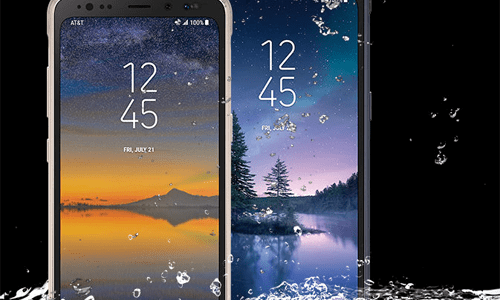
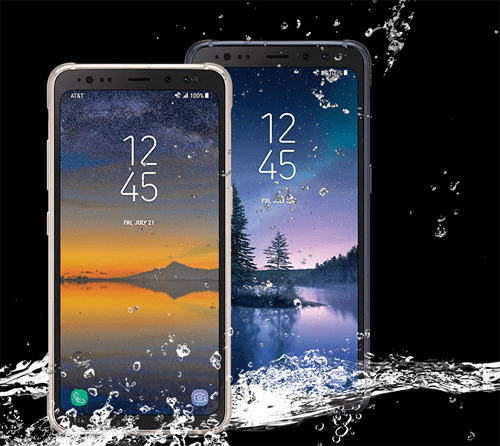
Galaxy S8 is a great phone [image below from http://www.samsung.com/us/mobile/phones/galaxy-s/galaxy-s8-active-64gb–at-t–meteor-gray-sm-g892azaaatt/], but can be a little too fragile. If that’s the reason you didn’t buy it, S8 Active may be of more interest to you – it’s pretty much the same phone as the S8 but tougher!

S8 has an all-glass body, making it a little more prone to falls and slips. More worryingly, it didn’t have quality bumpers to protect it against abrasion, shock, twisting or tilting.

samsung-s8-active

S8 Active is made using military grade materials. Its frame has four bumpers for added protection. What’s more, its screen features an effective shatter-resistant layer, along with a tough, rugged texture at the backside.

The end result of these changes is a phone which is much sturdier and considerably less prone to falls and slips. Otherwise, as said above, it is basically the S8, featuring the much-appreciated 5.8 inch super AMOLED display, a quality 12 megapixel camera, and Snapdragon 835 chip.

As expected, the additional features make the phone a little bulkier than the standard S8. While the S8 measured at 148.9mm x 68.1mm x 8mm, Galaxy S8 Active measures 151.9 mm x 74.9 mm x 9.9 mm.

And compared to S8, which weighs 155 gm, S8 Active weighs 208 gm. However, the change is not significant, and some of it is due to a bigger battery. S8 Active comes with a considerably larger battery of 4,000 mAH; whereas, S8 features a 3,000 mAH one.

At normal usage levels, Galaxy S8 Active can last for more than one day. You can charge S8 active wirelessly, just like its predecessor.

One more gripe which many users had with S8 untill recently was the absence of full Bixby support. You will not face this issue with S8 Active, which comes with complete Bixby support, and this includes Bixby Voice.

There’s also a new, smarter shortcut menu in S8 Active, which you can use to access the flashlight, barometer, compass, and stopwatch.

As expected, all these goodies come at a price. Galaxy S8 Active 64GB is priced at $850. That’s $100 more than S8. At present, you can purchase it in 2 colors: gold and gray.

Conclusion

Ever since Samsung launched the S4, they have been coming up with active variants of Galaxy phones. And these active variants have never disappointed.

At the very least, the same can be said about the S8 active, because the changes are more than just cosmetic: it features a massive battery.

If you want a premium phone experience, you might want to seriously check out the Samsung S8 Active.

Filed Under: Tablets & Smartphones Tagged With: active, galaxy, review, s8

  • « Previous Page
  • 1
  • …
  • 6
  • 7
  • 8
  • 9
  • 10
  • …
  • 88
  • Next Page »


  • Recent Posts
  • Popular Posts
        

Read More Posts


Read More Posts

Drivers.com Sites

  • Software Drivers
  • Drivers Ed

About Us

  • Advertise
  • About Drivers
  • Drivers Support
  • Drivers.com Privacy Policy
  • Disclaimer
  • Software Drivers
  • Mac Fixes and Tips
  • PC Fix Tips
  • Security/ Backup
  • Tablets & Smartphones
  • Tech News

© Copyright 2026 PDE Publications Ltd. End User License Agreement (EULA)