
Drivers.com

follow us:

facebook twitter
  • Home
  • Download Drivers
  • Drivers Help
  • PC/Mac Resources
  • Software Drivers
  • Mac Fixes and Tips
  • PC Fix Tips
  • Security/ Backup
  • Tablets & Smartphones
  • Tech News
  • Software Drivers
  • Mac Fixes and Tips
  • PC Fix Tips
  • Security/ Backup
  • Tablets & Smartphones
  • Tech News

Fix Brother printer does not print issue

By Sushant Mehta on August 17, 2017

Fix Brother printer does not print issue

Are you having problems with your Brother printer? We have put together some troubleshooting steps which should help you.
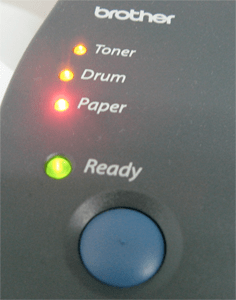
brother printer lights errors

Step 1: Check your brother printer is on and there are no other errors

  1. Check if the status LED light is on, this means the Brother printer is on
  2. Check if other LED lights are on. If you see any other LED lights on (Paper or Toner lights), it means the Brother printer is not ready and needs your attention to troubleshoot the issue

Step 2: Verify the connection between your printer and computer

If the printer is connected to your computer via a USB cable, ensure the USB cable is seated firmly on both sides.

Brother Drivers Download & Updates

Step 3 – Check the printer driver settings

To check the printer driver, you need to access the printer folder

For Windows 7

Click Start > Devices and Printers

For Windows 8 and 10

  1. Click Start > All Apps > Windows System > Control Panel
  2. Click Hardware and Sound > Devices and Printers

Steps to check printer driver and delete print jobs

  1. Verify the Brother printer is on the list. If you don’t see the Brother printer, it means the printer driver is not installed properly
  2. If the Brother printer is on the list, right-click on the Brother printer and select “Set as default printer”
  3. Ensure the printer is online
  4. Right-click on the Brother printer and select ”See what’s printing”
  5. Click Printer > Pause Printing/Use Printer offline (remove the checkmark)
  6. If you see the Pause Printing/Use Printer offline grayed out, click “Open as administrator”
  7. Enter password when prompted
  8. Click Yes
  9. Right-click on the Brother printer and select ”See what’s printing”
  10. Click Printer > Cancel all documents > Yes

Step 4 – check printer port

The next step involves checking the Printer port; follow the steps set out below to verify the printer port.

  1. Click Start > All Apps > Windows System > Control Panel
  2. Click Hardware and Sound > Devices and Printers
  3. Right-click on Brother printer in the list and select Properties
  4. Click the Ports tab
  5. Ensure the correct printer port is chosen. For example, if the printer is connected through USB, you should see the USB box checked in the list of ports alongside the Brother Printer name.

In most cases, the printer problem should be resolved by these steps. Try printing from a different application and see if it works.

How to update Brother Printer Drivers

Filed Under: PC Fix Tips Tagged With: fix brother printer issue

Petya ransomware hits multi-national corporations

By Sushant Mehta on August 13, 2017

As expected, the Ransomware issue is not going away any time soon. After the outbreak of WannaCry, a new ransomware is now causing havoc in the business world. Dubbed “Petya”, this new Ransomware is spreading at an alarming speed.

Unlike the objective of WannaCry which was to extort money, the Petya ransomware seems to have a different objective – to destroy important data permanently.

The malware is exploiting Windows vulnerability Eternal Blue that was used by WannaCry. It seems many companies had put off the patching which lead to a massive outbreak of this malware.  Microsoft has already released a security patch and companies who have not applied the security patch to their Windows systems should do so immediately.

What is Eternal blue?

Eternal blue is an exploit developed by America’s National Security Agency that was leaked by Shadow hackers group in April 2017.  The Eternal blue takes advantage of a vulnerability in the Windows implementation of Server Message Block. The vulnerability refers to Windows systems acceptance of a specially crafted packet from remote hackers that allows them to run arbitrary code on the infected system.

Multi-national corporations badly hit by Petya ransomware

The Ukraine was the hardest hit by the new ransomware and the government, large power companies, and some banks announced that their services have been affected by this ransomware.

The Danish transport company “Maersk” has also been hit by Petya and the company spokesperson has confirmed that many business units and Maersk IT systems are down due to the Petya ransomware attack.  Russian energy company “Rosneft” has tweeted that the company is facing a powerful hacker attack but they have not confirmed whether they have experienced any damage.

Petya Ransomware is not new; it had first appeared in early 2016. However, a closer analysis by experts revealed the new Petya ransomware is a never-before-seen ransomware package that emulates some of the earlier Petya’s behaviors.  The new ransomware is perfect in all aspects and the code of the ransomware is so aggressive that it is almost impossible to recover data from the infected system.

Experts also believe the new Petya outbreak was not an outbreak at all, but rather it was intended to wipe out maximum number of hard drives on the infected networks. The new ransomware was purposely released to capitalize on the media interest in the WannaCry ransomware attack.

A report published by Kaspersky security blog mentioned the new ransomware as “Wiper” as its code did not have options of unlocking the encrypted data. Security analysts say to decrypt the data on an infected system (after a ransom is paid); the hacker needs a “personal infection ID” that is generally displayed on the ransom note.  In the 2016 version of Petya ransomware, security analysts found the personal infection ID contained important information about the infected system that made data recovery possible.

However, the 2017 version of this Petya ransomware encrypts the data on the hard drive using some pseudo-random data that was not related to any corresponding keys. This clearly indicates the motive of the ransomware and shows that recovery of data is not possible even after paying the ransom.

Security experts have further warned that ransomware might become increasingly common as the technology advances. It is in the best interests of business organizations and individuals to install security patches to fix vulnerabilities in their systems and networks.

Filed Under: Tech News Tagged With: Petya ransomware

How Windows 10 reset works?

By Sushant Mehta on August 7, 2017

Windows 10 comes with a “Reset this PC” option that comes in handy when you want to reset your PC to the default settings.  This option is faster than reinstalling Windows 10 all over again.

Here are a few things you should know about the Windows 10 reset:

What the “Reset this PC” option does

If you have purchased a PC which came with Windows 10 pre-installed, the “Reset this PC” option will take your computer back to the factory default configuration. However, if you have upgraded your PC to Windows 10, the “Reset this PC” option will take your computer to a state of freshly installed Windows 10 with no additional software.

When you reset the PC, you have the option to keep the files. However, all your settings and programs will be deleted.  This ensures you have a fresh Windows 10 installation. “Reset this PC” is a good option if the file system or registry has somehow become corrupt, or you are facing problems with third party software or Drivers or a stubborn malware program has infected your PC.

How “Reset this PC” option works?

There are two ways to reset your PC in Windows 10.

  1. Reset your PC from within Windows
  2. Reset your PC from the Boot Menu

Reset your PC from within Windows

  1. Open the Settings app
  2. Go to Update & Security > Recovery
  3. Under the “Reset this PC” option, click the Get started button
  4. In the Choose an option screen, select “Keep my files” if you don’t want Windows to delete your personal files. If you want everything deleted, select “Remove everything”
  5. If you select “Remove everything”, you will be presented with an option to clean Drives as well
  6. You are presented with two options – Just remove my files and Remove files and clean the drive
  7. If you are selling the PC, select “Remove files and clean the drive”. Selecting this option will securely erase your files and it will be harder for anyone to recover those files
  8. If you select “Just remove my files”, windows will only delete the files

Reset your PC from the Boot Menu

  1. To access the Boot Menu, hold down Shift while choosing the Restart option
  2. When you execute the step mentioned above, Windows will not shutdown the PC like it does normally. It will display a menu with options like Continue, Troubleshoot, and Turn off your PC
  3. Select Troubleshoot
  4. In the next screen, you are presented with an option to “Reset your PC”
  5. Select “Reset your PC”

Filed Under: PC Fix Tips Tagged With: Rest this PC option in Windows 10

  • « Previous Page
  • 1
  • …
  • 7
  • 8
  • 9
  • 10
  • 11
  • …
  • 88
  • Next Page »


  • Recent Posts
  • Popular Posts
        

Read More Posts


Read More Posts

Drivers.com Sites

  • Software Drivers
  • Drivers Ed

About Us

  • Advertise
  • About Drivers
  • Drivers Support
  • Drivers.com Privacy Policy
  • Disclaimer
  • Software Drivers
  • Mac Fixes and Tips
  • PC Fix Tips
  • Security/ Backup
  • Tablets & Smartphones
  • Tech News

© Copyright 2026 PDE Publications Ltd. End User License Agreement (EULA)