Drivers.com

follow us:

facebook twitter
  • Home
  • Download Drivers
  • Drivers Help
  • PC/Mac Resources
  • Software Drivers
  • Mac Fixes and Tips
  • PC Fix Tips
  • Security/ Backup
  • Tablets & Smartphones
  • Tech News
  • Software Drivers
  • Mac Fixes and Tips
  • PC Fix Tips
  • Security/ Backup
  • Tablets & Smartphones
  • Tech News

5 Identity Theft Risks You Take Every Day

By Lisa Keegan on February 11, 2015

What is Identity Theft?

Identity theft is a crime whereby your personal information such as name, credit card details, or other identifying information is stolen by a third party, usually with a view to committing identity fraud. Identity fraud can be as simple as impersonating someone using a fake Twitter account or as complex as taking out a loan in someone’s name using personal details you have gained access to.

There are many forms of identity theft. Criminals can go to great lengths to obtain your personal information, from snooping around bins (Dumpster Diving), to calling you in an attempt to extract personal information.

Identity Theft has been taken to a new level with the proliferation of internet access and the sharing of personal information online. The culprit and the victim rarely come into contact with each other and the various techniques used by criminals makes stealing your identity simpler than ever before.

Victims of identity theft are rarely ever aware of the damage done until it is too late. The consequences of identity theft can be devastating and it may take you years to restore your reputation, credit history and other vital aspects of your personal identity.

5 common identity theft risks

1. Providing personal information

Posting any personal information online will make you susceptible to identity theft. Caution should always be exercised when posting personal information online – is the information visible to anyone or just those you allow to view it, could this information be misused? Sometimes personal information can be used by itself but other times it can provide a starting point for someone to find out more detailed information about you, e.g. an email address and name posted on a discussion board can be used to contact you to look for date of birth, postal address etc. (usually under the guise of confirming account information for a company such as PayPal)

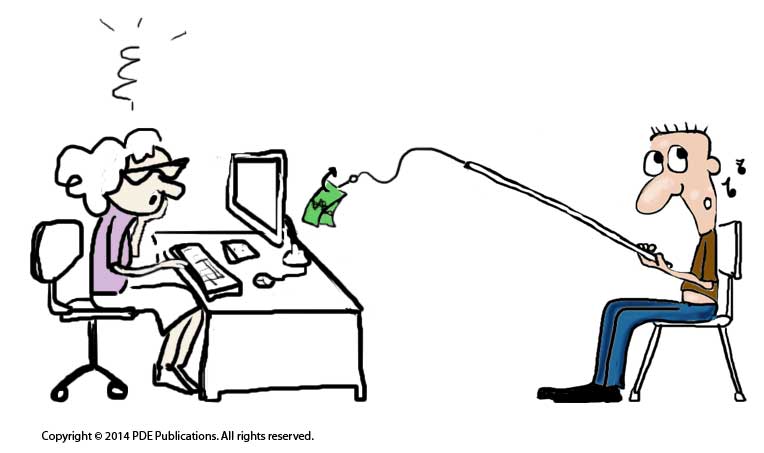
2. Responding to ‘Phishing’ attempts

avoid phishing email

Phishing emails and websites are designed to gain access to your personal information and use it in a fraudulent manner. Phishing scams can take the form of clickable links in emails, a third party asking for personal information (usually claiming to be an established company with a recognisable brand) or a link that leads to the download of malicious software. This software may then compromise information stored on and sent out from your computer.

See article on phishing here >>

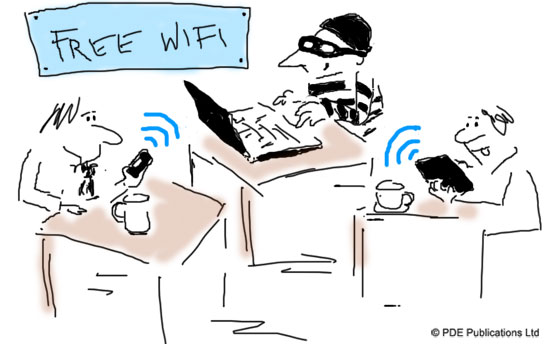
3. Using Public WiFifree wifi not secure

Connecting wireless-enabled devices to unsecured wireless networks in public areas such as cafes and airports greatly increases your susceptibility to identity theft. Criminals are known to “sniff” public wireless traffic or establish their own fake ‘hotspot’. When connected to a bogus hotspot, anything that a person types e.g. email password, bank passcode, is intercepted by the criminal’s computer.

Read more about security and public WiFi access >>

4. Shopping Online

When buying online, you should always ensure that the site is trustworthy before submitting any credit card or personal details (look for little lock icon or https: before the address at the point where the information is requested).

5. Engaging in Social Networking Websites

Many social networking sites provide the perfect hunting ground for identity thieves who will seek out information on individuals. The more information they have on you, the more likely they are to be able to commit fraud using your details. Always review privacy settings on social networking websites and don’t automatically friend anyone that requests it – your personal information is valuable so you need to protect it.

How to prevent Identity Theft

Personal information should never be given out online unless it is well known who is receiving the information and it has been established what it shall be used for.

  • Files, emails and websites containing suspicious links or spam should never be engaged with. Clicking such links can result in downloading Spyware which then makes all your data vulnerable
  • Always use a secure wireless network when sending or receiving information, even when in public. An extra precaution is to encrypt data using encryption software when sending data online
  • When shopping online, check the “privacy policy” of the website before entering any details. Check to see if the site shopping cart starts with “https“, indicating a secure website. A closed padlock symbol is also another indication of a secure website
  • Posting more than necessary online is not a good idea. Always review privacy settings and set them accordingly. Use strong passwords and always log out when finished

Some software tools, such as Spyware detection and removal tools and firewall and malware tools, can be very useful in helping prevent identity theft. However, they should be used in conjunction with the above guidelines and not instead of the,

Conclusion

Identity theft is widespread and the more information you provide online, the  more you expose yourself to the possibility of becoming a victim of identity theft and subsequently identity fraud.
Filed Under: Security/ Backup Tagged With: identity theft

Public WiFi Security – How Safe Is My Information?

By Lisa Keegan on January 14, 2015

Are Free Public WiFi Networks Safe?

are public wifi networks safe?

In recent years there has been a significant rise in both the number and frequency of people accessing websites and email via public WiFi networks.

Free WiFi can be accessed using any wireless-enabled device such as a Laptop, Smartphone or Tablet. However, particularly when users browse using a Smartphone, scant regard is given to the security of these networks and the data being transmitted over them, most notably, passwords and other personal information. The article below explains the risks of using such public wireless networks and how you can mitigate against such risks.

Unless you are using a Virtual Private Network (VPN) you should take extra precautions when using public WiFi. As the threats of hacking and identity theft become more pervasive, users need to be more aware than ever of the potential threats involved in connecting to unsecured Networks. This is less of a concern if you are simply browsing for information and not logging in to a website or sending emails.

1st Rule of Public WiFi Security – confirm the WiFi Network name:

Confirm the name of the network with the location. If you are in a coffee shop or other public WiFi area, confirm the name of the network with staff, otherwise in areas such as airport lounges the Network name should be displayed on notices. If the Network is called coffeeshop-wifi1, make sure that this is the network you connect to. It is very easy for someone to setup a network with a similar name in order to intercept the data of those that connect to this ‘imitation’ network.

https://www.drivers.com/update/pc-fix-tips/fix-wifi-issues-windows-10/

2nd Rule of Public WiFi Security – turn off sharing:

You may have sharing enabled on your home network in order to access files/ screens between devices. You should check your settings to ensure all Sharing is disabled in public WiFi areas.

Turn off Sharing on a Windows OS:

  1. Go to Control Panel > Network and Internet > Network and Sharing Center
  2. click ‘Change Advanced Sharing Settings’
  3. turn off all sharing options

Turn off Sharing on a Mac:

  1. Go to System Preferences > Internet & Wireless > Sharing
  2. Uncheck any checked ‘Sharing’ options

Depending on the system you are using, you may be able to setup different profiles for home and shared networks and therefore may not have to change the ‘Sharing’ preferences when going between networks.

3rd Rule of Public WiFi Security – enable built-in Firewall:

A Firewall creates a type of barrier between your computer and the Internet, enabling the filtering of files which may be potentially damaging to your system. Without a Firewall your system is open to serious attacks.

Most systems will have a built-in firewall which you should ensure is enabled at all times. To enable the firewall/ check that it is enabled, do the following

Enable Firewall in Windows OS:

Go to Control Panel > System and Security > Windows Firewall

Enable Firewall on a Mac:

Go to System Preferences > Security  > Firewall tab

4th Rule of Public WiFi Security – https:

When accessing any websites where you will be entering personal information or login details, ensure the page you are on is ‘https‘ (as opposed to ‘http‘ – prefixing the ‘://www.‘ in the address bar). There are various browser extensions you can install which force the browser to use https. However, nothing is foolproof and it is important not to become complacent. For highly sensitive tasks, such as online banking, wait until you get onto a secure home or office network if at all possible.

On Smartphones and Tablets, don’t assume that apps are secure to use over WiFi and never install app updates over an unsecured public WiFi Network.

5th Rule of Public WiFi Security – turn it off:

It is hard to get away from the ‘always-on’ mentality of having notifications/ emails and other information pushed to your device. When away from a secure WiFi connection (such as your home or office), turn off WiFi entirely until you need it. When you enable the WiFi you can download your emails, browse and whatever else you need to do but the safest way to use a public WiFi is with great caution!

It is always advisable to play it extra safe when using a public WiFi, assume that whatever you send and browse, someone else may be reading.

Filed Under: Security/ Backup Tagged With: network, wifi

10 Tips to Avoid Email Phishing Scams

By Lisa Keegan on December 4, 2014

Anyone with an email address will have received a ‘phishing’ email at some time or other, many will be subjected to these on a daily basis, particularly at this time of year. Phishing emails are designed to steal money from you in either of two ways:

1. Malicious software: by installing malicious software on your computer

2. Social engineering: by getting information from you either directly or by surreptitiously getting you to install the above malicious software

avoid phishing email

The easiest way to avoid either of these threats is to delete these ‘phishing’ emails as they arrive. This is often easier said than done, as oftentimes the emails appear to be from your bank, or from a friend looking for help and it may not be immediately obvious that they are not legitimate.

Obvious signs of a ‘Phishing’ email

There are a number of telltale signs of ‘phishing’ emails, some more obvious than others. Some emails don’t even require a second glance before deleting, while others may need a little bit of research. Whatever you do, do not click on anything in the email until you have worked your way through our top 10 and have satisfied yourself that the email is above-board.

1. The actual link and the visible links do not match

This is the first thing I look for when I get an email from someone claiming to be my bank or PayPal or similar. Phishing emails will almost always contain at least one link for you to click on.

The link may appear as – click here to update your account details at www.paypal.com

When you mouseover the link (move the cursor over the hyperlinked/ underlined text without actually clicking on it) you will see text popup with the URL or web address that the link will actually lead you to (usually with a light yellow background). In a legitimate email this should read the same or essentially the same as the link written in the email. In a phishing email you are likely to get a very different link here, to a completely different website and often a completely different country extension such as Russia (.ru)

Scammers sending out these emails rely on users

a) not looking at where the link leads to (hovering over link as above) and/ or

b) not reading the domain name carefully when they do so

I have seen some very clever phishing emails in the past showing the URL as paypal.com, when I mouseover it shows either paypel.com (note the vital misspelling) or paypal.buydesignershoes.com. The bit before the .com is the domain name, the subdomain or text before the first ‘.’ is irrelevant as this is likely to show the name of the company the scammers are impersonating.

2. The email is not personalised

This is not always the case as more advanced phishing schemes may use your name. However, the majority of phishing emails will read ‘Dear User’ or something equally vague. If they are claiming to be from your bank or an organisation that holds account details for you, then they should at least know your name.

3. The ‘to’ field says ‘undisclosed recipients’

This is usually a red flag for me as it tells me that the same email has been sent to multiple recipients. Be on alert and look for other phishing indicators.

4.  Bad spelling or grammar

We are all prone to the odd typo or grammatical error, but emails with obvious spelling and/ or grammatical errors should put you on immediate alert. This is particularly the case when the email claims to be from a large company such as Microsoft or PayPal. While not infallible, they are unlikely to miss obvious errors such as these in official customer emails.

5. You are asked to send money

This email may claim to be from a friend (they may have gathered names and email address from your address book so this can be quite convincing), the friend is often said to be stranded in some city having lost their luggage or something similar, it could equally be from a company looking for bank details to pay you for something you haven’t even applied for. If you are in doubt about an email from a friend, email them separately (do not hit the ‘reply’ button), if from a company, they are not going to sending emails to random people offering any type of work which leads on to the next thing to look out for – unsolicited email …

6. Unsolicited email

This one is not black and white as you may get an email from your bank asking you to update your password. This is an unsolicited email but not an unusual request. However, the bank should always direct you to their website and not ask you to click on a link within the website. If in doubt, go to the known URL and login as normal, if they are contacting you by email to ask you to update something, there should be something on your account page alerting you to this.

Out of the blue job offers and once in lifetime investment opportunities are almost always going to be bogus! Unfortunately it is unlikely that Facebook want to pay you to sit at home all day and surf the net, and that South African diamond miner looking for an investment partner …. well, you may want to believe it but trust your better judgement!

7. The email looks for personal information

This may not be as obvious as your bank account number, in cases of identity theft these details are built up over time and from a number of sources. The phishing email may just be looking for your full name or postal address. Don’t supply any information of this sort if in any doubt.

8. A sense of urgency

Phishing scams rely on the likelihood of people making bad or ill-informed decisions under pressure. Phishing emails usual have threatening language and a sense of urgency, so sentences such as ‘update your details now or your account will be closed’ are not uncommon. A common incitement to click on a link is to tell recipients that something was recently purchased on their iTunes account and to click on the link if they think this may not have been them. The easiest way to find out if anything was purchased using your account details is to go to itunes.com (or whatever the company/ website in question) and login, all purchases will be listed on your account.

9. The ‘from’ address does not match the claimed domain or company name

When the email you receive claims to be from microsoft, the email address in the ‘from’ field of the email should read usersname@microsoft.com or similar. If it is a gmail or another web-based email account (such as microsoft-tech-support@gmail.com), then it is very likely to be bogus. To see the email address your may have to mouseover the name in the ‘from’ field or click the little arrow to the right of the name.

10. Trust your instincts!

If in doubt, don’t click. There are always ways of researching if an email is bogus. If you have gone through all the checks above and are still unsure, copy and paste some of the text into Google and do a search. If is is a common scam it may come up on some of the message boards. If you know the sender (a bank or on a personal basis), email them in a separate email (don’t hit ‘reply’) and check the details.

Remember, it is worth taking the extra time to confirm the authenticity of an email, this may save you a lot of time and money!

Filed Under: Security/ Backup Tagged With: email, phishing

  • « Previous Page
  • 1
  • …
  • 5
  • 6
  • 7
  • 8
  • 9
  • Next Page »


  • Recent Posts
  • Popular Posts
        

Read More Posts


Read More Posts

Drivers.com Sites

  • Software Drivers
  • Drivers Ed

About Us

  • Advertise
  • About Drivers
  • Drivers Support
  • Drivers.com Privacy Policy
  • Disclaimer
  • Software Drivers
  • Mac Fixes and Tips
  • PC Fix Tips
  • Security/ Backup
  • Tablets & Smartphones
  • Tech News

© Copyright 2026 PDE Publications Ltd. End User License Agreement (EULA)