
Drivers.com

follow us:

facebook twitter
  • Home
  • Download Drivers
  • Drivers Help
  • PC/Mac Resources
  • Software Drivers
  • Mac Fixes and Tips
  • PC Fix Tips
  • Security/ Backup
  • Tablets & Smartphones
  • Tech News
  • Software Drivers
  • Mac Fixes and Tips
  • PC Fix Tips
  • Security/ Backup
  • Tablets & Smartphones
  • Tech News

Troubleshooting blue screen errors in Windows 10

By Driver Expert on January 10, 2017

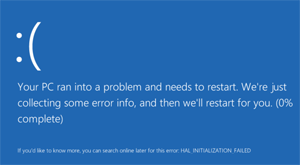
blue screen error win10

Just like in the older Windows system, in Windows 10 too blue screen errors arise when something goes wrong.  Here are some easy ways to troubleshoot blue screen errors in Windows 10.

Blue screen errors in Windows 10 can be divided into 3 types, depending on when they appear:

  1. blue screen error while upgrading to Windows 10
  2. blue screen error while using your PC
  3. blue screen error after installing an update

Now let’s learn about some solutions for blue screen errors.

How to Fix USB driver Error Blue Screen

Blue Screen error while upgrading to Windows 10

If you get a blue screen error while upgrading to Windows 10, the setup will roll back to the previous version of Windows. Before you proceed to the Windows 10 upgrade again, here are few things you need to do.

  1. Open your Windows 10 system and ensure all components like RAM, Graphics card or any other cards are seated perfectly in their places
  2. If you have recently upgraded any component such as RAM or graphics card, then you need to run further investigations to ensure they are not causing BSOD (the acronym for Blue Screen of Death!) errors

Blue Screen Errors while using your PC

It is very hard to know the exact reason for blue screen errors. If you get blue screen errors while using your PC, you need to check a few things before trying out any solutions.

Have you added any new hardware?  If yes, unplug it and see if the blue screen error persists. If there are no blue screen errors after unplugging the hardware, you can draw the conclusion that the problem is most likely related to the new piece of hardware. Try replacing it if possible.

If the blue screen error appears even after unplugging the new hardware, you need to install all important updates provided by Microsoft. To install important updates, follow the steps set out below:

  1. In the search bar on the desktop, type Windows update
  2. Select Windows update from the list of search results
  3. Select Check for updates
  4. Download and install all important updates
  5. Reboot PC

Blue Screen error after installing an update

The method to resolve blue screen errors after installing an update depends on whether you are able to get to the desktop screen.

If you are able to get to desktop, follow the steps set out below:

  1. In the search bar on the desktop, type view installed updates
  2. Select View installed updates
  3. Expand each entry of installed update to see the date of installation
  4. Select the update you want to uninstall
  5. Select uninstall

If you are not able to get to the desktop, you have no option other than using System Restore.  If your system was unable to reach the desktop after several attempts, the automatic repair option will be automatically invoked. After you get to the automatic repair option, follow the steps below.

Select Troubleshoot > Advanced options > System Restore

Click here if you think you are seeing the blue screen due to a USB Driver error,

or click here if you think it may be due to a video driver error

Filed Under: PC Fix Tips Tagged With: Blue Screen, error

Fix Lexmark 7600 Driver errors

By Driver Expert on April 2, 2014

Error: Message Full while printing is the most common Lexmark 7600 driver error. Thankfully, you can resolve this error on your own.  Similarly, the vast majority of the Lexmark 7600 printer errors can be easily solved if you know how to interpret the error codes.

Listed below are some common Lexmark 7600 printer errors and their solutions.

Fix Lexmark Driver Problems

Solution for Lexmark Message Full error

This error generally means your Lexmark printer does not have enough memory to continue with the printing job. You can ignore the error message and continue with the printing job. If that doesn’t solve the problem, you need to resend the print job command from your system.

Solution for Error 34: Short Paper

This error code generally means you have selected the wrong paper size in the Menu. Go to the Paper size menu and select the correct paper size for the printing job.

Error- Cannot print over wireless network

Sometimes, your Lexmark 7600 does not appear in the list of print devices in your system. There can be many reasons for this error, each with a different solution. The primary step toward resolving this error is checking whether your computer is connected to a wireless access point. Check whether your computer can access other wireless devices on the network. If yes, move your printer and computer closer to the wireless access point and try again.

Lexmark Drivers Download & Updates

Error – Communication not available message displayed while printing wirelessly

One of the most common reason for this error is that the hard drive of your system has powered down. This is normal and you need to wait for a few seconds until the hard drive powers up and the issue gets resolved.

Error – Printer does not appear in the list of network devices

To resolve this problem, check wired connections between your printer and computer. Try using another Ethernet cable, check network settings on your printer and try again.

Though the majority of the errors mentioned above are not caused due to Lexmark 7600 drivers, you should always keep your system updated with the latest Lexmark 7600 or printer drivers. Drivers play an important role in communication between your system and your Lexmark printer. Lexmark 7600 Drivers may become incompatible when you install system updates. Lexmark offers regular driver updates so that your printer works efficiently.

If the Drivers your require are not available, or you wish to opt for automatic Driver Updates, then you can use a driver update tool and run a Free Drivers Scan for your Lexmark Printer drivers.

My Lexmark Printer Won’t Print!

Filed Under: Software Drivers Tagged With: lexmark, printer

Acer Sound Card Problems?

By Driver Expert on February 10, 2014

Are you having problems with you Acer Sound Card?

If you are having problems with your Acer Sound Card then the following check-list should help you get to the bottom of the issue:

Download Acer Aspire Sound Drivers
  1. Make sure that the volume is not muted. This may seem obvious but we see this mistake happening on a regular basis
  2. If you are using external speakers, check all the connections and ensure they are plugged into the correct jack
  3. Has your sound worked in the past? If so, try to remember the last time it worked and anything you have done/ installed since. If you are unsure about any software you have installed since, run a virus scan and uninstall if necessary.
  4. If the sound card problem started since upgraded to a new Operating System then the problem is almost certainly with your Acer Audio Drivers, click here to read more on Acer Drivers problems >>
  5. Have you updated your Acer Sound Card Drivers recently? If you cannot remember updating your Drivers, you can run a Free Acer Drivers Scan, you can opt to register for automatic updates if necessary.
Acer Wireless Networking Not Working?

If you are still having problems with your Acer Sound Card, please post your question in the comments section below.

Filed Under: Software Drivers Tagged With: acer, audio-sound


  • Recent Posts
  • Popular Posts
        

Read More Posts


Read More Posts

Drivers.com Sites

  • Software Drivers
  • Drivers Ed

About Us

  • Advertise
  • About Drivers
  • Drivers Support
  • Drivers.com Privacy Policy
  • Disclaimer
  • Software Drivers
  • Mac Fixes and Tips
  • PC Fix Tips
  • Security/ Backup
  • Tablets & Smartphones
  • Tech News

© Copyright 2026 PDE Publications Ltd. End User License Agreement (EULA)