
Drivers.com

follow us:

facebook twitter
  • Home
  • Download Drivers
  • Drivers Help
  • PC/Mac Resources
  • Software Drivers
  • Mac Fixes and Tips
  • PC Fix Tips
  • Security/ Backup
  • Tablets & Smartphones
  • Tech News
  • Software Drivers
  • Mac Fixes and Tips
  • PC Fix Tips
  • Security/ Backup
  • Tablets & Smartphones
  • Tech News

How to speed up and protect your Mac

By DriversExpert on December 28, 2012

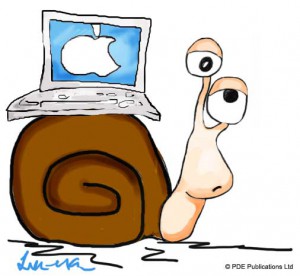
fix slow macWhether you own a Mac or Windows machine – the universal truth is that you must take good care of your computer if you want it to perform well for many years. Upgrading hardware is not the only way of improving your Mac’s sluggish performance. Although upgrading components usually works, it can be a costly affair. In most cases when there is a dip in performance, it can be easily improved by performing certain maintenance tasks.

Before we take a look at the tasks that help you speed up and protect your Mac, there are a couple of things you must know. Firstly, you should perform these tasks on a regular basis. Secondly, there are many useful software programs available that help you perform different essential Mac maintenance tasks with a single click.

Get rid of unnecessary applications

Do you download each and every application that catches your eye? There is nothing wrong with this grab-it-all attitude if you delete the unnecessary applications with the same vigor with which you download them. On the other hand, if you incessantly grab the new ones without letting go of the old, unnecessary applications, every new downloaded application puts an additional strain on your Mac’s resources and can slow its performance further. So, open up the Apps folder, browse through it, and delete the applications you have not touched in months.

Limit the applications that start automatically on Login

Does your Mac take longer than usual to start up? If yes, you can easily resolve this issue by restricting the applications that load automatically on startup. To do this, perform these steps:

Go to System Preferences>Accounts

Click your account

Click the Login Items button

Uncheck the box next to applications that are non-essential

Remove unnecessary widgets

Widgets open on your screen and use up substantial amount of RAM. One or two widgets opened on a Mac with substantial amount of RAM is not a problem at all, but multiple widgets on a RAM-deficient Mac, like a Mac Mini, is the perfect recipe for disaster. If you own a Mac Mini or another Mac machine with limited RAM and have a lot of widgets in the Dashboard, you would do well to heed this advice.

Update your applications regularly

Outdated applications are not only undesirable from the point of view of security, but they are also the cause of slow performance and various software errors. Updating applications manually can be time-consuming, not to mention boring. We recommend you to use MacKeeper, a very useful application for Mac which does many things besides automatically updating outdated applications.

Filed Under: Mac Fixes and Tips Tagged With: mac anti-virus, protect mac, slow mac, Speed Up Mac

Things you must do when you download Drivers for your PC

By DriversExpert on November 20, 2012

Downloading drivers can be relatively straightforward, assuming the manufacturer still supplies the Driver you are looking for. However, you must follow certain steps in order to ensure that you download and install drivers correctly. When you download a driver, you must ensure the following:

  • The driver you select is compatible with your device and the operating system
  • The driver file is not malware
  • The proper installation protocol is followed

Before we discuss in detail what you must do when you download device drivers, let us first take a look at the different situations in which you may need to download a driver. You need to download PC drivers if:

  • You reformat Windows but don’t have the original drivers
  • You upgrade your hardware but didn’t install the latest drivers
  • You upgrade your Windows version but didn’t install the latest drivers
  • Your drivers are missing, outdated, or corrupt

Step-by-step instructions for downloading and installing the latest drivers

Step 1 – Note down the model number of your hardware device

Different versions of a hardware device require different drivers. Therefore, before you begin downloading, it is important that you are aware of the model number of your hardware device. This information is printed on your hardware device. If this is not the case, or for internal hardware devices, you can get this information from the Device Manager window.

Open the Device Manager utility via Control Panel, double-click on your hardware device, and then click the Details tab. You will find this information under this tab.

Step 2 – Go to the manufacturer’s website

Next, go to the manufacturer’s website, locate the relevant driver, and click the Download button. Save the downloaded driver file in a suitable location.

If you are downloading drivers manually and they are not listed on the manufacturer’s website, you will need to find the Drivers elsewhere. A driver update tool can do this for you, you can also run a free scan to identify the exact Drivers you need.

Step 3 – Scan the downloaded driver file for malware

This step is absolutely necessary if you download a driver from a website other than the manufacturer’s website. If you have downloaded the driver from the manufacturer’s website or are using a Driver Update Tool, you can skip this step.

Step 4 – Create a restore point before installing the driver

Sometimes, you may encounter an issue after completing a software installation. To prevent any unforeseen problems, we recommend you create a restore point before installing a driver or, for that matter, any other software. If you do not know how to create a restore point, you can look up this information in the built-in Windows Help Guide. If you are using a Driver Update Tool, a restore point will be created automatically.

Step 5 – Install the driver

After you complete the aforementioned steps, click the downloaded driver file and follow on-screen instructions to install the required driver. Upon completion of the new installation, you may be prompted to reboot Windows.

Why you should consider using a Driver Update Tool

Installing one or two new drivers from the manufacturer’s website may not demand a lot of time or effort. However, what if you need to download ten or more drivers or the drivers you need are not there on the manufacturer’s website? Then it can be very frustrating and time-consuming. We recommend downloading a driver update tool, to update all your corrupt, outdated, and missing drivers in minutes. You can use the free scan to find the Drivers you need and either search for them yourself or register the software to let it do the updates for you.

Updating Drivers Automatically

Automatic driver update tools offer many benefits, the most important ones being:

  • You can update device drivers automatically
  • The software scans and updates all outdated or missing drivers at one go
  • The tool picks the right drivers for your device and operating system, so you won’t have to worry about installing an incorrect driver by mistake
  • Automatic driver updates are 100% safe

Driver Updater is one of the best driver update tools out there. Outbyte Driver Updater will give you access to a database of over 1 million drivers. It will regularly scan your PC, suggesting new driver versions to install. Driver Updater contains drivers for a variety of Windows devices. With just one click, you can update drivers in your system.

Step 1
Click here to Install and launch the app

Step 2
Scan all devices

Step 3
Install or update drivers automatically


Start Download


Filed Under: Software Drivers Tagged With: anti-spyware, anti-virus software, download drivers, driver update tool, driver updates, fix drivers, speed up pc, Update Drivers

Two Most Common Windows Drivers Error Codes And How To Fix Them

By DriversExpert on November 13, 2012

Device Manager is a built-in utility in Windows that lists relevant information about the hardware devices installed on a computer. If there’s a problem with a hardware device, the Device Manager window provides useful insight into what may be the cause of the problem and how to go about fixing it.

When there is something wrong with a hardware device, an error code is generated in its Properties dialog box, which can be accessed via Device Manager. Different error codes denote different things and, as such, each may have a different resolution.

Before looking at the top two Windows drivers error codes, let us learn how to see the generated error code in case a hardware device is not working properly.

How to view an error code:

To view an error code, perform the following steps:

  1. Open Device Manager
  2. Locate the hardware device that has encountered a problem. An exclamation point, a question mark, or a yellow mark against a device indicates that it has a problem
  3. Double-click the device that is not working
  4. Note the error code that appears in the Device Status box under the General tab

The two most common Windows Drivers Error Codes are: Error Code 1 and Error Code 3

Code 1: The error message, its cause, and how to resolve it

Error message
The following error message appears: This device is not configured correctly. (Code 1)
Its cause
The aforementioned code occurs when any of the following is true:

  • Drivers for this device are not installed on your computer
  • Drivers installed are not properly configured

How to resolve
Solution 1: If you have the required driver on your computer, install it via Device Manager. To do this, perform the following steps:

  1. Open Device Manager
  2. Open the Properties dialog box of the hardware device that has encountered an issue
  3. Click the Driver tab
  4. Click the Install button, and follow the onscreen instructions
  5. Restart Windows if you are asked to do so

Solution 2: If you don’t have the required driver on your computer, download the driver from its manufacturer’s website and install it. Alternatively, you can also run a free driver scan on your computer using our driver update tool, this software will automatically update all your outdated, missing, or corrupt drivers.

Code 3: The error message, its’ cause, and how to resolve it

Error Message
The driver for this device may be corrupted, or your system may be running low on memory or other resources. (Code 3)
Its cause:
The aforementioned code occurs when any of the following is true:

  • Your computer has insufficient memory to run the device
  • Your device driver is corrupt

How to resolve:
Solution 1: Close a few running programs, and then try to run the device
Solution 2: Uninstall and re-install the device driver. You should do this through Device Manager. To do so, perform the following steps:

  1. Open Device Manager
  2. Open the Properties dialog box of the hardware device that has encountered an issue
  3. Click the Driver tab
  4. Click the Uninstall button, and follow the onscreen instructions
  5. Restart Windows
  6. Open Device Manager again, and then open the Properties dialog box of the hardware device, and click the Driver tab
  7. Click Install, and follow the onscreen instructions
  8. Restart Windows

Solution 3: Download the driver from the manufacturer’s official website and install it.

Solution 4: Download Driver Update Tool to automate your Driver Updates

If you know the device that is causing the driver errors, you can try to download updated drivers from the manufacturers website. If these drivers are not available or you do not feel comfortable updating them, you can download a driver update tool.

If you are unsure of the driver you need, then you can use a driver update tool to run a free scan of your PC and identify the problem Drivers(s).

Filed Under: Software Drivers Tagged With: device manager error code, download drivers, fix error codes, speed up pc, Update Drivers

  • « Previous Page
  • 1
  • …
  • 13
  • 14
  • 15
  • 16
  • 17
  • …
  • 22
  • Next Page »


  • Recent Posts
  • Popular Posts
        

Read More Posts


Read More Posts

Drivers.com Sites

  • Software Drivers
  • Drivers Ed

About Us

  • Advertise
  • About Drivers
  • Drivers Support
  • Drivers.com Privacy Policy
  • Disclaimer
  • Software Drivers
  • Mac Fixes and Tips
  • PC Fix Tips
  • Security/ Backup
  • Tablets & Smartphones
  • Tech News

© Copyright 2026 PDE Publications Ltd. End User License Agreement (EULA)