
Drivers.com

follow us:

facebook twitter
  • Home
  • Download Drivers
  • Drivers Help
  • PC/Mac Resources
  • Software Drivers
  • Mac Fixes and Tips
  • PC Fix Tips
  • Security/ Backup
  • Tablets & Smartphones
  • Tech News
  • Software Drivers
  • Mac Fixes and Tips
  • PC Fix Tips
  • Security/ Backup
  • Tablets & Smartphones
  • Tech News

Device Manager Error Code 32 – what is it and how do I fix it?

By DriversExpert on August 13, 2012

There are various different types of error codes, Device Manager error codes (relating to devices), system error codes and then there are software error codes for individual programs. This post looks at Device Manager Error Code 32 and how to resolve it.

Our post “Fix Windows Drivers: Device Manager Error Codes” provides an explanation of general Device Manager Error Codes and what they mean.

This article focuses on Device Manager Error Code 32 (not System Errors or specific software error codes). This error usually appears when the start type for the device driver is disabled in the Registry.

To resolve Error Code 32 we recommend the following:

Before getting into the details of this error code there are 2 things you should try:

  1. Reboot your computer – this is always a first step to resolving any problems
  2. Undo any recent changes you may have made to Device Manager, this includes any software you may have installed prior to the error appearing

If neither of the above resolve your problem then you will need to either update your Device Drivers, fix your Registry (deleting some corrupt values) or change the start type in the Registry.

Update Device Drivers

To update your Device Drivers, you can use a driver update tool, this will tell you if the problem is with your Drivers.

Automatic driver update tools offer many benefits, the most important ones being:

  • You can update device drivers automatically
  • The software scans and updates all outdated or missing drivers at one go
  • The tool picks the right drivers for your device and operating system, so you won’t have to worry about installing an incorrect driver by mistake
  • Automatic driver updates are 100% safe

Driver Updater is one of the best driver update tools out there. Outbyte Driver Updater will give you access to a database of over 1 million drivers. It will regularly scan your PC, suggesting new driver versions to install. Driver Updater contains drivers for a variety of Windows devices. With just one click, you can update drivers in your system.

Step 1
Click here to Install and launch the app

Step 2
Scan all devices

Step 3
Install or update drivers automatically


Start Download


If you have checked your Drivers and everything seems in order, then you will need to examine your Registry. You should be a competent computer-user to edit Registry files. If you are uncomfortable with this you can download Registry Cleaner software to do it for you.

Delete UpperFilters and LowerFilters Registry values

The first thing you need to do in the Registry is to delete the UpperFilters and LowerFilters Registry values. Registry values are listed under Registry Keys and these values contain instructions for your Windows installation. You should take a backup of your system and Registry file before making any changes.

As a brief explanation, UpperFilters go between the Operating System and the relevant Driver, and LowerFilters go between the Driver and the relevant hardware (such as CD-ROM drive). These problems are usually associated with DVD and CD-ROM Drives.

  1. Select Start > (in Windows XP then select Run)
  2. In the Search box (or Run box in XP) type in regedit and click OK
  3. In the Registry Editor find the HKEY_LOCAL_MACHINE folder under My Computer and click the + icon to expand
  4. Using the + icon to expand folders, scroll to HKEY_LOCAL_MACHINESYSTEMCurrentControlSetControlClass
  5. Under this folder you should see a series of subkeys which are 32 digits in length
  6. Use the GUID Subkeys list below to ascertain which Global Unique Identifiers (GUID’s) relate to your problem
  7. Once you have found the GUID relating to the problem device, click the registry subkey corresponding to this GUID
  8. You can now locate the UpperFilters and LowerFilters values in the window on the right (you may only see one of these)
  9. Right Click on UpperFilters and select to Delete
  10. Choose Yes to the prompt “Deleting certain registry values could cause system instability. Are you sure you want to permanently delete this value?”
  11. Do the same as above for LowerFilters (ignore any values with .bak extension)
  12. Close Registry Editor and restart your computer

GUID Subkeys

4D36E965-E325-11CE-BFC1-08002BE10318 – CD/DVD/Blu-ray drives
4D36E967-E325-11CE-BFC1-08002BE10318 – Hard drives
4D36E968-E325-11CE-BFC1-08002BE10318 – Video adapters
4D36E96A-E325-11CE-BFC1-08002BE10318 – Hard drive controllers
745A17A0-74D3-11D0-B6FE-00A0C90F57DA – Some USB devices
6BDD1FC1-810F-11D0-BEC7-08002BE2092F – IEEE 1394 host controller
6BDD1FC6-810F-11D0-BEC7-08002BE2092F – Cameras and scanners
4D36E96B-E325-11CE-BFC1-08002BE10318 – Keyboards
4D36E96D-E325-11CE-BFC1-08002BE10318 – Modems
4D36E96F-E325-11CE-BFC1-08002BE10318 – Mouse devices
4D36E96C-E325-11CE-BFC1-08002BE10318 – Audio and video devices
4D36E972-E325-11CE-BFC1-08002BE10318 – Network adapters
4D36E978-E325-11CE-BFC1-08002BE10318 – Serial and parallel ports
4D36E97B-E325-11CE-BFC1-08002BE10318 – SCSI and RAID controllers
36FC9E60-C465-11CF-8056-444553540000 – USB host controllers and hubs

Change the Driver’s start type

If deleting the UpperFilters and LowerFilters Registry values does not solve your device problem, then you will need to manually change the Driver’s start type in the registry. Again, you should be a confident and competent computer user to do this, otherwise you should use a Registry Cleaning Tool.

To change the Driver’s start type in the Registry you can find the necessary information on the Microsoft Website.

Replace Hardware

If none of the above solutions have helped, then you may need to look at replacing your hardware. This should be a last resort as replacing the hardware can be a lot more costly than any of the above solutions.
Filed Under: Software Drivers Tagged With: modem

Device Manager Error Code 10 – what is it and how do I fix it?

By DriversExpert on July 31, 2012

What is Device Manager Error code 10

This error occurs when the device manager is unable to start a hardware device such as a printer, sound or USB device.

Error codes can be extremely frustrating if you are unable to understand what they mean and how to deal with them. Our post “Fix Windows Drivers: Device Manager Error Codes” provides an explanation of these codes and what they mean.

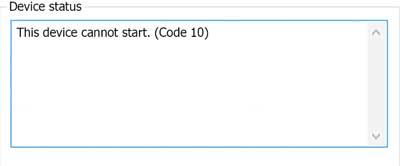
This article focuses on Device Manager Error Code 10 (not System Errors or specific software error codes), the error code we are talking about here usually appears as “This device cannot start. (Code 10)”

This code 10 error is basically saying that Windows, for one reason or another, cannot communicate properly with one of your programs. This communication problem is usually caused by out-of-date, missing or corrupt device drivers. Error Code 10 usually relates to communication with 1394 devices which are generally connected via a Firewire or a USB cable.

this device cannot start error code

To resolve Error Code 10 first check the following:

  1. Reboot your computer – this is always a first step to resolving any problems, if it works – great, if not – proceed to the next step!
  2. Have you installed all the latest Windows Updates and patches? If not, do so now and reboot your computer
  3. There are 2 values in the Windows Registry that can become corrupt and lead to Device Manager error code 10 as well as other error codes. You can delete these values to check if this is the issue (don’t forget to backup before making any registry or similar changes). Click here for more information on deleting UpperFilters and LowerFilters
  4. Did you make any recent changes or install new hardware/ software? If you can, undo this change and reboot to see if this fixes the error, if not, read on …

Update Drivers in Device Manager

The following steps will guide you through updating your Drivers to try to fix error 10 issues. If updating the Drivers does not work you will need to move on to the next solution which involves completely uninstalling and reinstalling the Drivers.

  1. Select Start > All Programs > Windows Update
  2. Right-click on My Computer
  3. Click Properties > Hardware menu tab  > Device Manager
  4. Double-click the device that is causing the error (there will be a yellow triangle with exclamation mark to the left of it)
  5. Right-click the specific device and select Properties
  6. Click on the Driver menu tab and select Update Driver
  7. Windows may ask for the path of the driver in which case you will need to either insert your Drivers disk (if you have it) or download the Drivers from the manufacturers website
  8. Restart your computer

Uninstall and reinstall Drivers

Before uninstalling or deleting Drivers, you should uninstall the device linked to the Drivers. Then uninstall and reinstall the Drivers via the Device Manager. If the stored Drivers were corrupt or out of date then this should resolve your issue with error code 10.

If you have a problem with updating or installing Device Drivers (they may be difficult to install or no longer available), you can click here to view driver update tools which will automatically update your Drivers for you. You have the option of running a Free Drivers Scan, but will have to pay a small registration fee if you wish to get automatic Driver updates.

You should also look at cleaning up your Registry –  Click here to read our article on how cleaning your Registry can help speed up your PC.

Automatic driver update tools offer many benefits, the most important ones being:

  • You can update device drivers automatically
  • The software scans and updates all outdated or missing drivers at one go
  • The tool picks the right drivers for your device and operating system, so you won’t have to worry about installing an incorrect driver by mistake
  • Automatic driver updates are 100% safe

Driver Updater is one of the best driver update tools out there. Outbyte Driver Updater will give you access to a database of over 1 million drivers. It will regularly scan your PC, suggesting new driver versions to install. Driver Updater contains drivers for a variety of Windows devices. With just one click, you can update drivers in your system.

Step 1
Click here to Install and launch the app

Step 2
Scan all devices

Step 3
Install or update drivers automatically


Start Download


Filed Under: Software Drivers

Upgrading Your PC from Windows XP to Windows 7

By DriversExpert on July 17, 2012

As the most popular PC Operating System in the World, Windows 7 is a great choice for XP users who wish to upgrade to a faster,  networking-friendly Operating System.

If you are thinking of making the move from Windows XP to Windows 7 then read this article first. If you are upgrading from another OS such as Vista, you can perform a simpler upgrade. You can follow most of the instructions in this article but will have the option of doing an ‘upgrade’ or a ‘custom’ install. However, upgrading from Windows XP to Windows 7 requires a fresh or ‘custom’ install.

1. System Compatibility

The first thing to consider is whether your system hardware will be able to support Windows 7. The system requirements for running Windows 7 are:

  • 1 GHz processor (32- or 64-bit)
  • 1 GB of RAM (32-bit); 2 GB of RAM (64-bit)
  • 16 GB of available disk space (32-bit); 20 GB of available disk space (64-bit)
  • DirectX 9 graphics device with WDDM 1.0 or above driver

If you are sure your system fits these requirements then read on, if not you should download the Windows 7 Upgrade Advisor first.

 2. Backup and Migration of Current System

Before starting any upgrade you should always ensure that you have a full backup of your current system. We recommend doing a full image backup of your PC onto an external hard-drive.  This is a kind of disaster recovery option that allows you to roll-back to your previous system if anything goes wrong. One freeware solution that we have found works well is Macrium Reflect.

At the very least you should copy files and settings in all your relevant user accounts (the Windows Easy Transfer Wizard detailed below automates this task). Some of the folders you should copy are:

  • My Documents
  • My Music
  • My Pictures
  • Any files or folders you created outside of My Documents (check the Desktop)
  • Browser Bookmarks (there is usually a backup or export option within the various browsers)
  • Emails – this is a good time to clean up your inbox and save any essential emails or attachments to a folder in My Documents

As you have to run a clean install of Windows 7, you will need installation disks (or the corresponding downloaded file) of all programs you are currently running and wish to reinstall. This sounds like a mammoth task but it really doesn’t have to be.

  • Take a note of all the programs on your system that you wish to reinstall
  • Check if you have installation CD’s or downloaded executable files for the programs (if you are missing some check if they can be re-downloaded from the web)
  • Find the license keys for your versions of the software. In boxed software this often comes on the CD-sleeve, where programs are downloaded you would usually have been emailed a license key (try the ‘Help’ or ‘About’ options within the software and if you find the license key here, copy and paste the key to a text file)
  • Copy all the installation files for your applications to an external hard drive.

Finally, you should run the Windows Easy Transfer Wizard to help back up your files and settings to an external hard drive. Make sure your external hard drive is plugged in before launching this wizard and then select this drive as the location to transfer your data to.

3.Install Windows 7

When you are sure that you have a backup of your PC and all your essential files, and have taken down any relevant license keys, then it is time to proceed with the actual install of Windows 7. From XP you will be doing a clean or ‘custom’ install, you can do this while you are already in Windows or boot up from the CD, the former is probably easier. Insert the software CD or if you downloaded Windows 7 click the relevant start-up file.

When prompted to select Upgrade or Custom install, ensure that you click ‘Custom‘ (upgrade will work if you are currently on Windows Vista)

Your computer should reboot a number of times and when the wizard reappears it should be within Windows 7. Now you can start importing your old settings (exported with Windows Easy Transfer Wizard) from the external hard drive, reinstalling your programs and setting up users and passwords for your new system.

4.Windows 7 Driver Updates

Your Driver files will require an update when you upgrade to Windows 7 from XP. To update Drivers (this should cover most if not all of them) go to the Device Manager:

  1. Click on Start > Control Panel
  2. Click on Performance and Maintenance (in Classic View double-click on the System icon and skip the next step)
  3. In Performance and Maintenance select the System icon
  4. In System Properties select the Hardware tab
  5. Click on the Device Manager button

The yellow exclamation marks (of which you may see many!) show the devices with driver issues. To fix these Drivers, double-click them and then click the Update Driver button. This should solve most of your Driver issues, to ensure they are all up-to-date you can download a driver update tool. This will list all the missing or out-of-date Drivers on your new system. You can then register for automatic Driver updates or seek them out yourself from the various manufacturer websites.

Filed Under: PC Fix Tips Tagged With: update from windows 7 to windows xp, windows 7 drivers, windows drivers update, windows upgrade, wundows xp update

  • « Previous Page
  • 1
  • …
  • 14
  • 15
  • 16
  • 17
  • 18
  • …
  • 22
  • Next Page »


  • Recent Posts
  • Popular Posts
        

Read More Posts


Read More Posts

Drivers.com Sites

  • Software Drivers
  • Drivers Ed

About Us

  • Advertise
  • About Drivers
  • Drivers Support
  • Drivers.com Privacy Policy
  • Disclaimer
  • Software Drivers
  • Mac Fixes and Tips
  • PC Fix Tips
  • Security/ Backup
  • Tablets & Smartphones
  • Tech News

© Copyright 2026 PDE Publications Ltd. End User License Agreement (EULA)