
Drivers.com

follow us:

facebook twitter
  • Home
  • Download Drivers
  • Drivers Help
  • PC/Mac Resources
  • Software Drivers
  • Mac Fixes and Tips
  • PC Fix Tips
  • Security/ Backup
  • Tablets & Smartphones
  • Tech News
  • Software Drivers
  • Mac Fixes and Tips
  • PC Fix Tips
  • Security/ Backup
  • Tablets & Smartphones
  • Tech News

Resources by Tag

windows 7

Download Drivers: Reasons To Keep Your Drivers Up-To-Date

Most Windows users know what Device Drivers are. However, what many don’t know is why it is absolutely necessary to keep these Drivers up-to-date.

Shared below are two reasons why you need to regularly update Device Drivers and how to update them.

Download Drivers to prevents errors

Outdated Drivers are the leading cause of Driver errors. They also, in some cases, can lead to a hardware failure. Keeping Drivers up-to-date helps you avoid many computer errors.

Update Drivers to improve your PC or laptop performance

Drivers that are not up-to-date can slow your computer and cause frequent system freeze-ups. You can prevent this from happening by regularly updating Device Drivers.

You can update your Drivers manually or automatically. To update a Driver manually, perform the following steps:

  1. Open your web browser
  2. Go to the Driver’s manufacturer’s website
  3. Search for the latest Driver
  4. Download the Driver file
  5. Double-click the Driver file to install the latest Driver

You can also update certain Drivers via Windows Update. To install the latest updates, perform these steps:

  1. Click the Windows icon in the taskbar
  2. Type windows updates in the Start Search box
  3. Press Enter
  4. Click Check for updates
  5. Check if there are any updates for your Device Drivers. Install any available updates

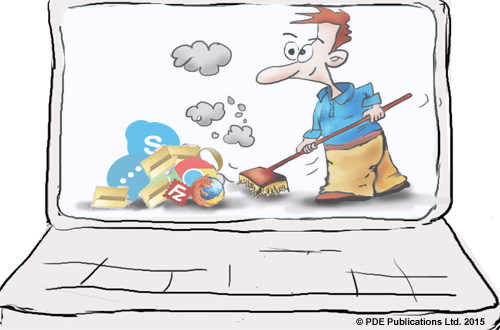
The manual update process can be tedious, you can avoid the hassle of searching for and downloading the latest version of every outdated Driver manually by installing and using an advanced driver update tool.
Filed Under: Software Drivers Tagged With: device drivers, download drivers, driver update tool, update driver, windows 7, windows 8

Fix problem with unexpected shutdowns

If your pc is shutting down unexpectedly while you work on it, ask yourself these questions before doing anything else:

  • Did I install any new program recently?
  • Did I make any changes to the Windows settings recently?
  • Did I install any new Windows updates?
  • When was the last time I scheduled a registry scan?

All of them—installation of a new program or latest Windows updates, a change made to the Windows settings, and a corrupt, cluttered registry—can cause Windows to shut down unexpectedly.

System Restore Not Working (Fixed)

If the first three are causing the issue, restore Windows to a time when abrupt, unplanned shutdowns were not occurring. To do this, perform the steps listed below:

  1. Click the Windows logo
  2. Type “system restore” in the Start Search box
  3. Press Enter
  4. Select either Recommended restore or Choose a different restore point
  5. Click the Next button
  6. Click the Finish button if you selected the Recommended restore option. If you choose the 2nd option, select a restore point from the list displayed in the next screen, click Next, and then the Finish button

If the cause is a corrupt registry, run a registry scan using an advanced registry cleaner to fix the issue.

Filed Under: PC Fix Tips Tagged With: registry, System Restore, windows 7, Windows shutting down abruptly, windows vista, windows xp

How to run Disk Cleanup in Windows 7

The Disk Cleanup is a free built-in utility in Windows which allows you to free up space on the hard disk by removing files that can be safely deleted. You can use Disk Cleanup for the following:

  • Removing temporary Internet filesclean up PC
  • Removing downloaded program files
  • Emptying the Recycle Bin
  • Removing optional Windows components which you no longer use
  • Removing programs which you no longer use
  • Removing Windows temporary files

To start Disk Cleanup in Windows 7, perform the following steps:

  1. Click the Windows icon in the taskbar
  2. Type Disk Cleanup in the Start Search box, and then press Enter
  3. In the Files to delete box, select the checkbox before each type of file that you want to remove (the amount of space you will free up by deleting each type will be displayed next to it).
  4. Click the OK button
  5. Click the Delete Files button when asked, “Are you sure you want to permanently delete these files?”

Disk Cleanup is not the only pc maintenance task that you should regularly perform; remove unwanted startup programs and defrag your hard disk regularly as well. If you fail to run maintenance tasks your PC will become bloated and will not perform at its best. Apart from slowing down your normal PC operations, this may lead to errors, crashes and unpredictable behaviour in programs.

Drivers.com have several articles relating to cleaning up your PC. There are also articles on cleaning up the Windows Registry and advice on how to speed up your PC.

Filed Under: PC Fix Tips Tagged With: pc performance tool, run disk cleanup, Slow PC, speed pc, speed up pc, speed windows, windows 7

USB device not recognized by Windows

Windows not recognizing device plugged into a USB port?

While there are many reasons why this issue may occur, the most common reason is virus infection. Virus are programs that interfere with files and programs present on your computer. They can also make one or more USB ports unusable.

If the cause of the above issue in your case is virus infection, to solve it, you would need to remove the virus present in your computer. To do this, perform the following steps in the order listed below:

  1. Update your antivirus software – The first thing you would need to do is update your antivirus software. If you are not able to update your antivirus, or if you do not have any antivirus software and are unable to install a new antivirus software, you might need to seek help of a computer technician. If you wish, in such cases, you can also seek help of a virus removal service which provide help remotely and so are less costly.
  2. Reboot Windows in Safe Mode and run a complete virus scan – After you have updated the antivirus software, reboot your PC in the Safe Mode, and scan it for infection. Your antivirus tool may remove the reported virus automatically or may ask for your permission.

Virus infection can cause a lot of trouble. The best way of dealing with them is by preventing them from entering your computer. This you can achieve easily by installing an advanced antivirus software, keeping it up-to-date, and running regular scans.

USB Driver Update Scan >>

Filed Under: Software Drivers Tagged With: pc virus, PC virus removal, remove malware, USB port not working, windows 7, windows 8, windows vista

taskhost.exe creating multiple pop up windows

Here’s an issue reported by some users recently:

My Internet connection frequently becomes slow for no apparent reason. The default homepage is changed to something else. I change the homepage back, but when I reopen my browser the new homepage appears instead of the default one. Multiple black pop up screens appear randomly, containing the following message: “C:Windowssystem32taskhost.exe”

The above issue is due to malware/virus. To resolve the issue, you would need to complete the following steps:

  • Update your antivirus software. If you do not have one, download an advanced and robust antivirus software Program
  • Restart your Windows computer in the Safe Mode. Here are the steps you need to perform to restart Windows 7 in the Safe Mode:
  1. Click the Windows icon in the taskbar, point to the arrow button next to Start, and then click Restart
  2. Press and hold the F8 key before Windows 7 Splash Screen appears
  3. Select the Safe Mode option in the Advanced Boot Options, and then press Enter
  • Scan your entire computer for infection
  • Delete all the malware reported by your antivirus software

Filed Under: Security/ Backup Tagged With: taskhost.exe, virus, windows 7

“Drivers for this device are not installed (Code 28)”

Code 28 Error is a driver error. It is one of many Device Manager error codes. When this error occurs, the following error message is displayed:

“The drivers for this device are not installed. (Code 28)”

You can find information on Code 28 Error and other Device Manager error codes in the device’s properties dialog box. The information is displayed in the Device Status box.

To access the properties dialog box of a hardware device, perform the following steps:

  • Open Control Panel
  • Click Device Manager
  • Expand the hardware device type for which you are getting the error
  • Double-click the hardware device that has encountered an issue
  • The information will be displayed in the Device Status box under the General Tab

What does Code 28 error apply to?

Generally, this error code affects sound cards and USB devices. However, it can also affect other devices as well.

Fix for code 28 error

In most cases, the error can be resolved by installing the latest driver. To do this, log on to the manufacturer’s website, locate the latest driver, and download and install it. Restart your Windows computer after installing the driver.

Alternatively, you can use a reliable driver update tool to update your drivers.

Automatic driver update tools offer many benefits, the most important ones being:

  • You can update device drivers automatically
  • The software scans and updates all outdated or missing drivers at one go
  • The tool picks the right drivers for your device and operating system, so you won’t have to worry about installing an incorrect driver by mistake
  • Automatic driver updates are 100% safe

Driver Updater is one of the best driver update tools out there. Outbyte Driver Updater will give you access to a database of over 1 million drivers. It will regularly scan your PC, suggesting new driver versions to install. Driver Updater contains drivers for a variety of Windows devices. With just one click, you can update drivers in your system.

Step 1
Click here to Install and launch the app

Step 2
Scan all devices

Step 3
Install or update drivers automatically


Start Download


Filed Under: Software Drivers Tagged With: Code 28 error, driver error, driver update software, Sound card error, update driver, USB error, windows 7, windows 8, windows vista, windows xp

iTunes not installing in Windows 7

When you try to install x86 version of iTunes on Windows 7 (64-bit), the installation stops at the point when it reaches the publishing product information screen and you receive the following error message:

An error occurred during the installation assembly”Microsoft.VC80.CRT.type=”win32″.version=”8.050727.6195″.publickeyToken=”1fc8b3b9a1e18e3b”.processorArchitecture=”x86″.Please refer to Help and Support for more information.HRESULT: 0x800736FDBottom of Form

It can also happen that you successfully install iTunes but get the following error when you try to launch it:

apple application was not found.apple application support is required to run iTunes. please uninstall iTunes<then install iTunes again.

Error 1 (Windows error 2)

iTunes Could Not Connect to iPhone iPad Because an Invalid Response (Fixed)

Resolution:

The above issue may occur when you try to install x86 version of iTunes on a 32-bit PC. If this is true in your case as well, instead of x86, install x84 version of iTunes.

If you use 64-bit windows and still get the error, try clean boot Windows and then install Windows.

To clean boot Windows, perform the following steps:

  1. Click the Start button, type msconfig, and then press Enter
  2. Click the Startup tab and then deselect all items
  3. Click Apply
  4. Click the Services tab, and then deselect the box next to Hide all Microsoft services
  5. Deselect all the listed Services and then select Apply
  6. Start Windows in the normal mode

After you restart Windows in the normal mode, you would be able to install iTunes. Such errors can also occur due to cluttered registry. Windows users must always maintain a clean and compact registry. The surest way of doing this is by running regular registry scans using a top-rated registry software.

Steps to Transfer iTunes Library From One System to Another

Filed Under: PC Fix Tips Tagged With: error, iTunes, iTunes not installing, windows 7

How to speed up Windows startup

Does your Windows PC takes several minutes to startup?

Often, the reason for this is too many startup programs. Startup programs are those which are automatically launched every time you power up Windows. Many startup programs, such as the antivirus program, should be launched when Windows boots, but some programs do not need to be in the startup list and can be removed safely.

You can use the built-in System Configuration utility to manage your startup programs. Here is what you need to do.

  1. Click the Windows icon in the taskbar
  2. Type msconfig in the Start Search box
  3. Click the Startup tab in the System Configuration dialog box
  4. Uncheck the programs you don’t want to be launched automatically
  5. Click Apply, and then OK
  6. Restart Windows

Other reasons may also cause delay during the startup process. If the above steps do not fix the issue, we recommend you download and use advanced PC Optimisation software. Such software can troubleshooting all types of slow PC performance issues, including slow Windows startup.

Filed Under: PC Fix Tips Tagged With: poor pc performance, Slow PC, slow pc startup, slow Window startup, slow Windows 7 startup, slow Windows Vista startup, windows 7, windows vista

How to Roll Back Drivers in Windows 8

You update a driver but find, much to your surprise and horror, the device has stopped working. What are you going to do now? Call your local technician?

Fix Graphics and Video Drivers Problems

Wait… why pay for something that you can do yourself. Windows allows you to rollback to previous Driver versions. Here’s what you need to do to complete the task.

  1. Open Device Manager
  2. Locate and double-click the hardware device whose driver you need to rollback
  3. In the properties dialog box, click the Roll Back Driver button
  4. Click Yes when you are asked, “Are you sure you would like to roll back to the previously installed driver software?”
  5. Restart Windows after the previously installed driver is reinstalled

Note: You can roll back only to the previously installed driver and not to the drivers installed before it.

While the Roll Back Driver is a useful feature, it is not likely to be required if you install compatible and genuine drivers. A simple and effective way to get genuine drivers is by using a driver update tool. Not only do they automatically update all your outdated drivers, but they also install only 100% genuine and compatible drivers.

Filed Under: Software Drivers Tagged With: driver update software, roll back drivers, windows 7, windows 8, windows vista, windows xp

Three reasons why you must clean Windows registry

Often users ask, “What is registry and why it is so important?” Think of registry as a huge database that stores all kind of information related to your computer’s settings, software programs, files etc. For nearly everything that you do on your computer, such as opening an excel file, changing your computer’s settings, launching your web browser, etc., your registry is referred to. Simply put, without it, Windows cannot do a thing.

Important and smart as it is, registry has one major shortcoming, it cannot prune redundant information stored by itself. To do that, it needs your help. Cleaning registry is a simple task and can be completed by a press of a button if you use an advanced registry cleaning software. By now, you might be wondering the following;

  1. What is a registry cleaner?;
  2. Why does registry gets filled with redundant information in the first place?; and
  3. What do I get by cleaning registry?

A registry cleaner is a software solution that uses an advanced algorithm to identify and remove unwanted data from registry. Registry of a new PC is compact, but as you use your computer, unnecessary information inflates it. Some of the more common causes for a bloated registry are:

  • Incomplete uninstallations
  • Installation of software packages
  • Temporary data
  • Malware infection

Coming to the third question, what do you gain by cleaning registry, the answer is a lot. A cleaner registry means:

  • A faster PC
  • Fewer runtime, DLL, ActiveX, and drivererrors
  • Fewer system crashes or dreaded blue screen of death errors

Filed Under: PC Fix Tips Tagged With: fix common computer errors, how to clean registry, Speed up slow pc, Visa, Windows, windows 7, windows 8, Windows Registry, windows xp, Wndows regisry errors

  • « Previous Page
  • 1
  • 2
  • 3
  • 4
  • Next Page »


  • Recent Posts
  • Popular Posts
        

Read More Posts


Read More Posts

Drivers.com Sites

  • Software Drivers
  • Drivers Ed

About Us

  • Advertise
  • About Drivers
  • Drivers Support
  • Drivers.com Privacy Policy
  • Disclaimer
  • Software Drivers
  • Mac Fixes and Tips
  • PC Fix Tips
  • Security/ Backup
  • Tablets & Smartphones
  • Tech News

© Copyright 2026 PDE Publications Ltd. End User License Agreement (EULA)