Drivers.com

follow us:

facebook twitter
  • Home
  • Download Drivers
  • Drivers Help
  • PC/Mac Resources
  • Software Drivers
  • Mac Fixes and Tips
  • PC Fix Tips
  • Security/ Backup
  • Tablets & Smartphones
  • Tech News
  • Software Drivers
  • Mac Fixes and Tips
  • PC Fix Tips
  • Security/ Backup
  • Tablets & Smartphones
  • Tech News

Realtek HD Audio Drivers

By TechTech on March 27, 2015

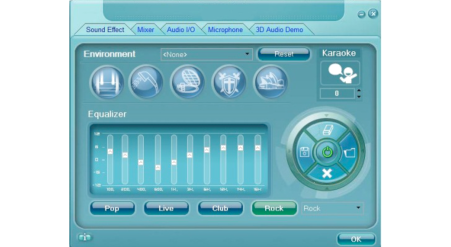
realtek audio driver manager

Realtek is a Taiwanese company with a strong focus on Audio Devices and thus Audio Drivers. These Audio Drivers interact with the sound card of the computer in order to produce sound. Audio Drivers are constantly  updated and it is therefore very important to ensure you have the latest version of Audio Driver installed to enable the smooth-running of your audio devices.

How to Reinstall Realtek HD Audio Manager

Realtek is probably best known for AC’97 Audio Drivers but HD Audio Drivers have now replaced AC’97 and are far more advanced. HD Audio Drivers produce higher quality sound and are compatible with Windows 2000, 2003, XP, Vista, Windows 7 and Windows 8. HD Audio Drivers also support endless formats of sound and have a high frequency bandwidth and possible speech recognition. Since 2014, the latest version of HD Audio Drivers is 2.75.

Various errors can arise when trying to configure your Audio Drivers and installing the latest Sound Driver updates. It is important to understand what each of these errors mean, enabling you to troubleshoot the problem. Below are some common errors that often occur when dealing with HD Audio Drivers.

Common HD Audio Errors:

0001 Error

The main reason for Error 0001 occurring is damage to the windows file system. Incorrectly deleting applications or hardware and deleting any incomplete installations usually results in system file errors. Shutting down the computer improperly or recovering the computer from spyware etc. can also result in system files being corrupted. These corrupted files can cause problems for applications seeking system file information.

0101 Error

This error usually arises when the operating system becomes corrupted. Other reasons can be the presence of spyware, malware and programs not installing properly. Over time all these issues build up in the registry which slows down other programs, preventing them from starting or working efficiently. After a while your PC will start to experience lag and irregular crashes.

0xE0000227 Error

This is a common error in Windows XP and can occur during the installation process. This driver issue causes the installation to freeze. Previously installed incorrect Drivers can also cause lead to this error.

0x000005b3 Error

This error indicates a problem during Driver installation. While updating or installing the Audio Driver, if the currently installed Driver is either corrupt or partly uninstalled, it will cause a problem with the installation of the latest Driver and will result in this error.

0x000003e3 Error

This error is a result of the absence of system files on the computer during the process of uninstalling Realtek or other drivers from the computer.

If you are experiencing other problems with your Realtek Audio Drivers, you could download a driver update tool to check for driver issues.

Filed Under: Software Drivers Tagged With: audio-sound, realtek

Windows 8 Video Drivers

By TechTech on March 18, 2015

How to Update Video Card Drivers in Windows 8

Whether you have bought a new Windows 8 PC or are updating your Operating System from Windows 7, Vista or XP to Windows 8, you will need to ensure your Drivers are updated. Device Drivers are Operating System specific so your Video Drivers that worked on Windows 7 are unlikely to work for Windows 8.

Drivers connect the hardware to the operating system and make sure the hardware works properly. Without the correct Drivers, the hardware either malfunctions or stops working altogether.

If your Video Drivers are not up-to-date or are the correct device Drivers for Windows 8, you are likely to see errors such as “Display Drivers stopped responding…” or “a display driver file is missing…”.

Installing Drivers can be a tedious task, particularly if you are unsure of the type of Drivers your Windows 8 PC requires.

Windows 8 Video Drivers – Automatic Updates

You can download, install and update your Drivers manually (remember all your devices will have corresponding Drivers) or you can choose a Driver Update Tool to automate Driver updates for all your devices. View driver update tools

If you prefer to manually update your Video Drivers, then follow the steps set out below:

How to Manually Update Windows 8 Video Drivers

  1. Swipe right to open up the Charms Bar and click on “Search“.
    win8 video drivers start
  2. Now in the search box, type “device manager” and then proceed to click on it as it appears under the box
  3. A new window should appear. Look for the “Display Adapters“
  4. Click on the arrow on the left of the “Display Adapters” which will then show the Video Card of your computer. Continue to right click on the video card, as shown, and then select “Update Driver Software…“
  5. A new window should appear. Click on “Search automatically for updated driver software“. If there are new updates, they will be downloaded, if not, a prompt will appear stating the drivers are up to date
win8-search-menu
win8-device-manager-update-video-drivers
win8-device-manager

Filed Under: Software Drivers Tagged With: video, windows 8

What Printer? Choosing a new Printer in 4 easy steps!

By TechTech on February 2, 2015

Top considerations when buying a new Printer

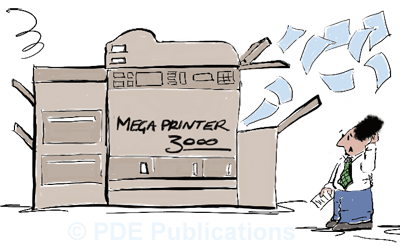
help with printers

There are many things to consider when buying a new printer. The first thing you need to be aware of is the different printer technologies (inkjet, Laser) available. It is vital to differentiate between the different types of printers too (Document, photo printers etc.). The most important factor is whether the printer is for home or office use as this will determine the printer technology you opt for, Inkjet Printers are generally for home use whereas Laser Printers are more often for office or high-frequency use.

Manufacturers such as Xerox, Epson, Hewlett Packard and Canon are well-regarded Printer brands. You may find a very cheap brand of printer but the replacement ink cartridges could cost you the price of a new printer! This is why it is important to understand what you need in a printer and then look at what you are likely to pay for that printer and for any related consumables (such as ink or toner).

Printer Technologies

Inkjet Printers

Inkjet printers are the most common printers for home or lower-frequency use. These printers are more compact and lightweight and are less expensive to maintain.

inkjet printers


Types of Inkjet Printers:

– Document Printers

These Inkjet printers only print documents either in colour or black and white e.g. word documents, e-mails, web pages etc.

– Photo Printers

Photo printers are capable of printing high quality and high resolution photos that will look similar to developed photos.

– All-in-One Printers

Often abbreviated as AiO, these printers are multi-functional with the ability to print and copy documents as well as scanning and faxing functions. Most printers on the market today are AiO.

Laser Printers

Laser printers are the obvious solution for corporations, schools and anywhere requiring high frequency or high capacity printing. Laser printers are relatively fast and suitable for high quantity print jobs. Laser printers can come in black and white or colour.

laser printers

Types of Laser Printers

Document Printers

Similar to Inkjet Document printers, these printers print anything from word documents, excel sheets to emails and web pages.

All-in-One Printers

AiO Laser printers are used to make copies, scan and print.

Inkjet Printers vs. Laser Printers

Inkjet Printers are smaller in size and are cheaper in comparison to Laser printers. Their ink cartridges are much cheaper and easier to replace. Although cheap, Inkjet printers don’t use ink very efficiently and are slower at printing documents. They are the best choice for the average home or home-office user.

Laser Printers use toner more efficiently than ink is used by Inkjet printers. Laser Printers print documents at a much greater speed. These printers are bulky and more expensive and can also be quite noisy. Overall, Laser printers are longer lasting and are the best choice when it comes to environments where the demands for printing speed and capacity are likely to be high.

After considering which printer technology and type of printer, there are just 4 steps to choosing the printer that is right for you.

continue to part 2 >>

Filed Under: PC Fix Tips Tagged With: printer

  • « Previous Page
  • 1
  • 2
  • 3
  • 4
  • Next Page »


  • Recent Posts
  • Popular Posts
        

Read More Posts


Read More Posts

Drivers.com Sites

  • Software Drivers
  • Drivers Ed

About Us

  • Advertise
  • About Drivers
  • Drivers Support
  • Drivers.com Privacy Policy
  • Disclaimer
  • Software Drivers
  • Mac Fixes and Tips
  • PC Fix Tips
  • Security/ Backup
  • Tablets & Smartphones
  • Tech News

© Copyright 2026 PDE Publications Ltd. End User License Agreement (EULA)