
Drivers.com

follow us:

facebook twitter
  • Home
  • Download Drivers
  • Drivers Help
  • PC/Mac Resources
  • Software Drivers
  • Mac Fixes and Tips
  • PC Fix Tips
  • Security/ Backup
  • Tablets & Smartphones
  • Tech News
  • Software Drivers
  • Mac Fixes and Tips
  • PC Fix Tips
  • Security/ Backup
  • Tablets & Smartphones
  • Tech News

How to Fix USB driver Error Blue Screen

By Sushant Mehta on June 17, 2013

How to Fix USB driver Error Blue Screen
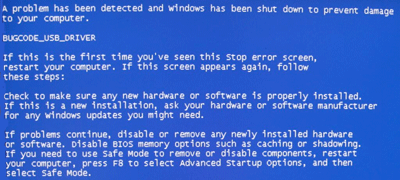
bugcode blue screen error

A Bugcode USB driver error, also referred to as a blue screen error, occurs when a USB driver (the term USB is an acronym for Universal Serial Bus) causes a stop error. This error means that your PC has abruptly shut down to safeguard itself against potential data loss or corruption.

There are many reasons why this error occurs, but the good part is that a Bugcode USB driver error is often easy to resolve.

Run USB Driver Scan >>

Run the FIX IT solution from Microsoft

You may be able to troubleshoot the error by downloading the FIX IT solution that is available on the Microsoft website. Run the solution after installing it to get rid of the error.

If the error persists, we recommend you perform these steps in the order they appear below.

Adjust the power settings of your computer

The following two adjustments may help you to reduce the frequency of this error.

Deselect the USB selective suspend setting:

  • Open the Control Panel window, and then select System
  • In the System window, click Hardware
  • Click Device Manager
  • Double-click Universal Bus Controller to see all the listed devices
  • Click each USB Root Hub one by one and check the box before Allow the computer to turn off this device to save power (this option is available under the Power Management tab)

Check if a system BIOS update is available for your computer

Many manufactures have released BIOS updates to resolve such issues. It is possible that the manufacturer of your computer may have also released such an update. So contact the manufacturer’s website to see if a BIOS update has been released for the specific model that you are using.

Install the latest USB Drivers

In case you recently added a new device such as a USB hub, check if a driver update is available. Even when you have not installed a new hardware device, it is recommended that you install any driver updates available.

There are two ways of updating and installing new drivers. One is by using a reliable and fast driver update tool. Such tools offer you numerous advantages, such as:

  • Update your drivers quickly – When you use a driver update tool, you can update all your drivers at the click of a button.
  • Get only 100% genuine drivers – To install a driver manually, you need to download it from the manufacturer’s website. However if the required driver is not listed on the manufacturer’s website, you will need to get it from an online driver directory. The problem with this approach is that with free online driver directories you can never be sure about the source of the driver provided.
  • Schedule the application to perform driver updates at regular intervals – You can configure your driver update tool to run periodic checks and install any new drivers available. This, in turn, allows you to keep your drivers up to date, limiting the chances of experiencing driver-related issues.

The other method is to update drivers manually. Because it can be both tedious and time-consuming, we recommend you to use a driver update tool for updating drivers.

Automatic driver update tools offer many benefits, the most important ones being:

  • You can update device drivers automatically
  • The software scans and updates all outdated or missing drivers at one go
  • The tool picks the right drivers for your device and operating system, so you won’t have to worry about installing an incorrect driver by mistake
  • Automatic driver updates are 100% safe

Driver Updater is one of the best driver update tools out there. Outbyte Driver Updater will give you access to a database of over 1 million drivers. It will regularly scan your PC, suggesting new driver versions to install. Driver Updater contains drivers for a variety of Windows devices. With just one click, you can update drivers in your system.

Step 1
Click here to Install and launch the app

Step 2
Scan all devices

Step 3
Install or update drivers automatically


Start Download


Filed Under: Software Drivers Tagged With: bsod, error, fix blue screen of death error, fix Bugcode USB driver error, usb

No Task Bar or Icon At Windows Start Up

By Sushant Mehta on June 11, 2013

One of our users recently experienced the following, surprisingly common, problem:

“When I boot Windows, all I see is a blank desktop. There is no task bar or no icons are visible. I booted in Safe Mode and here everything appears as normal – what has caused this?”

Cause of blank desktop issue

We decided to post this issue, and the solution, as it seems to be experienced by more and more users. There are various reasons for this problem but the most common and likely cause is malware infection.

Solution to blank desktop issue

If the issue is due of malware infection, you can resolve it by running a virus scan using a trusted antivirus tool in the Safe Mode. It is advisable to run a malware check anyway as, if this is not the cause, it will at least rule it out.

Filed Under: PC Fix Tips Tagged With: blank, desktop, screen, virus

Stop the display of thumbnails in Firefox’s new tab

By Sushant Mehta on June 6, 2013

In Firefox 13 and later versions, nine different websites thumbnails are displayed in 3×3 grids when you open a new tab. This feature, while useful, displays your browsing history to anyone working on your computer. If you are not comfortable with this open display of your browsing history, it is best that you disable this feature. Here’s how you can do it.

Method 1 – Remove the thumbnails temporarily

This method does not offer a permanent fix. But it is very easy to perform, and so is worth discussing here.

Open a new tab and click the symbol with 9 little squares (located in the upper right corner) to remove the thumbnails. The thumbnails now will no longer automatically appear every time a new tab is opened. To get the thumbnails back, simply click the symbol again.

Method 2 – Remove the thumbnails permanently

This method removes the thumbnails permanently.

In Firefox’s new tab, type about:config to access the browser’s configuration settings. Locate the browser.newtab.url entry (it is displayed under the search field), and double-click it. This entry, by default, is configured to about:newtab. Change this to about:blank and save your changes.

Thumbnails, which allow others to see your browsing history, are a privacy rather than a security issue. Malware programs, which can also disclose information present on your pc to others, on the other hand, are very dangerous. It is important that you keep yourself protected against such programs. The best way to do this is by using an advanced antivirus tool.

Filed Under: PC Fix Tips Tagged With: antivirus, firefox, malware

  • « Previous Page
  • 1
  • …
  • 55
  • 56
  • 57
  • 58
  • 59
  • …
  • 88
  • Next Page »


  • Recent Posts
  • Popular Posts
        

Read More Posts


Read More Posts

Drivers.com Sites

  • Software Drivers
  • Drivers Ed

About Us

  • Advertise
  • About Drivers
  • Drivers Support
  • Drivers.com Privacy Policy
  • Disclaimer
  • Software Drivers
  • Mac Fixes and Tips
  • PC Fix Tips
  • Security/ Backup
  • Tablets & Smartphones
  • Tech News

© Copyright 2026 PDE Publications Ltd. End User License Agreement (EULA)