

Drivers.com

follow us:

facebook twitter
  • Home
  • Download Drivers
  • Drivers Help
  • PC/Mac Resources
  • Software Drivers
  • Mac Fixes and Tips
  • PC Fix Tips
  • Security/ Backup
  • Tablets & Smartphones
  • Tech News
  • Software Drivers
  • Mac Fixes and Tips
  • PC Fix Tips
  • Security/ Backup
  • Tablets & Smartphones
  • Tech News

Tips to avoid iPhone X screen burn-in

By Sushant Mehta on January 3, 2018

Tips to avoid iPhone X screen burn-in
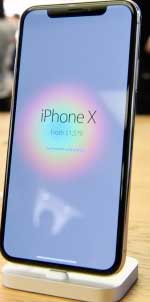
iphone x screen burn

The iPhone X features an OLED screen that displays clear and crisp images with rich colors. Many iPhone users were delighted to see Apple finally moving from LCD to OLED because the latter has more advanced display technology.

But there can be issues with the iPhone X OLED screen. Many iPhone X users have complained about peculiar screen behavior known as screen burn. In the article below we will look at this issue and give tips to fix or avoid the problem. If you are having problems with a black screen where device still seems to be working, click here.

What is iPhone X screen burn issue?

The problem of screen burn refers to the OLED screen retaining the image for a long time.  If you keep an image on the iPhone X screen for a long time, you may notice a discoloration or ghost image. Even when the screen displays a new image, you can sometimes notice a faint remnant of the previous image on the screen. This screen burn is caused when you leave a high contrast static image on the screen for a long time which causes the pixels to retain the colors and you then see a faint remnant of the image earlier displayed on the screen.

Here are some tips to avoid screen burn on your iPhone X screen.

Update to the latest iOS version

Apple has stated that to fix the screen burn issue in iPhone X, you need to update to the latest iOS version. Below are the steps to update the iOS on your iPhone X.

  1. Go to Settings
  2. Tap General > Software > Software update

Avoid displaying static images for too long

To avoid the burn-in issue, iPhone X users need to avoid displaying static images on the screen for a long time.  They can use dynamic animated wallpapers and change them regularly.  Another way is to set the iPhone X to go to sleep after a short period of time.

Keep Auto-lock time short

The best way to avoid screen-burn in iPhone X is to avoid a long auto-lock time. Here are the steps to change the auto-lock time on your iPhone X.

  1. Go to Display and Brightness > Auto Lock
  2. Select the shorter period of inactivity time after which the OLED display turns off. For example, 30 seconds, 1 minute, 2 minutes or anytime in the list that you feel will work for you

Tweak Brightness setting

You should avoid having more extreme screen settings (in terms of brightness and contrast) to avoid the screen burn issue in OLED. Here are the steps to reduce the brightness of your iPhone X screen.

  1. Go to Settings
  2. Tap General > Accessibility > Display Accommodations
  3. Move the auto-brightness slider to Off position

Note: You can keep the Auto-brightness feature on which adjusts the brightness of the display based on ambient light present

If you find yourself in a situation where you need to keep the screen on for a long time while using an app, you can switch off the Auto-brightness feature and adjust the brightness level through the Control Center. Here are the steps to follow to do this:

  1. Swipe from the bottom of the screen to activate Control Center
  2. Locate the brightness slider in the Control Center menu
  3. Move the brightness slider up or down to adjust the brightness

The OLED screen-burn issue is not a new one. Almost every OLED screen will experience these problems. The OLED screen-burn issue is not something that will damage your screen but it can be a nuisance at times so it is useful to use some of the above fixes to avoid the issue where possible.

Filed Under: Tech News Tagged With: iPhone, iphone x, screen burn

iPhone User’s Guide for Newbies

By Sushant Mehta on December 18, 2017

iPhone User’s Guide for Newbies

If you have been using an Android or another phone and have recently purchased an iPhone, you will probably find it to be very different from the other phones and difficult to initially get to grips with. You will obviously want to get the most out of your phone as quickly as possible so we have put together an introductory guide to answer most of your questions and help you get started with your iPhone.

Is your iPhone screen black but you still hear notifications coming in?

Knowing your iPhone model

Though iPhone 8 and iPhone X are the latest models, there are several older iPhone models that are still sold by retailers. Below is the list of iPhones that are still being used and supported by Apple.

  • iPhone 5S
  • iPhone 6, 6 Plus, 6S and 6S Plus
  • iPhone 7 and 7 Plus
  • iPhone 8 and 8 Plus
  • iPhone X

The above mentioned iPhone models are still supported and you will find these models running the latest iOS 11.

iPhone Overview

The iPhone display is not a simple touch-screen; it’s a multi-touch display that supports multiple touch point and can also take gestures as input. Some of the simple gestures you can use are – tap, swipe, drag, and stretch/pinch.

The iPhone has few physical buttons, these buttons are Home, Power and Volume buttons that are used to switch on the iPhone navigate through menus, and increase or decrease the volume.  Only the new iPhone X does not have a Home button.

Sleep/Wake button– this button is located on the top-right hand corner of the screen. It is primarily used for locking the phone or waking the screen. Pressing the Wake button will light up the screen and then you can access your iPhone features by entering the unlock code.

Volume Controls– as expected, the volume buttons are used to increase and decrease volume. The volume controls are located on the side of iPhone.

Home button– the home button is the most important button on the iPhone and is located just below the screen. It has multiple functions, such as it takes you to the home screen and also provides some convenient shortcuts. In the iPhone 5S, the fingerprint sensor is located under the Home button which is used to unlock the iPhone.

Ring/Silent Switch – this switch is located on the left-hand side of the iPhone, the Ring/Silent switch allows you to toggle between Silent and Ringer mode.

Setting up your iPhone

Apple ID- you will need an Apple ID to use every Apple service. For example, to store content in iCloud, buying movies, TV shows, and songs from the iTunes store, and even purchasing apps from the App Store. Below are the steps to create an Apple ID on your iPhone:

  1. Open the Settings app
  2. Tap iCloud
  3. Tap Create a new Apple ID
  4. Enter your date of birth
  5. Tap Next
  6. Enter your First and Last name
  7. Tap Next
  8. Select current email address
  9. Enter your email address
  10. Create a password
  11. Type the password again to verify the password
  12. Select a security question
  13. Type in answer
  14. Repeat two more times
  15. Tap on Agree to the Terms and Conditions
  16. Tap Merge or Don’t merge to sync data to iCloud
  17. Tap OK to confirm Find my iPhone is turned on

Now that you have created an Apple ID, you can use the same to log in to the iTunes store or to iCloud.

Managing music and videos manually on iPhone

You have a dedicated Music app and Videos app which can be accessed from the Home screen. Here are the steps to listen to Music on your iPhone.

  1. Tap on the Music app
  2. Select the view type dropdown from the middle of the screen
  3. At the bottom of the pop-up, switch Show Music Available Offline to ON

Here are the steps to view videos on your iPhone

  1. Tap on the Videos app
  2. A screen opens with a search box
  3. Tap the search box
  4. Enter the name of the video you want to watch
  5. Tap Go
  6. Tap the video you want to watch
  7. Tap Done after you have finished watching the video

Syncing your content with iTunes

Unlike Android and other smartphones, you cannot add music and videos directly to the phone memory or SD card. In fact, iPhone does not support flash memory, so make sure you buy an iPhone with sufficiently large internal storage. If you have music and videos stored on your PC, you can transfer the music to your iPhone using iTunes. Below are the steps to follow in order to do this:

  1. Open iTunes on your PC or Mac. Make sure you have the latest version
  2. Connect your iPhone to PC with the USB cable
  3. Your connected iPhone appears as an icon in the upper-left corner of the iTunes window
  4. Click on the device icon
  5. Under the Settings, look for the list of content type that you can sync
  6. Click the content type you want to sync
  7. In the main iTunes window, check the box near the Sync and check the box which mentions the content type you wish to sync
  8. Repeat the above two steps for each content type- Music, videos, Photos, TV shows
  9. Click the Apply button to start syncing and save the sync settings

 Using iCloud on the iPhone

When you sign up for iCloud, you immediately get 5GB of free storage space. If you need additional storage space you can upgrade to a larger storage plan such as 50GB, 200GB, or 2TB. Here are steps to backup your iPhone with iCloud.

  1. Connect your iPhone to Wi-Fi network
  2. Tap on Settings > your name– > iCloud
  3. Tap iCloud Backup
  4. Tap Backup Now
  5. Wait until the process completes

Your iCloud backup includes App data, Photos, and videos on your iPhone, shared photos, device settings, call history, home screen, and app organization, purchase history of Apple services, ringtones, messages, and health data.

Since a lot of data is backed up on iCloud, you can quickly run out of space. Therefore it is important to check how much iCloud storage you have.  You can delete old backups on iCloud to free up space. Here are the steps to manage iCloud storage:

  1. Connect your iPhone to Wi-Fi network
  2. Tap on Settings > your name > iCloud
  3. Tap iCloud storage or Manage Storage
  4. Tap the name of your device
  5. Tap Delete backup
  6. Turn Off and Delete

You can also delete photos and videos on iCloud to free some space. Here’s how to do this:

  1. Open the Photos App
  2. Tap Photos at the bottom of the screen
  3. Tap Select
  4. Choose one or more photos that you want to delete
  5. Tap the Recycle bin icon
  6. Tap Delete Photo

You can also delete files from iCloud. Here are the steps to do it:

  1. Open the Files App
  2. Tap Browse
  3. Under locations, tap iCloud Drive > Select
  4. Select the files you want to delete
  5. Tap the Recycle bin icon
  6. Go to Locations > Recently Deleted > Select
  7. Select the files that you want to delete
  8. Tap Delete

If you have questions about using an iphone, please feel free to post below.

Filed Under: Mac Fixes and Tips Tagged With: iPhone

Tips to use picture-in-picture mode in Android 8 Oreo

By Sushant Mehta on December 8, 2017

Tips to use picture-in-picture mode in Android 8 Oreo

In the Android 7 (Nougat) version, Google had introduced a feature that allowed the users to open two apps in Split mode. The feature was not very well refined and didn’t prove to be of much use. However, Google has improvised the feature in the latest offering (Android 8-Oreo) where it is known as Picture-In-Picture (PIP) mode. Below we will look at this new feature and the best way to use it.

Note: Not all apps support the PIP mode. Below is the list of apps that do support it:

  • YouTube
  • Google Duo
  • Google Play Movies & TV
  • Google Maps
  • Chrome
  • VLC

 Activating Picture-In-Picture or PIP Mode

You will firstly need to update the above-mentioned apps to their latest versions to enjoy PIP mode. Below are the steps to activate PIP mode on your Android Smartphone running Oreo:

  1. Open the Settings menu
  2. Tap App & Notifications
  3. Tap Advanced Menu
  4. Locate the Picture-in-Picture option and tap on it
  5. You will see a list of apps supporting the PIP mode and toggle switch beside each app name. Tap on the slide switch to move it to the ON position. Repeat this procedure for every app which you want to use in PIP mode

Now that you have activated PIP mode, next you will need to know how to use it. This is important because there is no standard method to launch Apps in PIP mode. Every app supporting the PIP mode works differently.

How do I use Picture-In-Picture (PIP) mode?

The basic objective of PIP mode is to allow you to continue enjoying the video while you work on another app. Here are the steps to use the PIP mode in different applications.

To use Chrome and YouTube simultaneously, watch the video in Full-Screen mode. If you want to launch Chrome, tap the Home button on the screen and launch Chrome. While doing this, the YouTube app will automatically resize (becomes smaller and borderless) and it will move to one of the edges of the screen.

To use VLC and Chrome simultaneously, tap the Menu’s button on VLC and tap on PIP mode while the video is playing. Then you have to tap the Home button on the screen and launch Chrome

Other important things about PIP

Though the video screen becomes borderless, you can still see and access the playback controls in PIP mode.  Just tap on the PIP window and you can see all the important controls like Play, Forward, Rewind and a Center button to maximize the video window.

Filed Under: Tech News Tagged With: Android 8 Oreo, picture-in-picture mode, pip

  • « Previous Page
  • 1
  • 2
  • 3
  • 4
  • 5
  • 6
  • …
  • 88
  • Next Page »


  • Recent Posts
  • Popular Posts
        

Read More Posts


Read More Posts

Drivers.com Sites

  • Software Drivers
  • Drivers Ed

About Us

  • Advertise
  • About Drivers
  • Drivers Support
  • Drivers.com Privacy Policy
  • Disclaimer
  • Software Drivers
  • Mac Fixes and Tips
  • PC Fix Tips
  • Security/ Backup
  • Tablets & Smartphones
  • Tech News

© Copyright 2026 PDE Publications Ltd. End User License Agreement (EULA)