


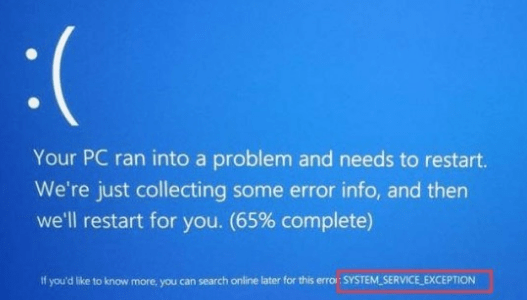
Are you unable to use your Windows pc because of System_Service_EXCEPTION error?
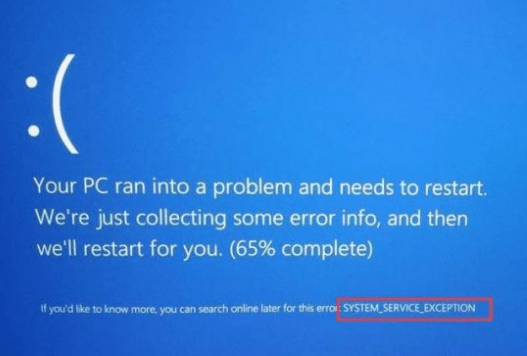
Well, if so, stop worrying. This is a common blue screen of death (or BSOD for short) error.
And just like other BSOD issues, System_Service_EXCEPTION error occurs when you least except it.
Thankfully, this issue is not difficult to resolve. And, yes, you can resolve it yourself—with a little help, of course.
In this post, we will see four ways through which you can fix this error.
- Undo recent changes
- Update drivers (Highly Recommended!)
- Run System File Checker
- Uninstall any installed 3rd party antivirus software
However, you don’t have to try each of them. Start with the first step and proceed to others, until you are able to fix the issue.
So, let’s dig in…
Solution 1 – Undo Recent Changes
Have you made any changes recently to your computer? If so, revise them and see if that fixes the issue.
It is very much possible that this BSOD is because of recent changes made to the Windows computer. For instance, the error might be occurring because of any new added software or hardware. Similarly, any newly added device drivers might also cause the problems.
Think about what changes you’ve made to your PC in last few days. If you find something, undo it and check whether that fixes the error.
Solution 2 – Update your device drivers
It’s no secret that outdated or corrupt device drivers can cause a number of errors in Windows, including this blue screen of death issue. Updating the faulty driver, however, will do the trick.
First thing you need to do here is check if any of the installed device is having a problem. To do this, follow these steps:
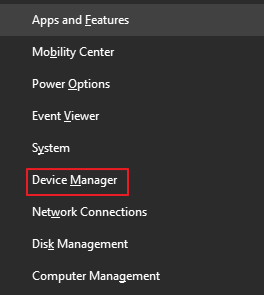
- Press Windows + X and select Device Manager
- Check each listed device in the Device Manager window and see if any of them has a yellow exclamation mark before it
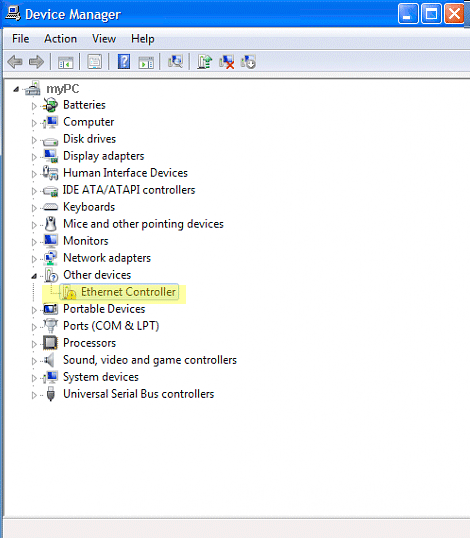
When a device has a yellow exclamation against it, it usually means that the driver for this device is missing. The issue can be resolved by updating the driver.
Now there are two ways to update device drivers—manually and automatically.
Updating Drivers Manually
To update drivers manually, follow these steps:
- Right-click the device which has a yellow exclamation mark against it and select Update Driver Software
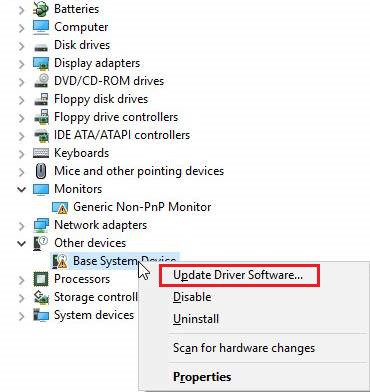
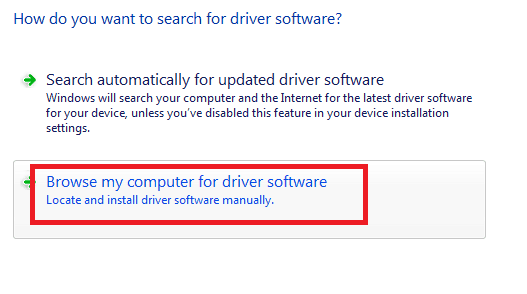
- A pop-up window will appear on your screen listing two options. Click the second option: Browse my computer for driver software
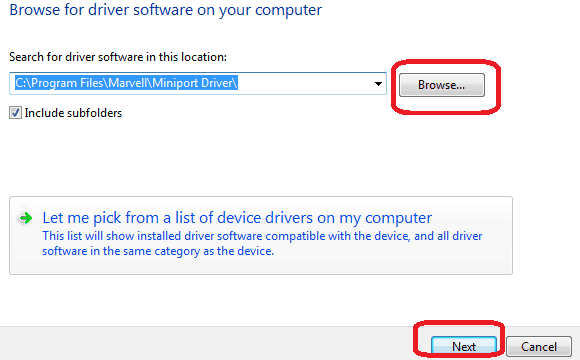
- Click the Browse button to locate the downloaded driver file, and then Click the Next button and follow on-screen prompts
It is not easy to update drivers manually. You require some amount of computer skills and loads of patience. That’s why the best way to update drivers is by using a reliable driver software tool.
With such a tool you can update device drivers with a single click.
Update Drivers Automatically
Automatic driver update tools offer many benefits, the most important ones being:
- You can update device drivers automatically
- The software scans and updates all outdated or missing drivers at one go
- The tool picks the right drivers for your device and operating system, so you won’t have to worry about installing an incorrect driver by mistake
- Automatic driver updates are 100% safe
Driver Updater is one of the best driver update tools out there. Outbyte Driver Updater will give you access to a database of over 1 million drivers. It will regularly scan your PC, suggesting new driver versions to install. Driver Updater contains drivers for a variety of Windows devices. With just one click, you can update drivers in your system.
Step 1
Click here to Install and launch the app
Step 2
Scan all devices
Step 3
Install or update drivers automatically
Solution 3 – Run System File Checker
Faulty or corrupt file systems can also cause System Service Exception error. You can replace systems files that have become corrupted through System File Checker.
Here are the steps you need to follow to run System File Checker:
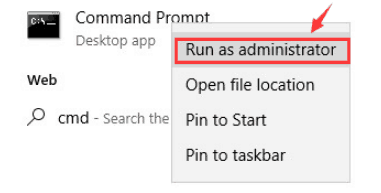
- Press Windows + S and then type cmd
- Right-click on Command Prompt and next select Run as administrator
- In the command prompt window type chkdsk /f/r and press Enter
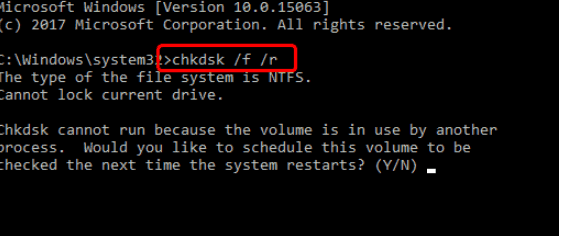
- Press Y on the keyboard
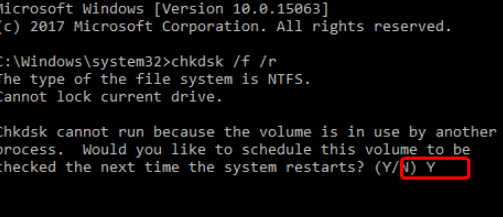
- Reboot Windows. Wait till the system finishes the scan (this might take 15-20 mins)
- See if the issue is fixed
Solution 4 – Remove 3rd party antivirus software tool
Certain antivirus tools can lead to or contribute to BSOD. Windows Defender, however, is an exception to this.
In case you are running a 3rd party antivirus software tool like Virtual Clone Drive, BitDefender, or McAfee, temporarily disable them. Next restart the pc. Now check if the error is fixed. In Windows 10, the Microsoft’s Windows Defender is turned on. Therefore, temporarily disabling a 3rd party software will not put you and your data at risk.
In case you find that this BSOD is linked to the 3rd party antivirus software tool you are using, get in touch with the manufacturer for further support.
Leave a Reply