


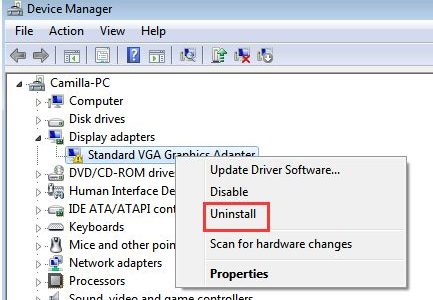
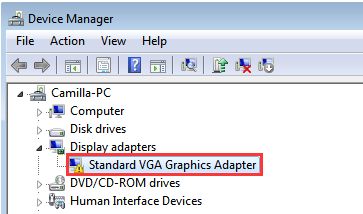
If you see an item “Standard VGA Graphics Adapter” in the Display Adapters category of Device Manager, it means the driver for particular graphics card is not installed or corrupt.
Having a “Standard VGA Graphics Adapter” entry under Display Adapters also means your computer is using the built-in graphics driver.
In some cases, you might also see a yellow exclamation mark on the Standard VGA Graphics Adapter, which indicates some problem with graphics driver.
One of the disadvantages of “Standard VGA Graphics Adapter” driver is that it can display only basic screen resolutions.
If you want to overcome this limitation, you need to update your graphics card drivers.
Here we have provided steps to update graphics drivers that could fix the issue.
Step One – Uninstall Standard VGA Graphics Adapter driver
- Press Windows logo key and R button simultaneously on the keyboard to invoke Run command
- In the Run command box, type devmgmt.msc and click OK
- In the Device Manager window, go to Display adapters category and expand it
- Right-click on Standard VGA Graphics Adapter driver and click Uninstall
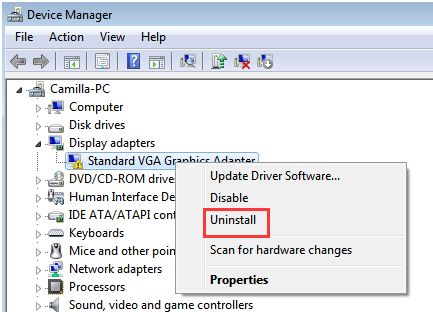
- Wait for the uninstallation process to complete
- Restart your PC
Step Two- Update graphics drivers
According to Windows experts, unless you install right graphics drivers for the graphics card, Windows OS will continue to use generic graphics drivers that are packaged with the operating system.
There are two ways to update graphics drivers, manually and automatically. Here we have given steps for both methods.
Steps to update graphics driver manually
To update manually, you need to download graphics drivers from right Internet sources.
For example:
- Desktop users who do not have discrete graphics card installed in their system need to go to motherboard manufacturer website to download latest graphics driver.
- Desktop users who have a discrete graphics card like NVIDIA, GeForce or any other graphic cards installed on their system need to go to their respective graphic card manufacturer website to download latest graphics driver.
- Laptop users need to go their device manufacturer website to download latest graphics driver.
Now here are the steps to follow:
- Go to the driver provider website and look for latest graphics drivers for your system. While downloading graphics drivers, pay attention to Windows version (7/8/8.1/10) and the bit architecture(32-bit/64-bit)
- Download right drivers to your desktop and double-click on the setup file to initiate driver installation. If the driver file is in zip format, unzip the contents to a folder and then double-click the executable file to start the installation. Follow on-screen instruction to install graphics driver.
- Restart your system to let the changes take effect.
- Now open device manager and check under Display adapters category. You will see the Standard VGA Graphics Adapter entry is replaced by the name/model of the graphics card installed in your system.
With the right graphic drivers installed, you can take advantage of functionalities offered by the graphics card and tune your display setting as per your preferences.
If you find the manual driver update method difficult, you can use a driver update utility to download and install latest graphics driver automatically.
Steps to install graphics drivers automatically
Automatic driver update tools offer many benefits, the most important ones being:
- You can update device drivers automatically
- The software scans and updates all outdated or missing drivers at one go
- The tool picks the right drivers for your device and operating system, so you won’t have to worry about installing an incorrect driver by mistake
- Automatic driver updates are 100% safe
Driver Updater is one of the best driver update tools out there. Outbyte Driver Updater will give you access to a database of over 1 million drivers. It will regularly scan your PC, suggesting new driver versions to install. Driver Updater contains drivers for a variety of Windows devices. With just one click, you can update drivers in your system.
Step 1
Click here to Install and launch the app
Step 2
Scan all devices
Step 3
Install or update drivers automatically
Leave a Reply