


Last updated:
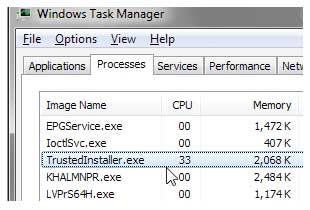
A number of users have reported that trustedinstaller.exe reports high CPU usage from time to time.
This can cause speed problems with your PC which many of you have asked for help with solving.
Below we look at what trustedinstaller is and how you can safely address any issues it is causing.
What is Trustedinstaller.exe ?
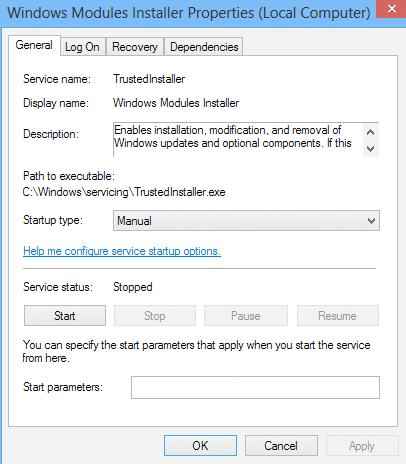
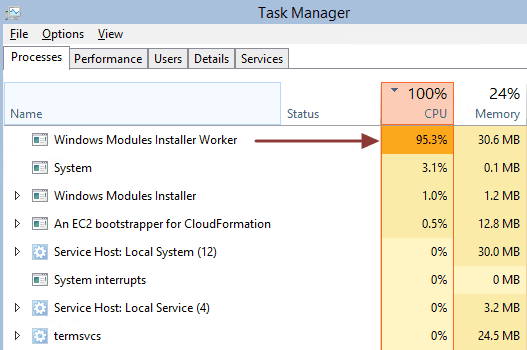
Trustedinstaller.exe is an important process and its periodical high CPU usage is normal, not an aberration or a flaw. Part of the “Windows Module Installer”, the main purpose of trustedinstaller.exe is to check for new Windows updates.
Trustedinstaller.exe high memory usage
During an update scan, this process works in conjunction with the Integrated Windows Update service to check for new updates. It is because of this during update times the trustedinstaller process uses a lot of CPU resources.
You may also find trustedinstaller.exe consuming a major portion of CPU resources for some time after new updates have been downloaded. This again is normal behavior. This process is designed to continue checking for new updates for some time after the completion of the update scan. This, in turn, helps ensure that all available new updates are downloaded to your PC.
While trustedinstaller.exe high CPU usage cannot be totally resolved unless you remove this process, doing so is not recommended as trustedinstaller plays an important role in keeping your computer up-to-date. You can manage the issue more effectively through either of the following two methods:
Fix trustedinstaller issue method 1: Tweak Windows Update Settings to fix trustedinstaller issue
- Open the Control Panel
- Select System & Maintenance
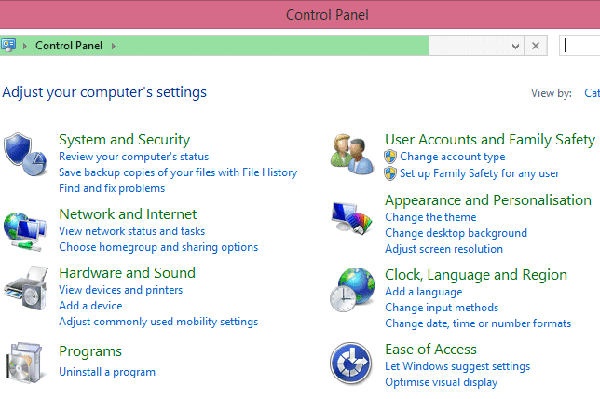
- Select Turn automatic update on or off
- Choose one of these options:
- Never check for updates
- Check for updates but let me choose whether to download or install them
- Download updates but let me choose whether to install them
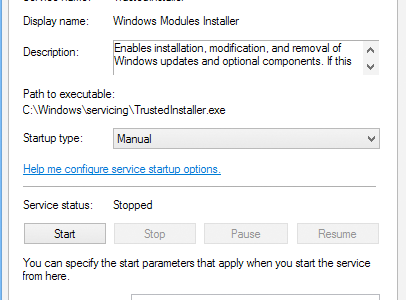
Fix trustedinstaller issue method 2: Prevent Windows Module Installer from loading automatically with Windows and change Startup type to manual
- Run the msconfig command, and then click the Services tab in the system configuration dialog box
- Deselect the checkbox Windows Module installer
- Click Apply, and then click OK
- Click the Restart button
Next perform the following steps:
- Open the Control Panel window, and then click Administrative Tools
- Double-click Services
- In the right pane, locate and right-click Windows Module Installer
- Click General
- Change the Startup Type to Manual
- Save your changes by clicking Apply
Either of these steps helps you manage trustedinstaller.exe better. While exe errors related to this file are not common, they do occur occasionally. And in most cases the underlying cause is issues with the Windows registry. So if you are receiving recurring trustedinstaller.exe errors, you can download and use a reliable and fast registry cleaner.
The registry cleaner will remove unnecessary registry entries, allowing your system to run more efficiently.
Why Windows 8.1 keeps crashing
WMI Provider Host high CPU usage