
Drivers.com

follow us:

facebook twitter
  • Home
  • Download Drivers
  • Drivers Help
  • PC/Mac Resources
  • Software Drivers
  • Mac Fixes and Tips
  • PC Fix Tips
  • Security/ Backup
  • Tablets & Smartphones
  • Tech News
  • Software Drivers
  • Mac Fixes and Tips
  • PC Fix Tips
  • Security/ Backup
  • Tablets & Smartphones
  • Tech News

4 quick fixes for Windows 10 common problems

By Sushant Mehta on March 7, 2016

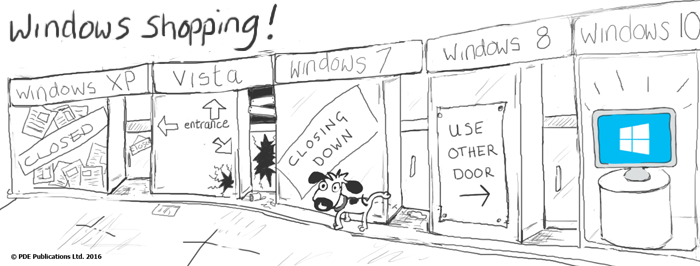
Windows 10 was launched in July 2015 after considerable user testing through Microsoft’s Insider Preview program. but inevitably, Windows 10 has some glitches. Below we have outlined some of the more common problems with Windows 10 and how to address these issues.

Waiting for Windows 10 upgrade

Microsoft has announced a free Windows 10 upgrade to Windows 7 and Windows 8 users. If you have registered for a free upgrade and are still waiting for it, here are few things you can do.

You might have missed the Upgrade ready notification and you need to check the update status by following the steps set out below

  1. Click Start button
  2. Type “Windows update” in the search box and click Windows update from list of search results
  3. Look for the message “Upgrade to Windows 10”. If you see this message, click on Get started to start the upgrade
  4. If you do not see the upgrade message, you can go ahead and download the Windows 10 installation media and install Windows 10 manually

Windows 10 cannot be activated

Windows 10 should activate automatically after the completion of the upgrade process. However, the activation process can fail from time to time for various reasons. The activation error will not prevent you from using the system, but you will not be able to do a few things like personalizing your desktop, changing the color scheme and a few other things.

You should wait for 2-3 days and see if the activation issue is resolved. Otherwise, you need to follow the steps set out below

  1. Select Start button
  2. Select Settings > Update & security > Activation
  3. If your Activation status says “Connect to the Internet to activate Windows”, select Activate to manually activate Windows
  4. If you are not able to activate Windows 10 after trying a few times, contact Microsoft support for a solution

Files are opening in the wrong apps

You need to change the default file association to resolve this issue. Follow the steps set out below:

  1. Right-click on the file that is opening in the wrong app
  2. Select Open with > Choose another app from the menu
  3. Select the app you want to use
  4. Tick the box “Always use this app”
  5. Click OK

Can’t play DVDs

Windows 10 does not have any app installed that can play DVDs. Microsoft is offering a Windows DVD player that needs to be downloaded and installed to view DVDs. The DVD player offered by Microsoft is not free. Alternatively you can download and install VLC media player and use it watch DVDs on your Windows 10 system.
Filed Under: PC Fix Tips Tagged With: Windows 10

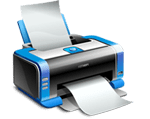
How to fix common Canon printer problems in Windows 10?

By Sushant Mehta on March 5, 2016

How to fix common Canon printer problems in Windows 10?


Older peripheral devices such as printers may not function properly after upgrading to Windows 10. If you are using a Canon printer, then you should first take a look at Canon’s website to see the list of printers that will work with Windows 10.

If your printer model figures in the list but you are still facing printer problems, we have set out some possible solutions below.

Problem 1: Canon printer does not work in Windows 10

The first thing you need to do is to check if your Canon printer is switched on and connected to the PC in question. This may seem basic but it is surprisingly easy to overlook! If your printer is still not working, follow the steps set out below:

  1. Try running the printing Troubleshooter provided by Microsoft
  2. If that doesn’t solve the issue, it means that your printer may need new Printer Drivers. Check the printer manufacturer’s website for compatible Printer Drivers that will work with Windows 10.

Before installing the new Printer Drivers, you need to uninstall the printer by following the steps given below

  1. Open Start menu
  2. Click Devices and Printers
  3. Select your Canon Printer
  4. Select Remove Device from the top of the screen
  5. Reinstall the printer
  6. If Windows does not find a Driver, browse the printer manufacturer website for Drivers.
  7. Download the Driver and follow the instructions given by the printer manufacturer.

Alternatively you can get a Driver Update Tool to update the Drivers for you and keep them updated. To check for Driver Updates, follow the instructions on the Canon Drivers page.

Problem 2: No Windows 10 Printer Driver for your printer

Not all printer manufacturers are offering new Drivers that will work with Windows 10. In some cases, you might see the printer manufacturer has ended the support to the printer model you own. However, there is a way around this issue.

If your printer manufacturer is not offering Windows 10 compatible Printer Drivers, you can try Windows 8 Printer Drivers as they may work. In most cases, the Printer Driver is a .exe file. You need to uninstall the printer by starting from Step 4 above.

After you have removed the printer, you need to click on .exe Driver file and install the Printer Driver.

Problem 3: Printer is detected but you don’t have the Driver for the older printer

If your printer is detected after the upgrade, you need to follow the on-screen instructions to install the printer. When Windows 10 scans for connected devices, it will give you a few options if it does not find any Drivers. Here are the steps you need to follow

  1. Click the “The printer that I want isn’t listed” option. (Since we are adding a local printer, we will not discuss Network printer’s options that Windows gives you.)
  2. Select the option that says “My printer is a little older. Help me find it.”
  3. Click Next
  4. Windows 10 will now again search for the connected printer and hopefully install the printer using compatible Drivers in its database.

You can also install appropriate printer drivers on our Canon Drivers page using a Driver update tool.

Automatic driver update tools offer many benefits, the most important ones being:

  • You can update device drivers automatically
  • The software scans and updates all outdated or missing drivers at one go
  • The tool picks the right drivers for your device and operating system, so you won’t have to worry about installing an incorrect driver by mistake
  • Automatic driver updates are 100% safe

Driver Updater is one of the best driver update tools out there. Outbyte Driver Updater will give you access to a database of over 1 million drivers. It will regularly scan your PC, suggesting new driver versions to install. Driver Updater contains drivers for a variety of Windows devices. With just one click, you can update drivers in your system.

Step 1
Click here to Install and launch the app

Step 2
Scan all devices

Step 3
Install or update drivers automatically


Start Download


Filed Under: PC Fix Tips Tagged With: canon, printer, Windows 10

Windows 8 versus Windows 10 – Should you upgrade?

By Sushant Mehta on February 23, 2016

windows 10 upgrade

Windows 10 is available for free (for a limited period). So should you upgrade? Are there additional benefits beyond the free upgrade offer?

Let’s discuss some scenarios where it would make sense to upgrade to Windows 10, followed by a situation where it might be better to not upgrade.

Should you upgrade to Windows 10: Yes, because it’s free

The upgrade to Windows 10 is free, and this is one of the main reasons why you would want to upgrade.

However, the free offer is for a limited period only. If you have a licensed version of Windows 7 or Windows 8, you don’t have to do much to avail of the free upgrade. All you need to do is reserve your free upgrade and upgrade before the offer expires.

If you miss the free offer, you might be required to pay for the same upgrade in the future.

Should you upgrade to Windows 10: Yes, for the new features

Windows 10 offers an improved desktop experience in comparison to Windows 8.  The new Operating System offers several new features that make it more exciting. For example, gamers will benefit greatly by upgrading to Windows 10, as they get DirectX12 which offers a vastly improved gaming experience. You also get the new Xbox gaming hub which offers games recording and an ability to share your gaming achievements with your friends.

Should you upgrade to Windows 10: Yes, if you heavily use mouse and keyboard

The biggest improvement in Windows 10 is the return of the Start Menu.

If you have been using Windows 8, you would probably agree that working with Start Screen was never that easy, particularly if your PC does not have Touchscreen capability.

Thankfully, Microsoft has understood the plight of these Windows users and brought back the Start Menu. In Windows 10, you can see the Start Menu and also the live tiles that were featured in Windows 8.

There is no doubt that working with a mouse and keyboard in Windows 10 is a better user experience in comparison to Windows 8.

Should you upgrade to Windows 10: Not if you are using old hardware

If you have very little hard drive space left on your PC, or have a very slow internet connection, then you are likely to experience problems upgrading to Windows 10. The minimum requirements for upgrade are as follows:

Processor: 1 gigahertz or faster

RAM: 1 gigabyte for 32-bit; 2 gigabyte for 64-bit

Hard disk space: 16 gigabyte for 32-bit OS; 20 gigabyte for 64-bit OS

Graphics card: DirectX 9 or later with WDDM 1.0 driver

Display: 800×600

There are some very common Windows 10 install issues which we will deal with in our next post on this topic.

Filed Under: PC Fix Tips Tagged With: Windows 10, windows 8

  • « Previous Page
  • 1
  • …
  • 25
  • 26
  • 27
  • 28
  • 29
  • …
  • 88
  • Next Page »


  • Recent Posts
  • Popular Posts
        

Read More Posts


Read More Posts

Drivers.com Sites

  • Software Drivers
  • Drivers Ed

About Us

  • Advertise
  • About Drivers
  • Drivers Support
  • Drivers.com Privacy Policy
  • Disclaimer
  • Software Drivers
  • Mac Fixes and Tips
  • PC Fix Tips
  • Security/ Backup
  • Tablets & Smartphones
  • Tech News

© Copyright 2026 PDE Publications Ltd. End User License Agreement (EULA)