


Last updated:
Many people spend money unnecessarily replacing laptop batteries when they may have fixed the issue with a simple battery reset or a Drivers update. If you are having problems charging your laptop battery, then reading this post may save you a lot of time, money and frustration!
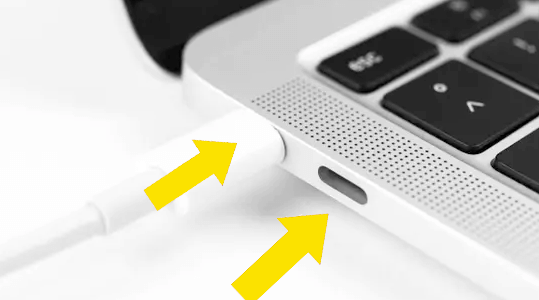
The very first thing to check if your laptop battery doesn’t appear to be charging is the actual physical cables. Firstly make sure the power outlet you are connecting to is not the issue. You can do this by plugging in something else. If this other device charges then the power outlet is not the issue.
Laptop battery not charging – check the cables
The second thing to check after the power outlet is the laptop cables. This can often be the issue where a cable is damaged, or more often, not seated correctly in the port. Check all cables and also check the cable for kinks or damage which may be causing power issue to you laptop.
If you are on a newer laptop that charges via USB-C then make sure you are using the correct port.
You should also ensure you are using the correct cables, a USB-C charger for a phone for example may not have the wattage required to charge a laptop so use the cable that came with your laptop where possible.
Laptop battery not charging – overheating
If your laptop or power cable feel warm to the touch, plug out and leave for as long as it takes for everything to cool down. Then try charging again as your laptop may have become overheated, especially if left in direct sunlight.
Battery not charging – “0% available (Plugged In, Not Charging)”
With this error you may or may not see the charging light on your laptop, either way your laptop is having problems charging.
Batteries do have a finite lifespan (600-1000 charges/ discharges or about 2 years depending on intensity of use) and they can be very expensive to replace, so before throwing out that battery (in an environmentally-appropriate manner of course!), ensure that it has actually reached the end of its life and there isn’t some other problem preventing it from charging.
Windows 10 laptop battery charging issue
Some updates in Windows 10 have been know to cause the laptop battery to stop charging. There is a simple solution to this:
- go to Start > Device Manager
- select Batteries > you will see
Microsoft AC Adapter and
Microsoft ACPI-Compliant Control Method Battery - Right-click on each individually > choose Uninstall device (they will reinstall when you restart your laptop but always run a backup first just in case!)
- Turn laptop off and unplug the power cable
- If your model has a removable battery, then remove it and then replace
- plug laptop back in and power up
- check to see if the battery is charging
Fix 1: Battery Reset
To reset your laptop battery you will need to run the battery down completely. Make sure all work is saved as you will run the battery down until the system shuts off. When this happens you should plug in the power cable but DO NOT turn back on the laptop. Wait until you are confident the battery is back to a full charge again and then turn on your laptop.
If this method does not fix your recharging issue then you can try to fix or update your laptop battery drivers by uninstalling and reinstalling them (make sure to create a ‘restore point’ in System Restore before manually updating Drivers files). You can use a Driver Update Tool to keep all your Drivers up-to-date if you prefer not to attempt this manually.
Fix 2: Update Drivers
You will need to uninstall and reinstall the relevant device drivers via the Device Manager.
– Select Start > (right-click) My Computer > Properties
– Select the Hardware tab
– Select the Device Manager Button
– Under Batteries right-click “Microsoft ACPI-Compliant Control Method Battery” and click Uninstall
Your battery should no longer be visible in the Batteries list. To reinstall it you will need to:
– Select Action menu
– Select Scan for hardware changes
– Your driver should be listed again
You can use a driver update tool to automatically update your Drivers if you are unsure of which ones you require. Driver errors can also occur when the Driver is outdated. For this reason it is necessary to regularly update your Drivers. The easiest way to do this is by using a Driver update tool but you could also search for and download the drivers yourself.
Automatic driver update tools offer many benefits, the most important ones being:
- You can update device drivers automatically
- The software scans and updates all outdated or missing drivers at one go
- The tool picks the right drivers for your device and operating system, so you won’t have to worry about installing an incorrect driver by mistake
- Automatic driver updates are 100% safe
Driver Updater is one of the best driver update tools out there. Outbyte Driver Updater will give you access to a database of over 1 million drivers. It will regularly scan your PC, suggesting new driver versions to install. Driver Updater contains drivers for a variety of Windows devices. With just one click, you can update drivers in your system.
Step 1
Click here to Install and launch the app
Step 2
Scan all devices
Step 3
Install or update drivers automatically
Test your battery now and if there is still a problem charging, then it may have just reached the end of its’ days and it is time to part company!
