


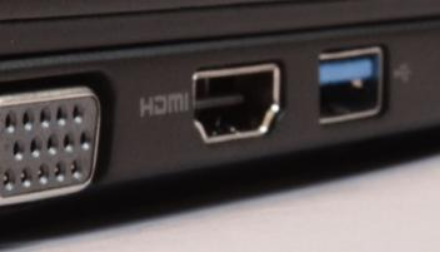
HDMI port not working is a rather common problem. When it occurs, you can’t get any sound or image from the device while using this port.
In this post, we’ve listed 5 solutions for this problem. All of them have worked for other users. So, we’re sure at least one of these will also work for you.
Try out these solutions in the order they appear, until the HDMI port not working issue is fixed.
Solution – Configure display settings of your computer
Are you encountering this issue while using two monitors on your desktop PC or laptop?
If yes, there’s a good chance that the display setting enabled is wrong. Therefore, before you proceed further, check the display setting.
Press the Windows icon + P keys on your keyboard simultaneously. A window listing all display modes is going to appear on your screen.
Here’s what each mode means.
- Computer only/PC screen – This means only the first monitor will be used
- Duplicate – The content displayed on the two connected monitors is the same
- Extend – Both monitors will be used to show an extended desktop
- Projector only/Second screen – Only the 2nd monitor will be used
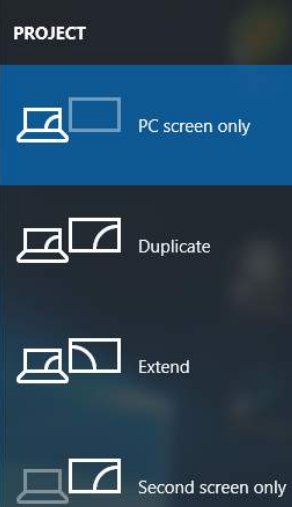
You may want to experiment with different modes one-by-one. Pick the option that matches your needs best. If the display settings are right, images will appear on your screen connected through HDMI.
Solution 2 – Restart/Reconnect the Devices
Some users have stated that they were able to fix the issue by simply restarting and then reconnecting the devices. As this is a simple and quick fix, we recommend you give it a go.
Here are the steps to follow.
- Disconnect the HDMI cables connected to the ports
- Now completely shut down your devices (desktop PC, TV and monitor)
- Next unplug all the power cables of these devices (in case you use a laptop, then take out the battery also)
- After five minutes or so, plug-in the disconnected power plugs (laptop users need to insert the battery back)
- Now connect back the HDMI cables to the devices
- Start your devices and check if now HDMI port is working fine
Solution 3 – Reinstall or Update the Graphics Card Driver
Problem with your graphics drivers can also lead to HDMI port not working.
First, reinstall the graphics card driver. If the problem persists, update the graphics driver. You can update the graphics driver manually or by using a driver update tool. We’ll discuss both methods in the post.
Updating Graphics Card Driver Manually
- Press Windows logo + R to open the run dialog box
- Type devmgmt.msc to open the Device Manager window
- Expand Display adapters. All the installed video cards will appear here
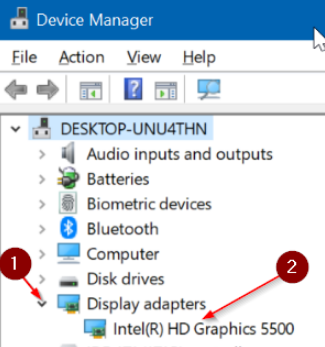
- Write down the name of your graphics or video card. Now go to the card manufacturer’s site or your computer manufacturer’s site, look for the latest driver for the graphics card or PC model. Alternately, you can type the name as well as the model number of your video card in Google search bar and locate the latest driver. Once you’ve found the relevant driver, download the driver file and save it on the desktop or anywhere else. Before you download the driver file, make sure it corresponds to your PC type. That is, if you are running Windows 10 32-bit, the file should be for 32-bit Windows 10 PCs. Similarly Windows 64-bit users need to download the driver file meant for 64-bit Windows 10 version.
- Now in Device Manager window, right-click your graphics card and then select Uninstall device
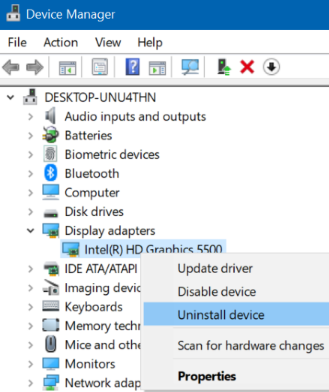
- A confirmation dialog box will appear on your screen. Tick the box before Delete the driver software for this device. Now click Uninstall
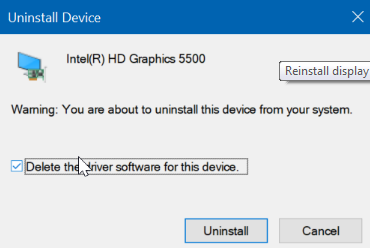
- After driver is fully uninstalled, you need to restart the computer (This is very important; don’t skip this step as the driver is uninstalled completely only when you reboot Windows.)
- Upon restart, run the video driver’s setup file that you have downloaded. Follow the instructions on your screen to finish installation. If asked, reboot Windows again.
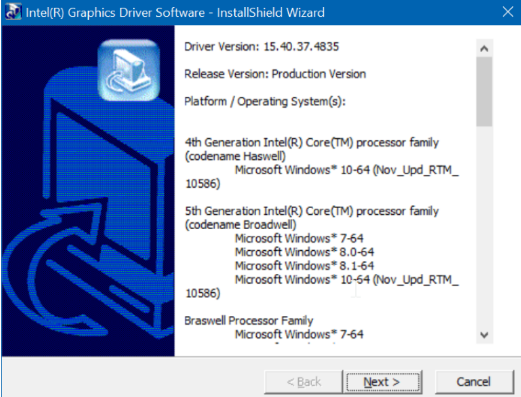
As you can see, this process is time-consuming and requires a certain amount of technical knowledge. Moreover, there’s always a risk that you might download and install a wrong driver by mistake.
On the other hand, updating graphics driver with a driver update tool is swift and fool-proof.
Update Graphics Card Driver Automatically
Automatic driver update tools offer many benefits, the most important ones being:
- You can update device drivers automatically
- The software scans and updates all outdated or missing drivers at one go
- The tool picks the right drivers for your device and operating system, so you won’t have to worry about installing an incorrect driver by mistake
- Automatic driver updates are 100% safe
Driver Updater is one of the best driver update tools out there. Outbyte Driver Updater will give you access to a database of over 1 million drivers. It will regularly scan your PC, suggesting new driver versions to install. Driver Updater contains drivers for a variety of Windows devices. With just one click, you can update drivers in your system.
Step 1
Click here to Install and launch the app
Step 2
Scan all devices
Step 3
Install or update drivers automatically
Solution 4 – Run Windows Troubleshooter
Here are the steps to follow.
- Click the search box in the taskbar, type “control panel” and then click Control Panel in the search result
- Now click System and Security
- In the search box on top-left, type “troubleshoot” and then click on Troubleshooting
- Now click on Hardware and Sound
- Click on Hardware and Devices
- Click Next
The troubleshooter will now search for any HDM ports related issues and then automatically fix them.
Solution 5 – Troubleshoot Hardware-Related Issues
If nothing has worked, it’s possible that hardware issues are causing the problem. You can try replacing your present HDMI cable. If the problem is because of the HDMI cable, this step will resolve it.
In case this doesn’t work, too, try the HDMI connection with a different computer or monitor or TV. In case the connection works fine with another device, probably there’s some problem with the previous device. In such a case, it will be a good idea to get the device checked.
So, which of these solutions worked for you? Please do leave a comment. It may help other users.