Drivers.com

follow us:

facebook twitter
  • Home
  • Download Drivers
  • Drivers Help
  • PC/Mac Resources
  • Software Drivers
  • Mac Fixes and Tips
  • PC Fix Tips
  • Security/ Backup
  • Tablets & Smartphones
  • Tech News
  • Software Drivers
  • Mac Fixes and Tips
  • PC Fix Tips
  • Security/ Backup
  • Tablets & Smartphones
  • Tech News

Solve Printer Offline Error in Windows 10, 8, & 7

By Susan C on January 16, 2019

Solve Printer Offline Error in Windows 10, 8, & 7

Printer offline problem usually occurs following a Windows 10 update. When the issue occurs, you, quite obviously, can’t print anything.

While this problem can arise other times, too, most Windows 10 users have complained of receiving the error after upgrading to Windows 10.

Printer Drivers Download & Updates

In many cases, printer works after reboot, but this happens only once. Then again the printer status is shown as offline.

The printer offline issue is not limited to Windows 10. It is something that troubles Windows 8 and Windows 7 users, too.

In this post, we’ll look at all the possible solutions to this irritating problem.

However, first let’s start with other issues similar to the printer offline problem. We’ll cover them as well in our post.

Other Common Printer Errors

  • Printer offline error processing – When you try to use your network printer, you may receive Error processing command. A pretty common problem, it can be fixed by following one of the solutions listed in this post.
  • Printer offline Canon, Epson, Ricoh, HP – You can get this error with any type of printer.
  • Wireless printer offline – If you have a wireless printer, you may receive this problem.
  • Printer offline SNMP – The SNMP feature at times cause this particular problem. You can resolve the issue by disabling SNMP feature.
  • Printer offline unable to ping – So what happens here is that the Windows can’t recognize the connected printer. Many Windows users have said that they couldn’t ping the network printer.
  • Network printer offline VPN – This issue typically arise when a VPN is involved. You may be able to solve the problem by changing the VPN configuration.

Why Printer Offline Issue Occurs?

Windows isn’t able to recognise the printer, and as a result this problem occurs.

Before you try the solutions listed in the post, we recommend you follow these tips.

  • You should ensure your printer is correctly connected to your laptop or desktop PC.
  • If the printer is connected properly, turn it off and then after a minute or two turn it on. See if the issue is fixed.
  • You need to rule out any problem with the printer. Connect it to another computer and then check whether it is working fine. In case the printer doesn’t work when connected with another PC, you can safely conclude that the problem lies with the printer
  • Microsoft has its own printer troubleshooter. We recommend you give it a go. Click here to run this printer troubleshooter.
  • Ensure your printer is set up as default printer.
  • Perform these steps in the order they appear.
    • Turn off the Wi-Fi
    • Now turn off your printer
    • Shutdown Windows
    • Turn the Wi-Fi back on. Wait till it start
    • Once your Wi-Fi is running, start the printer
    • Start Windows
  • Reinstall the printer. To do this, perform the steps listed below.
    • Press the Windows key
    • Click Settings
    • Click Devices
    • Click Printers & Scanners
    • Select the printer. Now select Remove Device. Now follow on-screen instructions, if any.
    • Finally click Add a printer or scanner. Follow on-screen instructions

Solve Printer Offline Issue

Here are some common solutions to this problem. All of these solutions have worked for other Windows users. So you should give them a try, too. You don’t have to try all the solutions listed below. Start with the first one, and move to the next one if the problem persists and so on.

Solution 1 – Reinstall Printer Driver/Software

In case the issue started appearing after upgrading to Windows 10, you should first reinstall/update printer driver.

The printer offline issue could be occurring because of incompatible drivers. You can download the latest printer software from the manufacturer’s website.

Here are the steps to follow:

  • Press Win + R
  • In the run box, type control panel and then press the OK button or Enter
  • In the Hardware and Sound heading, click Devices and Printers
  • Now locate your printer and right-click on it and then click Remove Device
  • If you are asked to confirm your action, click OK

Now you need to go to your printer’s manufacturer’s site. Here locate the newest printer software for the installed printer. Now download this printer software and install it.

Once you’ve done this, check if the problem is resolved.

Update Printer Drivers Automatically

Automatic driver update tools offer many benefits, the most important ones being:

  • You can update device drivers automatically
  • The software scans and updates all outdated or missing drivers at one go
  • The tool picks the right drivers for your device and operating system, so you won’t have to worry about installing an incorrect driver by mistake
  • Automatic driver updates are 100% safe

Driver Updater is one of the best driver update tools out there. Outbyte Driver Updater will give you access to a database of over 1 million drivers. It will regularly scan your PC, suggesting new driver versions to install. Driver Updater contains drivers for a variety of Windows devices. With just one click, you can update drivers in your system.

Step 1
Click here to Install and launch the app

Step 2
Scan all devices

Step 3
Install or update drivers automatically


Start Download


Solution 2 – Check Printer Status

Here are the steps to follow.

  • Press Win + R
  • In the run box, type control panel and then click the OK button or press Enter
  • In the Hardware and Sound heading, click Devices and Printers
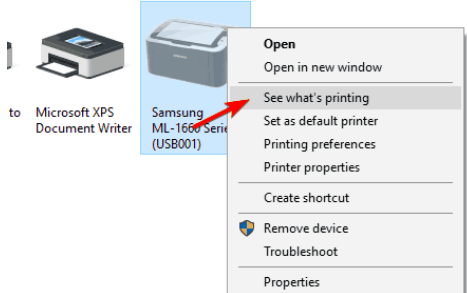
  • Browse through the list of installed printers and right-click your printer and click See what’s printing
what's printing

Note: In case this option doesn’t appear on your screen, you will need to right-click the printer and click set as default. Once you’ve done this, perform the last step, as well as the next step in the list.  

  • Click Printer in the new window that opens on your screen
  • Now select Pause Printing as well as User Printer Offline. In case there’s a tick before either of or both these options, simply remove the tick by clicking at these options.

Now check whether the printer status has been changed or not.

Solution 3 – Restart Print Spooler Service

Many Windows users have stated that they were able to resolve the printer offline issue by simply restarting their printer spooler service.

The printer needs this particular service to print and sometimes the problem goes away after this service is restarted.

Here are the steps to follow.

  • Press Win + R
  • In the run box, type msc and then click the OK button or press Enter
  • In the Services window, browse through the list of services in the right pane and when you find Print Spooler service, you need to right-click it and then select the Restart option
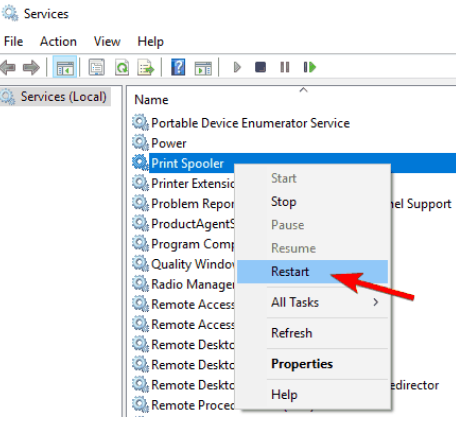
  • restart printer spooler

Once you’ve restarted the Printer spooler service, you should check if “printer offline” problem persists.

However, remember this solution is not a permanent one. If the problem reoccurs, you will have to perform the aforementioned steps again to restart printer spooler service.

In case this solution didn’t work, move on to the next solution.

Solution 4 – Add a New Port

You can try to add a second printer. This step is known to work in many cases. However, do keep in mind that this particular solution works only with networked printers.

Here are the steps to follow.

  • Press Win + R
  • In the run box, type control panel and then press the OK button or Enter
  • In the Hardware and Sound heading, click Devices and Printers
  • Now locate your printer and right-click on it and then click Printer properties
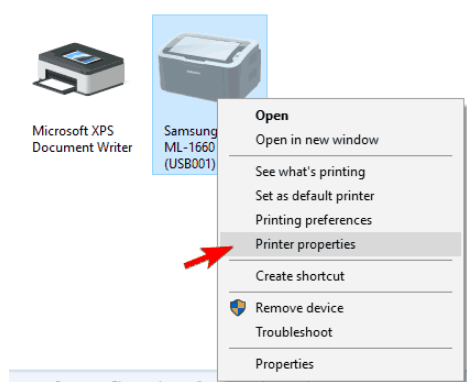
  • printer properties
  • Click the Ports
  • Now click the Add Port button
  • In the Printer Ports box, click Standard TCP/IP Port
  • Now click the New Port button
  • A Printer Port Wizard window will open on your screen. Here you need to click the Next button
  • Now enter the IP address of your printer. In case you are not aware of the printer’s IP address, you should check the printer’s manual. Alternatively, you can visit the official site of your printer’s manufacturer and check for this information there. You are likely to be able to locate the instruction or manual set of the printer model you are using from the manufacturer official site. The printer’s IP address will be listed in it. You’ll have to look for the printer’s IP address yourself as it differs from one printer to another
  • Enter Port Name. If you feed in the IP address of the printer, the system will on its own fill the name of the Port
  • Let the Wizard run
  • Now choose Standard TCP/IP Port
  • Click the Next button and then click Finish

Solution 5 – Install KB3147458 Update

Windows 10 users may be able to resolve this problem by installing this Windows update.

The best thing is to let Windows install the latest updates as and when they appear. However, even if you are not comfortable with letting Windows install updates automatically, you should install certain updates that are deemed as extremely important.

The KB3147458 update is one such update. Windows released it to fix printer-related issues in Windows 10. Therefore, ensure you have this update.

In case you haven’t installed this particular update, do it now, as it may help fix the aforementioned problem.

Here are the steps to follow.

  • Press Win + R
  • In the run box, type cpl and then click the OK button or press Enter
  • Now click the View installed updates option
  • Go through the list of Windows updates to see if KB3147458 update is installed. If it isn’t, install it
  • The simplest way to install this update is to let Windows search for newest updates and install them
  • Click Windows key
  • Click Settings
  • Now select Update & Security
  • Click the Check for updates option

Now Windows will conduct a search for the latest updates and automatically install them. After the update is installed, restart Windows and check if the issue is fixed or not.

Solution 6 – Change Port Settings

For some users changing port settings fixed the “printer offline” issue. You should also give it a go.

Here are the steps to follow.

  • Press Win + R
  • In the run box, type control panel and then press the OK button or Enter
  • In the Hardware and Sound heading, click Devices and Printers
  • Now locate your printer and right-click on it and then click Printer properties
  • Click the Ports
  • Now click the Add Port button
  • In the Printer Ports box, click Standard TCP/IP Port
  • Now click the New Port button
  • A Printer Port Wizard window will open on your screen. Here you need to click the Next button
  • Now enter the IP address of your printer. In case you are not aware of the printer’s IP address, you should check the printer’s manual. Alternatively, you can visit the official site of your printer’s manufacturer and check for this information there. You are likely to be able to locate the instruction or manual set of the printer model you are using from the manufacturer official site. The printer’s IP address will be listed in it. You’ll have to look for the printer’s IP address yourself as it differs from one printer to another
  • Enter Port Name. If you feed in the IP address of the printer, the system will on its own fill the name of the Port
  • Click the Next button
  • The wizard will ask you for additional information. Here select the Custom option (towards the bottom left hand side) and then click the Settings button
  • Under the Protocol heading, select Raw
  • Now deselect SNMP Status Enabled
  • Click the OK button
  • Now click Next and then finally click the Finish button

Now the problem should be resolved. Once you’ve completed the steps listed above, check if the printer is running fine or not. In case the problem still persists after completing the steps listed in this solution, you should reboot Windows and then check if the issue is fixed or not.

Solution 7 – Check Whether You Are Using VPN

Some users who were using network printer as well as VPN received this error message. If you, too, use VPN and network printer, you should disconnect VPN and then see if you are able to access the printer. In case you want VPN and the network printer, you should directly connect the printer to your computer using a USB cable.

Another way is to adjust the configuration of the VPN and then give yourself local network access.

These solutions have worked for many users. We sincerely hope that one of them will help you fix the”printer offline” problem.
Filed Under: PC Fix Tips Tagged With: printer offline

5 ways to open device manager in windows 10

By Susan C on January 14, 2019

5 ways to open device manager in windows 10

Like other built-in utility tools, device manager offers several useful functionalities. You can use it to update device drivers, find unknown hardware devices, and disable hardware components, among other things.

In this post, we’ll look at not one but eight different ways to access device manager.

How to Use Device Manager to Resolve Driver-Related Issues

Open Device Manager Using Search

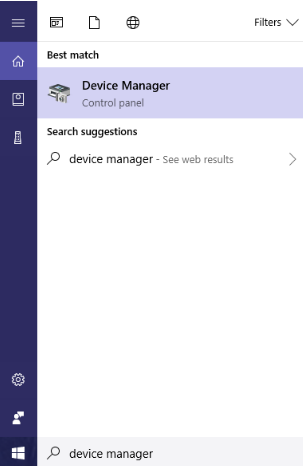
Click the Windows icon in the task bar and then click the search box. Now type “device manager” or “device”, and then click the suitable result.

device manager

Another way is to give the voice command “open device manager” to Cortana and she will do the needful.

Open Device Manager using the Command Prompt

You can also open this utility tool through command prompt.

Here are the steps to follow.

  • Click the Windows icon in the taskbar, type “command” in the search box, right-click Command Prompt in the list and select Run as administrator
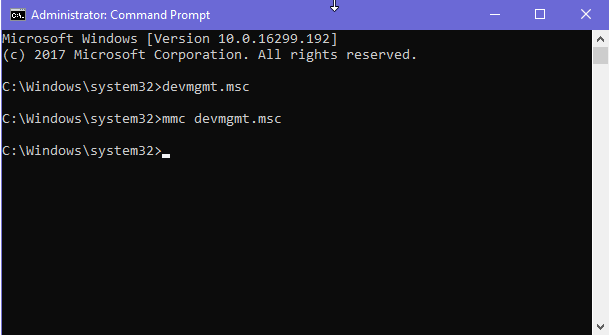
  • Now type devmgmt.msc in the command prompt and press the Enter key. Alternately, you can type mmc devmgmt.msc and then press Enter. Both commands work just fine
devmgmt command

Open Device Manager Using Control Panel

Want to open Device Manager through the Control Panel window?

Try these steps.

  • Click the Windows icon in the taskbar, type “control panel” in the search box, right-click Control Panel in the list
  • In the Control Panel window, click Hardware and Sound
  • Now under Devices and Printers, click or tap Device Manager

Open Device Manager Using the Run Window

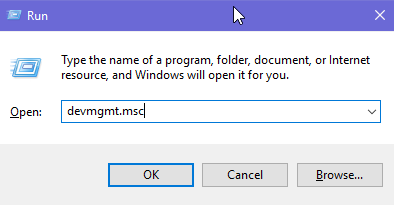
Press Windows+R to launch the run box. Type devmgmt.msc here and click the OK button or press Enter.

run devmgmt

Open Device Manager through WinX menu

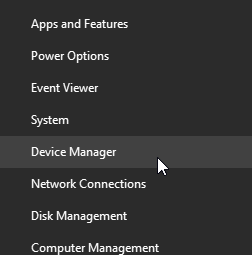
Open WinX menu by pressing Windows+X keys. Now simply select Device Manager in the list that appears on the screen.

WinX menu

The device manager utility, as mentioned above, is used for updating device drivers, among other things.

Here’re the steps you need to perform to update a driver using the Device Manager window.

Updating A Driver Using Device Manager

  • Open the Device Manager window
  • Locate the device whose driver you want to update. Right-click this device and click Update Driver
  • Now you can either let Windows automatically search and install the latest driver or browse to the location where the driver file is located and update the driver
  • Once the driver has been updated, restart Windows so that the changes can take effect

Updating device drivers through the Device Manager utility, however, is time-consuming. Also it is not fool-proof.

Updating Drivers Automatically

Automatic driver update tools offer many benefits, the most important ones being:

  • You can update device drivers automatically
  • The software scans and updates all outdated or missing drivers at one go
  • The tool picks the right drivers for your device and operating system, so you won’t have to worry about installing an incorrect driver by mistake
  • Automatic driver updates are 100% safe

Driver Updater is one of the best driver update tools out there. Outbyte Driver Updater will give you access to a database of over 1 million drivers. It will regularly scan your PC, suggesting new driver versions to install. Driver Updater contains drivers for a variety of Windows devices. With just one click, you can update drivers in your system.

Step 1
Click here to Install and launch the app

Step 2
Scan all devices

Step 3
Install or update drivers automatically


Start Download


Filed Under: PC Fix Tips Tagged With: device manager

Windows 10 can’t connect to this network Fixed

By Susan C on January 10, 2019

Windows 10 can’t connect to this network Fixed

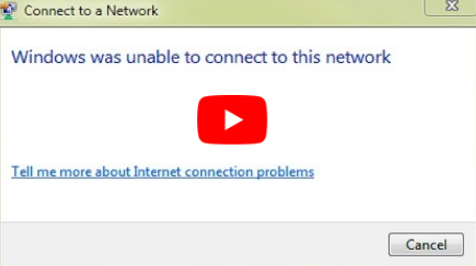
Almost every Windows user needs internet for doing one thing or another. That’s why appearance of”Windows 10 can’t connect to this network” error message when you try to use the net can be extremely frustrating.

Windows-can't-connect-to-this-network

Of course, this is no small issue, but thankfully there are more than one fixes available for it.

In this post, we’ve listed several solutions that have worked well in the past for other Windows users. We’re sure at least one of them will work for you, too.

1st Solution – Uninstall the network adapter

This issue can arise when there’s a problem with the wireless adapter. You can resolve it by uninstalling the network adapter drivers and installing them again.

Here are the steps to follow.

  • Type ‘device manager’ in the start search box, select Device Manager in the result list
  • Now browse to the network adapter and then right-click it
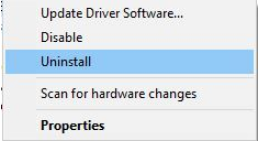
  • Click Uninstall
  • click uninstall
  • In case the system asks, select the option “Delete the driver software for this device”. Click the OK button
  • Now Windows will uninstall the wireless adapter drivers
  • Once that’s done, restart Windows. Upon restarting, Windows will install the new device driver on its own

Now check if you’re able to connect to the Internet. If not, you may need to update the driver for your network adapter (discussed ahead).

2nd Solution – Update the wireless adapter drivers

If the wireless adapter driver is out-of-date, then too you can encounter “Windows 10 can’t connect to this network” issue. To solve the problem, you will need to update the drivers.

You’ll require a computer with internet connection to manually download the latest driver from the manufacturer’s website. Once you’ve downloaded the driver file, you can transfer it to your computer using a pen drive. Save the driver file on your desktop and then follow these steps.

  • Open Device Manager
  • Browse to the network adapter, right-click it, and then click Update driver
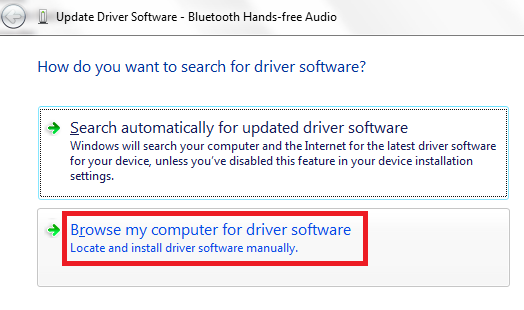
  • Click Browse my computer for driver software
  • browse for driver
  • Now browse to the location where you’ve saved the driver file (which is the desktop in this case) and then click the Next button
  • Select the desired driver in the list and follow onscreen instructions
  • Restart Windows so that the changes can take effect

As it is evident, the process of searching the manufacturer’s site for the latest driver for your network card is a bit cumbersome. However, more than that, this process is not fool-proof.

It is always possible that you may download and install an incompatible driver, which in turn may cause serious issues.

Precisely for this reason, we recommend you use a professional driver update tool.

At a click of the button, this tool can update your network adapter driver and other device drivers.

Automatic driver update tools offer many benefits, the most important ones being:

  • You can update device drivers automatically
  • The software scans and updates all outdated or missing drivers at one go
  • The tool picks the right drivers for your device and operating system, so you won’t have to worry about installing an incorrect driver by mistake
  • Automatic driver updates are 100% safe

Driver Updater is one of the best driver update tools out there. Outbyte Driver Updater will give you access to a database of over 1 million drivers. It will regularly scan your PC, suggesting new driver versions to install. Driver Updater contains drivers for a variety of Windows devices. With just one click, you can update drivers in your system.

Step 1
Click here to Install and launch the app

Step 2
Scan all devices

Step 3
Install or update drivers automatically


Start Download


3rd Solution – Alter Channel Width for the Network Adapter

You can also receive this error if the channel width of the network adapter is set improperly. Here are the steps you can perform to change channel width.

  • Press Win Key + S. Type network.
  • In the result list, click Network and Sharing Centre
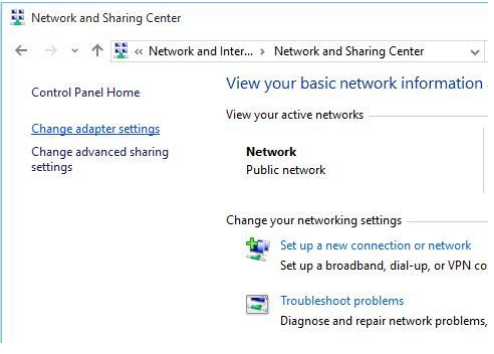
  • In the Network and Sharing Centre window, click Change adapter settings
  • change adapter settings
  • Browse to the network adapter. Right-click it and select Properties
  • Click the Advanced tab
  • Choose 11 channel width. Also alter the value. Several users have said that they were able to fix the issue by setting the value as 20 MHz. You may use this or any other value
  • Click the OK button so that the changes can be saved

5th Solution – Disable IPv6 on Windows 10

  • Press Win Key + S. Type network.
  • In the result list, click Network and Sharing Centre
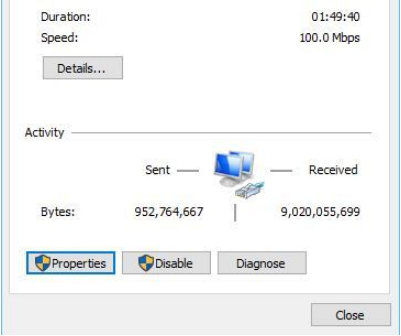
  • Click the current connection, and now click Properties (towards the bottom of the window)
  • properties
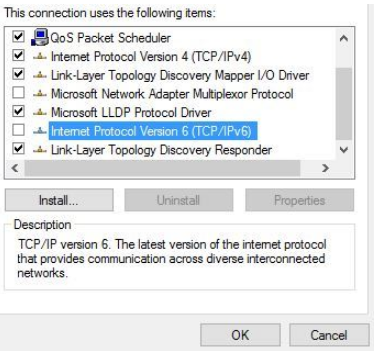
  • Browse through the list until you come across Internet Protocol Version 6 (TCP/IPv6). Uncheck the box before it
  • uncheck IPv6
  • Click the OK button
  • Reboot Windows so that the changes can take effect

4th Solution – Ensure security type used by adapter and router is the same type

Wireless connections use various security types, like WPA-PSK or WPA2-PSK, to ensure data protection. Your network connection will work only when the security type used by the computer and router is the same.

Use the instruction manual that came with the router to set its security type. Once that is done, check whether your computer is using that security type as well.

Perform these steps to do just that.

  • Press Win Key + S. Type network.
  • In the result list, click Network and Sharing Centre
  • Locate the wireless network you’re using. Then right-click it and click Properties
  • Click the Security In the Security type sub-section, choose the same security type as is being used by the router
  • Click the OK button

6th Solution – Manually add connection

Here are the steps to follow.

  • Press Win Key + S. Type network.
  • In the result list, click Network and Sharing Centre
  • Select Set up a new connection or network
  • Click Manually connect to a wireless network
  • Click the Next button
  • Feed in the necessary information like network name, security type and security key
  • Click the Next button

7th Solution – Change wireless network mode

Your network will work only when the network adapter and router use either identical or similar network mode. It is possible for you to alter network mode for the adapter and router.

To change the network mode for the router, you should refer the instruction manual that came with it. That said, in majority of cases, there’s no need to alter network mode for the router.

To alter network mode for the computer, perform these steps.

  • Press Win Key + S. Type network.
  • In the result list, click Network and Sharing Centre
  • Here click at Change adapter settings. Then find the network adapter and right-click on it and select Properties
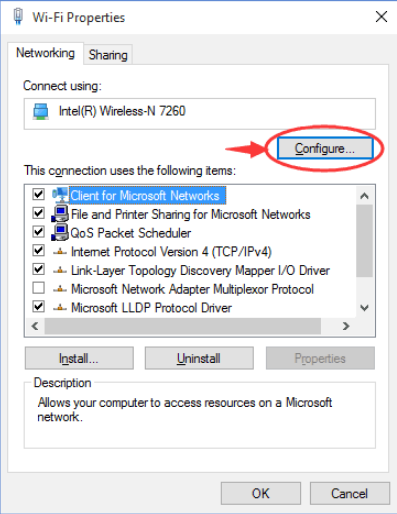
  • Click Configure
  • click configure
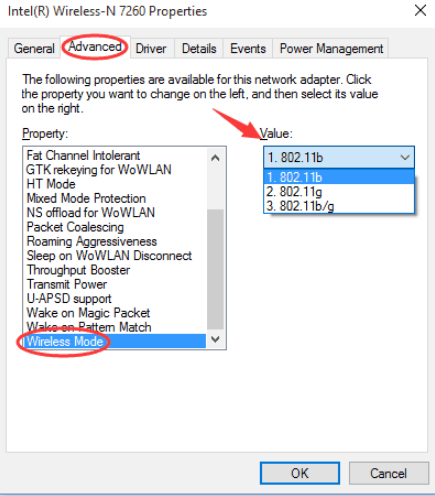
  • Click the Advanced tab. Choose Wireless mode in the Properties section
  • wireless mode
  • In the Value section, set the Wireless mode value as 802.11b. If this doesn’t work, try other values one by one

8th Solution – Forget wireless connection

Several Windows 10 users have reported that this solution worked like a breeze for them. You, too, should give it a go if the problem still persists.

Here are the steps to follow.

  • Press Win Key + I. This will open Settings
  • Click Network & Internet
  • In the Wi-Fi section, select Manage Wi-Fi settings
  • Browse down to Manage known networks and select Forget
  • Now you need to connect to this very network again

9th Solution – Disable and then enable the wireless connection

Some users were able to fix the “Windows 10 can’t connect to this network” issue by disabling the connection and then right away enabling it.

Perform these steps.

  • Press Win Key + S. Type network.
  • In the result list, click Network and Sharing Centre
  • Locate the wireless connection and then right-click it and select Disable
  • Having done this, right-click this wireless connection once again and select Enable

10th Solution – Try ipconfig/release command

In case the problem is still troubling you, run ipconfig/release command to solve the listed problem.

Here are the steps to follow.

  • Press Win Key + X and then click Command Prompt (Admin)
  • In the command prompt, run these commands one by one by typing them and pressing Enter key each time
    • ipconfig /release
    • ipconfig /renew
  • Exit command prompt and now try connecting to your network

If none of these solutions have worked for you, you should consider changing the network adapter.

Filed Under: PC Fix Tips Tagged With: Network Issue

  • « Previous Page
  • 1
  • …
  • 131
  • 132
  • 133
  • 134
  • 135
  • …
  • 189
  • Next Page »


  • Recent Posts
  • Popular Posts
        

Read More Posts


Read More Posts

Drivers.com Sites

  • Software Drivers
  • Drivers Ed

About Us

  • Advertise
  • About Drivers
  • Drivers Support
  • Drivers.com Privacy Policy
  • Disclaimer
  • Software Drivers
  • Mac Fixes and Tips
  • PC Fix Tips
  • Security/ Backup
  • Tablets & Smartphones
  • Tech News

© Copyright 2026 PDE Publications Ltd. End User License Agreement (EULA)