


ChatGPT is perhaps the most popular and versatile AI assistant out there. People use it for a wide range of tasks, including answering questions, generating text, writing content, etc. ChatGPT provides a convenient way to complete tasks more efficiently, so it can be frustrating when you try to open it in Google Chrome but it doesn’t load.
Fortunately, it doesn’t take much to fix the issue. In this post, we share the top 4 DIY solutions for the ChatGPT Web Not Working on Google Chrome issue.
Solution #1 – Open it using another web browser
Let’s say, you need to access ChatGPT to complete an urgent task and don’t have time to try trial and error. Well, in that case, we recommend you to try opening ChatGPT on another web browser, such as Safari or Firefox.
Most people who encountered the issue were able to open ChatGPT on a different web browser. We’re pretty sure you too will be able to access it using another web browser. Later when you have a little time, you can try the different solutions listed below to have ChatGPT up and running on Google Chrome.
Solution #2 – Clear browser cache and cookies
Clearing browser cache and cookies has worked for many users, so it’s worth a try.
Here’s what you need to do:
- Open Google Chrome
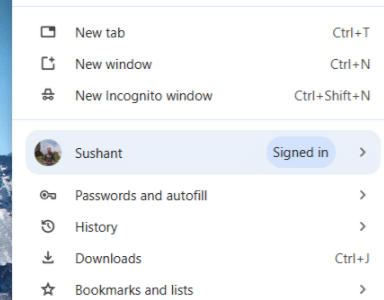
- Click the three-dot menu on the top-right corner
- Click Delete browsing data

- Select the time range
- Select the checkboxes for Cookies and other site data and Cached images and files
- Click Delete data

Solution #3 – Disable browser extensions
Some users said they were able to fix the issue by disabling all Chrome extensions. If the previous solution didn’t work for you, disable all extensions and then reload ChatGPT.
To disable extensions on Chrome, perform these steps:
- Open Chrome
- Click the three-dot icon on the top-right corner
- Click More tools
- Select Extensions
- Disable all the extensions one by one
- Close Chrome and open it again
- Check if ChatGPT is loading
If it is, repeat the steps listed above to turn on the extensions. Keep in mind you should enable one extension at a time and check whether ChatGPT is loading. This will help you identify the extension that’s causing the issue. Once you’ve identified the culprit, disable it and keep the remaining extensions on.
Solution #4 – Change the language in the settings
For some users, changing the language in the settings to English fixed the issue.
Here’s how you can change the language:
- Open Google Chrome
- Click the three-dot menu on the top-right corner
- Click Settings
- In the left-side pane, click Languages
- Change the language to English
That’s it! We hope one of these solutions worked for you. Leave us a comment below and share the post so that others can benefit.
Pro Tip…
Always keep your device drivers up-to-date. Outdated device drivers can slow down your computer and even cause system crashes and freezes. The easiest way to update drivers is by using a reliable driver update tool such as Driver Updater.
Automatic driver update tools offer many benefits, the most important ones being:
- You can update device drivers automatically
- The software scans and updates all outdated or missing drivers at one go
- The tool picks the right drivers for your device and operating system, so you won’t have to worry about installing an incorrect driver by mistake
- Automatic driver updates are 100% safe
Driver Updater is one of the best driver update tools out there. Outbyte Driver Updater will give you access to a database of over 1 million drivers. It will regularly scan your PC, suggesting new driver versions to install. Driver Updater contains drivers for a variety of Windows devices. With just one click, you can update drivers in your system.
Step 1
Click here to Install and launch the app
Step 2
Scan all devices
Step 3
Install or update drivers automatically
Leave a Reply