


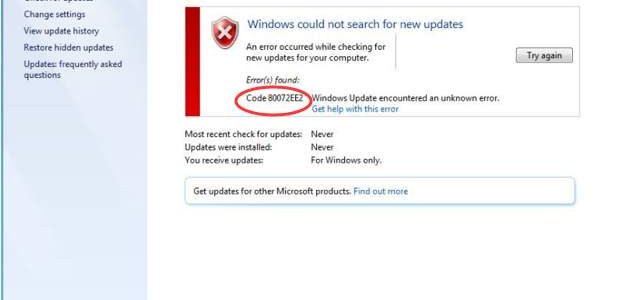
Some Windows errors are difficult to resolve because the error message accompanying them is general and doesn’t provide any relevant information about the error. The same is the case with error 80072ee2.
However, because of this very reason many users think that is a very complicated error and they wouldn’t be able to resolve it on their own. However, that is not the case.
You can resolve error 80072ee2 yourself—and we’ll show you how in this post.
The error 80072ee2 is common across all Windows versions and the solutions given here are applicable to Windows versions from Windows 7 to Windows 10.
The error mainly appears when you are downloading updates from Windows Update Center or installing updates via WSUS (Windows Server Update Services).
The error occurs when your Windows system tries to connect to the Windows Update Server to download updates but fails to establish a connection with the server due to any reason. You are likely to see an error message like the one below.

We have provided two solutions to fix the Windows update error 80072ee2. You need not try both solutions give here. Start with the first solution, and if it doesn’t work, try the other one.
Solution One – Try the Windows Update Troubleshooter
Microsoft offers an inbuilt Windows update troubleshooter that can fix most of the update related errors. You can use it to resolve the error that you are receiving.
Here are the steps to use the Windows Update Troubleshooter to fix the issue.
- Click Start-> Control Panel
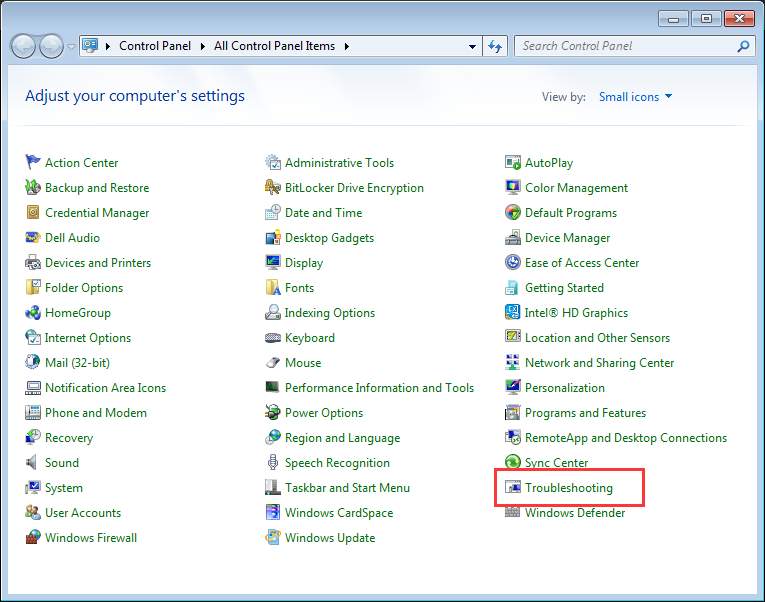
- In Control Panel window, set the view by – Small icons and click Troubleshooting
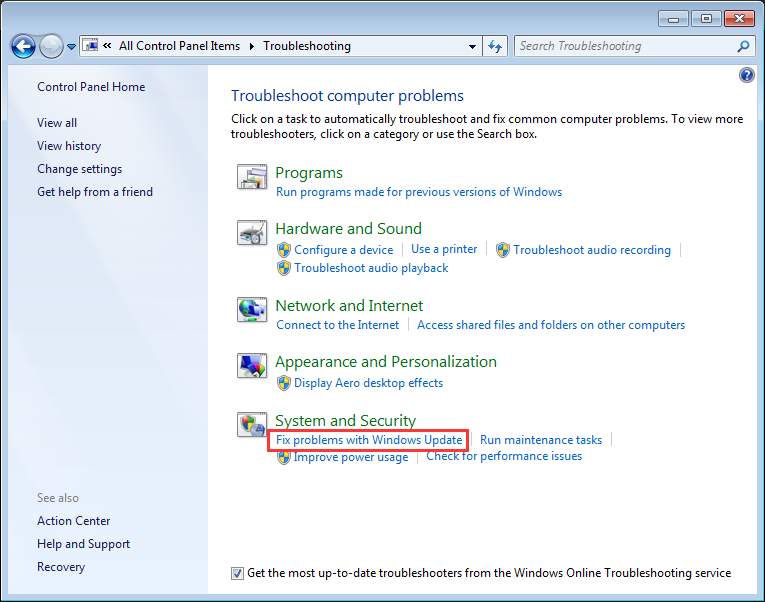
- In the next windows under System and Security, click Fix problems with Windows Update
- Click Next
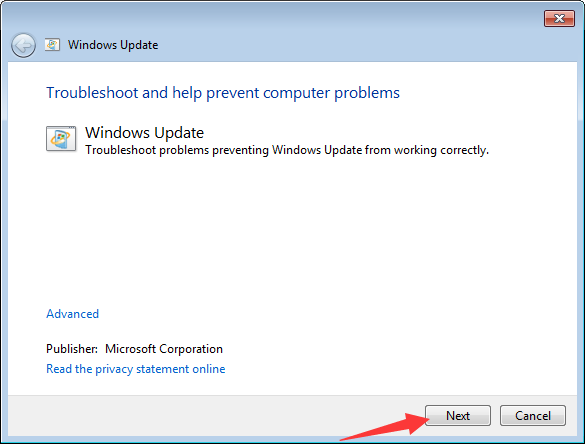
- Now you can see the Windows Update Troubleshooter starts working to resolve the error. Wait for some time till the process is completed.
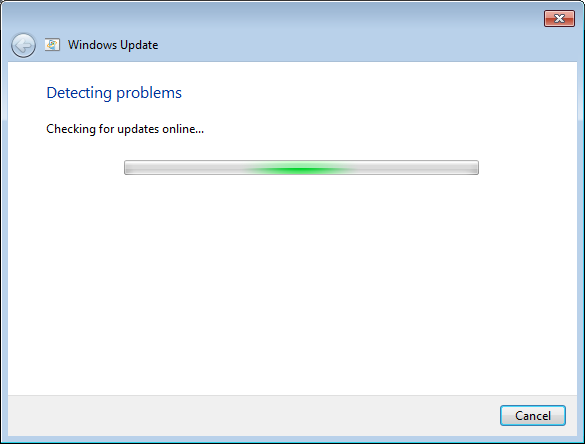
- Try updating Windows. If you are still getting the Windows update error 80072ee2, try next solution.
Solution Two- Remove problematic Windows update contents and Registry keys
The error 80072ee2 can also be caused due to corrupt Windows update contents or Registry keys. The simple solution to these problems is to delete the corrupt Windows update content and Registry keys.
Deleting wrong registry keys can make your Windows unstable. Hence you need to be cautious when working in Registry editor. To be on safer side, we recommend users to backup the registry before making any changes. This way you’ll be able to restore registry to its previous state in case the changes made cause unforeseen complications.
Here are the steps to backup Registry.
- Click Start and type regedit in the search box
- Click regedit( with hive icon) from the list of results
- Click Yes in User Account Control dialog pop-up
- In the Registry editor window, click File->Export
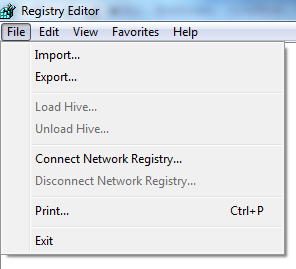
- Select the location to store the backup and give an appropriate name to the registry back and click Save
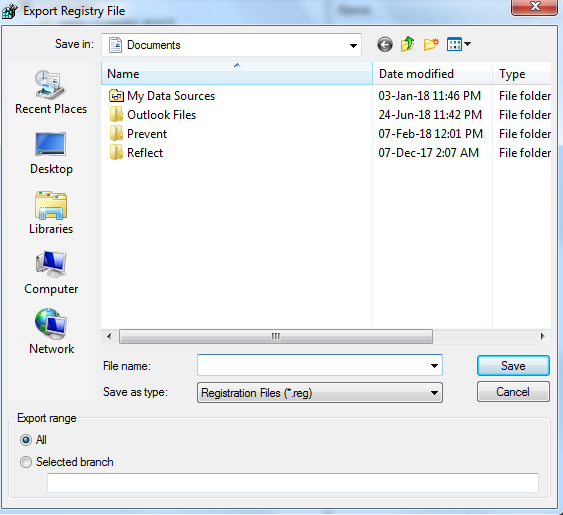
Once you are done with a backup of the Registry, you can perform the troubleshooting steps given below.
- Press Windows logo key and R simultaneously on the keyboard to bring up the Run command console
- Type services.msc in the Run command box and click OK
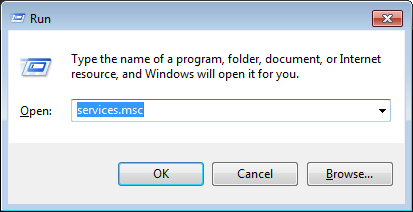
- In the Services window, find Windows Update Right-click on it and click Stop on the context menu
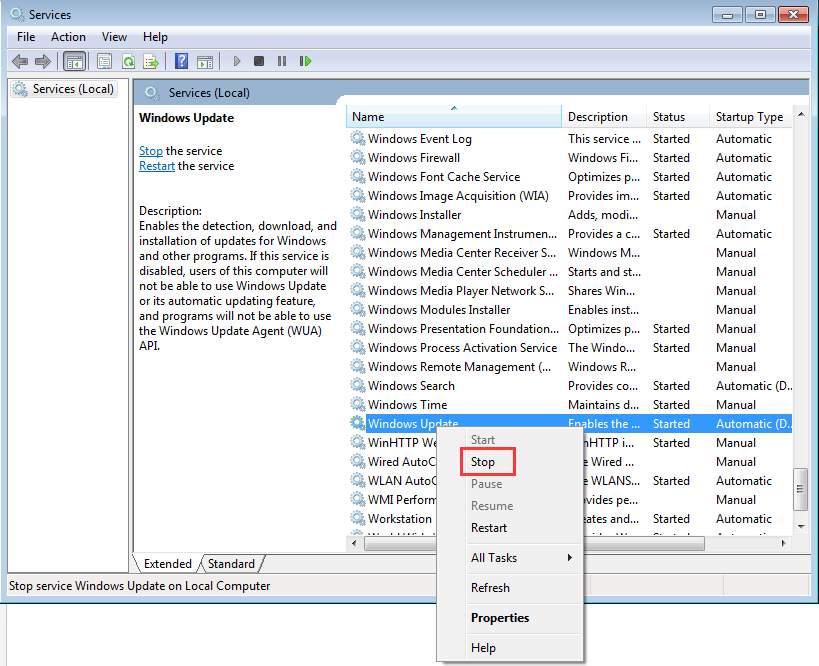
- Open C:\Windows\SoftwareDistribution folder and delete all contents there

- Now come back to Services window. Find Windows Update Right-click on it and click Start on the context menu
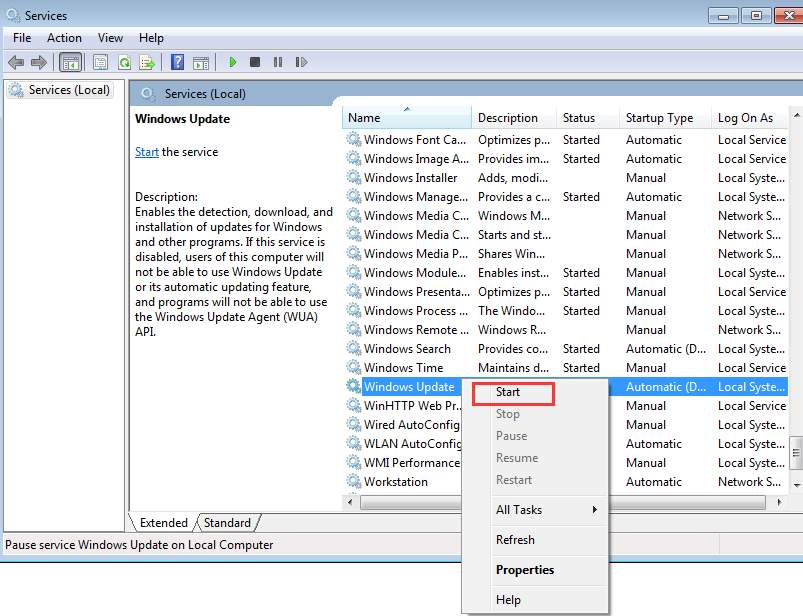
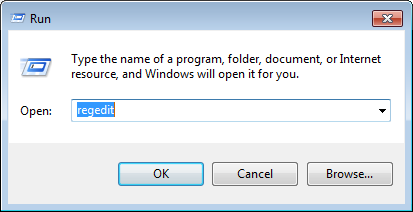
- Open Run command console again and type regedit in the box and click OK
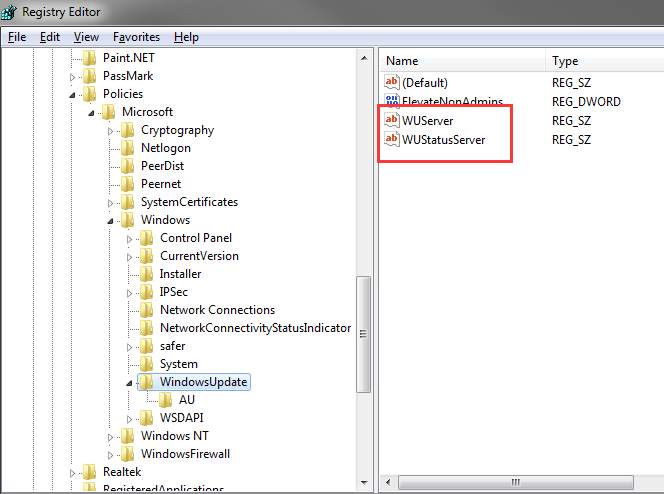
- In the Registry Editor window, navigate to HKEY_LOCAL_MACHINE\SOFTWARE\Policies\Microsoft\Windows\WindowsUpdate
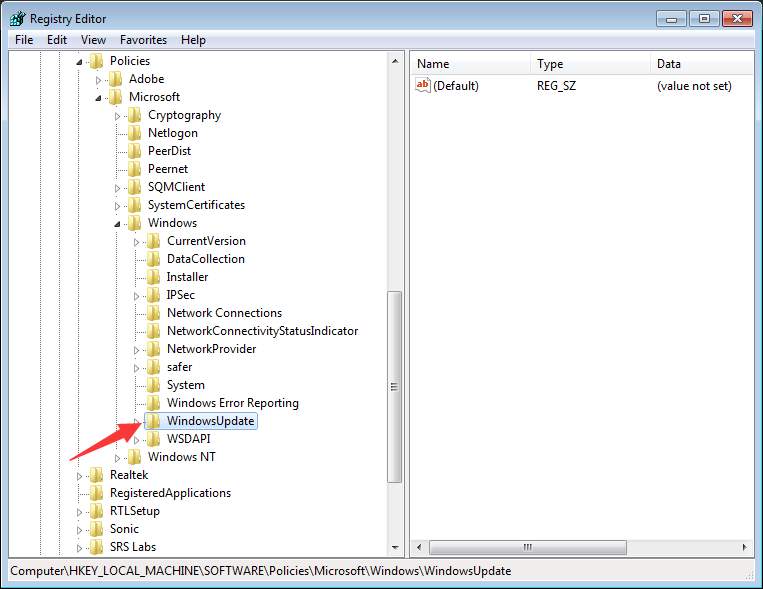
- In the right-pane, you will see keys WUServer and WUStatusServer. Right-click on each key and select Delete
Open the Services window again and see if the Windows update has started. In most cases, the Windows update error 80072ee2 should be resolved by now.
Leave a Reply