



Microsoft offers timely Windows updates to fix bugs and improve performance. According to Windows experts, you should keep Windows up-to-date at all times.
Many users have complained of receiving the error “Windows Could Not Search For New Updates”. It usually shows up its ugly face when you try to search and install windows updates. This problem might be temporary, or there could be some issue with your operating system that needs to be fixed.
We recommend users to fix the error at the earliest.
Ignoring it can cause serious problems with your computer, which is not good.
So, if you are facing this very problem and looking for a solution, this post is for you.
Solution One – Start with Resetting Winsock Catalog
Winsock is a supporting program that handles input/output requests for Internet applications in a Windows operating system.
Since installing Windows updates involves input/output requests, the Winsock catalog plays an important role in the process.
Resetting Winsock catalog means resetting Internet transmission protocols to default.
Here are the steps to follow.
- Click Start
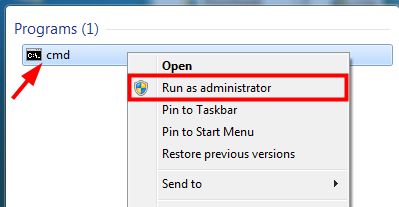
- Type cmd in the search bar
- Right-click cmd and then select the option shown below
- In the command prompt window, type the following command and hit Enter
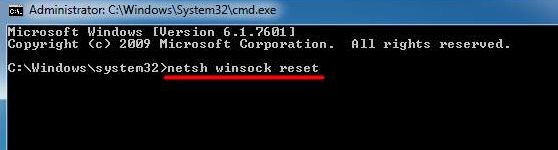
- Let the command run and then exit command prompt
See if this fixes the error. If not, move to the next solution
Solution Two – Run System File Checker
There is a possibility some system files required by the Windows update process are missing or corrupt which is causing the error. Windows operating system has a System File Checker tool that can repair missing or corrupt system files.
The SFC tool scans all protected system files and replaces corrupted files with a cached copy stored in the System32 folder.
Here are the steps to run the SFC tool.
- Open a command prompt with administrator rights( Refers to steps given in Solution One)
- In the command prompt window, type the following command and hit Enter on the keyboard.

- Let the command run and then exit command prompt
Try updating windows. If you still get “Windows Could Not Search For New Updates”, move to next solution.
Solution Three – Remove the content of SoftwareDistribution folder
On Windows, the “SoftwareDistribution” folder is an important component for Windows Update. It temporarily store files needed to install new windows updates. The folder is maintained by Windows Update Agent and it should be left alone.
However, there will be times when Datastore and Download folders aren’t synchronized which prevents the operating system from installing new updates. An easy solution to fix the issue is clearing the SoftwareDistribution folder.
Here are the steps to follow.
- Open a command prompt with administrator rights( Refer to steps given in solution One)
- In the command prompt window, type the following command and hit enter on the keyboard
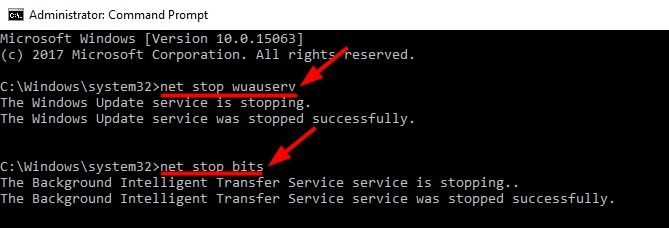
- Wait for the command operation to complete
- Now type net stop bits and hit Enter on the keyboard
- Minimize command prompt
- Press Windows logo and E simultaneously to open File Explorer
- Navigate to this location:
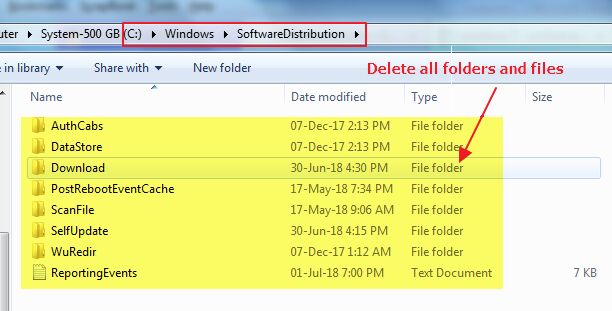
- Delete all files or folders you see in this folder: SoftwareDistribution
- Restore command prompt
- In the command prompt window, type the following command and hit Enter on the keyboard.

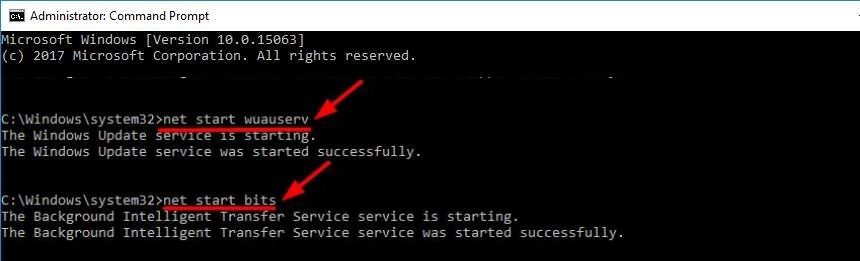
- Wait for the command operation to complete and then type this commandand press Enter on keyboard

- Close command prompt window
- Reboot Windows
Now try searching for Windows updates. Like most users, the “Windows Could Not Search For New Updates” error would be resolved by one of the solutions given in this post.
Leave a Reply