


PS4 is a popular gaming console. Besides offering a wonderful gaming experience, it also offers gamers the option to voice chat while playing online games. Sometimes the hardware does not work as expected and your gamer friend can’t hear, although you can hear him/her clearly.
In this post, we have provided a solution to PS4 mic problem that many users face. Though we have presented 4-5 solutions to resolve the PS4 mic issue, you need not try every solution. You can start with the first solution and if it does not resolve the issue, you need to move to the next solution and so on. Let’s get started.
Solution One – Check PS4 headset thoroughly
If you are able to hear other gamers clearly in voice chat but other gamers are not able to hear you, follow troubleshooting steps given below.
Examine your headset
Check the connection of the headset and ensure you have plugged in the headset cables in right ports. Also, if the pins of the headset are not inserted in the ports properly, it would prevent the headset from working properly. Look for the headset or the cable for any damage. Make sure the port on PS4 console is clear and there is no dust or any obstacle preventing connection.
Check Mic Boom
First thing you need to do is ensure there is no problem with mic boom of your headset. Follow the troubleshooting steps given below
- Make sure the mic boom is not loosely attached. Detach the mic boom from the headset.
- Plug the mic boom again in its connection slot and ensure it is seated firmly and try using the mic for party chat. If the issue is not resolved, go to next step
- Try connecting the PS4 headset with mic with another device. Does it work effortlessly or you face a similar problem? If the PS4 headset is working fine with another device, move to Solution Two.
- If the PS4 headset with mic is not working on another device as well, you can draw a conclusion there is some problem with mic boom in the PS4 headset and you need to get a new mic boom.
However, before you get a new mic boom, try this hack and see if it works for you.
- Plug in the PS4 headset with a mic into the PS4 controller
- Now unplug the PS4 headset halfway from the PS4 controller then plug it back again. Repeat this for 3-4 times and see if the mic problem is solved.
Solution Two – Update Sound Drivers
You can get this problem if your sound drivers are outdated or corrupt or missing. How can you fix the error in such a case? Well, all you need is the latest sound drivers and these can be updated manually or you can use an automatic driver update tool.
Updating Drivers Automatically
Automatic driver update tools offer many benefits, the most important ones being:
- You can update device drivers automatically
- The software scans and updates all outdated or missing drivers at one go
- The tool picks the right drivers for your device and operating system, so you won’t have to worry about installing an incorrect driver by mistake
- Automatic driver updates are 100% safe
Driver Updater is one of the best driver update tools out there. Outbyte Driver Updater will give you access to a database of over 1 million drivers. It will regularly scan your PC, suggesting new driver versions to install. Driver Updater contains drivers for a variety of Windows devices. With just one click, you can update drivers in your system.
Step 1
Click here to Install and launch the app
Step 2
Scan all devices
Step 3
Install or update drivers automatically
Solution Three – Check PS4 settings
If above troubleshooting steps have confirmed that there is nothing wrong with a PS4 headset with mic, wrong PS4 settings could be the culprit. Here are the steps you need to follow to resolve the mic problem.
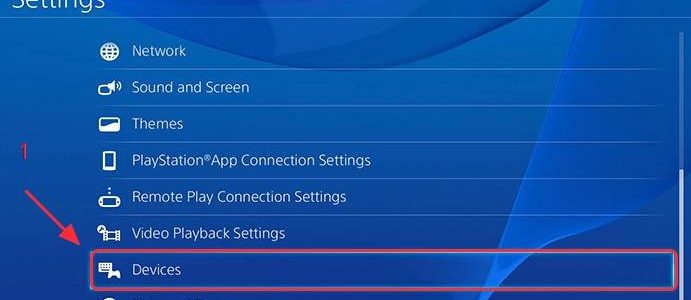
- Go to PS4 Settings
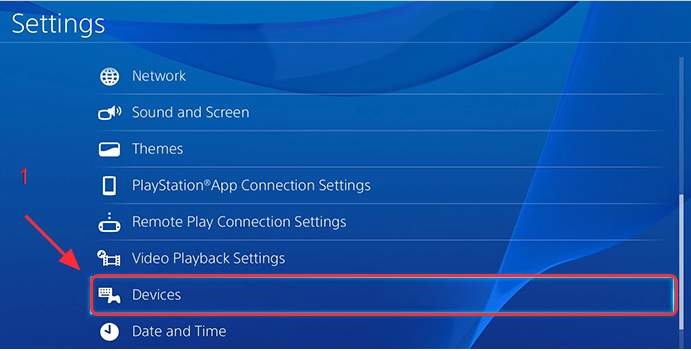
- In Settings menu, select Devices
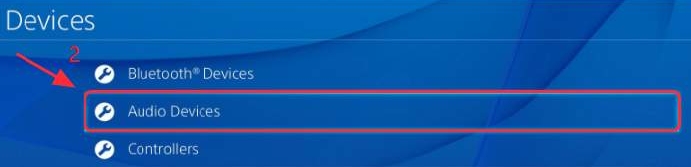
- Choose Audio Devices
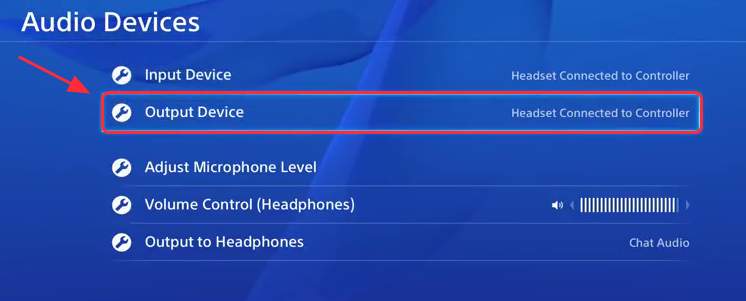
- Select the Input Device then choose Headset connected to the controller
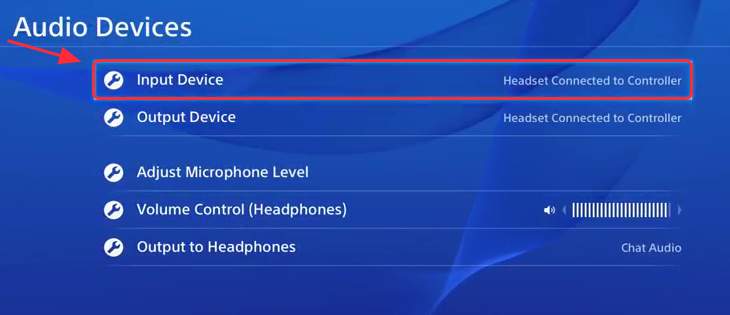
- Now select Output Device then choose Headset connected to the controller
- Select Volume Control(Headphones)
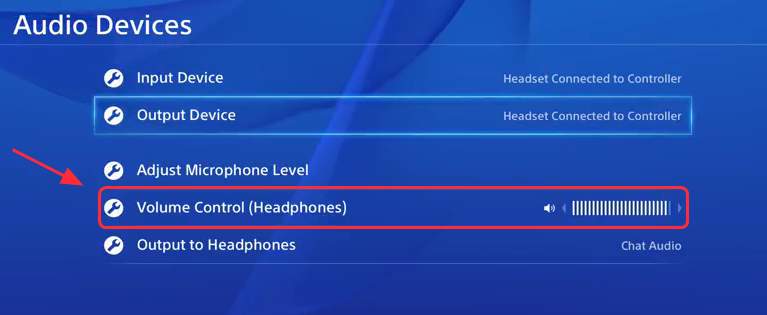
- Set the Volume level to maximum
- Select Output to headphones
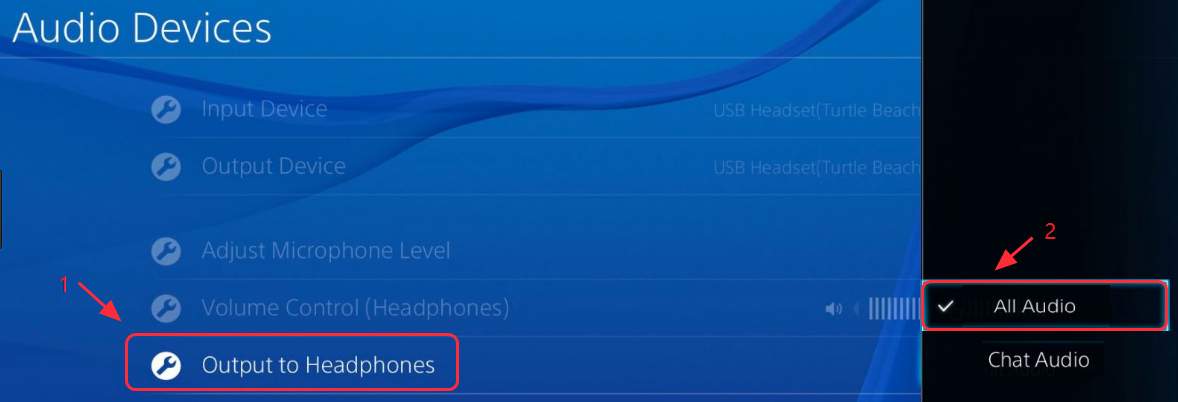
- Choose All Audio
- Check the Adjust Microphone Level screen and see if the PS4 headset with mic is detected.
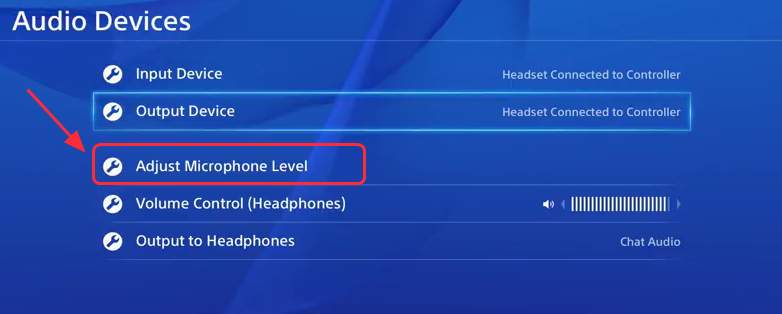
- If you can see your headset, check whether the headset and mic are working as intended.
If the PS4 mic problem is still not resolved, move to next solution
Solution Four – Verify sound settings on your computer
Before performing troubleshooting steps in the solution, you need to ensure there is no problem with a mic in the PS4 headset. There is a simple way to check mic: Plug the PS4 headset with mic to another computer and check whether it works as intended.
If the mic does not work as intended, you need to get a new mic boom. However, if the mic in the PS4 headset works fine on another computer, proceed to troubleshooting steps given below.
Step One- Check default mic settings
- Plug the mic in the microphone jack on your computer
- go to desktop and the go to system tray on the right-hand bottom left corner of the screen.
- Right-click on the Speaker icon in the system tray
- Select Recording devices from the list

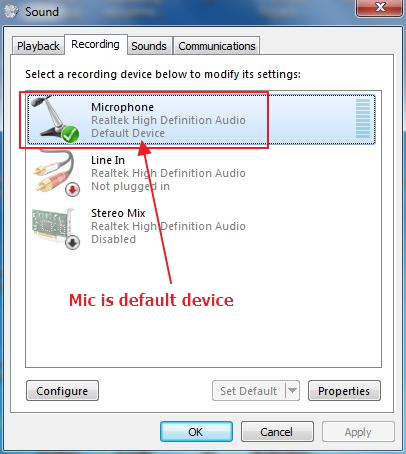
- In the Sound dialog box, click Recording tab
- Check whether the microphone is the default recording device. A green check sign on the mic icon is an indication that microphone is already set as default recording device. In that case, proceed to Step Two.
- If the microphone is not set as default recording device, select microphone and then click set as default button below
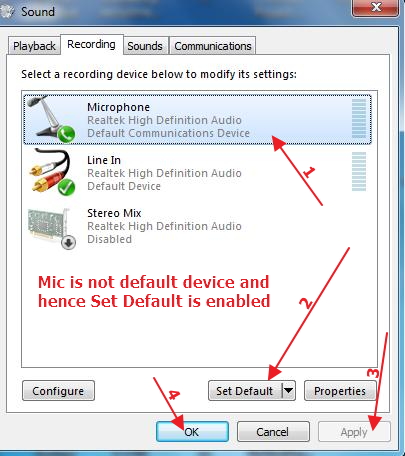
(Note- the microphone name in the Sound dialog box may be different than what is shown in the image above. You should look for the microphone icon and follow steps accordingly)
Step Two – Check Microphone levels
If the microphone sound levels are set too low, other gamers may not be able to hear you. Here are the windows sound settings you need to check and make changes wherever necessary.
- Open the Sound dialog box ( you can use steps given above as reference)
- click Recording tab and then click Properties
- In the next window, go to Levels tab
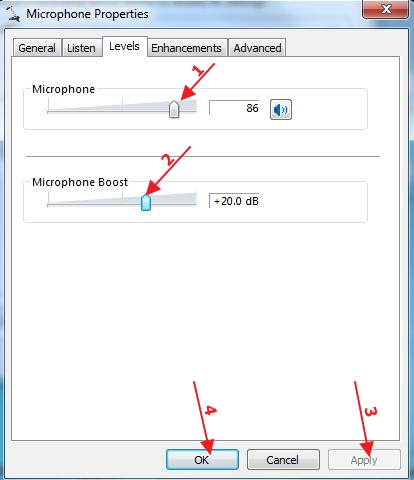
- Move the microphone slider towards maximum level. You can set the level between medium to high
- Next, move the Microphone boost slider to the maximum You can set the level between medium to high
- Click Apply and then click OK
- Close all windows
Now check if the PS4 mic problem is resolved. In most cases, other users should be able to hear you in party chat that indicates the mic is resolved successfully.
If you are looking to play your Playstation 4 on a Mac or PC then view our article here.
Leave a Reply