


Many Window users who upgraded to Windows 10 faced a peculiar problem related the external hard drive. They noticed that the external hard drive was not being recognized or working properly in Windows 10, even though there were no such problems in the earlier Windows OS.
Typically this problem occurs when the driver software is either broken or outdated.
If you are encountering “external hard drive not showing up Windows 10” issue, we recommend you try these solutions.
Run Hardware Troubleshooter
This is the first thing you need to do. Here are the steps to follow.
- Press the Windows icon in the taskbar and then type “troubleshooting” in the search box
- Now click “Configure a device”

- You need to click Next in the pop up window that opens up and follow onscreen instructions
It is possible that the hardware troubleshooter may not resolve the issue. If that happens, don’t panic. In such a scenario, chances are updating the driver will do the trick.
Update Device Driver
Windows come with a utility called Device Manager that allows you to update device drivers. However, the manual update process requires some technical knowledge. It can also take some time. For these reasons, many people prefer to use a driver update tool. With such a tool, drivers can be updated with a click.
We’ve provided both the methods below.
Update the Driver Using Device Manager
Here are the steps to follow.
- Press Win + R
- In the run box, type devmgmt.msc
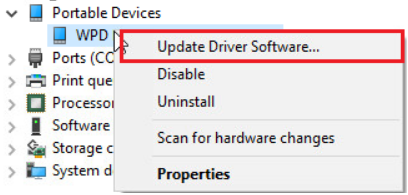
- Browse through the list until you locate your external hard drive, right-click it and select Update Driver Software
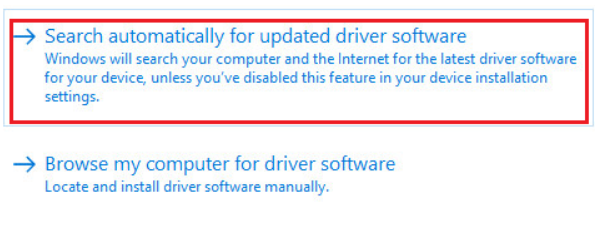
- Now click Search automatically… (the first option you see) and then click Next
- Follow onscreen instructions, if any
- Restart Windows after installation is complete
Update the Driver Using Driver Update Tool
Automatic driver update tools offer many benefits, the most important ones being:
- You can update device drivers automatically
- The software scans and updates all outdated or missing drivers at one go
- The tool picks the right drivers for your device and operating system, so you won’t have to worry about installing an incorrect driver by mistake
- Automatic driver updates are 100% safe
Driver Updater is one of the best driver update tools out there. Outbyte Driver Updater will give you access to a database of over 1 million drivers. It will regularly scan your PC, suggesting new driver versions to install. Driver Updater contains drivers for a variety of Windows devices. With just one click, you can update drivers in your system.
Step 1
Click here to Install and launch the app
Step 2
Scan all devices
Step 3
Install or update drivers automatically
Leave a Reply