


Before you upgrade or reinstall Windows, you need to ensure you backup all important data, including bookmarks.
Bookmarks in computer terminology are saved short cuts that allow your browser to quickly access your favorite web pages.
Every browser, including Chrome, includes the option of bookmarks. However, the process of managing bookmarks usually varies a little from browser to browser.
In this post, we’ll learn how to easily export bookmarks from your Chrome browser. So, let’s start…
Exporting bookmarks in Chrome
- Click on the Chrome icon on your taskbar to launch it
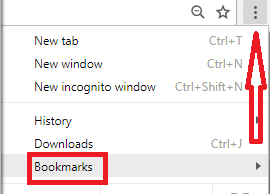
- Next, click the hamburger menu (the three vertical dots on the extreme top right-hand corner) and place your mouse on Bookmarks
- Now click Bookmark manager (it is the 4th entry in the list)

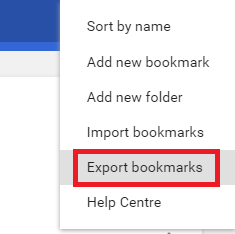
- In the Bookmarks window, click on the organize button (the three vertical dots on the far right hand side of the blue-colored bookmarks bar) and select Export bookmarks
- Now in the Save As dialog box, specify the location where you would want to save the bookmarks file (we are saving the file on our desktop, so we’ve chosen desktop), and then click the Save button
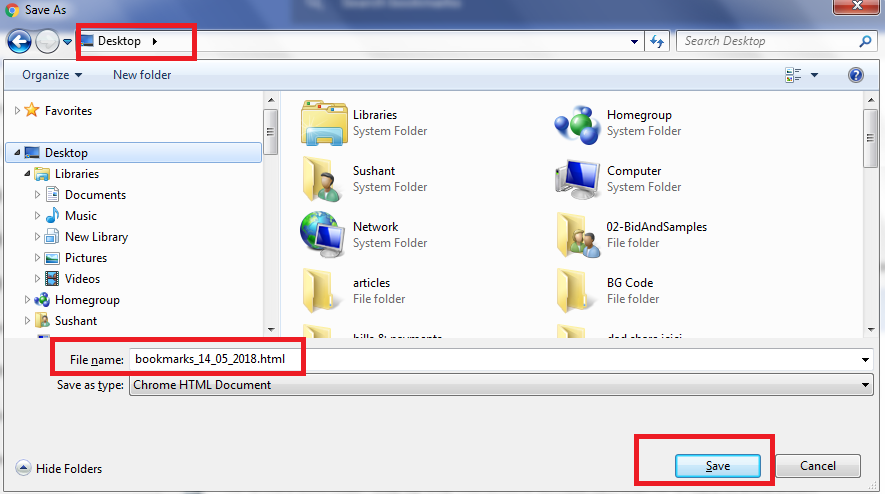
- That’s it! Your bookmarks will be saved and after updating Windows, you can import the bookmarks to chrome following the steps listed below
Importing bookmarks in Chrome
- Click on the Chrome icon on your taskbar to launch it
- Next, click the hamburger menu (the three vertical dots on the extreme top right-hand corner) and place your mouse on Bookmarks
- Now click Bookmark manager (it is the 4th entry in the list)
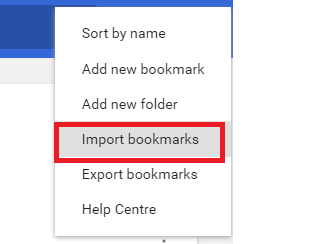
- In the Bookmarks window, click the organize button (the three vertical dots on the far right hand side of the blue-colored bookmarks bar) and select Import bookmarks
- In the Open dialog box, browse to the location where you had saved the bookmarks file (we saved it on our desktop, so we will go to desktop), select the saved bookmarks file and then click the Open button
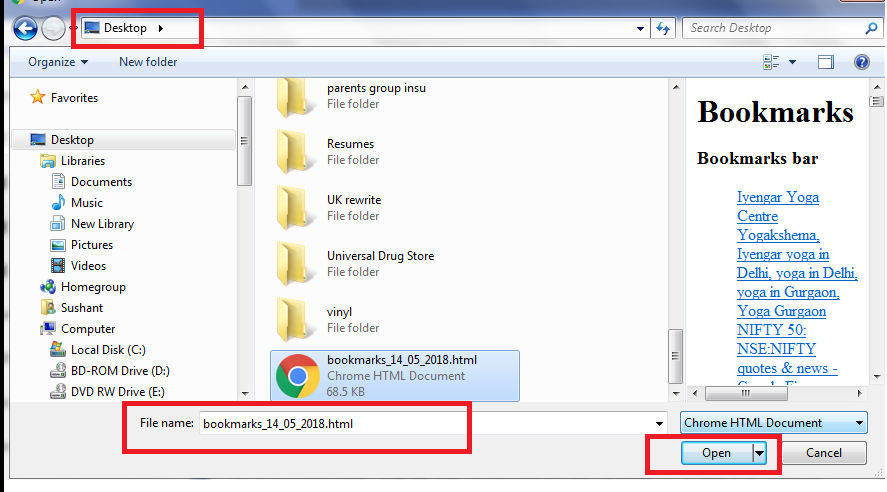
- Now the bookmarks will be imported in Chrome
Leave a Reply