


If you see a red ‘X’ on sound icon in your system tray, it means you will not get any sound from your windows computer.
As you can guess, this issue can be frustrating, as you can’t listen to songs or watch movies and videos. And if you are playing computer games, you’ll have to do so without any audio.
When you place the mouse over sound icon, you may get the following message: No audio output device is installed.
Alternatively, you may see this message: No playback devices.
Both messages point to toward the same direction. Either your computer lacks the newest drivers it needs to ‘talk’ with the installed sound card or Windows, for some reasons, has disabled the audio device.
There are four ways to fix the issue. All the solutions listed in the post have worked for other Windows users, so there’s a strong chance you’ll benefit from trying them. Of course, you don’t have to try each one of them. Start with the first solution in the post, and if that doesn’t help, go to the next and so on.
Solution 1 – Update Audio Drivers
Did you know that the easiest way to update device drivers is by using a professional tool?
Of course, you can update them through device manager, too. However, that workaround is not only a bit technical but also time-consuming.
We’ve listed both automatic and manual driver update process. You can see for yourself how easy automatic driver update process is.
Update Audio Drivers Automatically
Automatic driver update tools offer many benefits, the most important ones being:
- You can update device drivers automatically
- The software scans and updates all outdated or missing drivers at one go
- The tool picks the right drivers for your device and operating system, so you won’t have to worry about installing an incorrect driver by mistake
- Automatic driver updates are 100% safe
Driver Updater is one of the best driver update tools out there. Outbyte Driver Updater will give you access to a database of over 1 million drivers. It will regularly scan your PC, suggesting new driver versions to install. Driver Updater contains drivers for a variety of Windows devices. With just one click, you can update drivers in your system.
Step 1
Click here to Install and launch the app
Step 2
Scan all devices
Step 3
Install or update drivers automatically
Update Audio Drivers Manually
Windows come with an in-built utility called Device Manager that allows you to manage your devices and their drivers.
You can update audio drivers using Device Managers in two ways, both are discussed ahead.
Solution 1 – Uninstall and reinstall audio device
Here are the steps to follow:
- Press Win + R, type msc and press Enter
- Expand Sound, video and game controllers
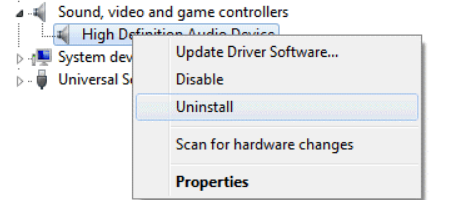
- Right-click your audio device and select Uninstall
- Follow on-screen instructions, if any
- Reboot Windows
Upon restart, Windows will automatically install the correct driver for your audio device.
If this solution doesn’t work, it means Windows doesn’t have the latest drivers. You’ll have to procure them from the manufacturer’s site and install them manually (discussed next).
Solution 2 – Download audio drivers manually from manufacturer’s website
- Go to your sound card’s manufacturer’s site and download the latest drivers for your sound card (note: make sure the driver you select is compatible with your version of Windows, especially if you are using an older Windows version)
- Save the driver file on desktop or some other location
- Open the Device Manager window
- Expand Sound, video and game controllers
- Right-click the audio device and click update driver
- Click Browse my computer for driver software
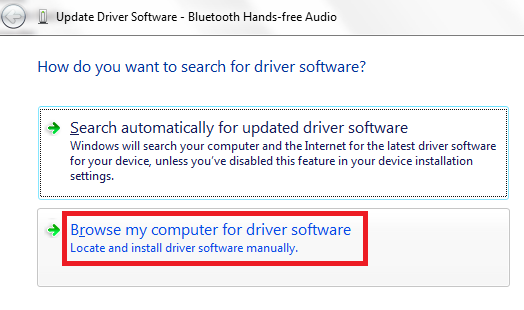
- Now browse to the location where you’ve stored the driver file
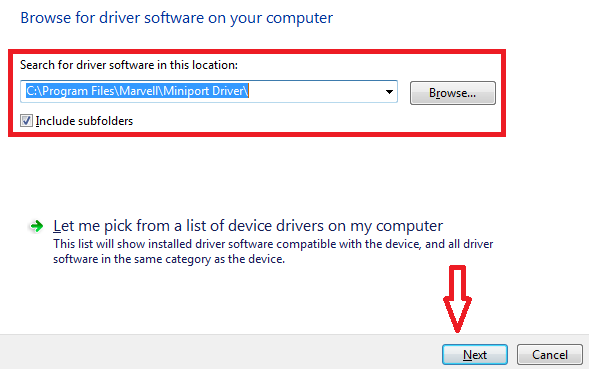
- Click Next
- Select the driver in the list and follow onscreen instructions
- Restart Windows
Solution 2 – Re-enable the device
Here are the steps to follow. (Note: It is possible that the exact steps in your version of Windows might be different than the steps shown below.)
- Press Win + R to launch the Run command box
- Type devmgmt.msc and press Enter. This will open the Device Manager window
- Expand Sound, video and game controllers
Note: If this category doesn’t appear in your list, perform the steps listed in the next section. If it does appear, ignore the next step and go straightaway to the last step
Sound, video and game controllers category not visible
- Click the Action menu in the Device Manager window and then click Add Legacy Hardware
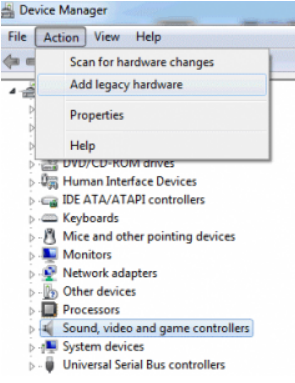
- Click the Next button
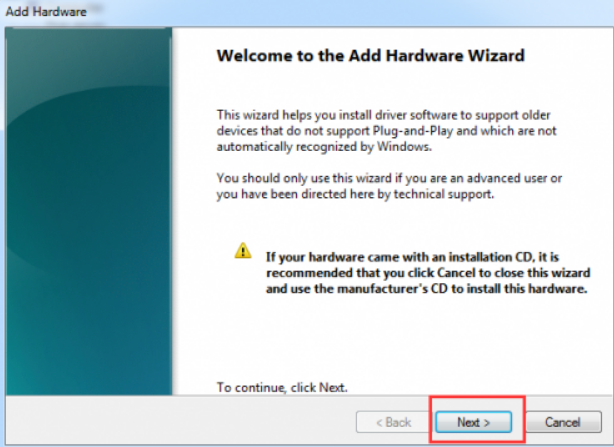
- Now select the first option in the list: Search for and install hardware automatically (recommended)
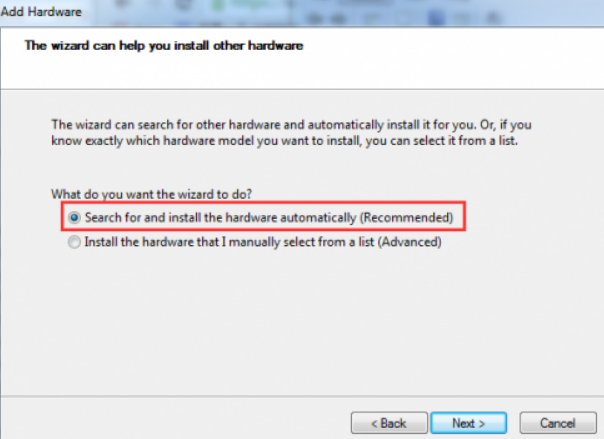
- Add Hardware Wizard will now try to locate new hardware. If it fails to do this, you need to click the Next button
- A list with different hardware types will appear on your screen. Scroll down till you find Sound, video, and game controllers
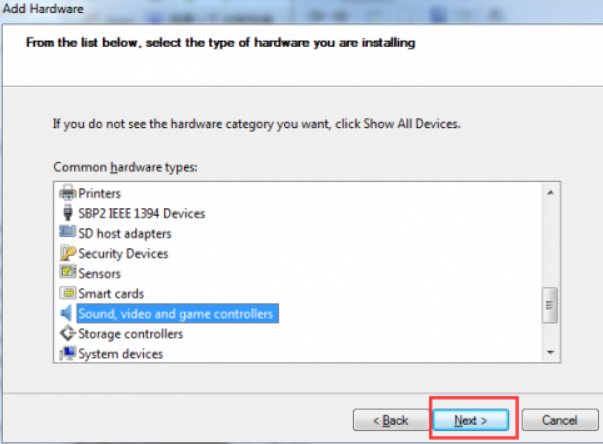
- Select this hardware type and then click the Next button
- Now you will need to select the sound card manufacturer as well as model. Once you done that, click the Next button
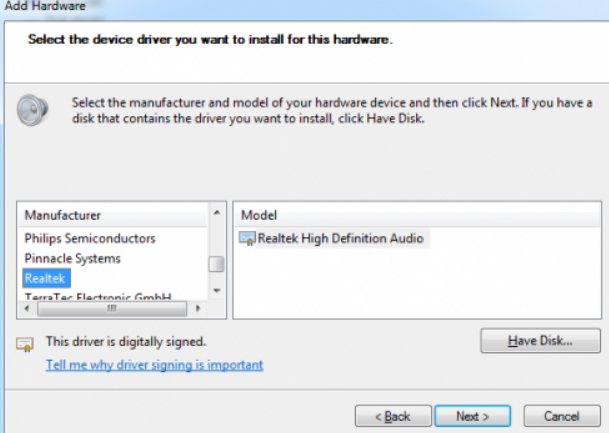
- The device will now be installed. Click Finish when installation completes
- Now launch Device Manager and perform the last step given below.
Last Step
If Sound, video and game controllers category was visible in your Device Manager window, you just need to follow this step
- Expand Sound, video and game controllers
- Right-click the audio device and click the Enable option
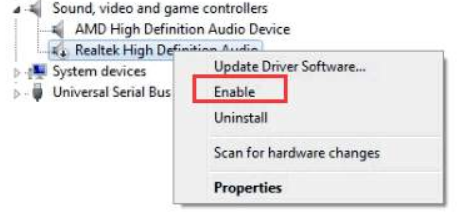
- Follow onscreen instructions, if any, and then reboot Windows
Solution 3 – Run Windows 10 Audio Troubleshooter
Windows 10 users can run the in-built Windows Audio Troubleshooter.
Here are the steps to follow.
- Press Win + X
- In the search box, type troubleshooter and press Enter
- Now select View all
- Next choose Playing audio
- Follow the onscreen instructions
If the problem still persists after you’ve ran the troubleshooter, go to the last solution.
Solution 4 – Replace faulty sound card
It is possible that you may be getting the error because of a faulty sound card. If nothing has worked, replacing the sound card might be the only option.