


Sometimes Windows updates can cause knock-on problems with other programs or peripheral devices such as the keyboard. This usually, but not always, happens after users have updated Windows 10. Click here if you are having problems connecting a wireless keyboard.
It’s always best to start with the simplest solution first as this may save you a lot of time and effort. We have listed a number of solutions to the Keyboard problem in Windows 10 so work your way through them from the start and your issue should be resolved. If not, feel free to put the details in the comments section and someone may be able to help you.
Check USB port
Assuming your keyboard is plugged into a USB port, it is important to first check that this port is working. The best way to do this is to plug a device into it that you know is working, such as a phone charger. If the phone charger doesn’t work when plugged into the USB port (and you have ensure that it worked on another port/ plug), then the USB port is the problem.
A USB port that was working fine before may start to experience problems after a Windows update so always check this option first.
Keyboard accessibility settings
There is a Filter Keys setting (mostly used for accessibility) which can cause problems when you update to Windows 10. There is an easy fix for this and even if you are not sure if this is the problem, there is no harm in working your way through the steps below:
– Select the Action Center icon in the bottom right-hand corner > select all settings
– Select Ease of Access > select Keyboard
– Make sure that Filter Keys is set to OFF
Problems with USB Keyboard Drivers
If you have problems with your USB Keyboard in Windows 10 and you think it may be your USB Keyboard Drivers, do the following:
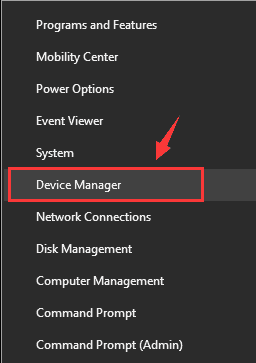
– Start > Device Manager
– click next to Keyboards to expand the menu and right-click Standard PS/2 Keyboard > select Uninstall > click OK
– Restart your computer
Updating Drivers Automatically
Automatic driver update tools offer many benefits, the most important ones being:
- You can update device drivers automatically
- The software scans and updates all outdated or missing drivers at one go
- The tool picks the right drivers for your device and operating system, so you won’t have to worry about installing an incorrect driver by mistake
- Automatic driver updates are 100% safe
Driver Updater is one of the best driver update tools out there. Outbyte Driver Updater will give you access to a database of over 1 million drivers. It will regularly scan your PC, suggesting new driver versions to install. Driver Updater contains drivers for a variety of Windows devices. With just one click, you can update drivers in your system.
Step 1
Click here to Install and launch the app
Step 2
Scan all devices
Step 3
Install or update drivers automatically