


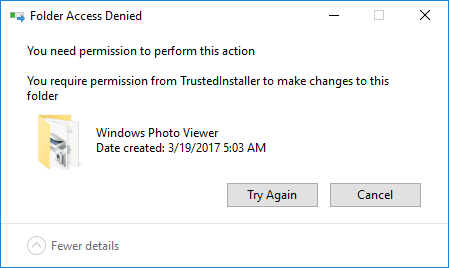
Are you receiving this error:
“Folder access denied. You need permission of TrustedInstaller to make changes”.
If yes, this post is for you.
What is TrustedInstaller?
According to experts, there are some core files in Windows that are important for its functioning. In order to prevent them from being deleted, Microsoft has created a NT SERVICE\TrustedInstaller account that works to protect these folders and content inside it.
Whenever you try to delete these folders, a message pops up that says “You require permission from TrustedInstaller” to proceed.
However, if you know what you are doing and want to delete these folders, you have a way to do it.
Let’s look at the way to overcome this system restriction and delete the folders.
How to get the permission to delete folders from TrustedInstaller?
The only way to delete folders or change these files is to claim ownership of these files. When you have ownership of these files, you can make changes to the files/folders and also delete them if you wish.
If you know what you do you can change the ownership of these folders and files and make changes. However, experts recommend you to change the ownership to TrustedInstaller once you have made the changes to the files. Now let’s look at the process in detail.
How to take Ownership from TrustedInstaller?
- Right-click on the folder/file that you intend to change and select Properties

- In the Properties window, click Security tab and then click Advanced

- On the preceding screen, click Change
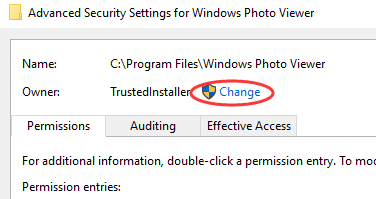
- In the next screen, click Owner tab
- Now you can see the owner of the folder is TrustedInstaller. You need to be logged in as administrator to get the permission for the folder. Here we intend to get the folder permission for the user account you are currently logged in.
- Click on Edit

- You will see a window pop up, click Other users and groups
- In the next window that pops up, type your username in the box- Enter the object name to select
- After entering your username, click Check names
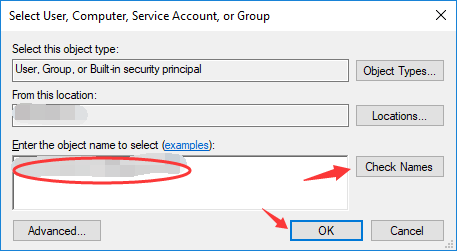
- Windows will automatically populate the complete name, you need to click OK
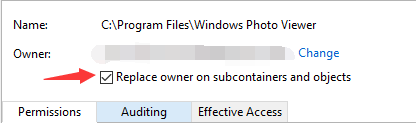
- Below the Other users and groups, place a tick in the box adjacent to “Replace owner on subcontainers and objects”. You need to do this only if you want to claim ownership of sub-folders and files
- Click Advanced
- Under Permission entries, click Change Permissions
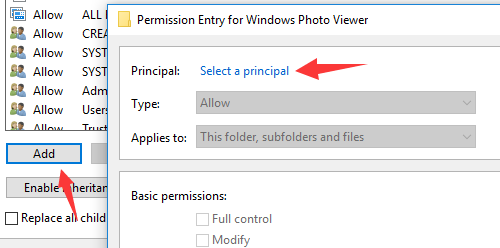
- In the preceding window, click Add
- In the next window, click Select a principal. Now you will see a window pop-up like earlier where you entered username. Repeat the action in that step
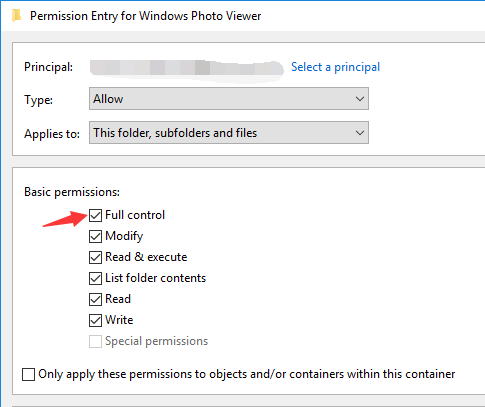
- Check the box adjacent to Full Control in Basic Permissions and click OK
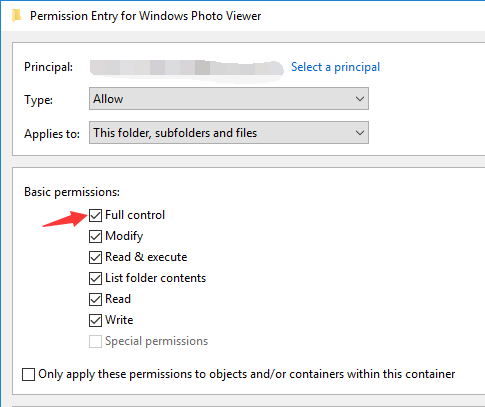
- In the next window, place a tick in the box next to “Replace all child object permission entries with inheritable permission entries from this object”

Now you can safely delete the folders/files that you were earlier unable to delete due to TrustedInstaller permissions issue