


![Function keys not working issue [Solved]](https://www.drivers.com/wp-content/uploads/2021/01/reset-PC-700x300.png)
If you are a laptop user, you probably would be aware of or familiar with the function keys on the keyboard. The keyboard has 12 function keys, F1 to F12. Unlike desktops, the function keys on the laptop keyboard have several commands integrated.
For example, pressing the function key and F7/F8 helps you control volume. Similarly, several Windows functions are integrated with function keys. For example- F8 is used to boot Windows in Safe Mode. If the function keys stop working, you will face difficulties using the laptop.
Many users have complained of function keys stop working all of a sudden. If you are facing a similar problem, we’ve got you covered. We will be discussing several solutions that could get function keys working again.
Solution One- Run Hardware Troubleshooter
Windows 10 has some issues with older hardware and such things mainly happen with users having old laptops. Windows 10 comes with a hardware troubleshooter that fixes minor issues and it could get the function keys working again. Here are the steps to follow.
- Press Windows + I key combination to launch the Settings app
- Click Update & Security
- From the left pane, click Troubleshoot
- In the right pane, expand the Hardware and Device section
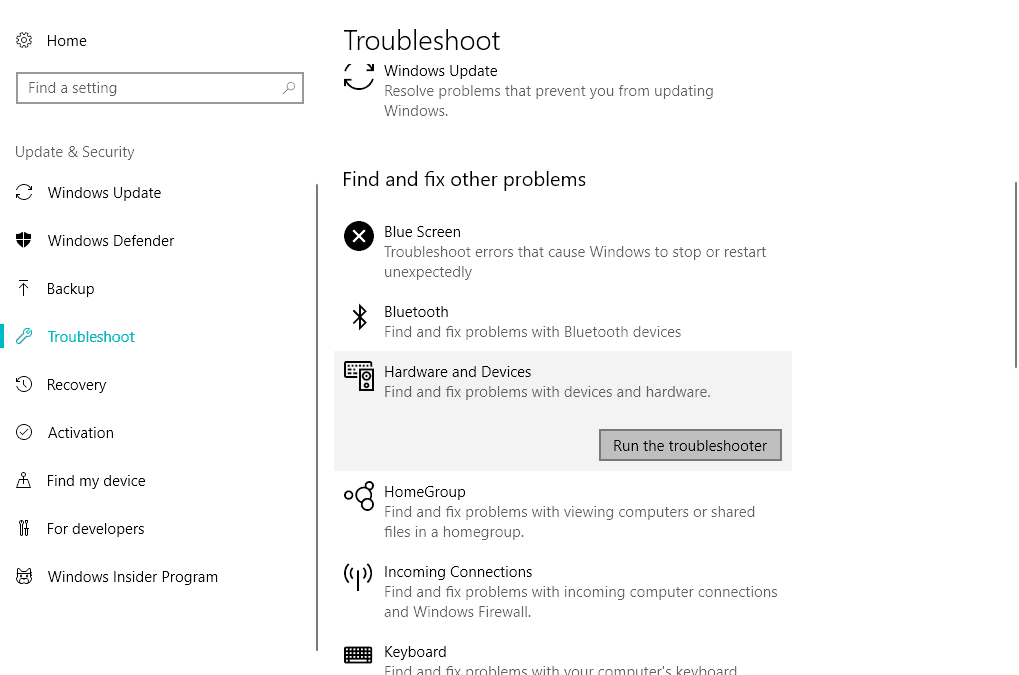
- Click Run the troubleshooter
- Wait for the troubleshooting procedure to end, check the function keys
If the Hardware troubleshooter does not fix the issue, move to the next solution.
Solution Two- Update laptop drivers
There is a possibility the drivers are outdated or corrupt. In that case, you need to update laptop drivers. You need to visit the OEM website of your region, select the model, operating systems, and download the latest drivers for your laptop.
Alternately, you can update your device drivers using a reliable driver tool. This tool is super fast and reliable. What’s more, it has a 30-day money-back guarantee. Users can get a full refund if they are unhappy with the software.
Automatic driver update tools offer many benefits, the most important ones being:
- You can update device drivers automatically
- The software scans and updates all outdated or missing drivers at one go
- The tool picks the right drivers for your device and operating system, so you won’t have to worry about installing an incorrect driver by mistake
- Automatic driver updates are 100% safe
Driver Updater is one of the best driver update tools out there. Outbyte Driver Updater will give you access to a database of over 1 million drivers. It will regularly scan your PC, suggesting new driver versions to install. Driver Updater contains drivers for a variety of Windows devices. With just one click, you can update drivers in your system.
Step 1
Click here to Install and launch the app
Step 2
Scan all devices
Step 3
Install or update drivers automatically
Solution Three- Check the BIOS settings
Dell and Lenovo allow Windows users to disable function keys through BIOS. This allows users to use the F1-F12 keys as multimedia keys. You need to make sure the function keys are not disabled through BIOS. Here are the steps to follow.
- Reboot the computer and press the F2, F10 or Delete button to access BIOS/UEFI.
Note- the BIOS/UEFI settings differ with each laptop manufacturer. Here we have shown steps for Dell laptop.
- Go to the Advanced option in the BIOS
- Locate and select the Function key behavior option and press Enter
- You will see two options- Function Key and Multimedia keys
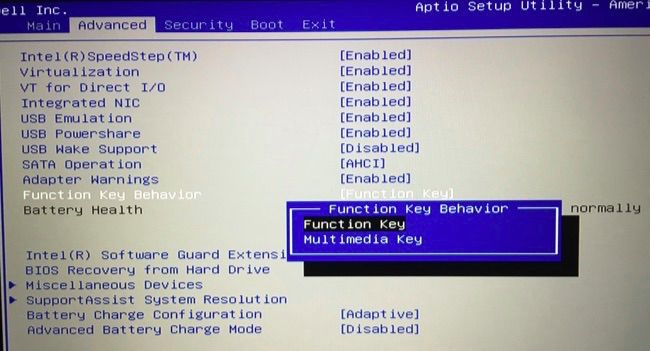
- Select Function Key and press Enter
- Save BIOS settings and Exit BIOS utility
- Reboot PC and check if the function keys work now
If there is nothing wrong with BIOS settings, move on to the next solution
Solution Four- Uninstall Synaptics Pointing Device Driver
According to Windows 10 experts, the Synaptics Pointing Device Driver is known to cause such issues. If nothing has worked for you so far, try uninstalling Synaptics Pointing Device Driver. Here are the steps to follow
- Click Start and type control panel in the search bar
- Open Control Panel
- Select Programs -> Programs and Features
- Press and hold Synaptics Pointing Device in the list
- Click Uninstall
- Wait for the procedure to complete
- Restart your PC and see if the function keys work now.
If the above solution has not worked for you, move to the next solution
Solution Five- Uninstall Hotkey driver
Laptop manufacturers like Lenovo and Toshiba are known to include the ATK Hotkey Utility program that allows the function keys to work properly. However, in some cases, the program itself prevents the function keys from working. You need to find and uninstall the hotkey driver on your laptop and see if that helps turn things around.
Here are the steps to follow.
- Open Control Panel( Refer steps given in Solution Three)
- Right-click the hotkey utility and click uninstall
- Close all windows
- Now check if the function keys are working.
Solution Six- Enable VAIO Event Service
Note- This solution is applicable to only Sony laptops
Sony laptops come with a VAIO Control Center utility which spawns VAIO Event Service. This utility comes pre-installed on Sony laptops. It is an eventing model platform that allows you to manage function keys. If the VAIO Event Service is not running, that might disable the function keys. To rule out this possibility, we need to enable the VAIO Event Service. Here are the steps to follow.
- Press the key combination Windows + R to invoke the Run command
- In Run command, type services.msc
- In the Services window, locate and right-click VAIO Event Service
- Select Properties
- In the properties window, go to the Startup-type section
- Select Automatic from the drop-down list
- Click Apply-> OK
- Close all windows
- Restart your laptop
- Now check if the function keys are working
Solution Seven- Disable Filter Keys
Filter keys are an accessibility feature in Windows. It makes the Windows ignore brief or repeated keystrokes. Some users who were facing function keys not working problem reported disabling function keys helped them resolve the issue once and for all.
Here are the steps to follow.
- Open Control Panel
- Go to Ease of Access center
- Scroll down and locate the Filter keys option
- Make sure the Turn On filter keys option is not checked. If you see a checkmark, click the box to uncheck the option
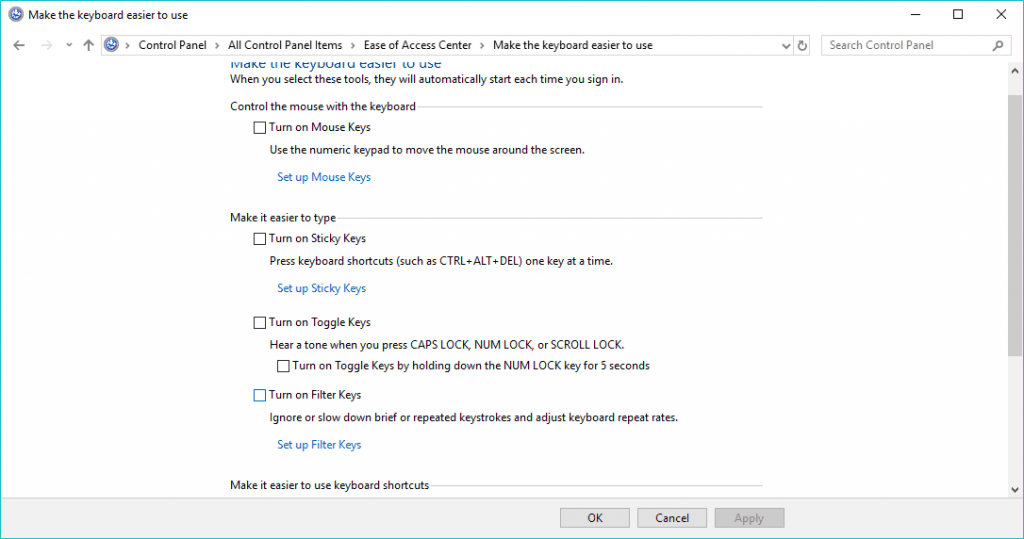
- Click Apply-> OK
If none of the solutions have worked for you, reset the PC as a last resort.
Solution Eight- Reset PC
Windows updates, various application updates, 3rd party control apps make changes to Windows component settings. In some cases, it is impossible to predict which apps or settings have caused the function keys problem. In such a scenario, the last resort is to reset the PC.
Resetting the PC will take your laptop to the factory setting configuration when everything was working well. It is a better option than re-installation as your files and other data remain intact.
Here are the steps to Reset your PC.
- Click Start
- In the Windows search bar, type reset
- In the list of results, click the Reset this PC option
- In the Recovery window, go to Reset this PC option and click Get Started option
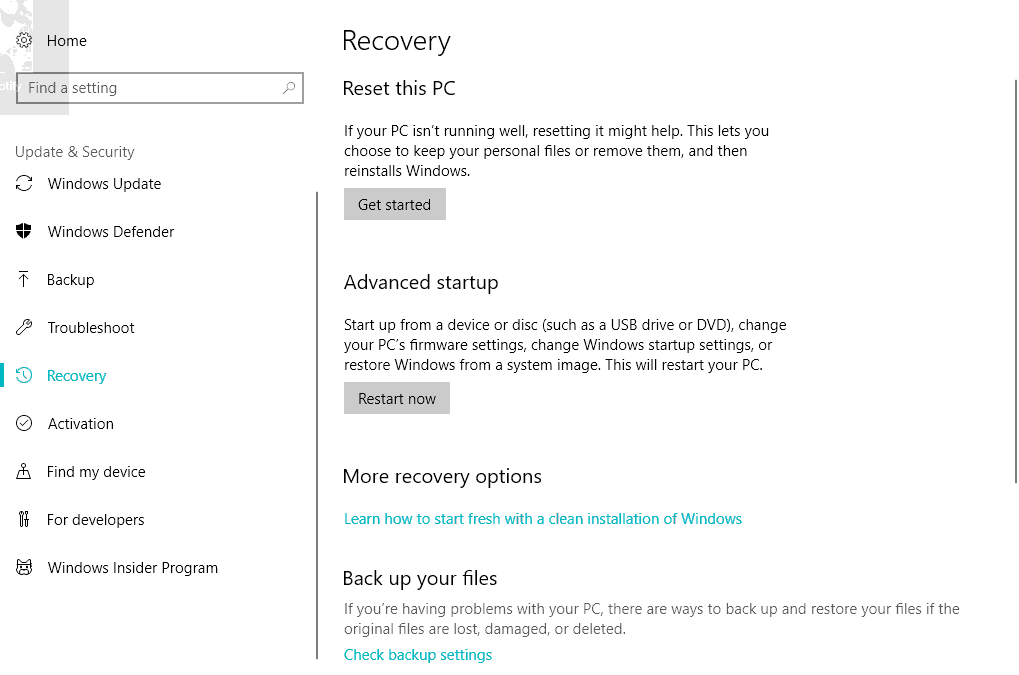
- Select whether you want to keep or discard your files
- Start the reset procedure
Once your system is refreshed, you will see the function keys are working normally as they should