


If you are looking to update your Brother Printer drivers, this post is for you. In this post, you will find three safe ways to update drivers for Brother Printer. You need to install latest drivers for Brother Printer to prevent any printer related errors. Let’s get started.
Method One – Download printer drivers from Brother Printer’s official website
- Click the link to go to Brother Product Support Center
- Type your Brother printer model number and click Search
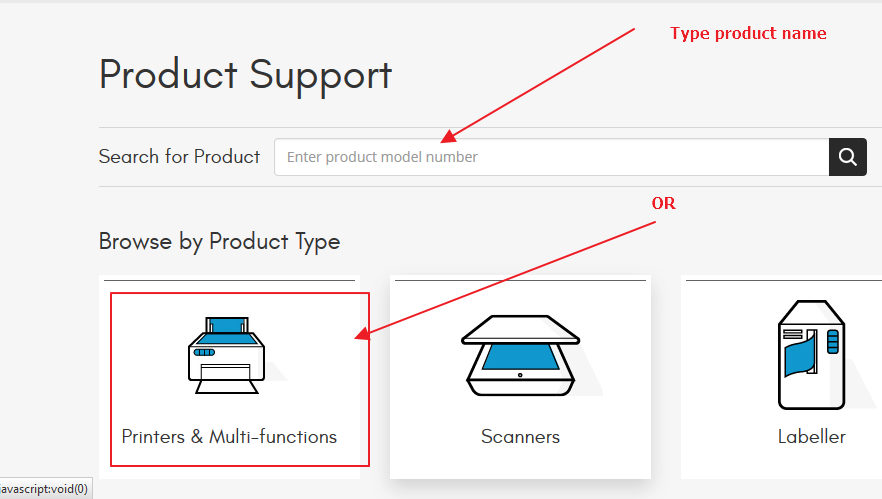
- Alternatively, you can also use the Product Search option.
- Click Printer and Multi functions
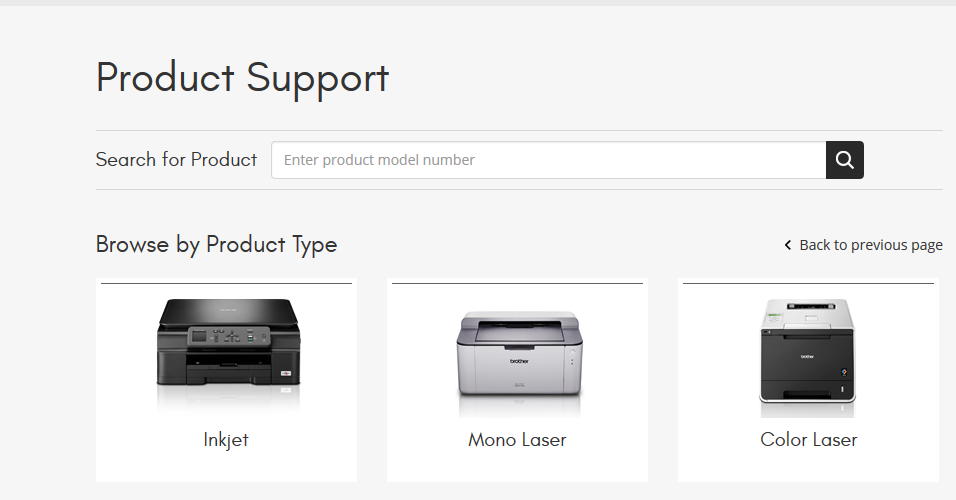
- Click the Printer type – Inkjet, Mono Laser, Color Laser
- Click your model of Brother Printer from the list
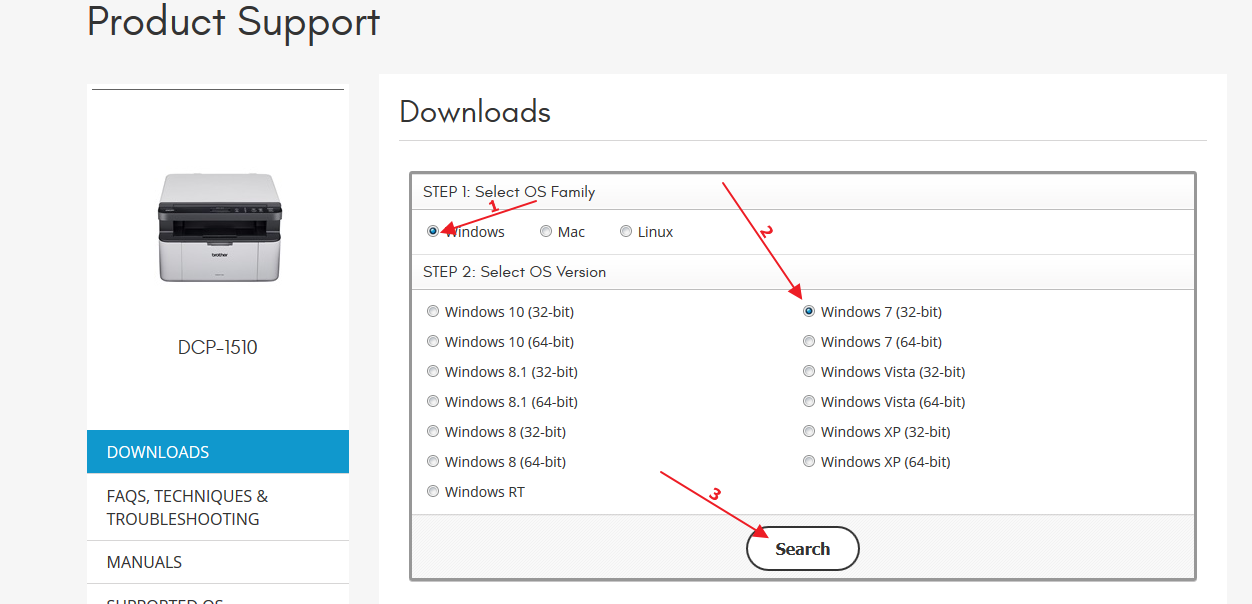
- Click Downloads
- Select your OS system under Downloads dialog
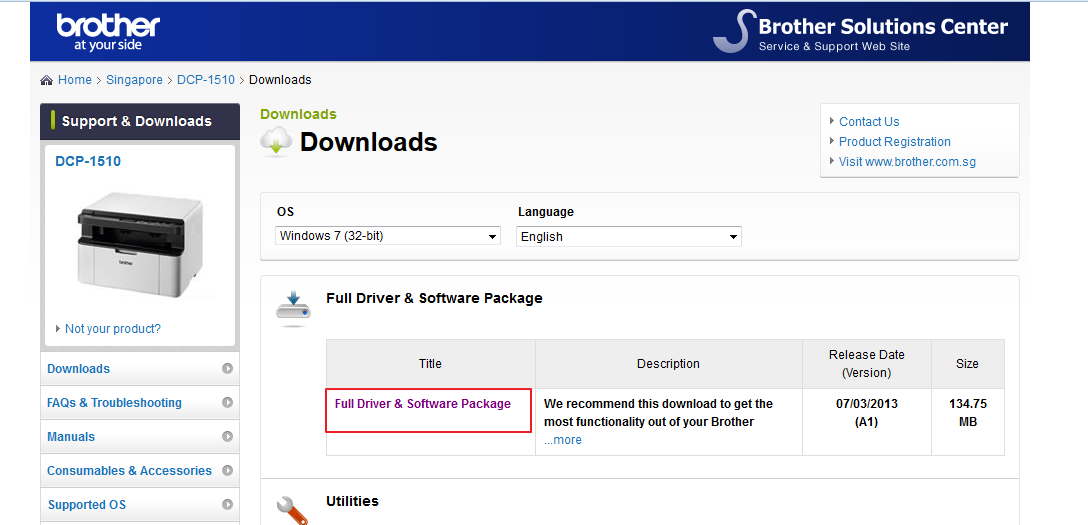
- Click Select Full Package
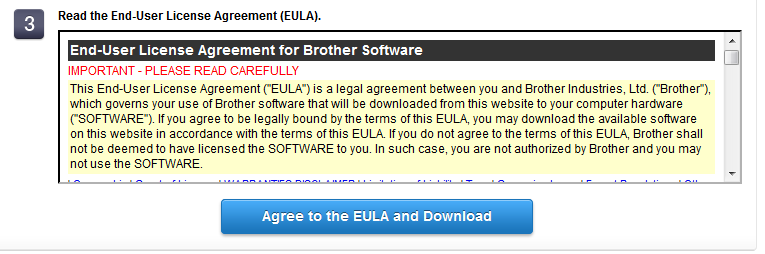
- Click Agree to the EULA and Download
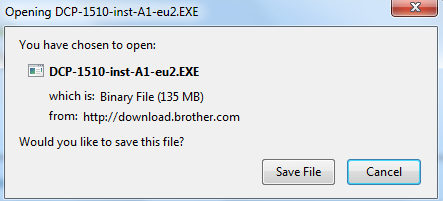
- Click Save File to save the driver file
- Click on the downloaded exe file and follow on-screen instructions to install the driver
If you find the above method difficult, you can try the next method
Method Two- Update Brother Printer through Device Manager
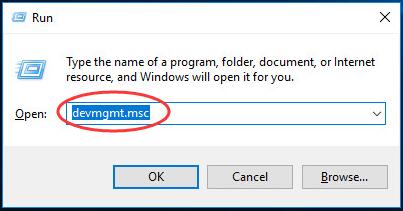
- Press Windows logo key and R on the keyboard to bring up Run command console
- Type devmgmt.msc and click OK
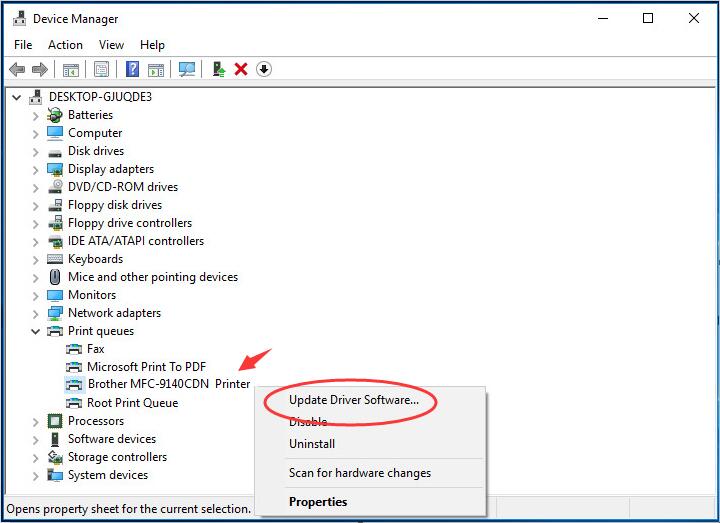
- In the Device Manager window, find and expand Printers or Printer queues category
- Right-click on your Brother Printer Device to click Update Driver Software
- Click Search automatically for updated driver software
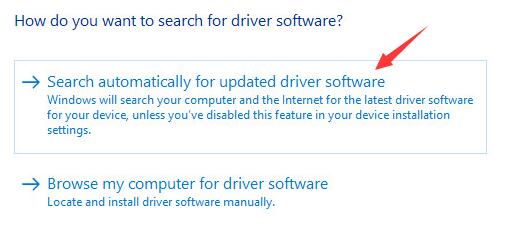
- Windows will search the driver update on the Internet and download and install it for you.
- Sometimes Windows might not be able to update driver though update is available and it reports your computer has best driver software installed. In that case, you need to use the Method 3 to get latest Brother Printer drivers.
Method Three- Update Drivers
The easiest and safest way to update brother printer drivers is by using a safe driver update tool.
Automatic driver update tools offer many benefits, the most important ones being:
- You can update device drivers automatically
- The software scans and updates all outdated or missing drivers at one go
- The tool picks the right drivers for your device and operating system, so you won’t have to worry about installing an incorrect driver by mistake
- Automatic driver updates are 100% safe
Driver Updater is one of the best driver update tools out there. Outbyte Driver Updater will give you access to a database of over 1 million drivers. It will regularly scan your PC, suggesting new driver versions to install. Driver Updater contains drivers for a variety of Windows devices. With just one click, you can update drivers in your system.
Step 1
Click here to Install and launch the app
Step 2
Scan all devices
Step 3
Install or update drivers automatically